Make and look after the audience lists your WhatsApp campaigns go to, from the WizMessage app: find a list, create one, add people from four sources, remove members and switch a list off.
An audience list is a named set of contacts a campaign can be sent to: "Diwali offer", "Wholesale buyers", "Abandoned cart". You choose a list when you send bulk messages or schedule a message. This guide covers finding your lists, making a new one, adding and removing people and switching a list off.
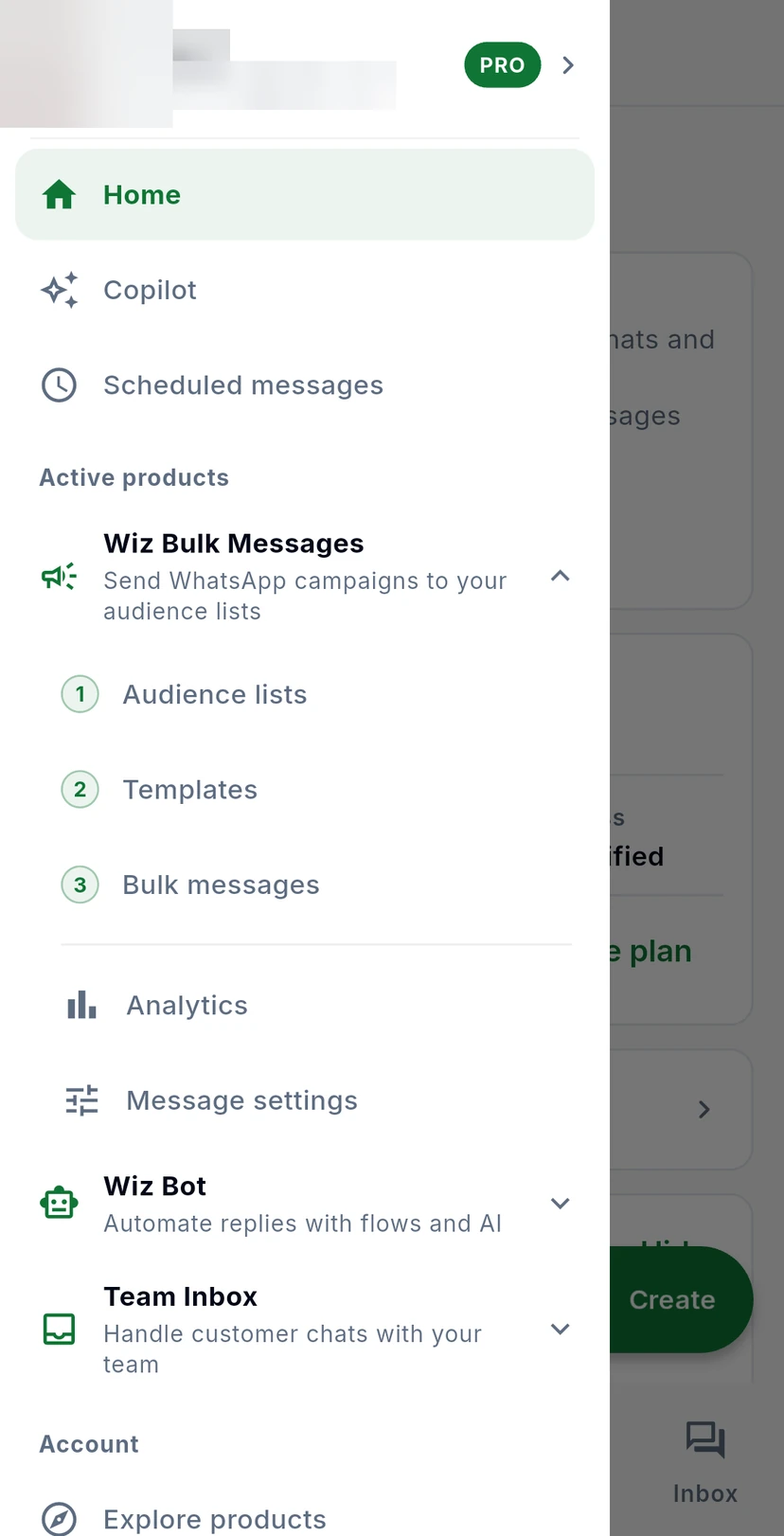
Open the menu with the three lines at the top left, tap Wiz Bulk Messages to expand it and tap Audience lists. The numbers next to the entries are the order most people set things up in: lists first, then templates, then the campaign itself.
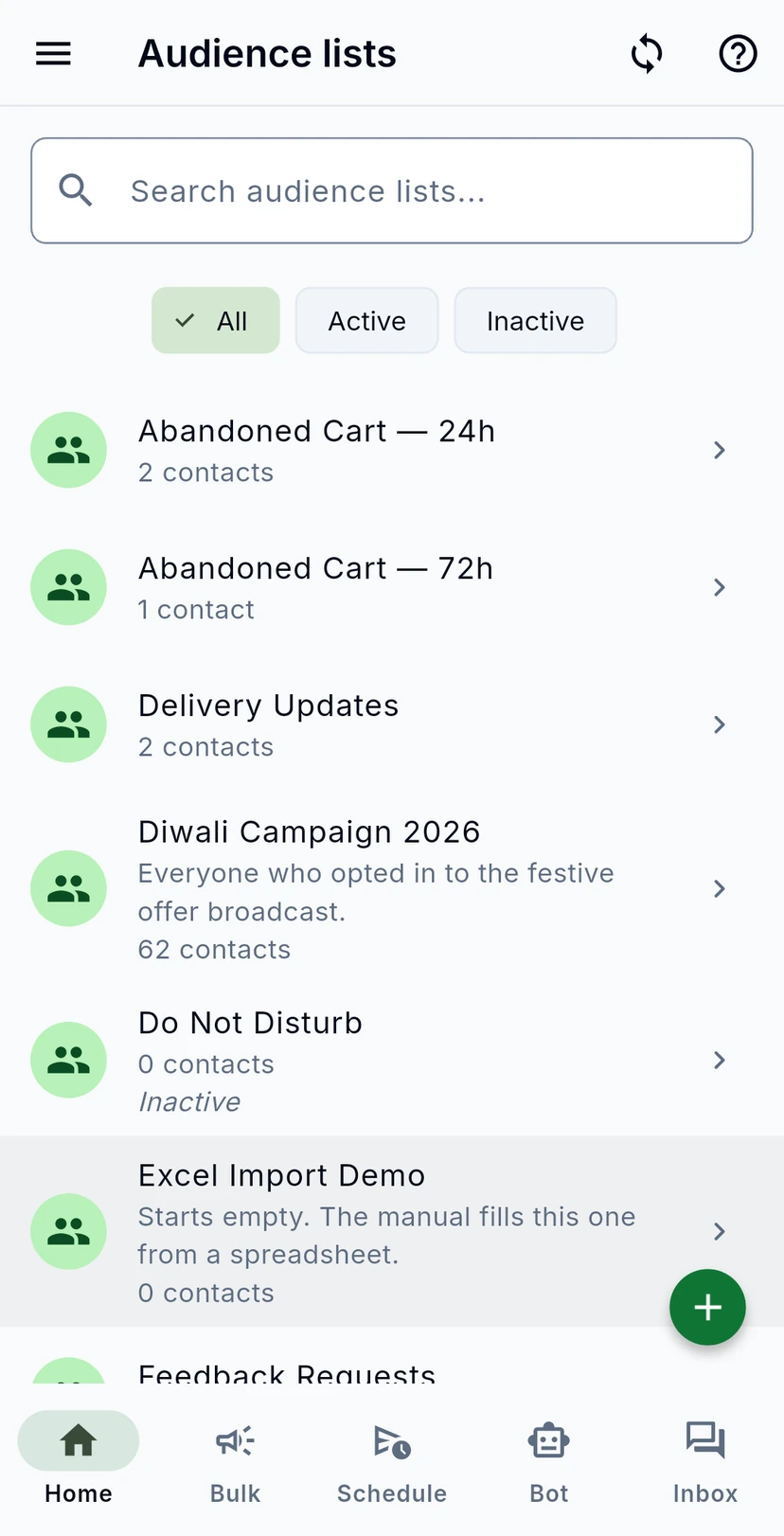
Every list shows its name, its description if it has one and how many contacts it holds. Search by name at the top, or use All, Active and Inactive to narrow the list. The circular arrows next to the help button sync your lists again.
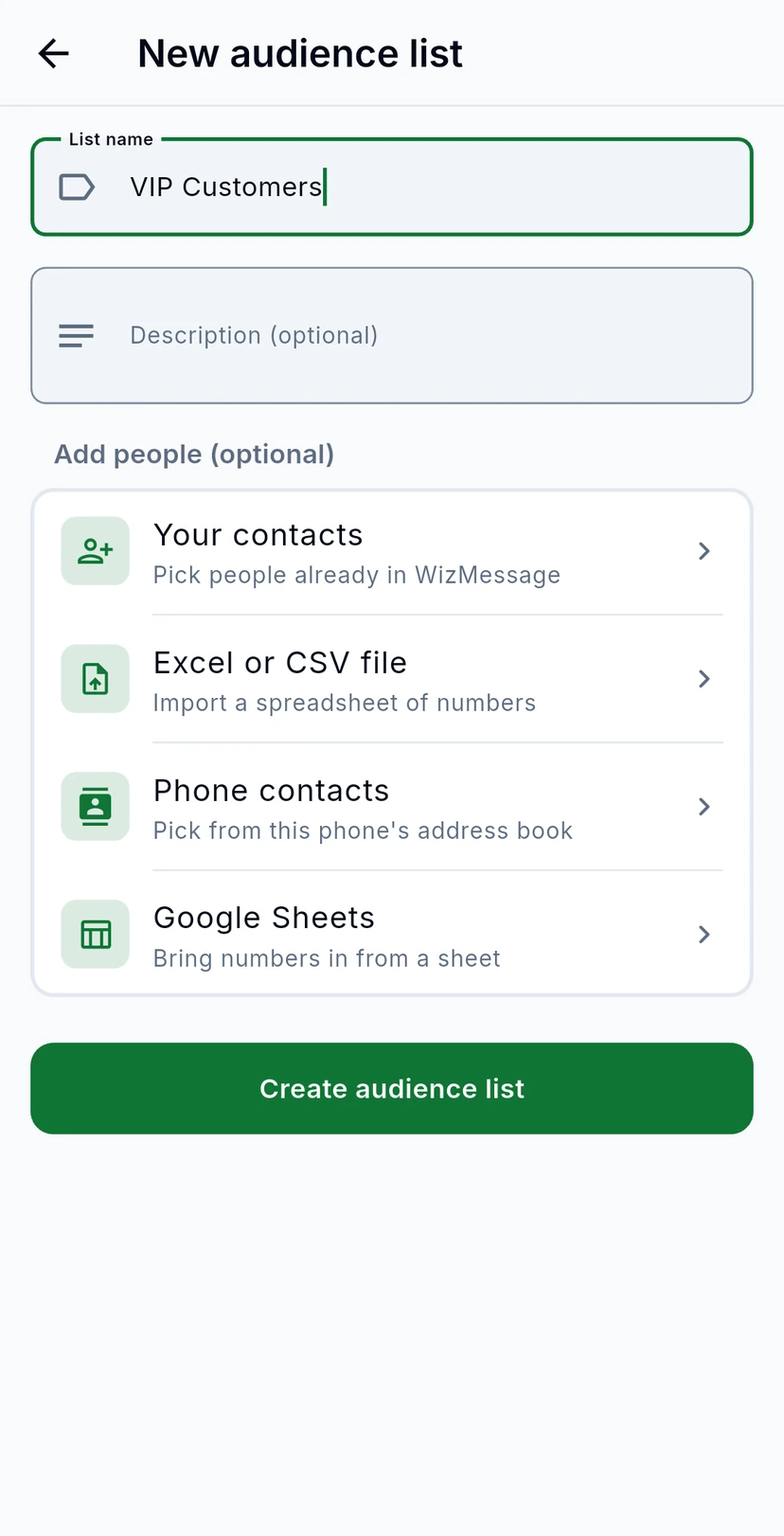
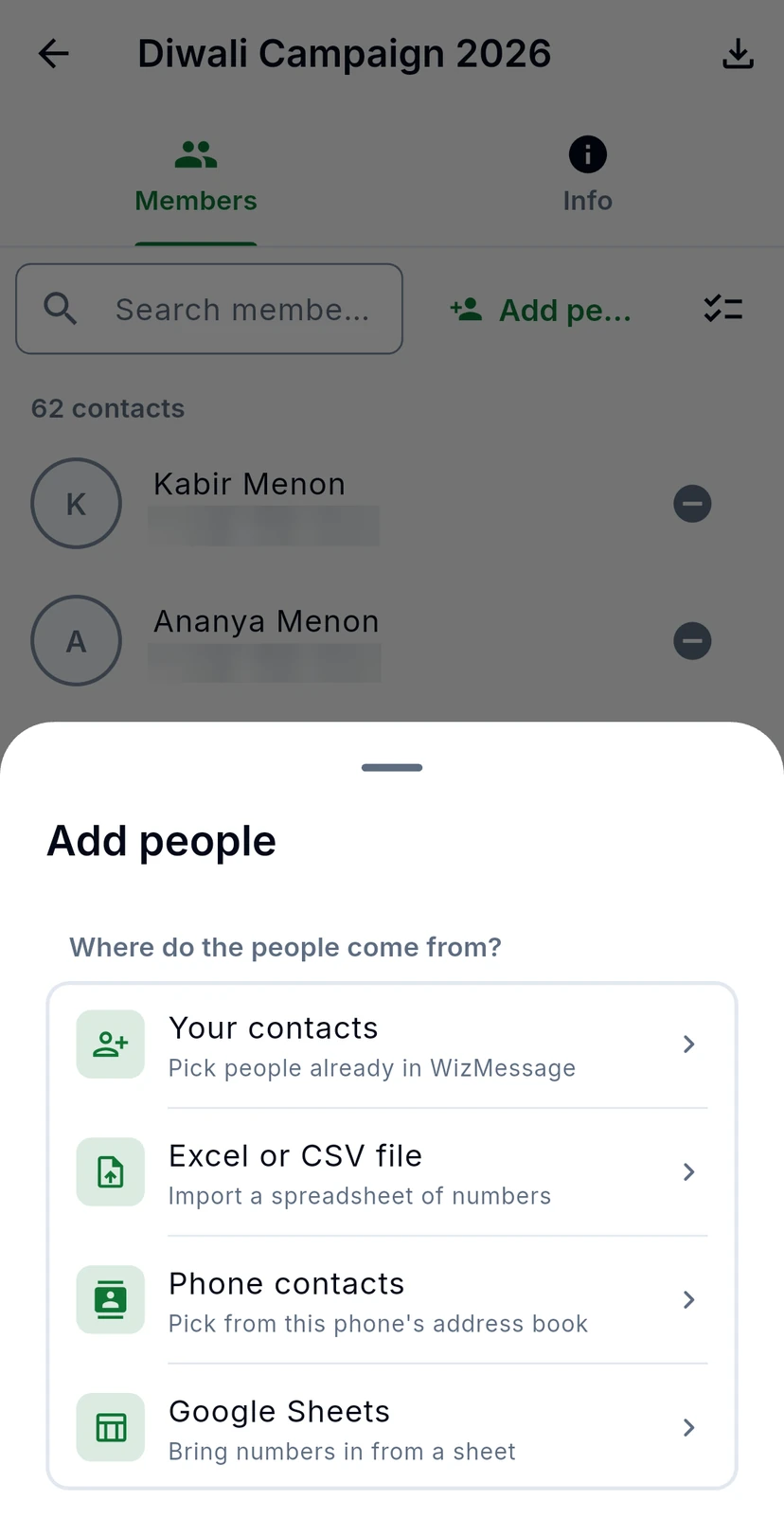
Tap the green + at the bottom right. Give the list a name, add a description if it helps your team, and optionally add people straight away. Tap Create audience list to save it. If you leave without saving, the app asks before it throws your changes away.
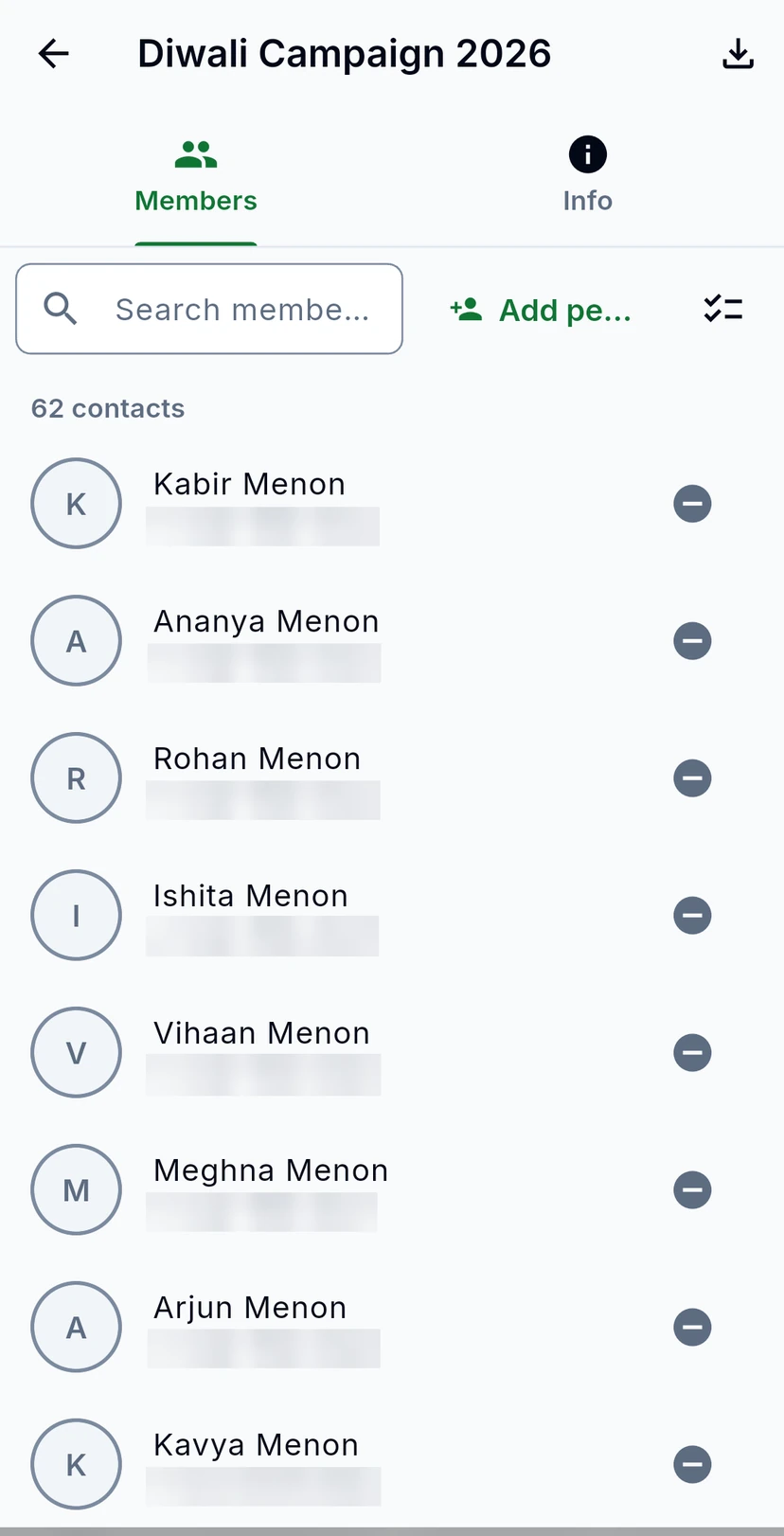
Tap a list to open it. Members shows everyone on it with their number. Search the members, tap the minus button to remove one person, or use the checklist icon to select several at once. The download icon at the top exports the members.
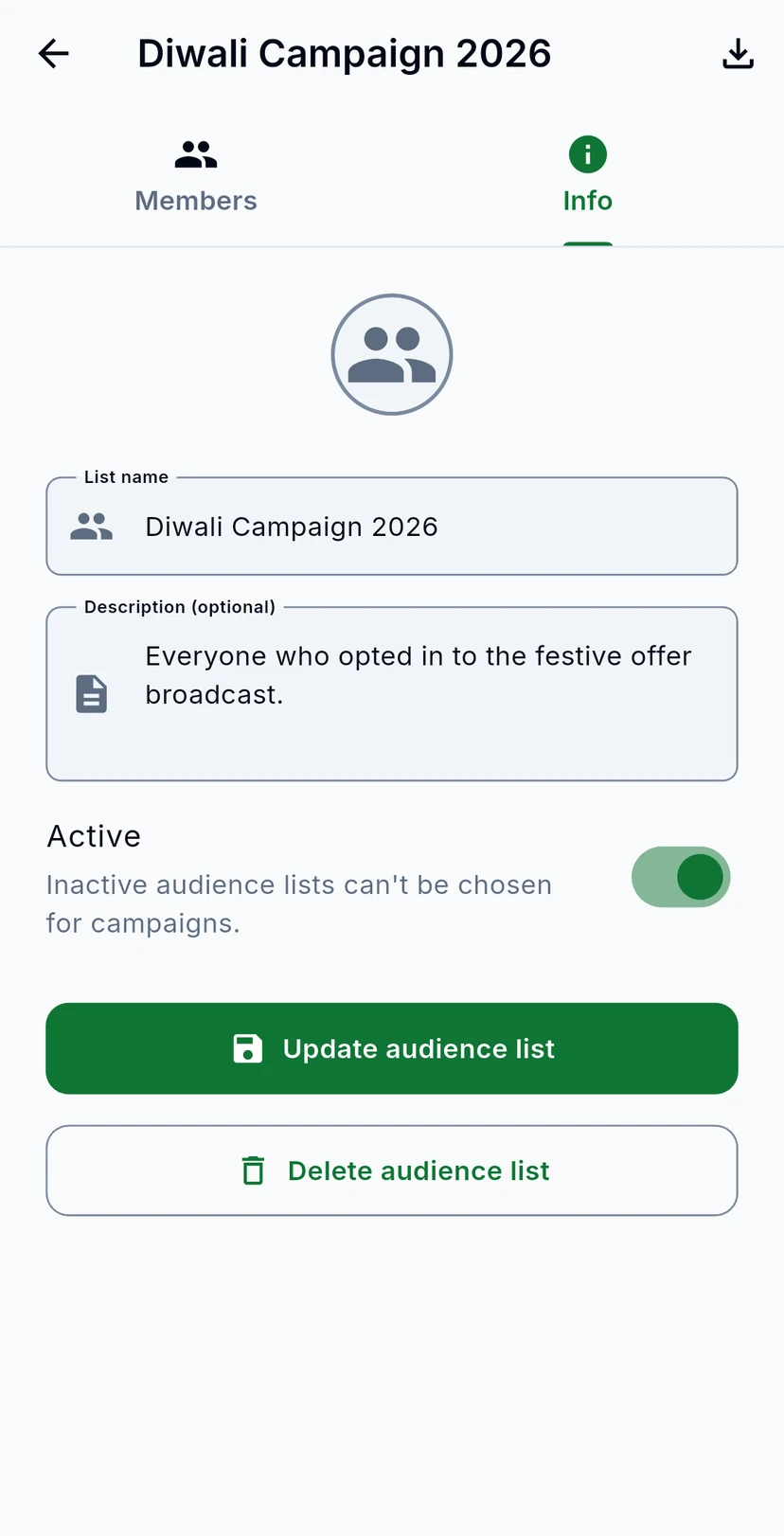
The Info tab holds the list's name and description. Turn Active off to keep a list without letting anyone send to it: inactive audience lists can't be chosen for campaigns. Save with Update audience list. Delete audience list removes the list. Its contacts stay in your account unless you tick Also delete its N contacts in the confirmation (N is the number of people in the list), which removes them from every other list too and can't be undone.