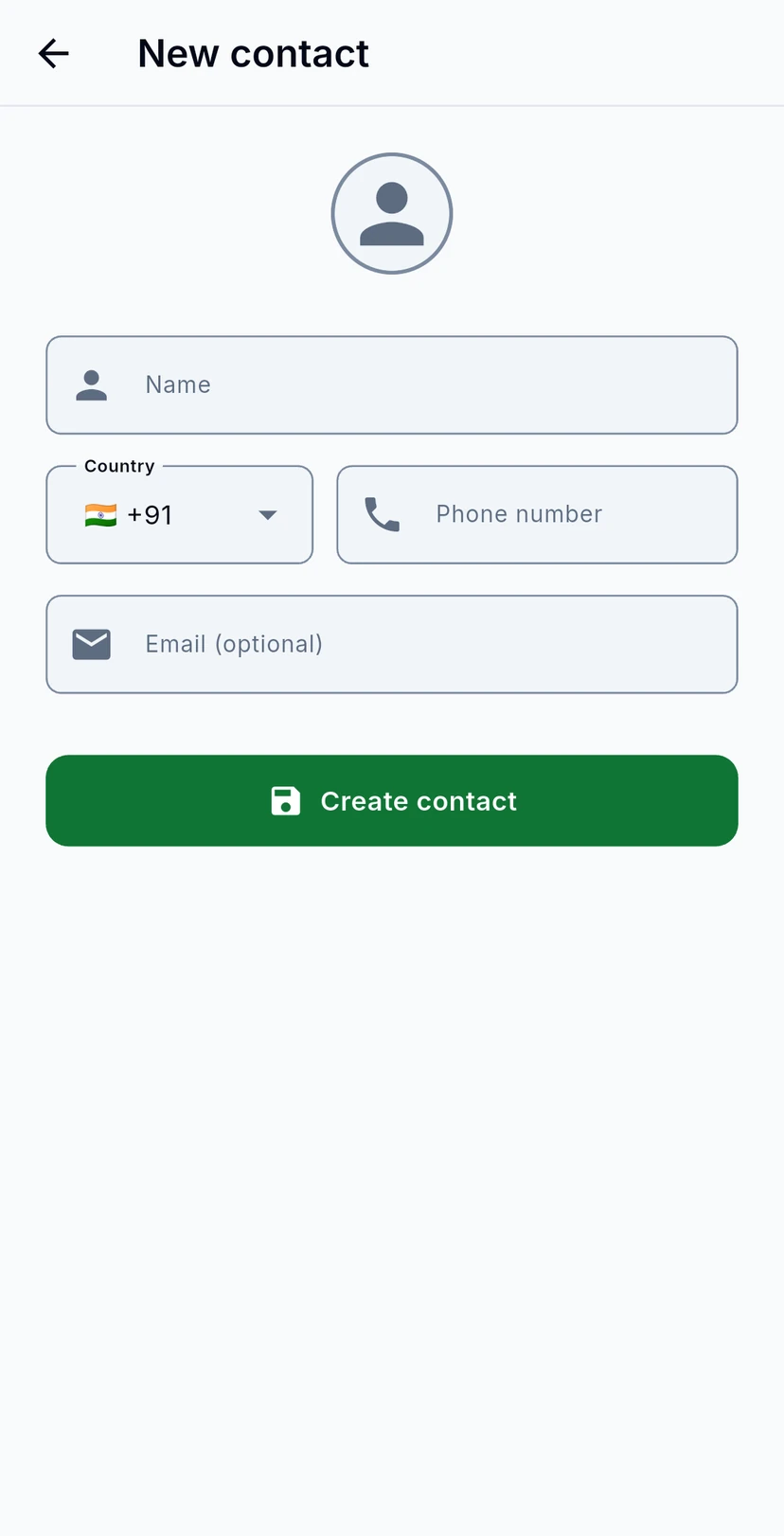
Contacts are everyone you can message. Your audience lists, campaigns and inbox all draw on them. This guide covers finding a contact, adding one by hand and importing a spreadsheet.
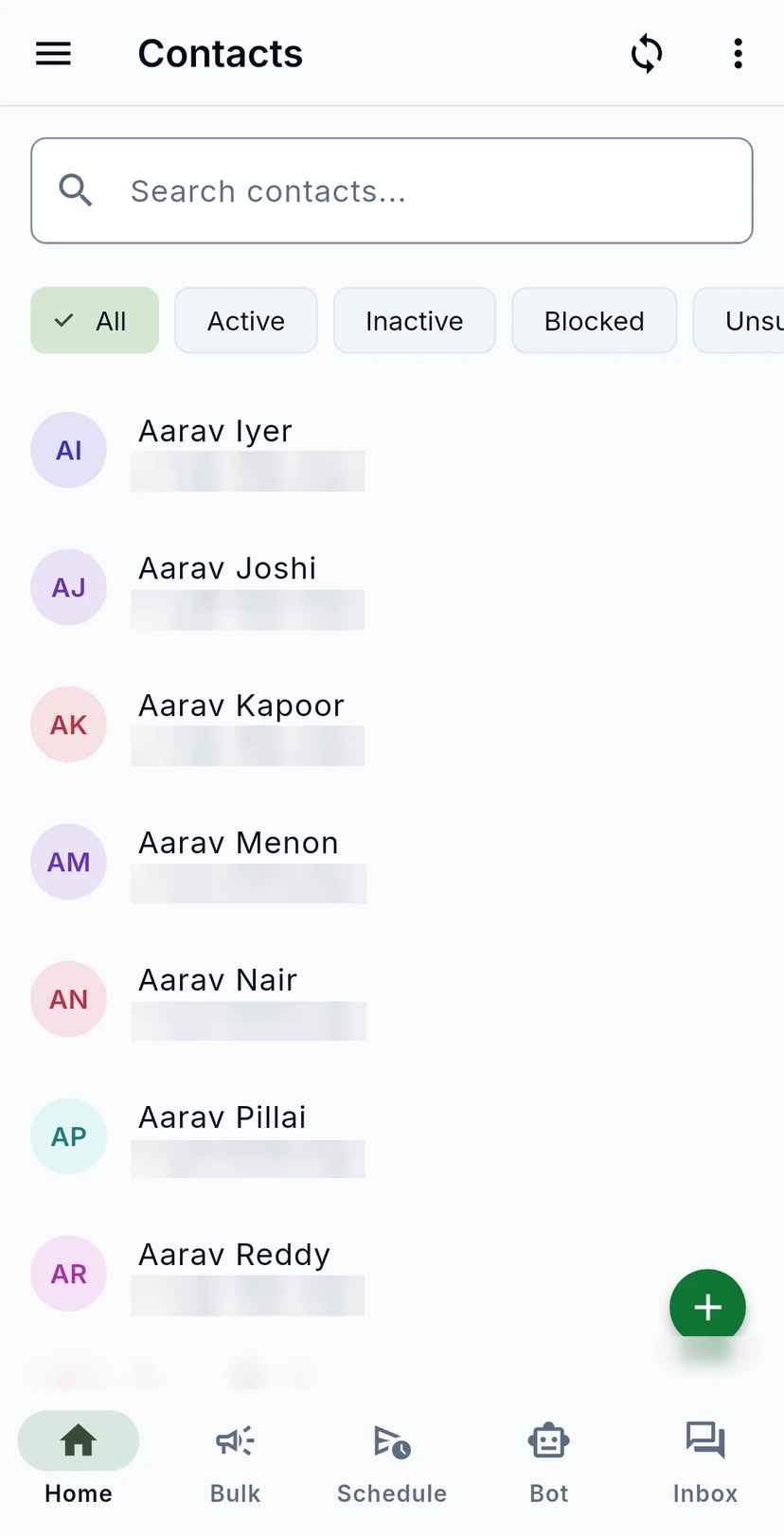
On Home, scroll to At a glance and tap Contacts. Search by name or number, or use the chips to show only Active, Inactive, Blocked or Unsubscribed contacts. The circular arrows sync the list.
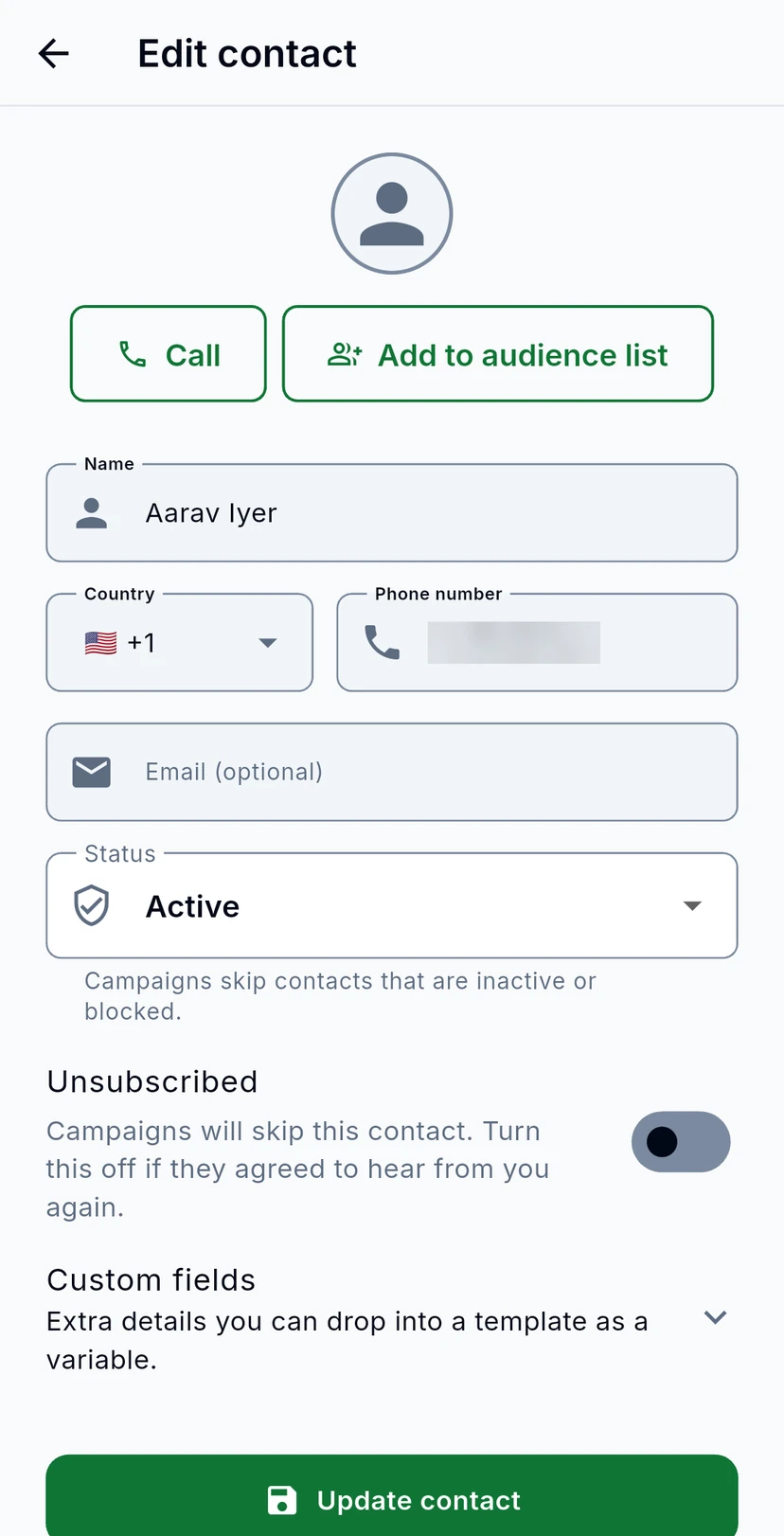
Tap a contact to edit them. Call rings them and Add to audience list puts them on a list. Set their Status: campaigns skip contacts that are inactive or blocked. Unsubscribed is on when they asked not to receive campaigns; turn it off only if they agreed to hear from you again. Custom fields hold extra details you can use as template variables.
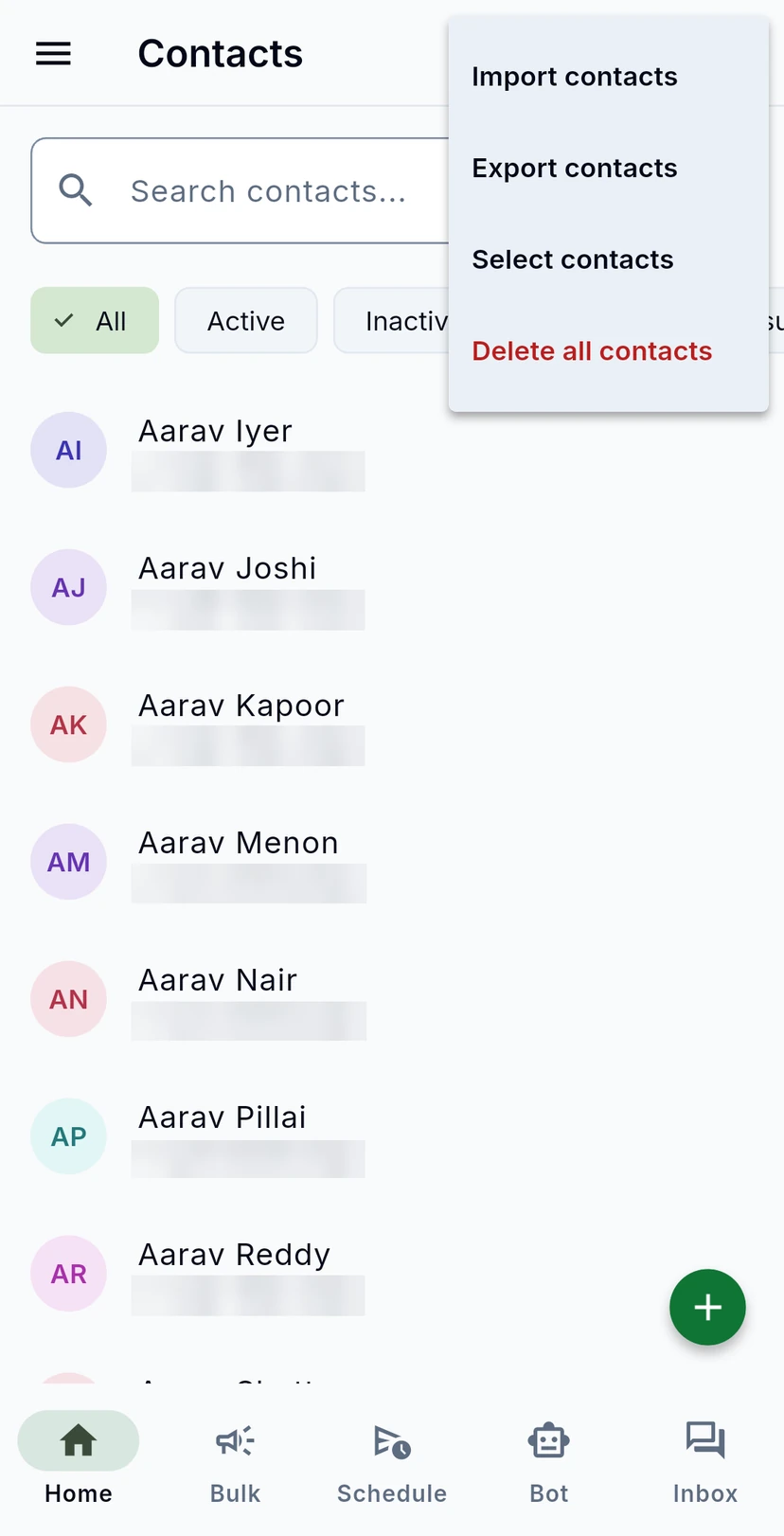
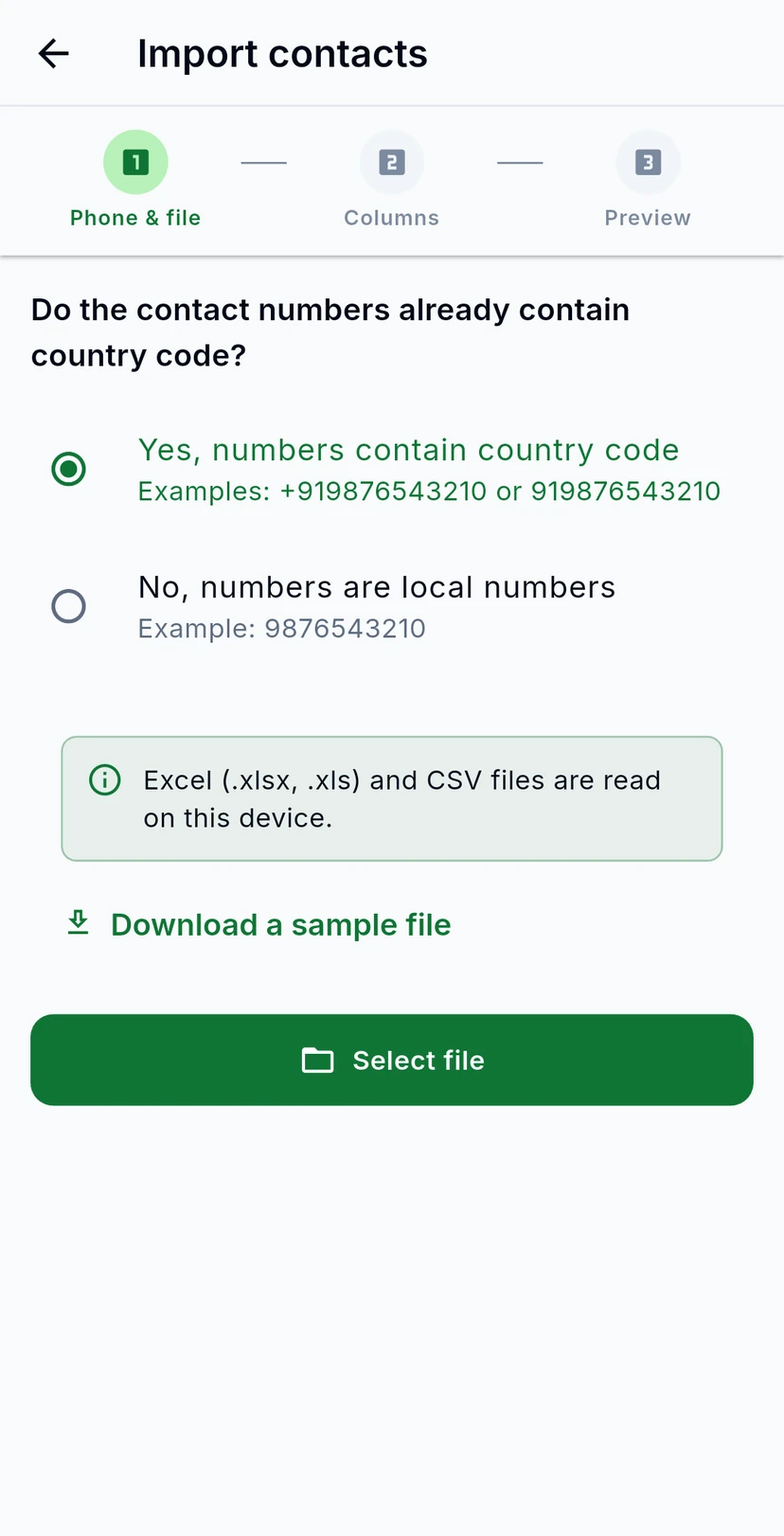
From the three dots, tap Import contacts. First say whether your numbers already include the country code. Then tap Select file and pick an Excel (.xlsx, .xls) or CSV file. The file is read on your phone. Download a sample file gives you a template to fill in.
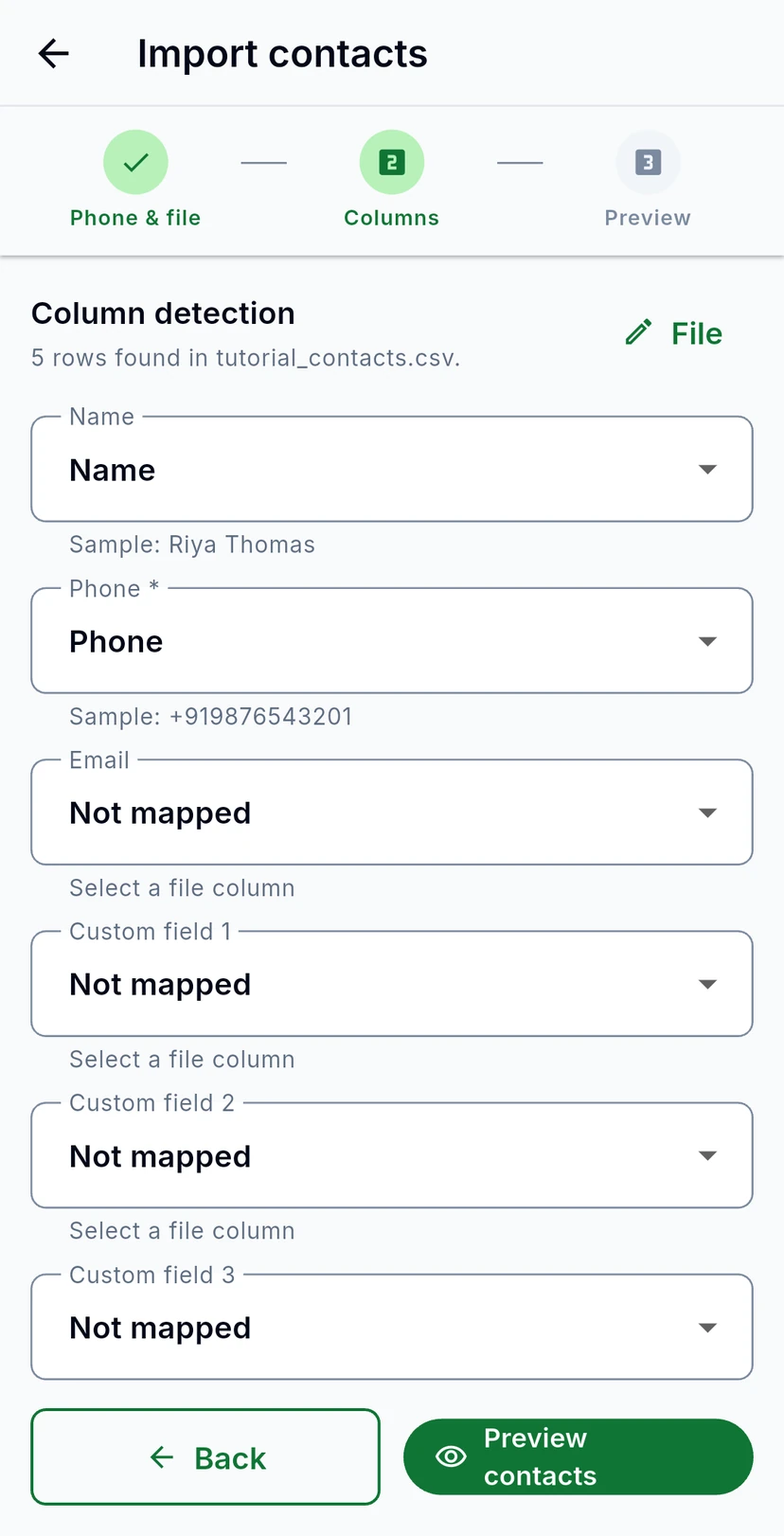
WizMessage finds the columns in your file and shows a sample from each. Check that Name and Phone point at the right columns, and map any extra column to a custom field. Then tap Preview contacts.
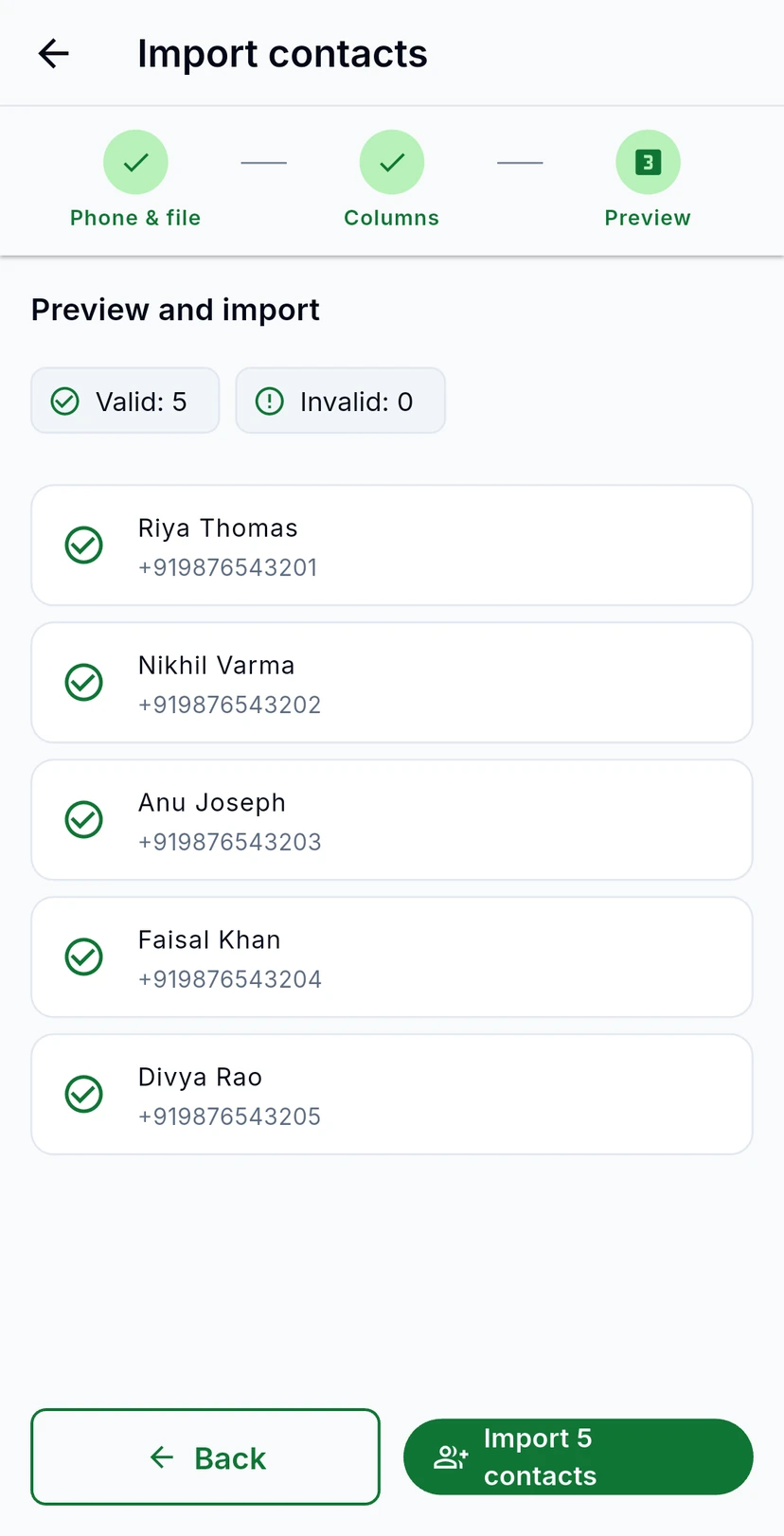
The preview counts the valid and invalid rows and lists the contacts it will add. The button says how many it will add, for example Import 5 contacts: tap it to add them.