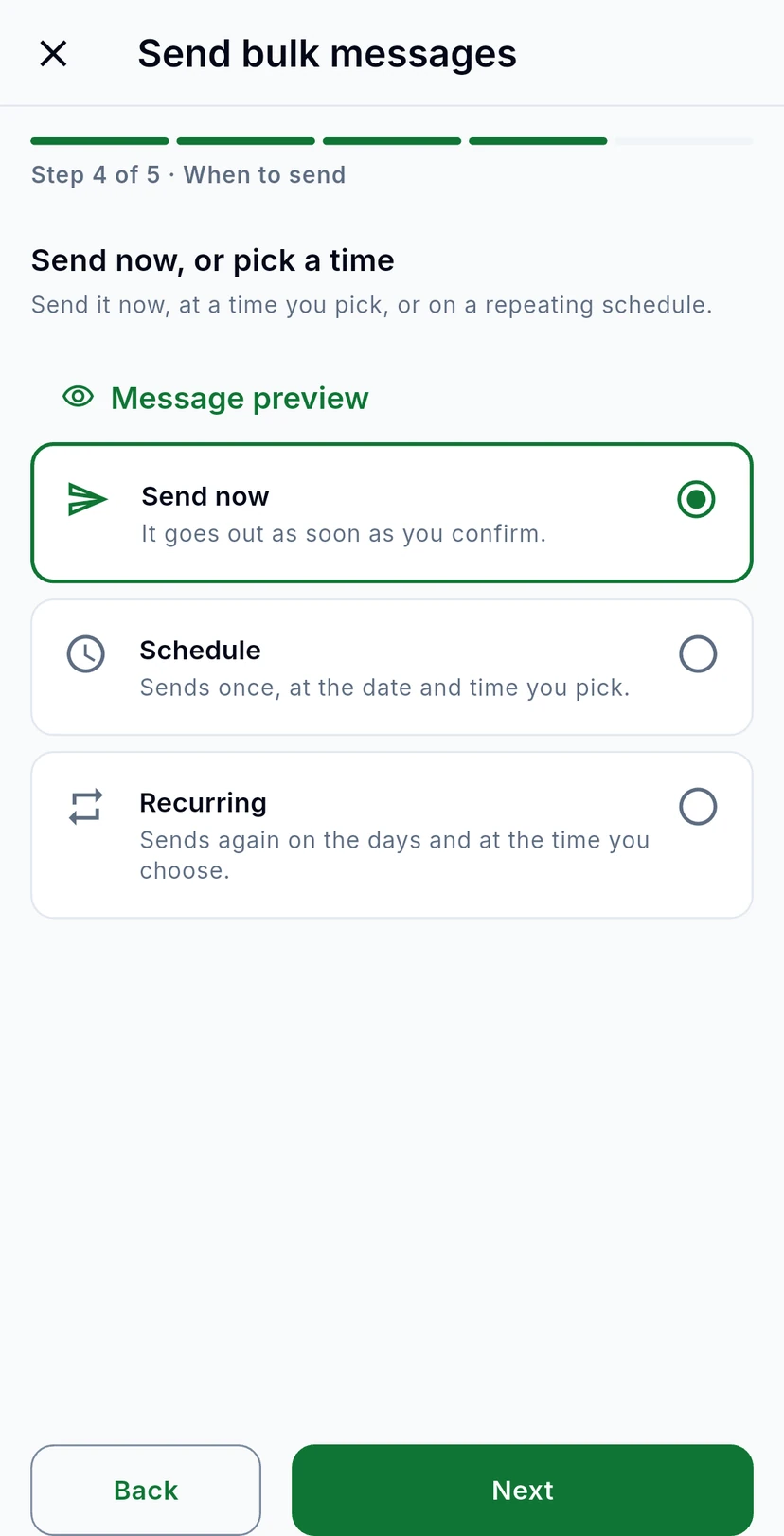
Send a WhatsApp template to an audience list from the WizMessage app: find your campaigns, then walk through the New campaign wizard from the checks to the final review.
A bulk message, or campaign, sends one approved template to many people at once. This guide shows where your campaigns are and walks through the New campaign wizard, step by step.
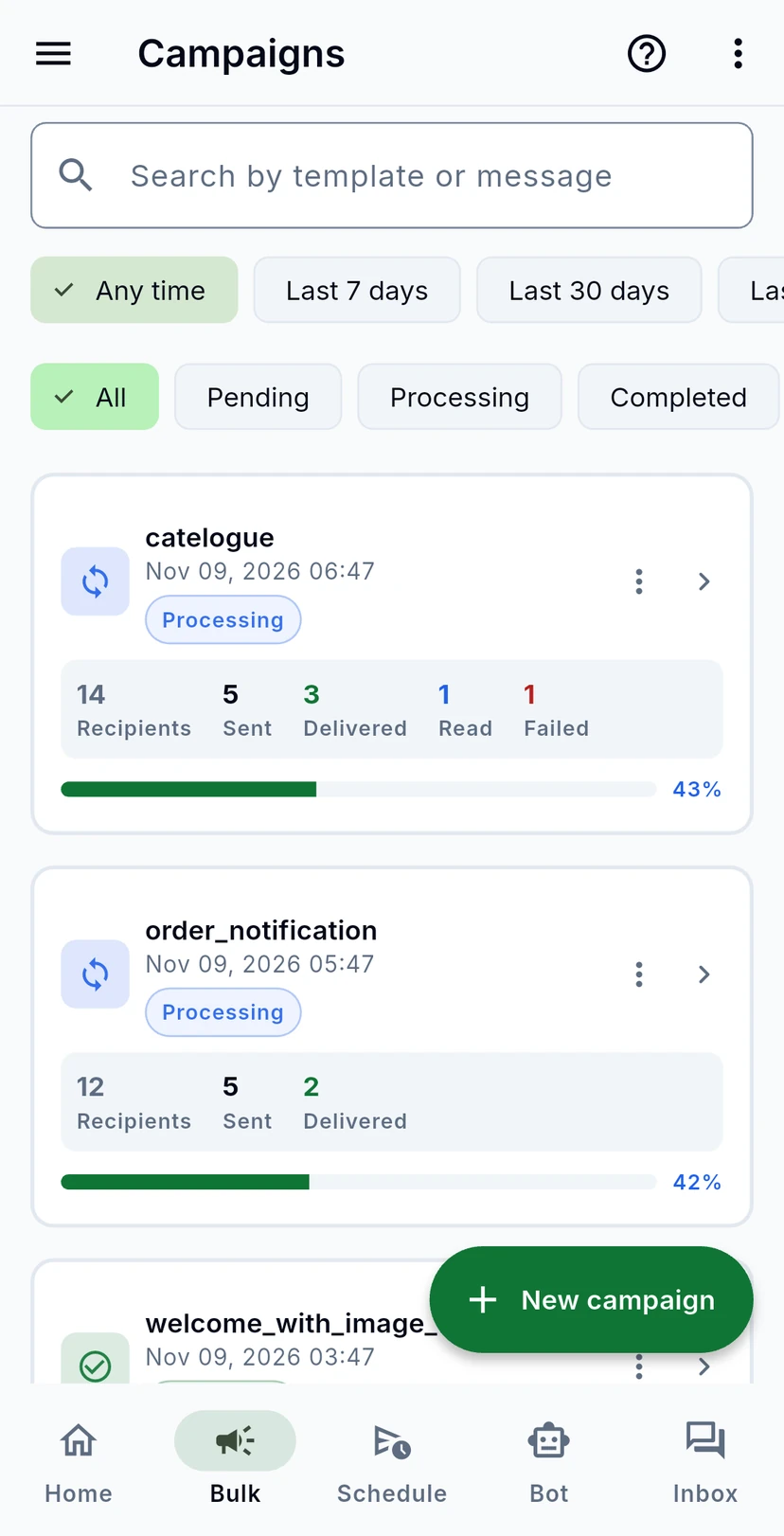
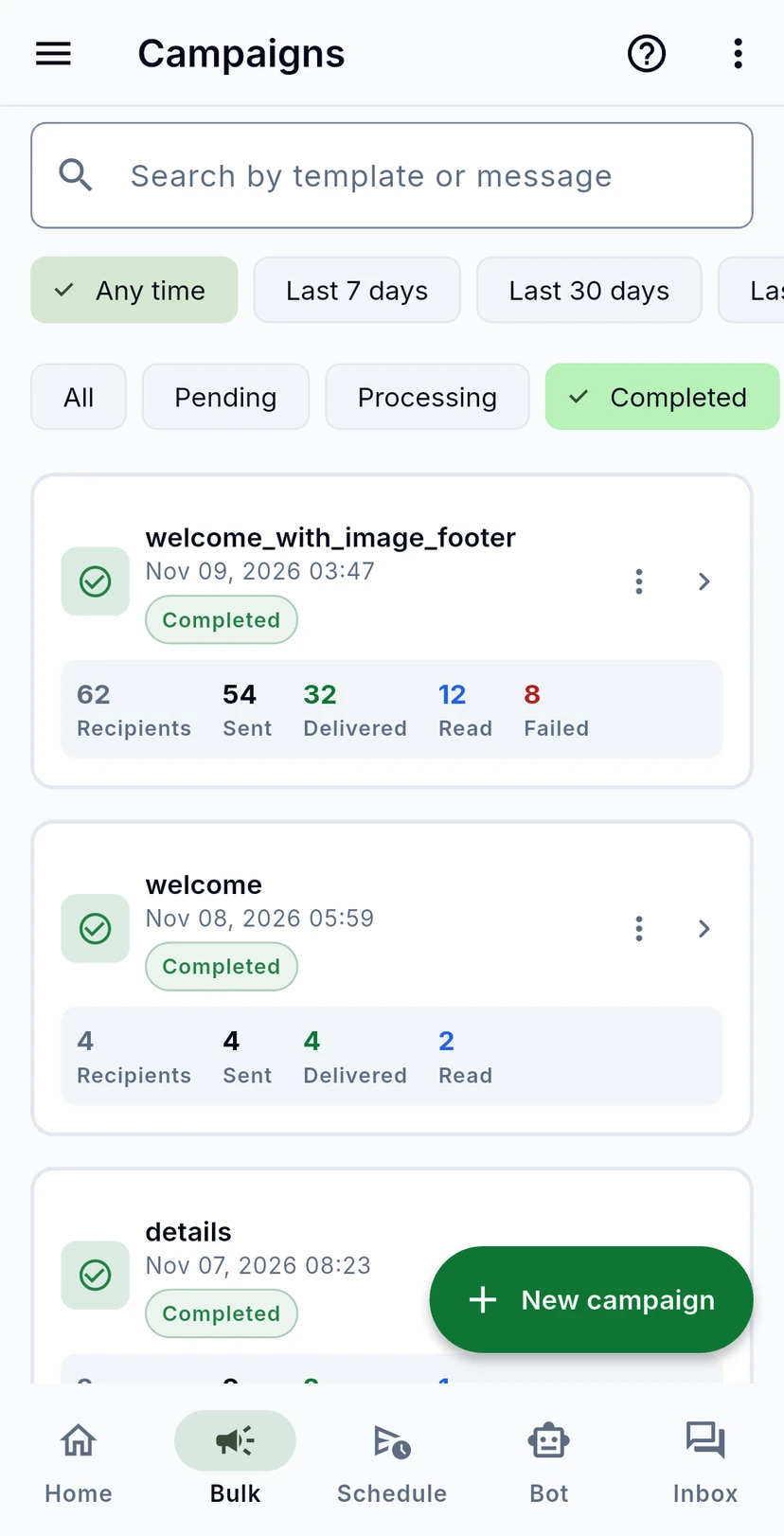
Tap Bulk at the bottom of the app. Every campaign you have sent is here, newest first. Each card shows its template, when it went out, its status, and how many messages were sent, delivered, read and failed.
Search by template or message, or use the chips to show one period (Any time, Last 7 days, Last 30 days) or one status, for example only Completed campaigns.
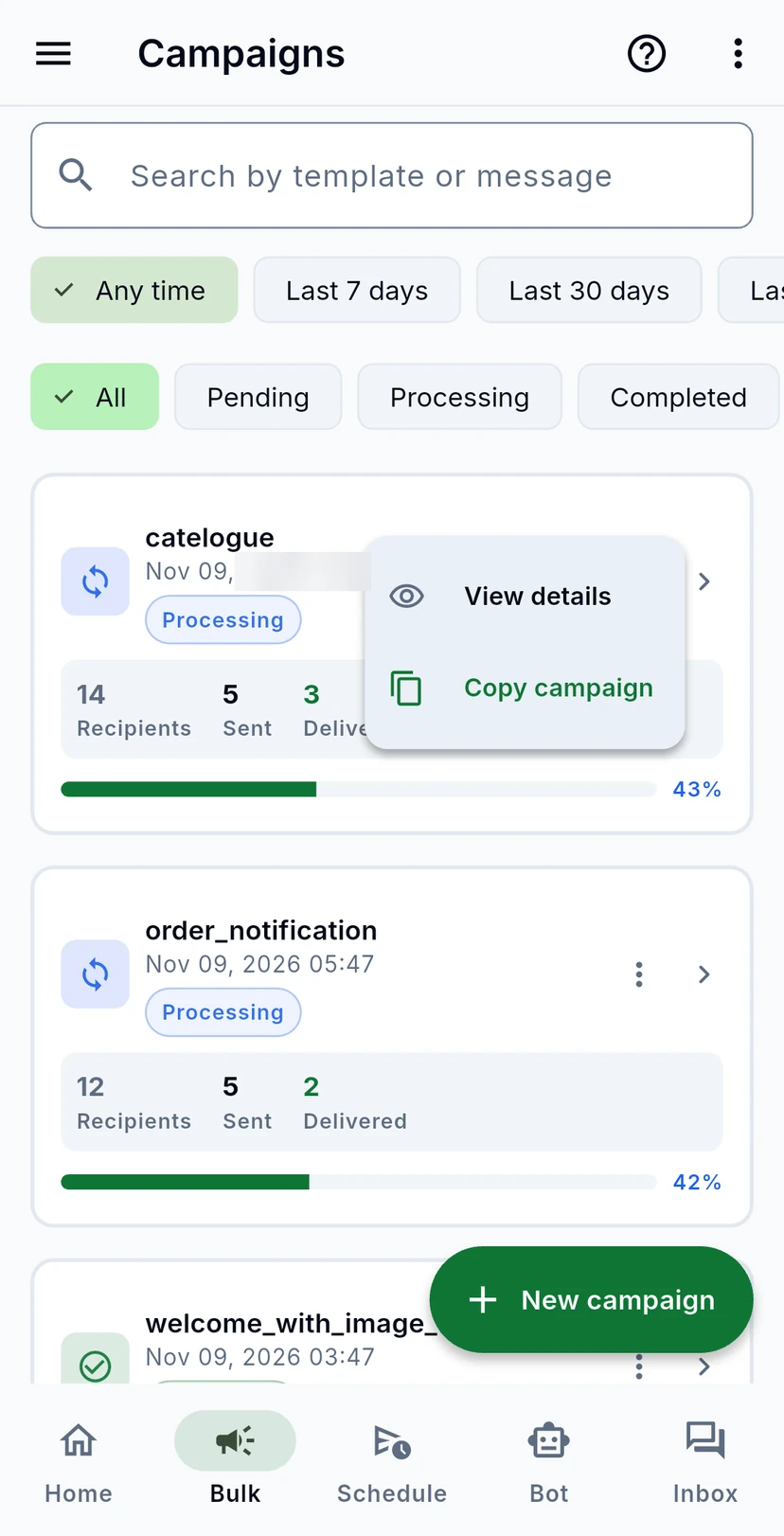
The three dots on a campaign open View details, or Copy campaign to start a new campaign with the same template, variables and audience. A finished campaign (completed, failed or cancelled) also has Delete.
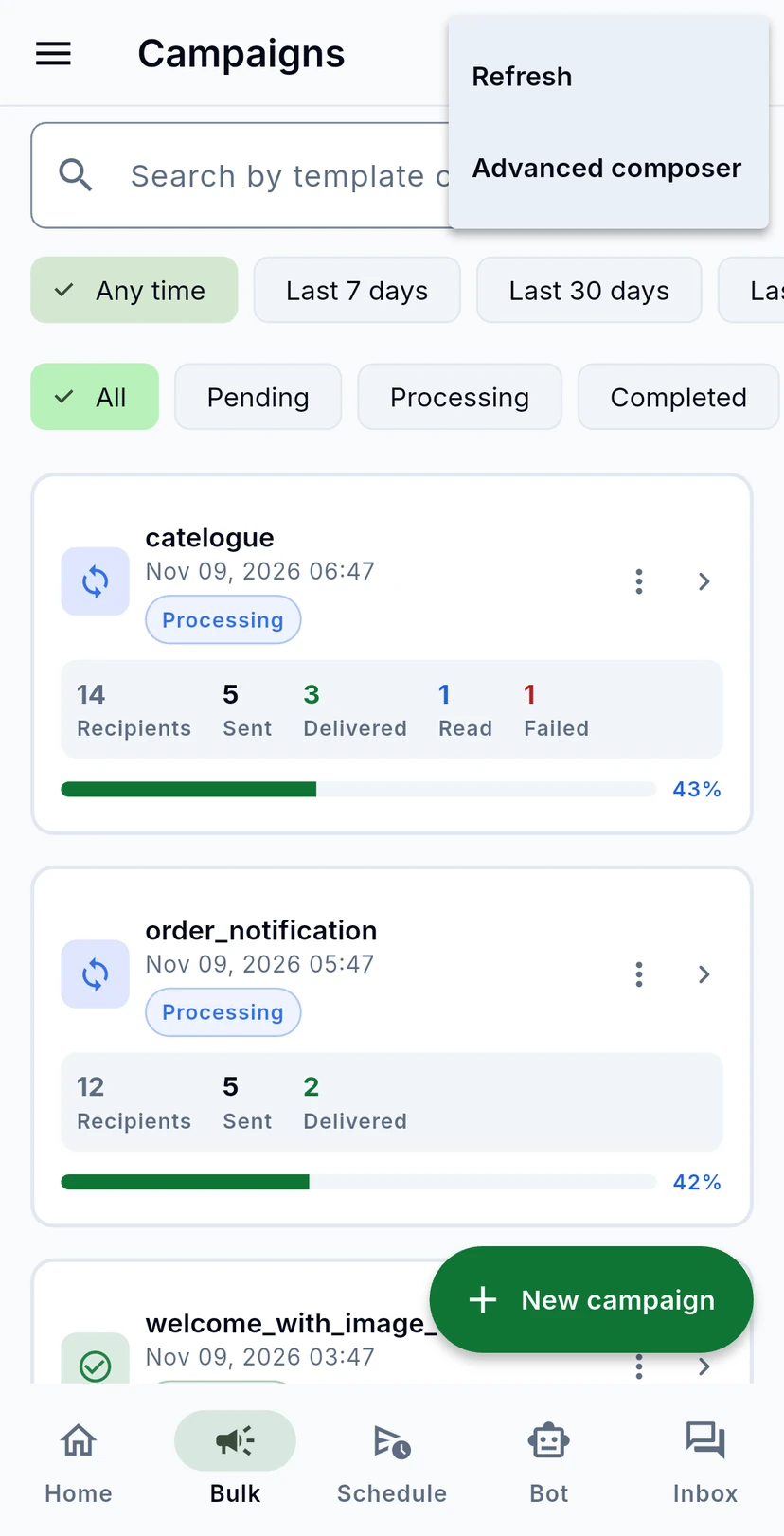
The three dots at the top of the screen offer Refresh and the Advanced composer.
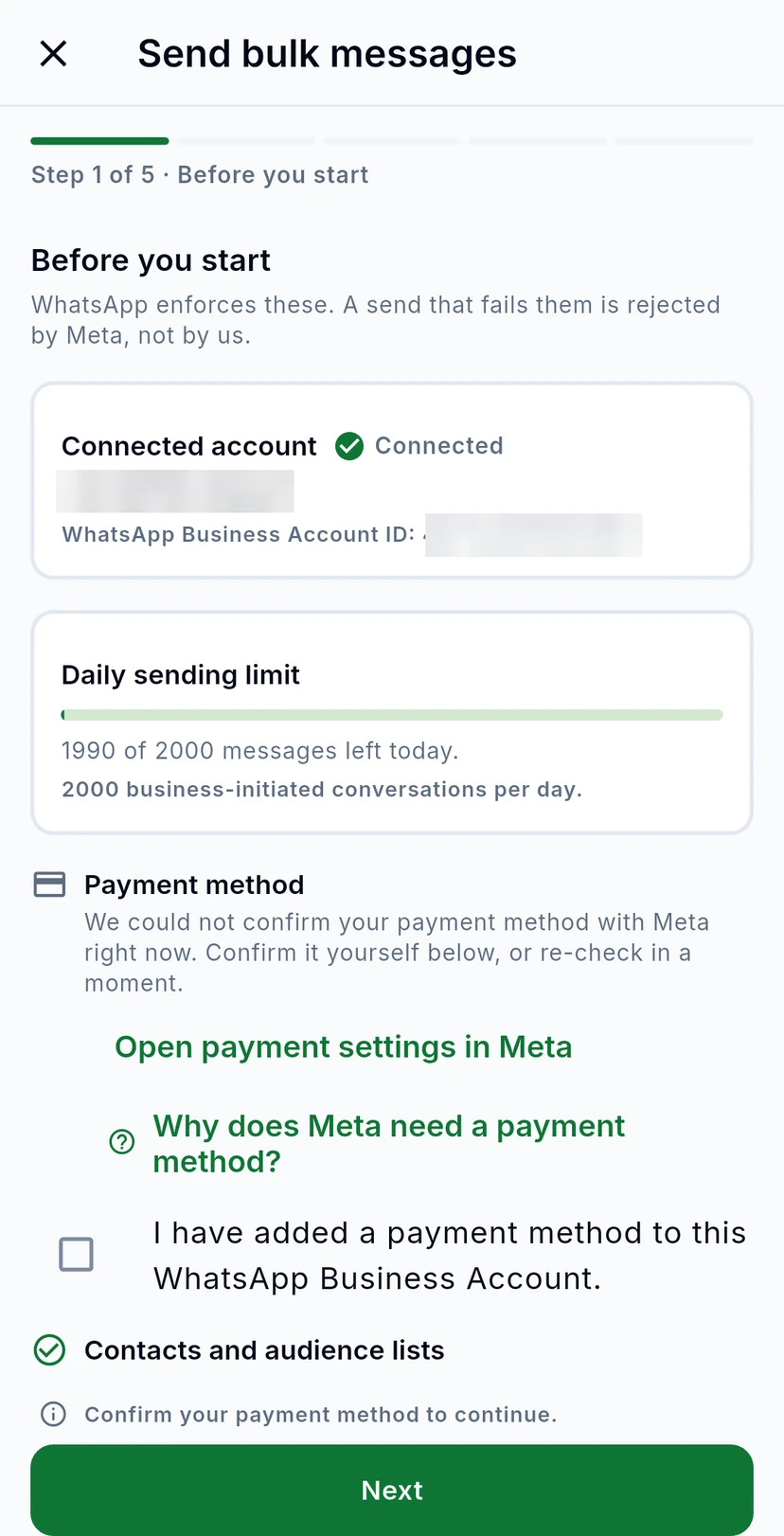
Tap New campaign. The first step checks, with Meta, what a send needs: your connected number, how many messages you can still send today, and your payment method. A send that fails these checks would be rejected by Meta, so fix anything marked here first.
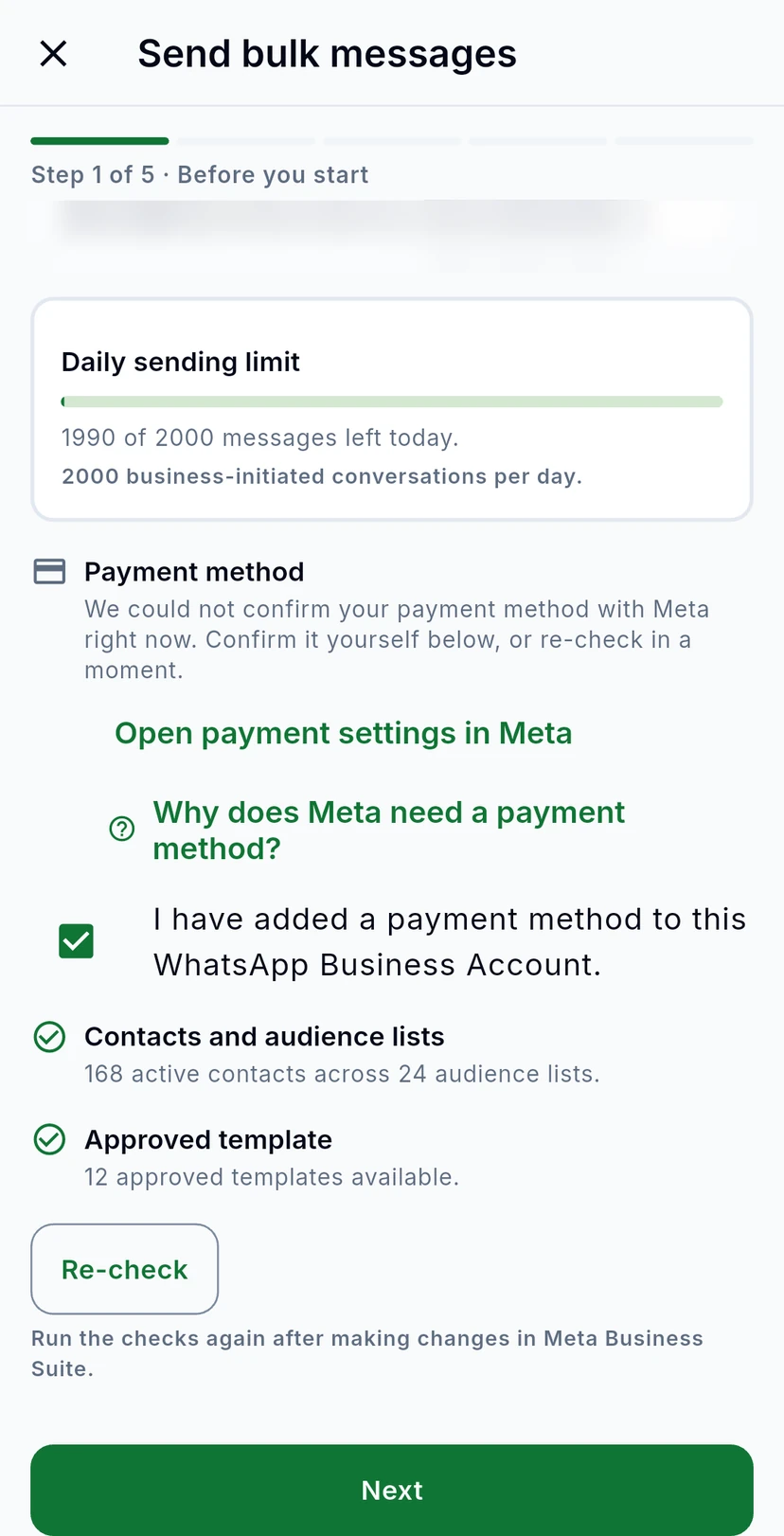
If Meta can't confirm your payment method right now, add one in Meta (Open payment settings in Meta), then tick I have added a payment method to this WhatsApp Business Account. The checklist below also confirms you have contacts and an approved template. Tap Next.
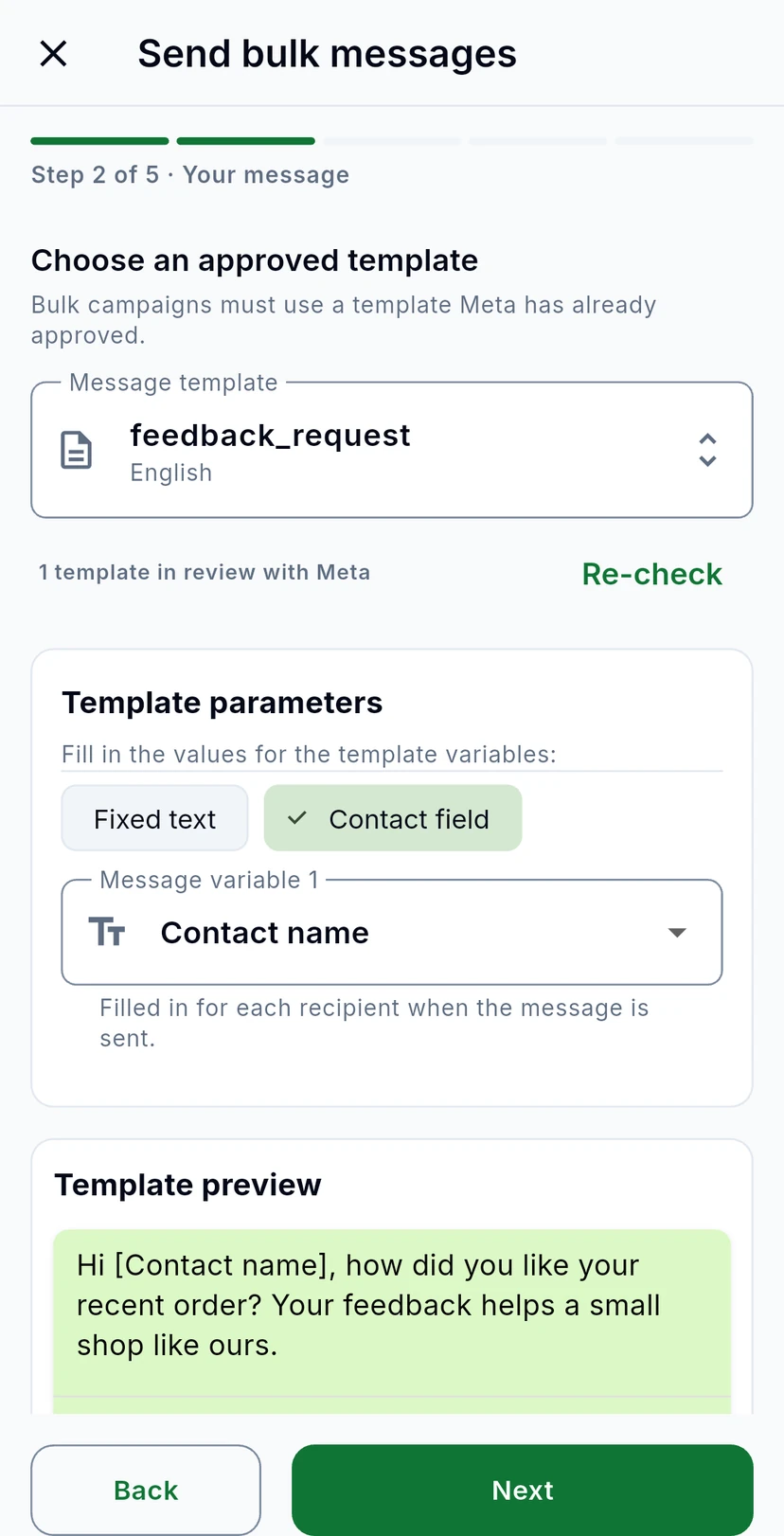
Tap Message template and pick an approved template. If it has variables, fill each one under Template parameters: Fixed text sends the same words to everyone, while Contact field fills in each person's own details, such as Contact name. The Template preview shows the result.
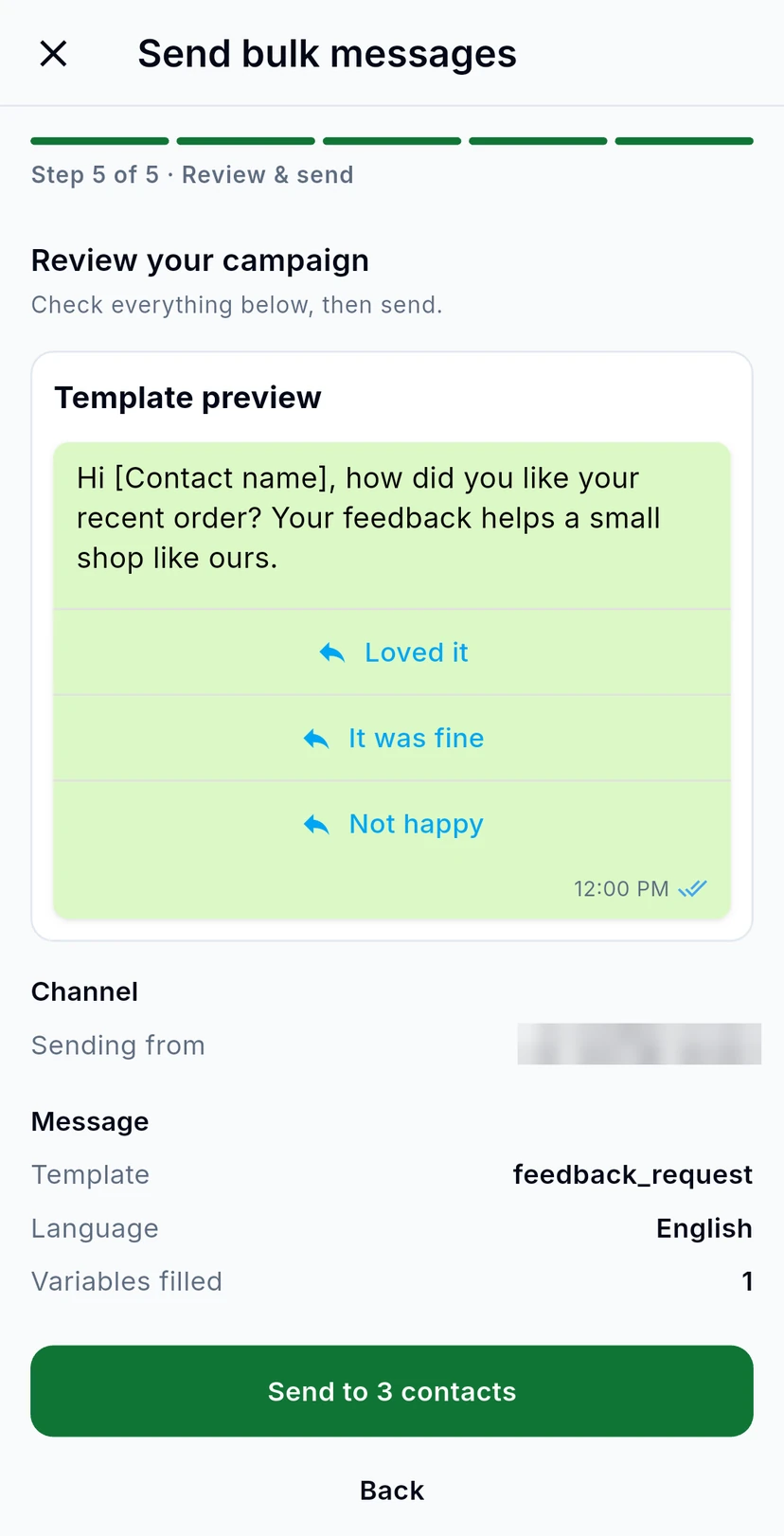
Review your campaign shows the message as your customers will see it, the number it is sent from, and the template.
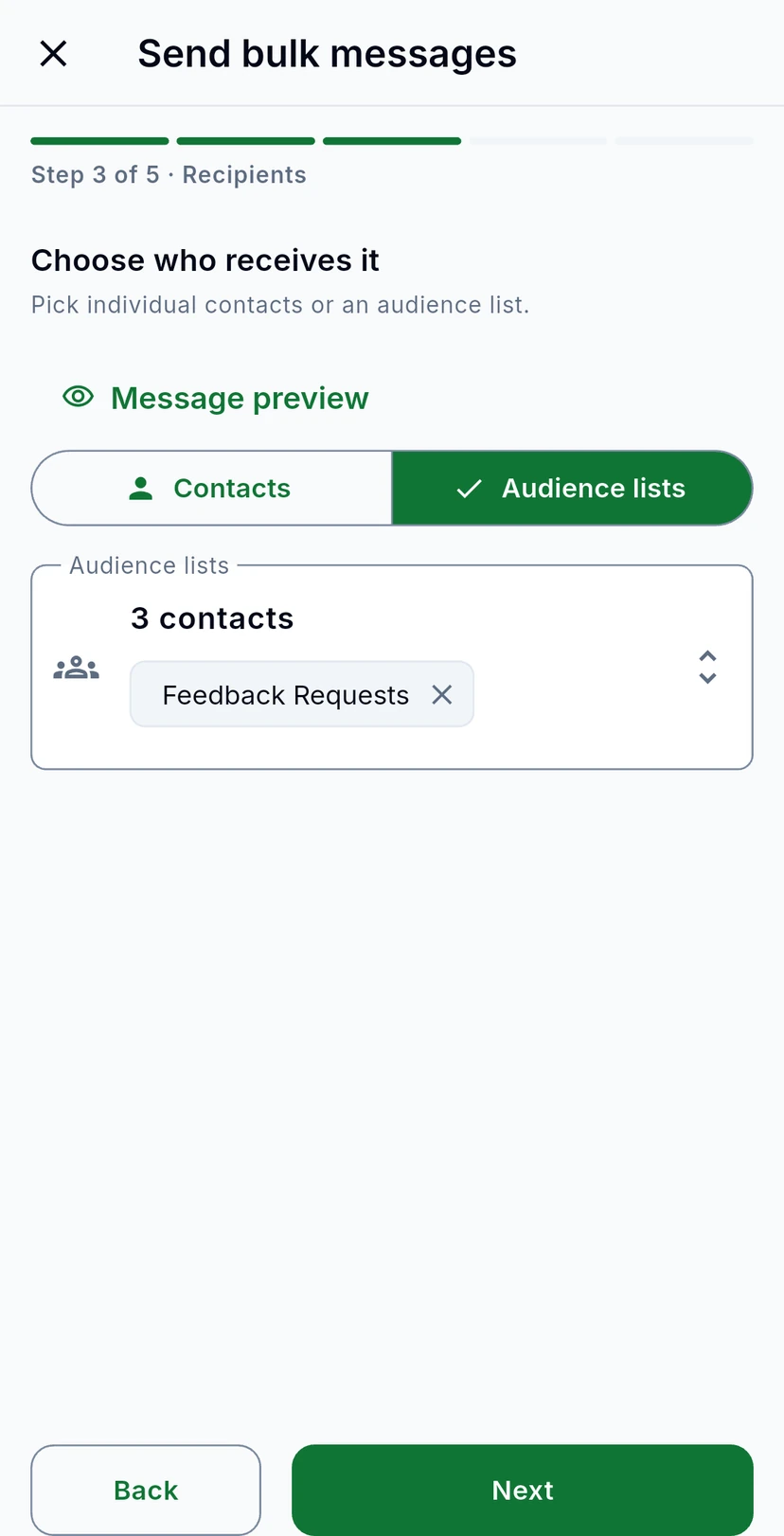
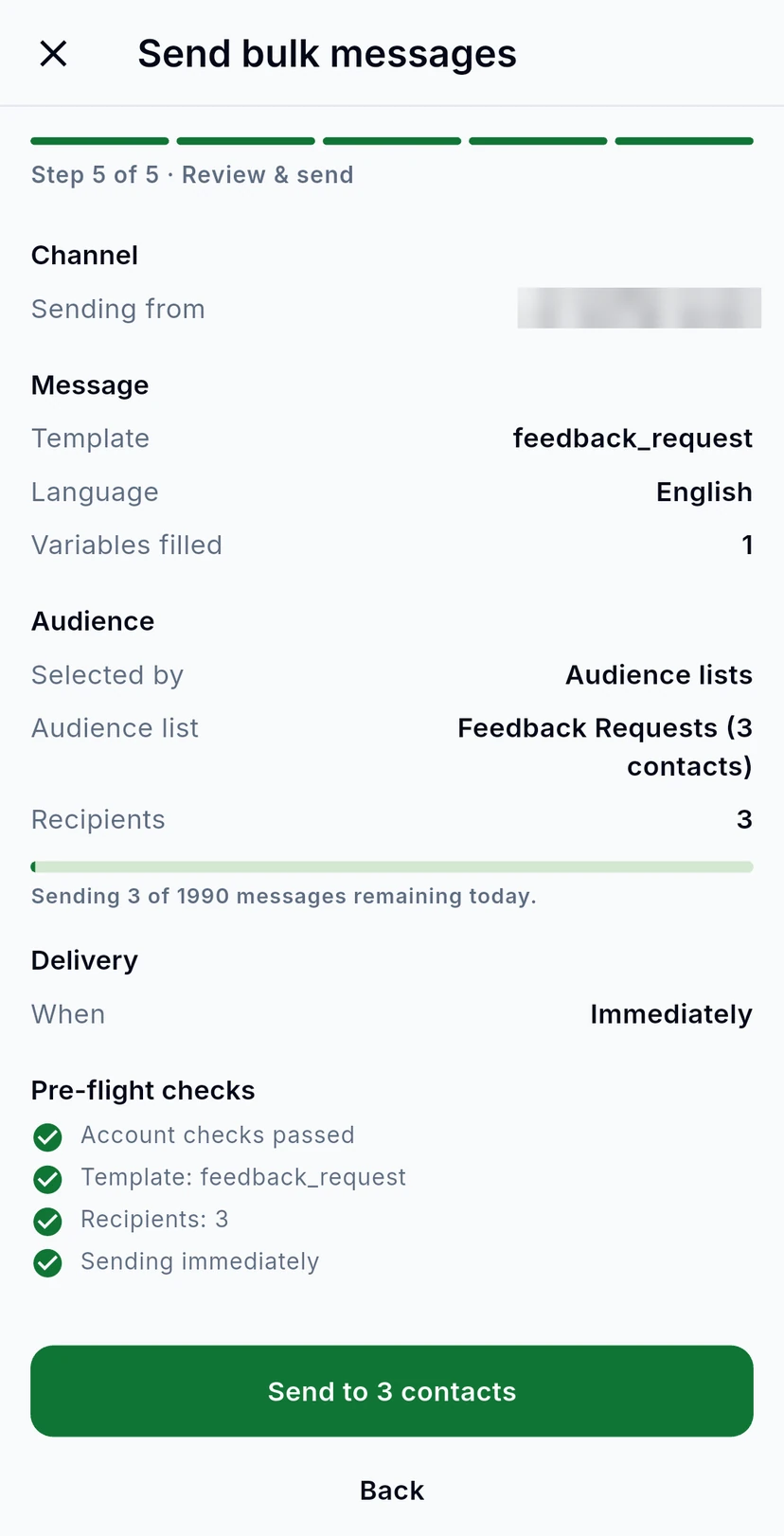
Scroll down to check the audience, how much of today's limit it uses, when it goes out and the Pre-flight checks. The green button says exactly what happens, for example Send to 3 contacts: tap it to send. To leave without sending, tap the X at the top and Discard.