Work your shared WhatsApp inbox from the WizMessage app: find a conversation, filter the queue, open a chat, set its status, assign it, label it, leave a note and reply.
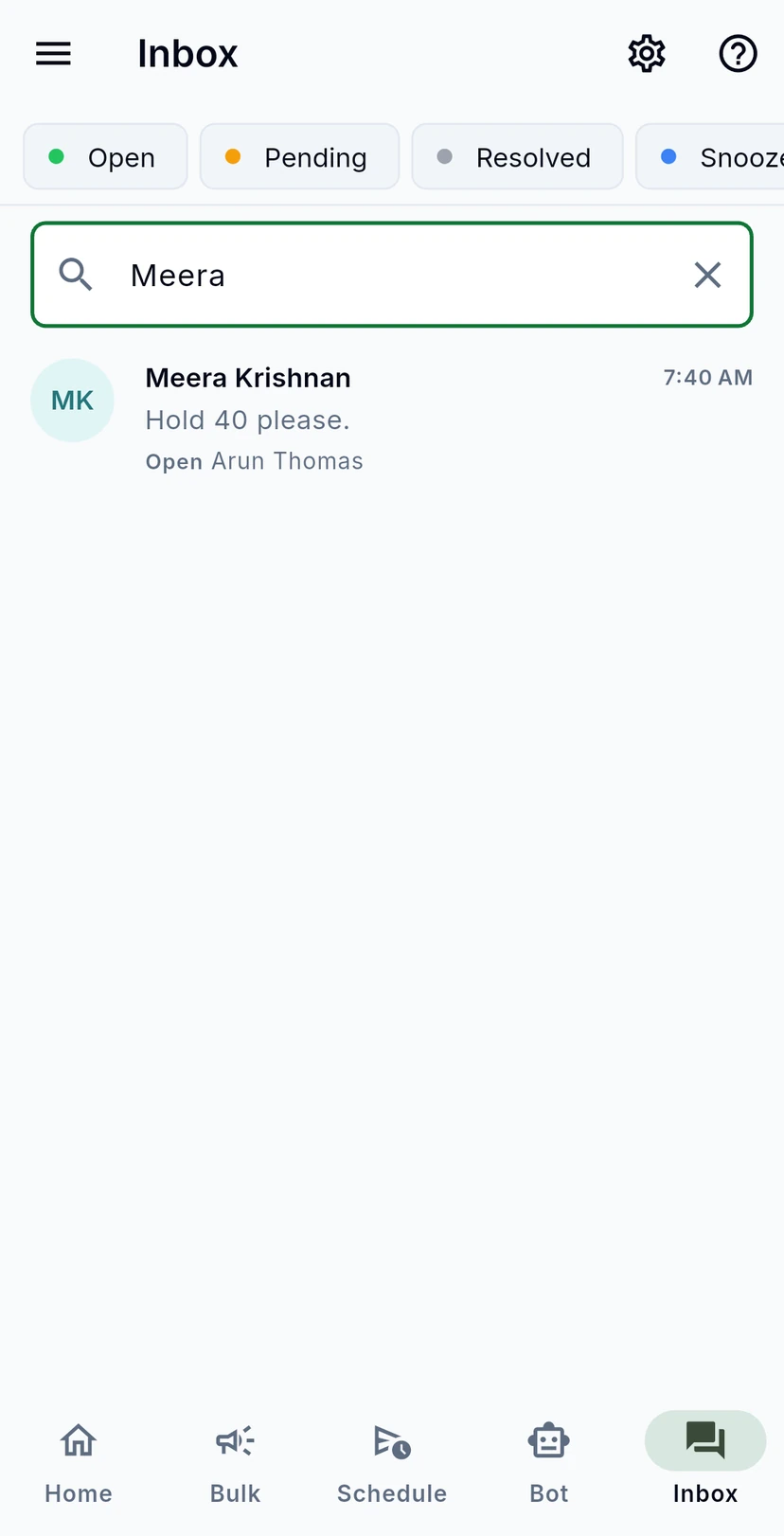
The Inbox tab is where your team answers customers. Every conversation on your WhatsApp number lands here, with who is handling it, how urgent it is and whether a reply is overdue. This guide walks through the list, the filters and one conversation from top to bottom.
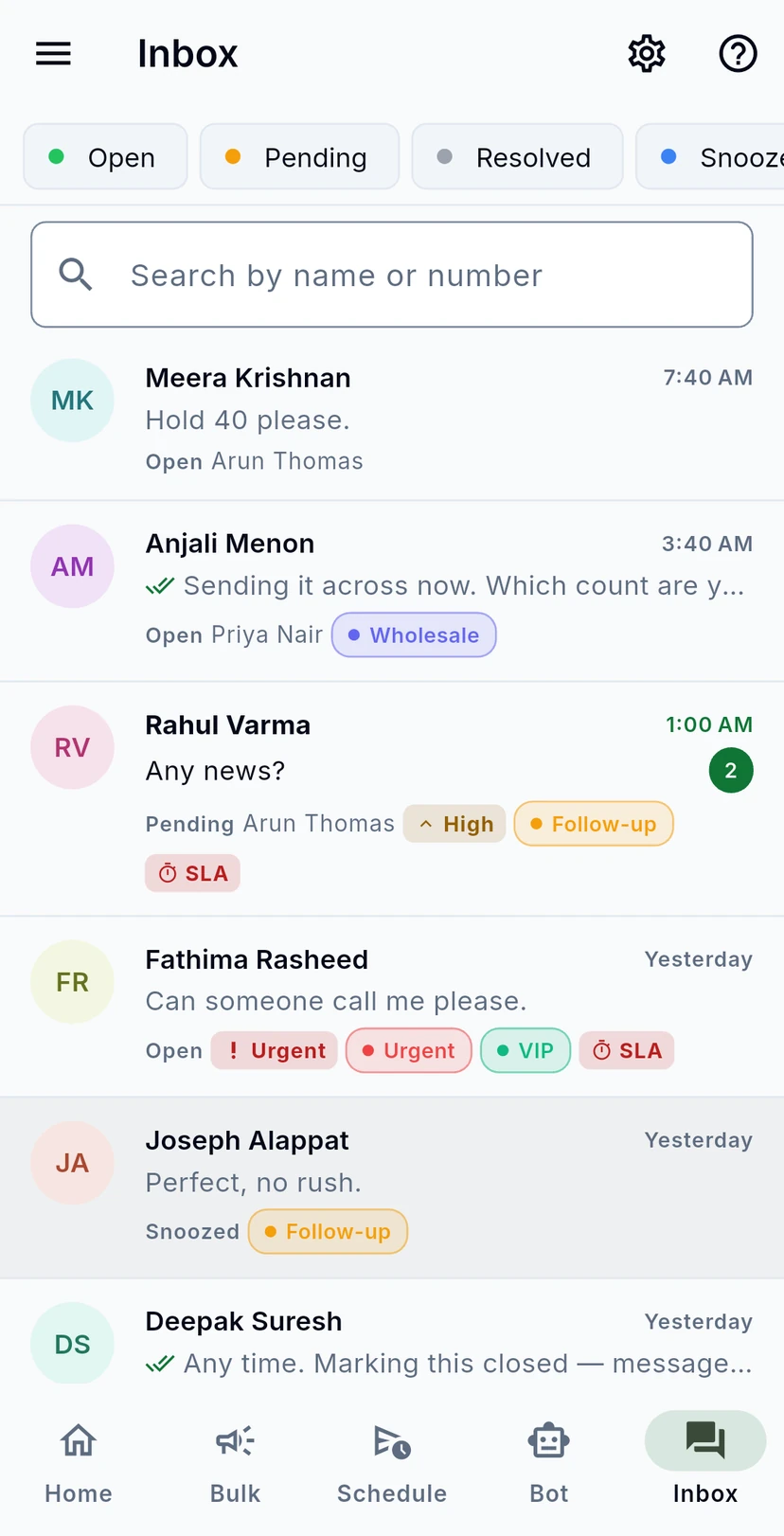
Tap Inbox in the bar at the bottom of the app. The newest conversations are at the top. Each row shows the customer's name, the last message, when it arrived and, underneath, the conversation's status (Open, Pending, Resolved or Snoozed), the teammate it is assigned to and its labels. A green number on the right counts unread messages, and a red SLA tag means a response target has been missed.
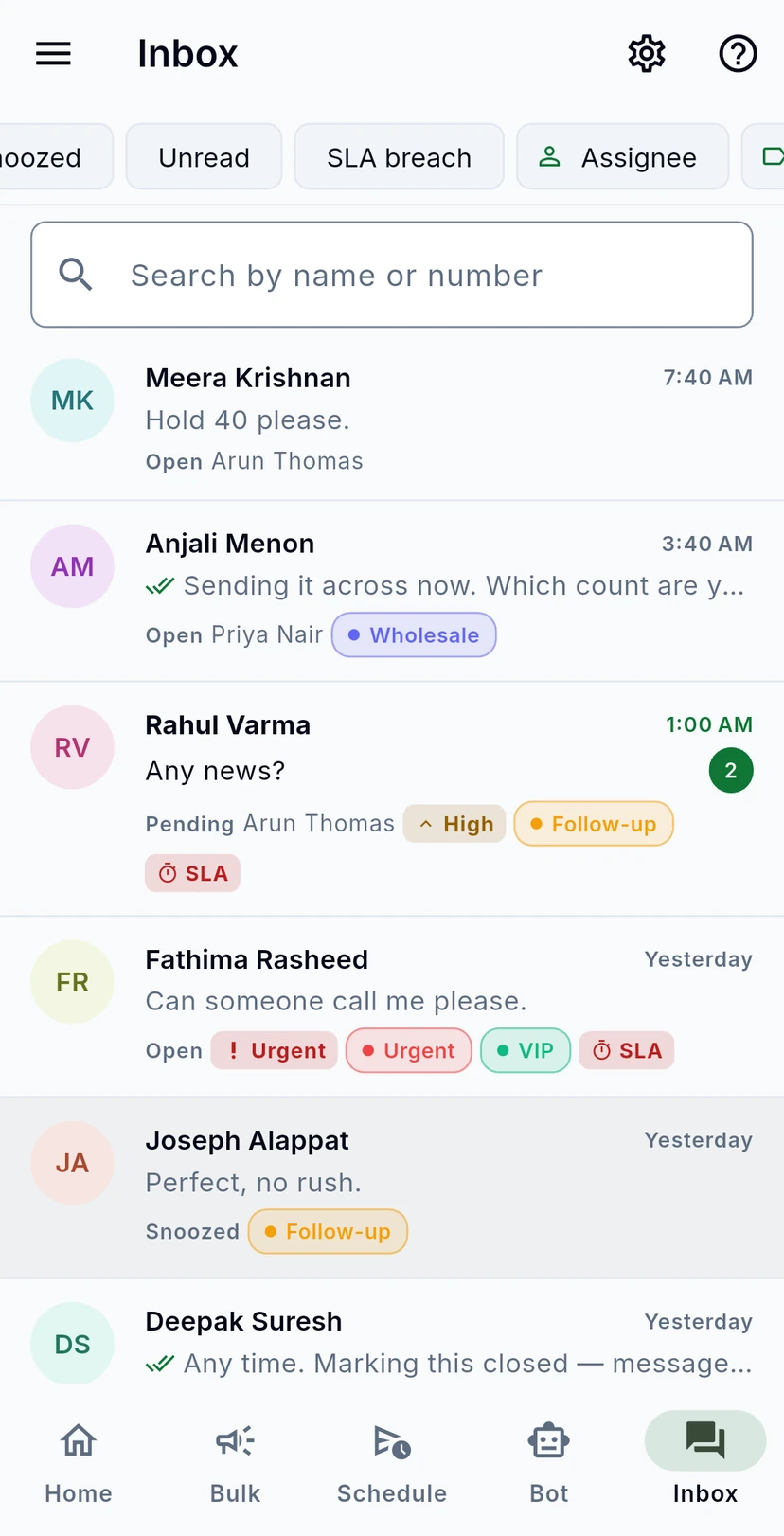
The chips under the title narrow the list. The first four pick a status. Swipe the row to the left for Unread, SLA breach, Assignee, Label and Priority: the last three open a menu so you can pick one teammate, one label or one priority.
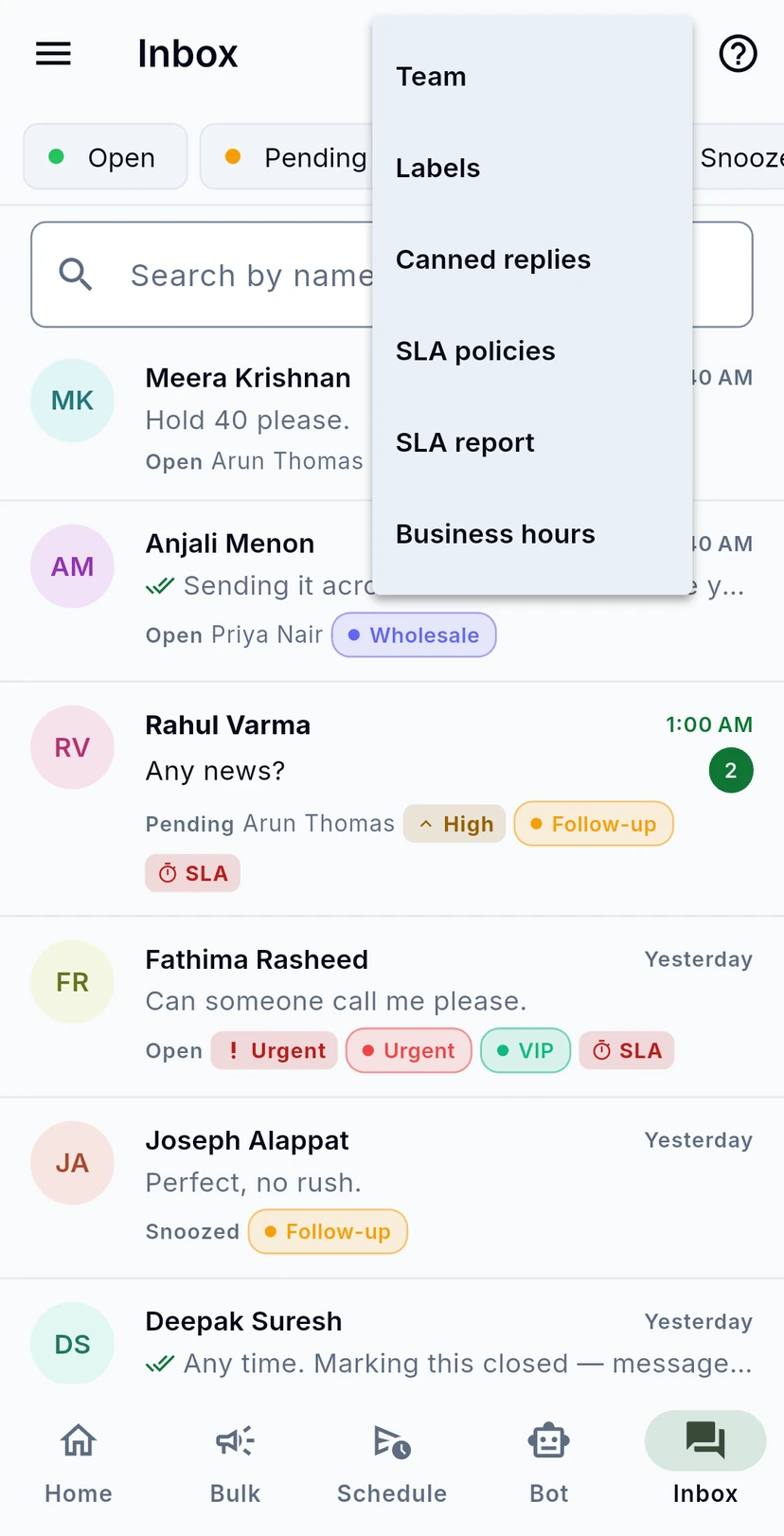
The gear at the top opens the settings your inbox runs on: Team, Labels, Canned replies, SLA policies, SLA report and Business hours. Each has its own guide.
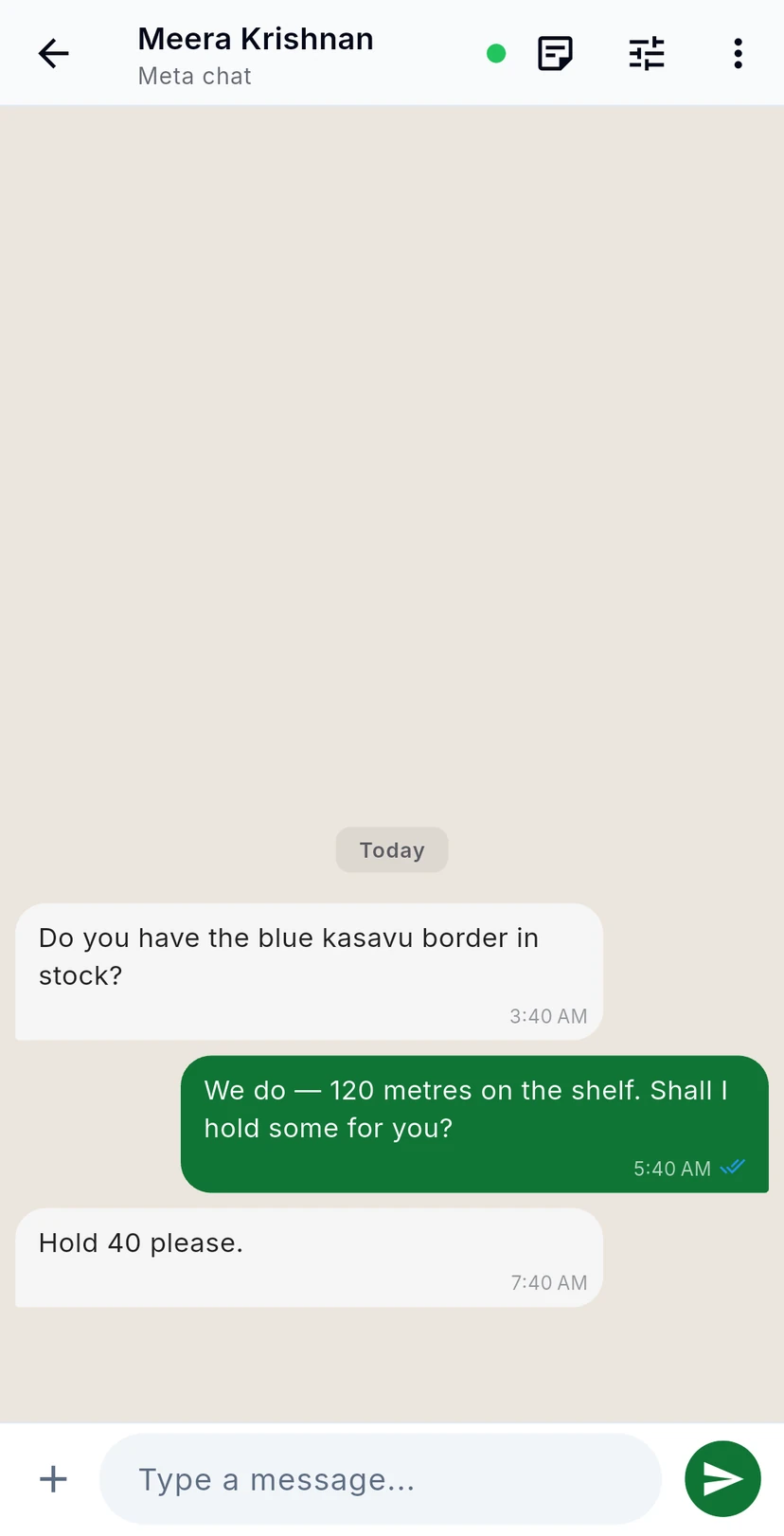
Tap a row to open the conversation. Messages from the customer are on the left, your team's replies on the right with their delivery ticks. Type in the box at the bottom and tap the green arrow to send.
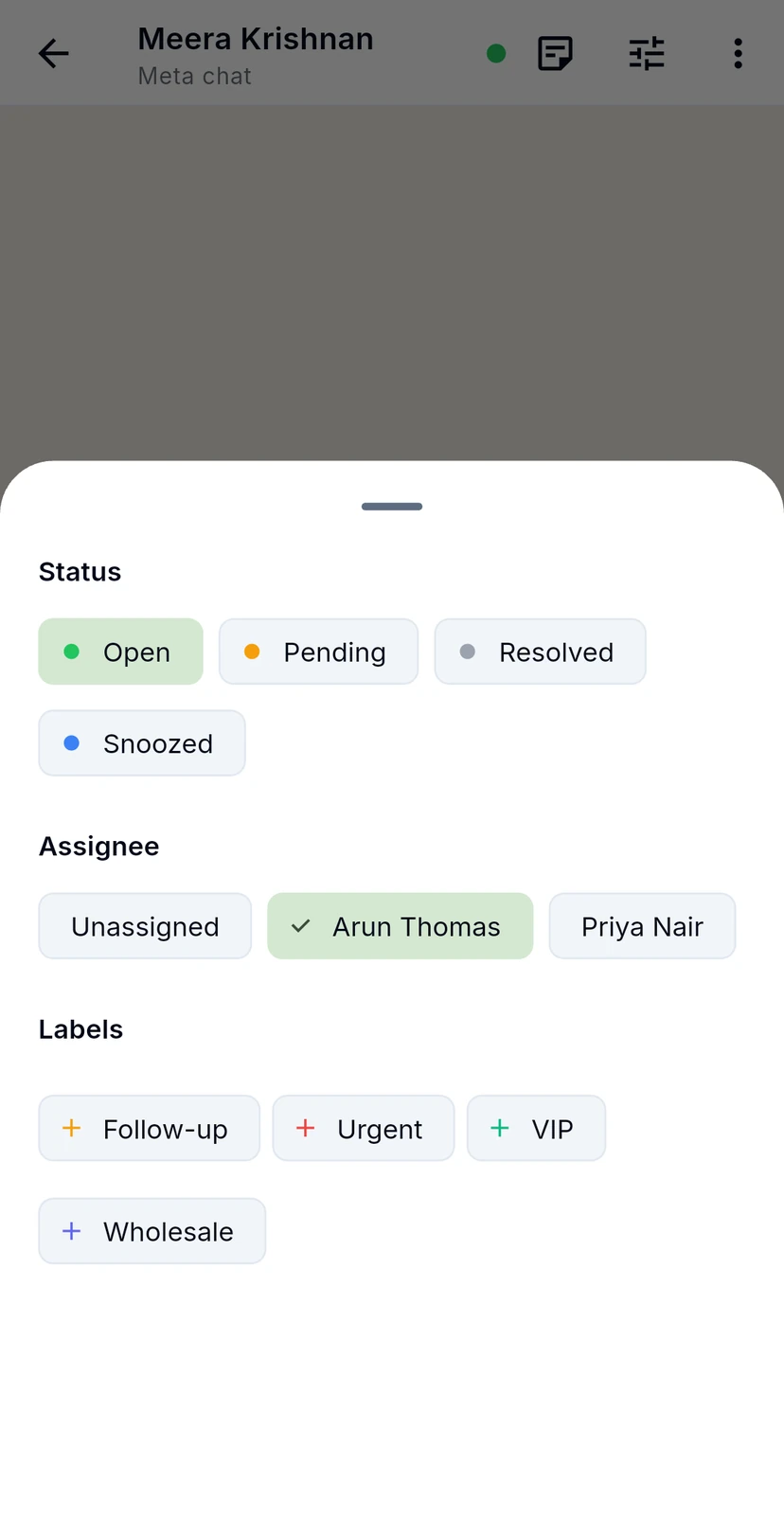
The sliders icon at the top opens Manage conversation. Pick a status, choose who handles it (or leave it unassigned) and tap labels to add them. Changes apply as you tap; swipe the sheet down when you are done.
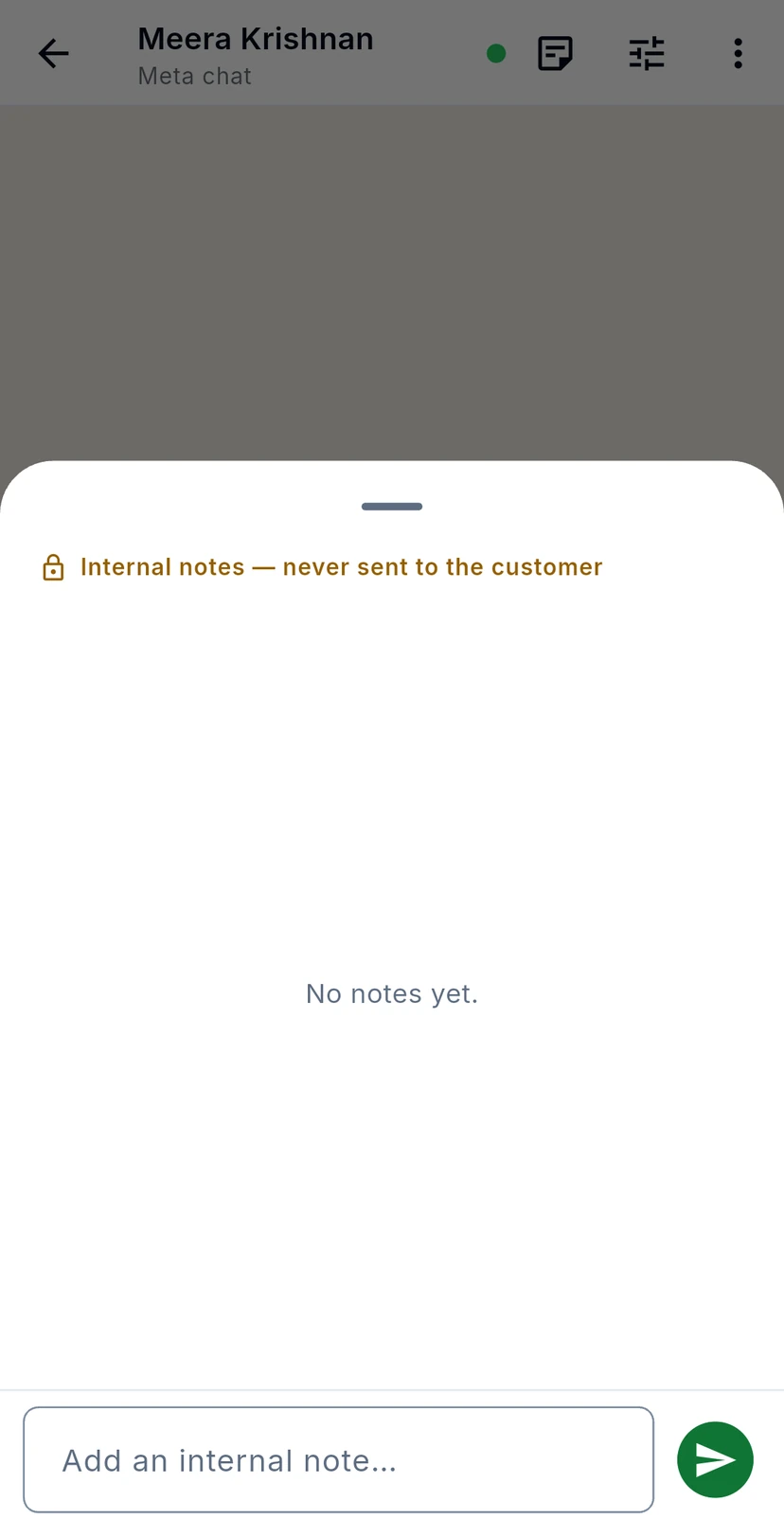
The note icon opens Internal notes. Use them to hand a conversation over or to record what was promised. As the sheet says, notes are never sent to the customer.
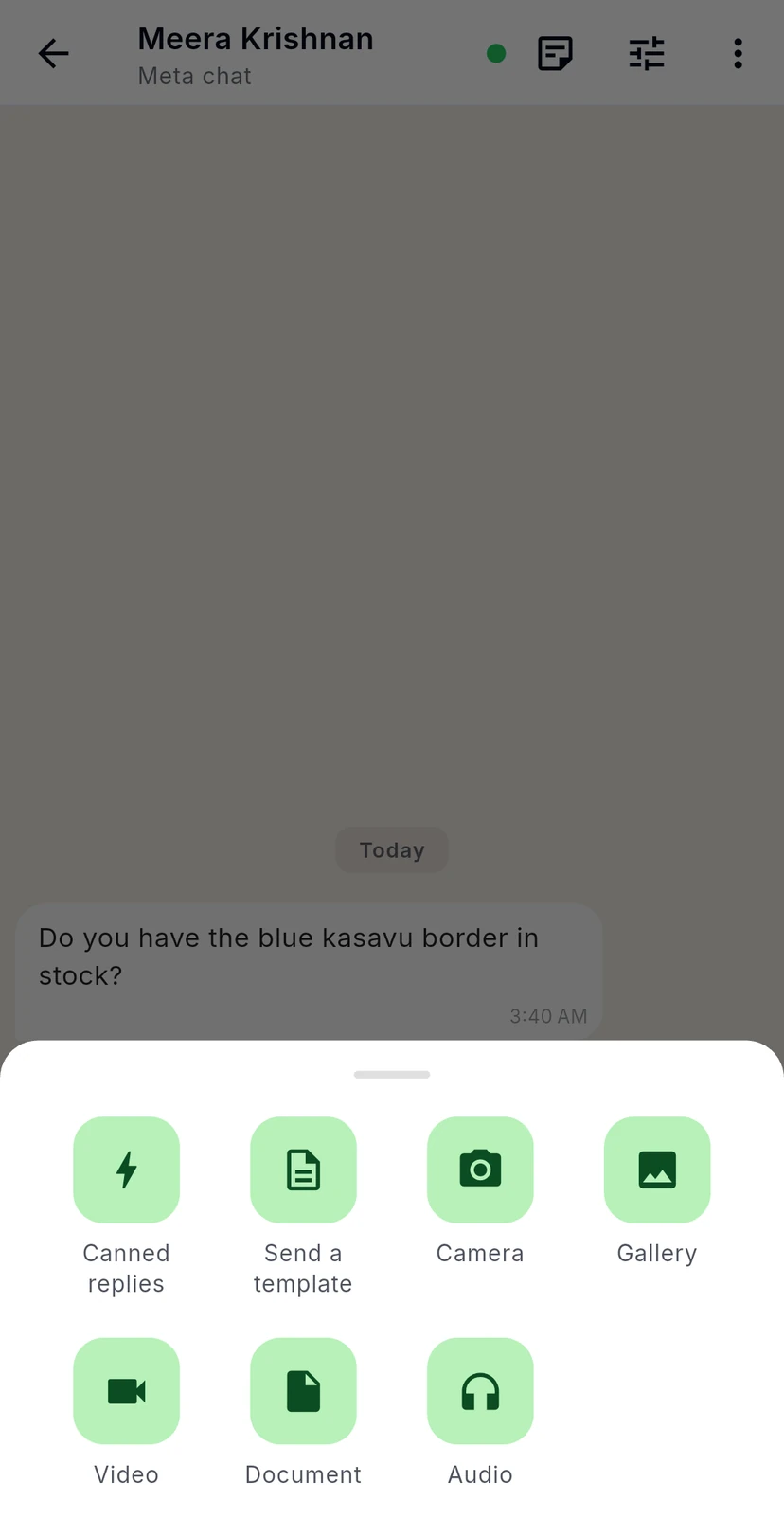
The + beside the message box sends something other than typed text: a canned reply, an approved template, a photo from the camera or gallery, a video, a document or an audio file.