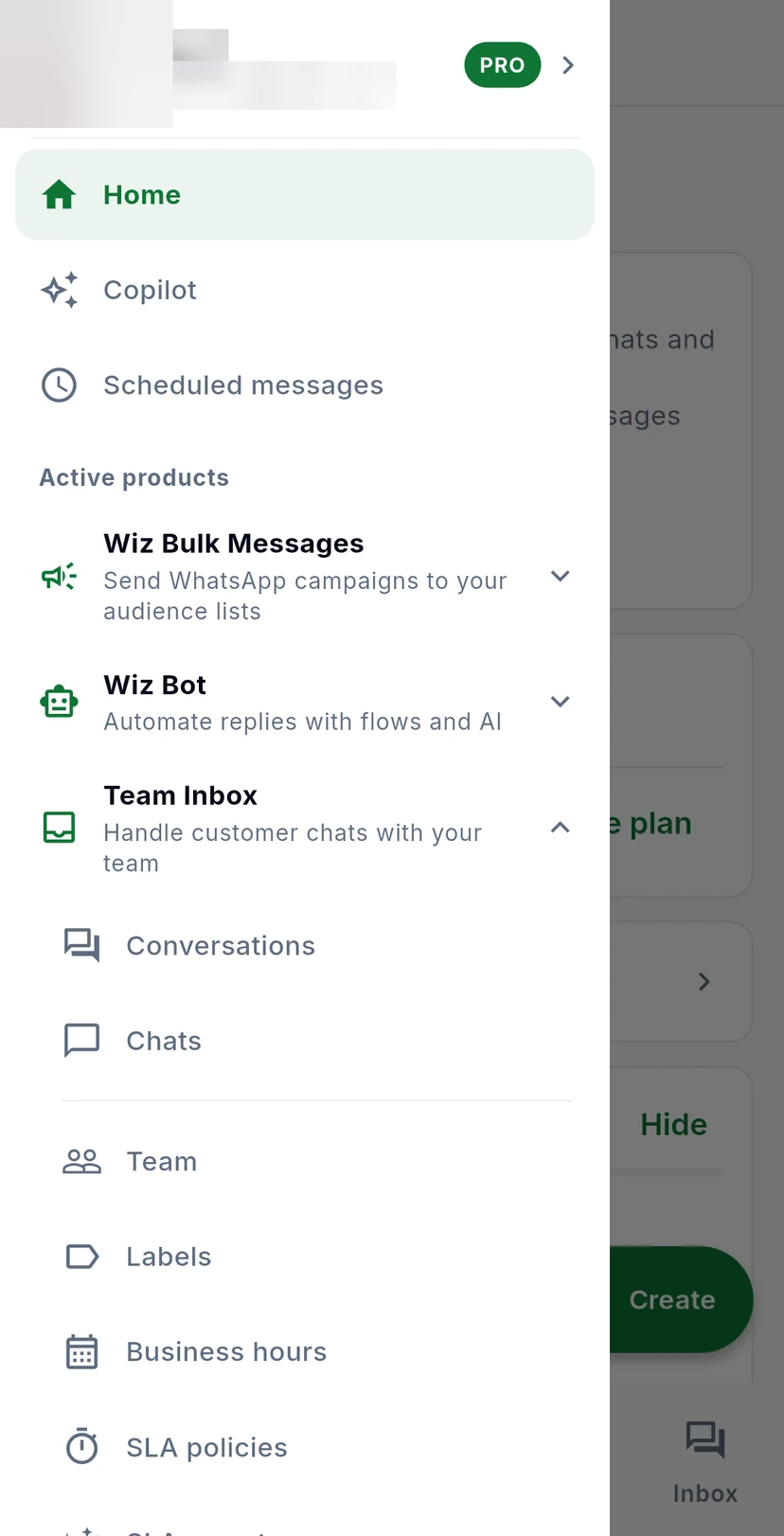
These settings shape how your team works the inbox: labels sort conversations, business hours say when your team is working, SLA policies set how fast you must reply, and canned replies save answers you send often. Labels, business hours and SLA policies are in the Team Inbox group of the menu. All of them, canned replies included, are also in the gear menu on the Inbox tab.
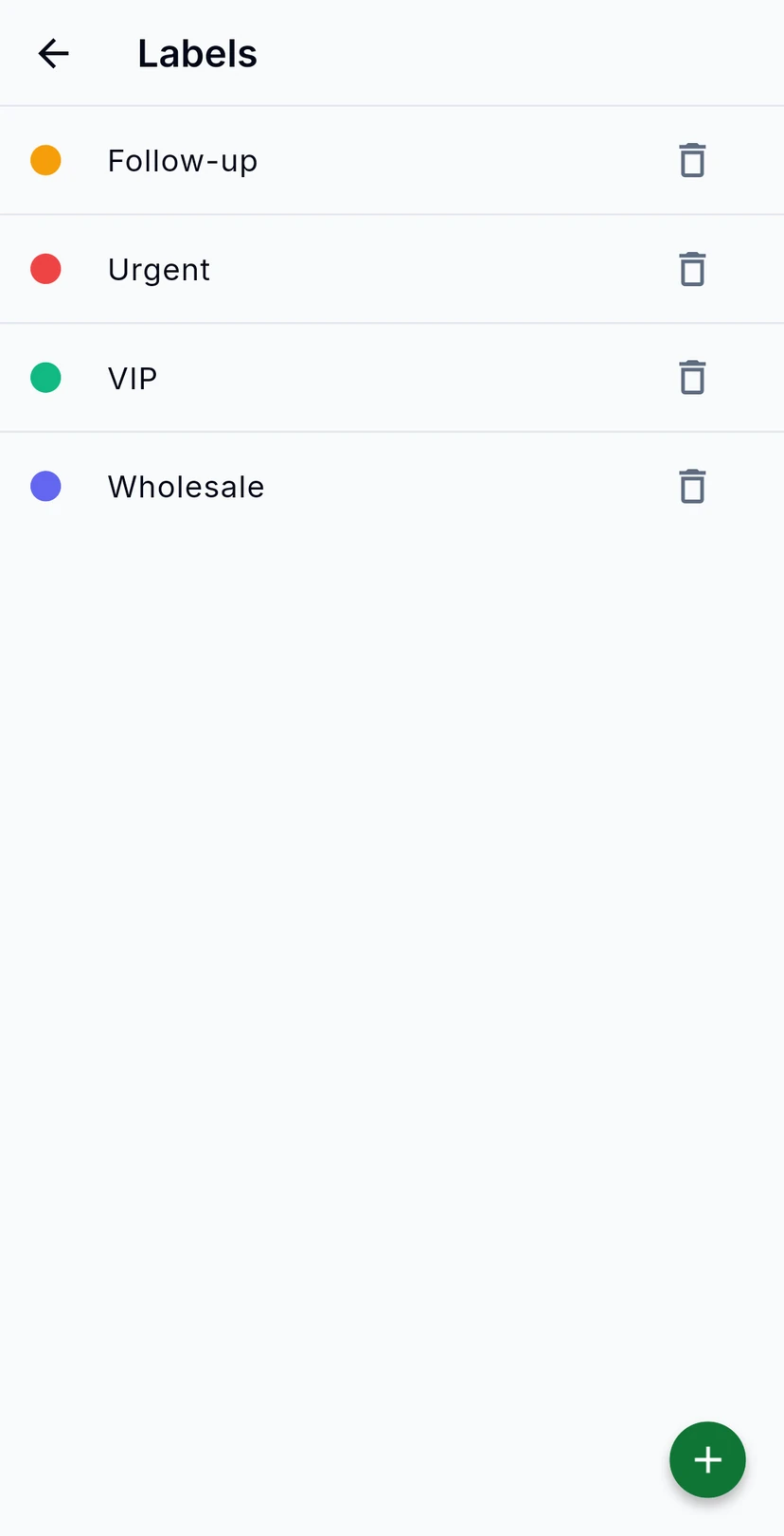
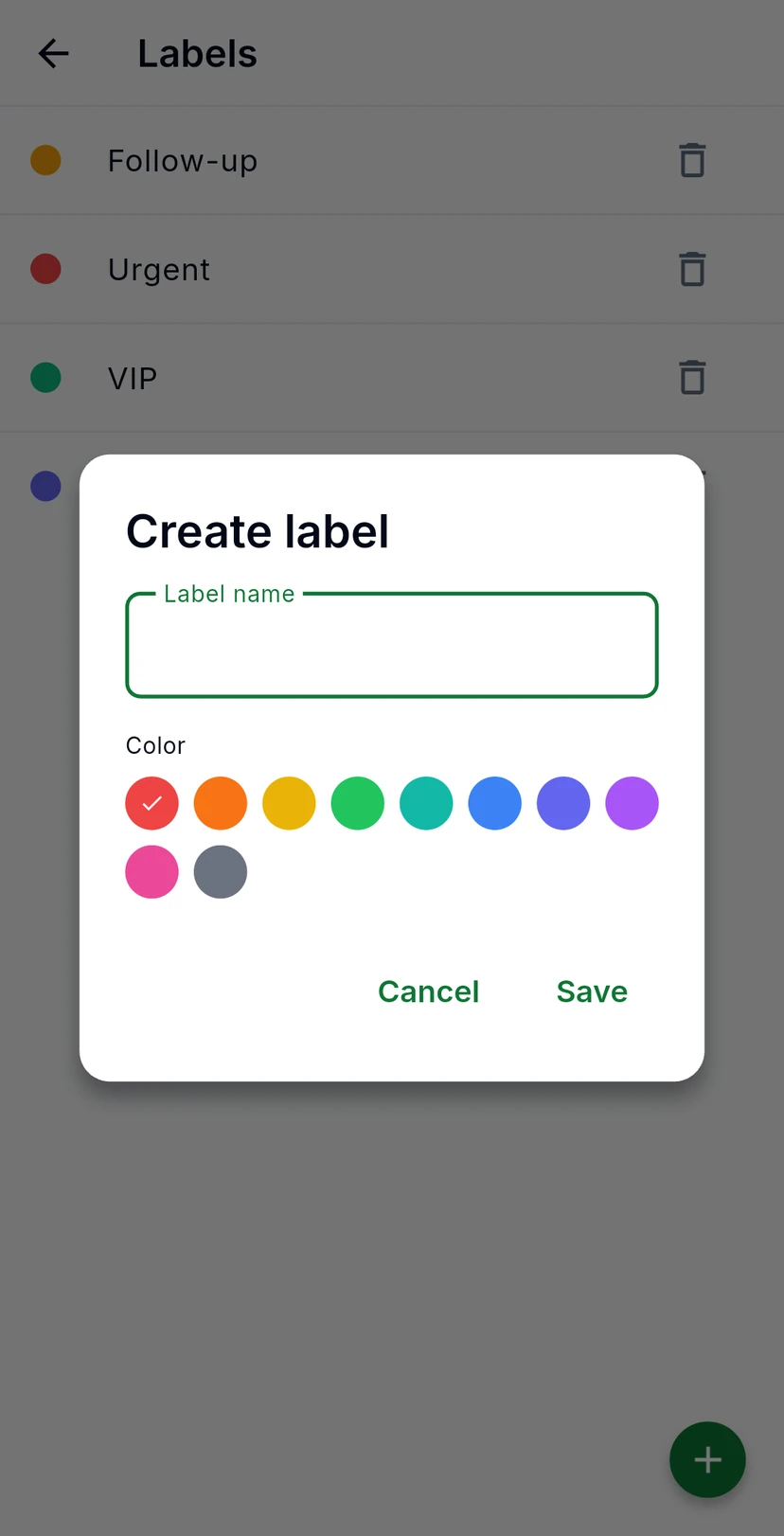
Labels lists your labels with their colours. Tap the bin icon to delete one. Tap + to create a label: type a name, pick one of ten colours and tap Save. Labels then appear as chips on conversations and as a filter in the inbox.
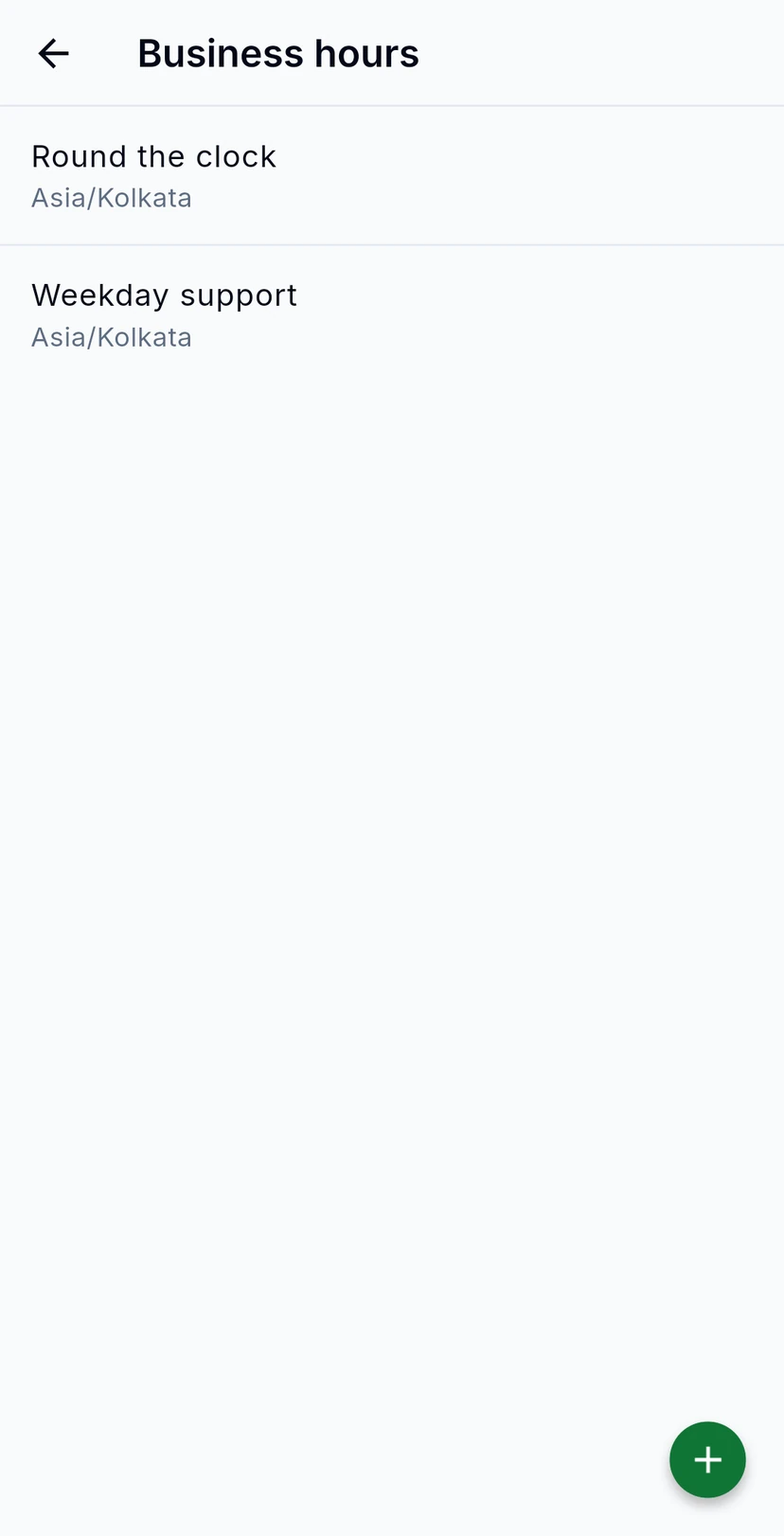
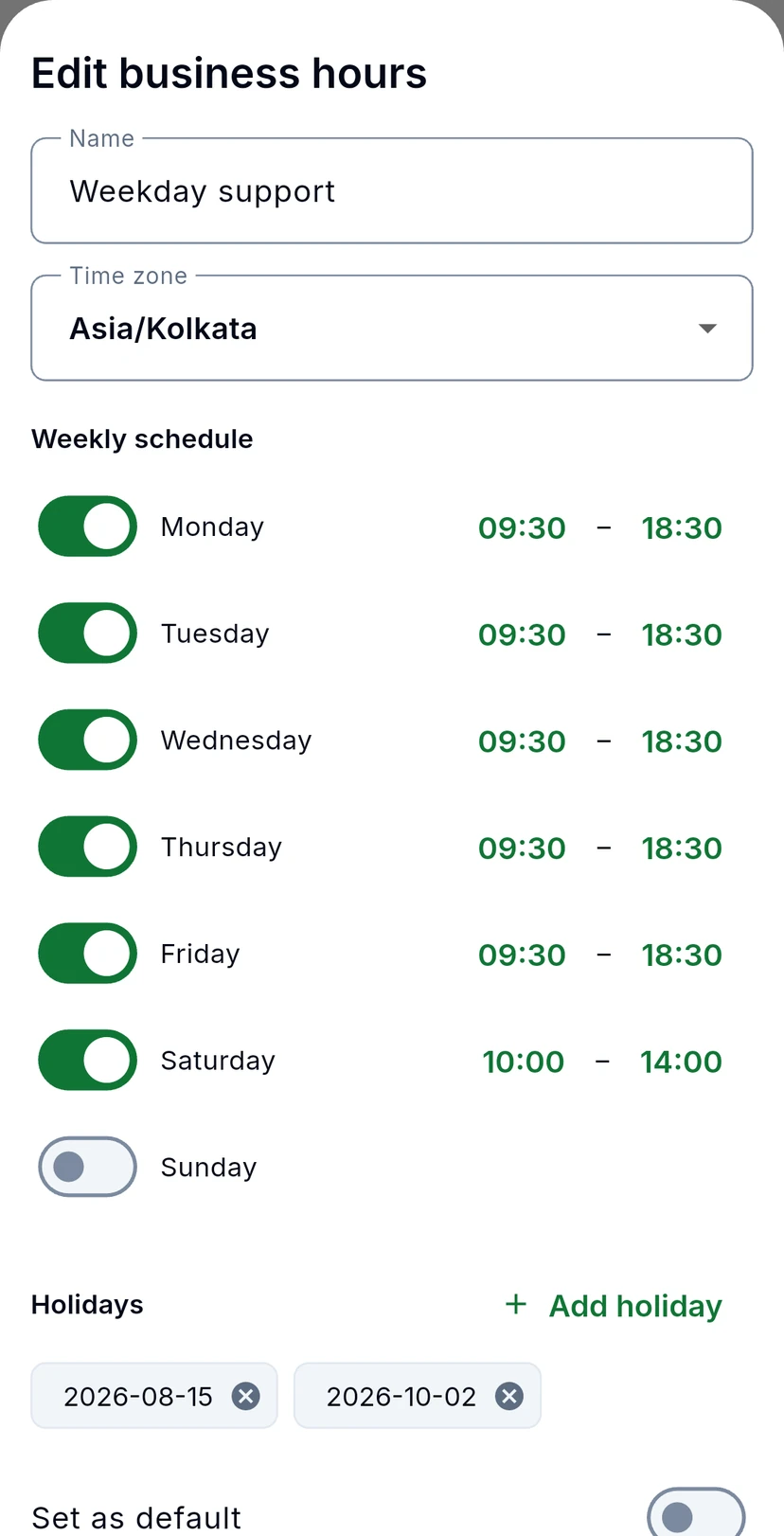
Business hours lists your schedules, each with its time zone. Tap one to edit it: switch each day on or off, set its opening and closing times, and add holidays. SLA timers only count time inside the hours of the schedule a policy uses.
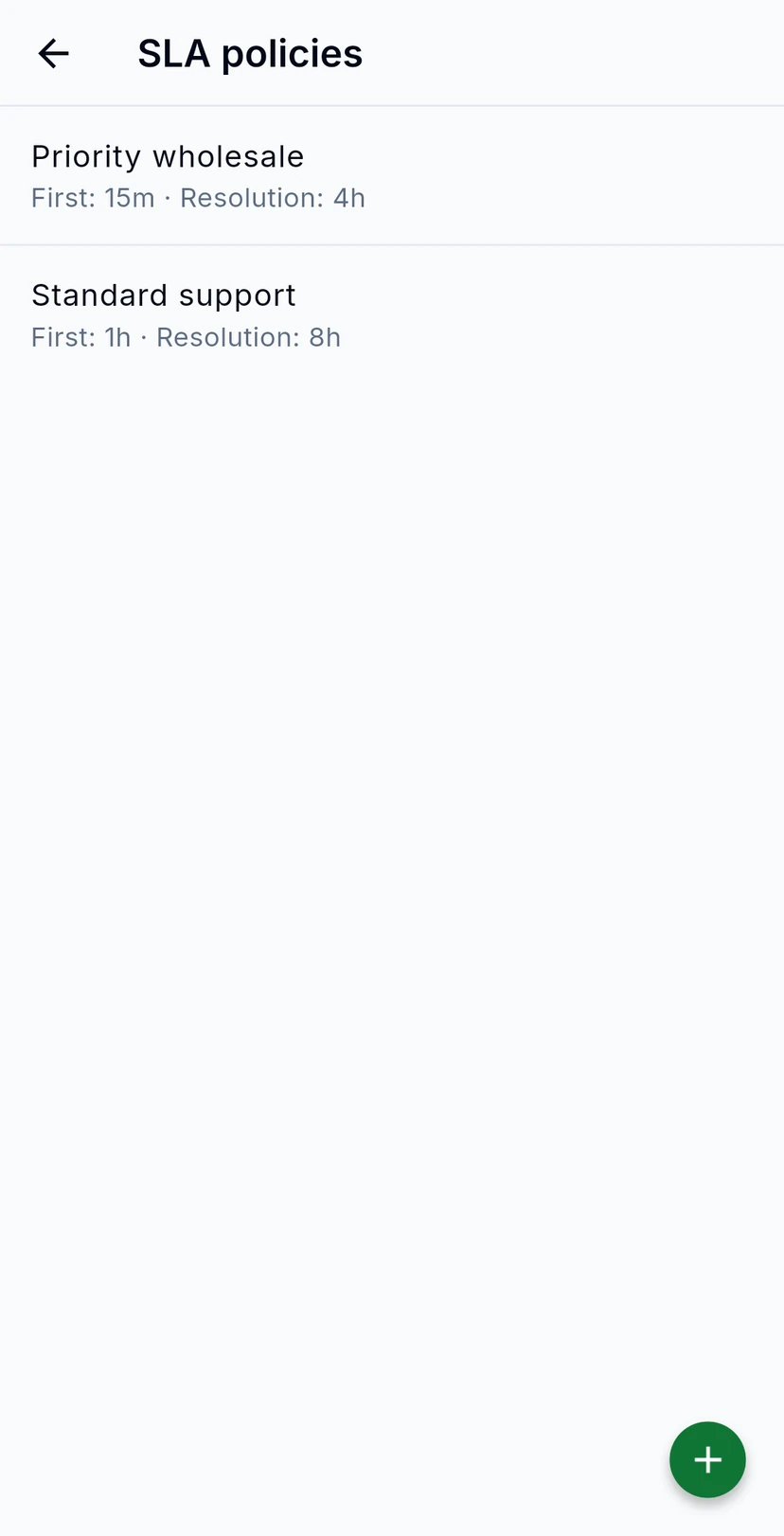
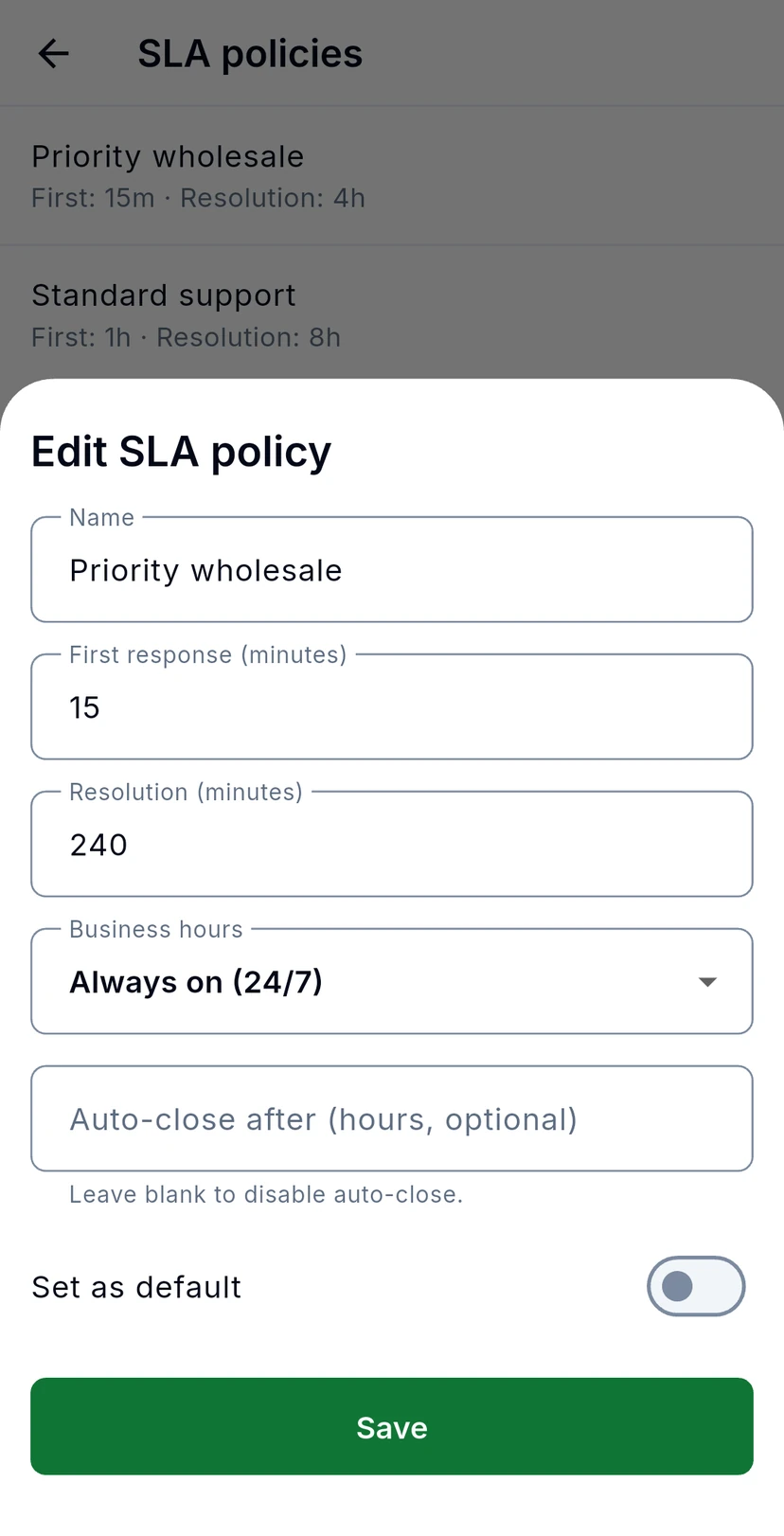
An SLA policy is a promise: reply first within so many minutes, resolve within so many. SLA policies lists yours with both targets. Tap a policy to change the targets, choose which business hours it follows, set an optional auto-close and make it the default.
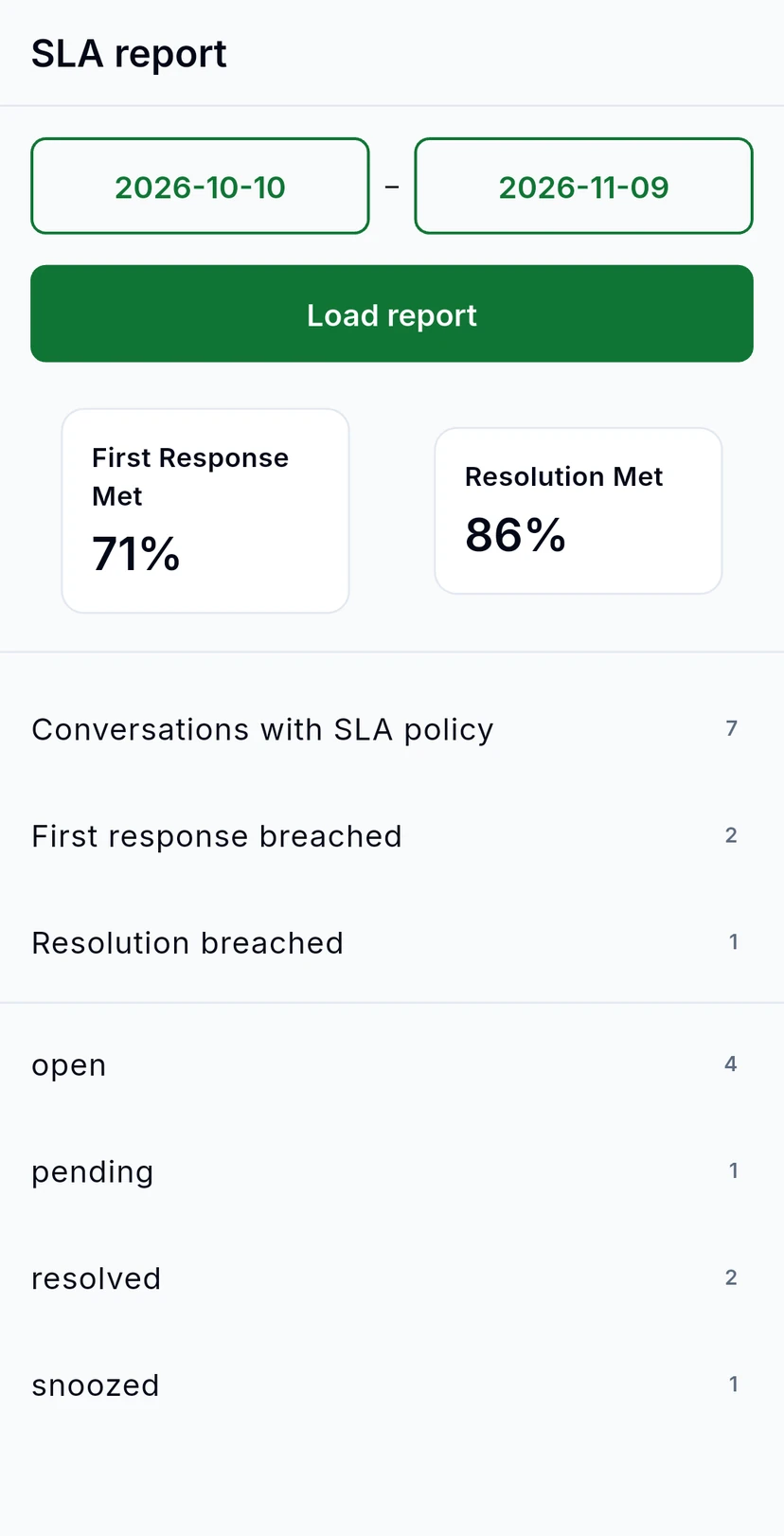
SLA report shows how your team did over the dates you pick: the share of conversations that met their first-response and resolution targets, how many breached, and how many sit in each status. Pick the dates and tap Load report.
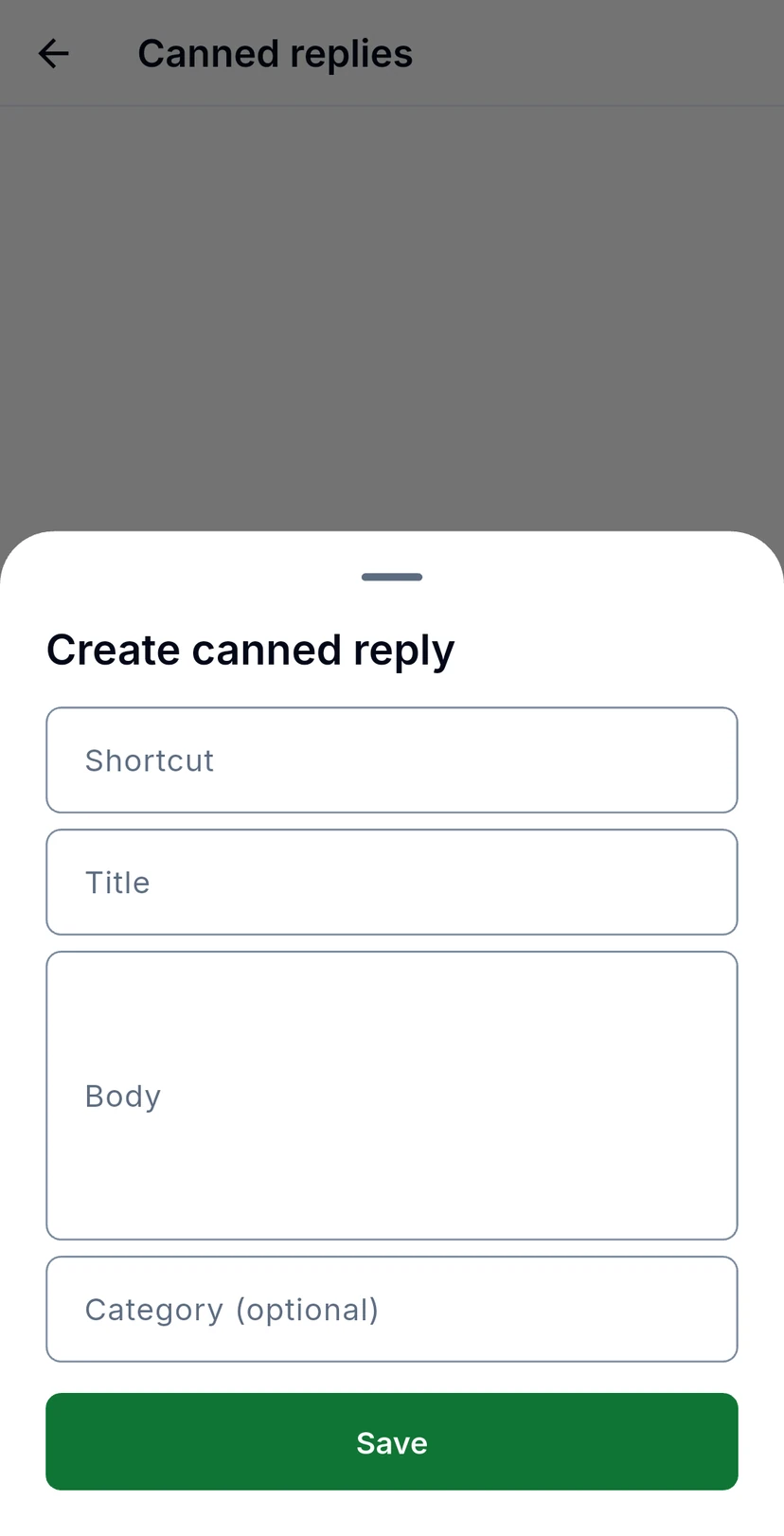
Canned replies live behind the gear on the Inbox tab. Tap + to save one: a shortcut, a title, the message itself and an optional category. In a conversation, the + beside the message box offers them.