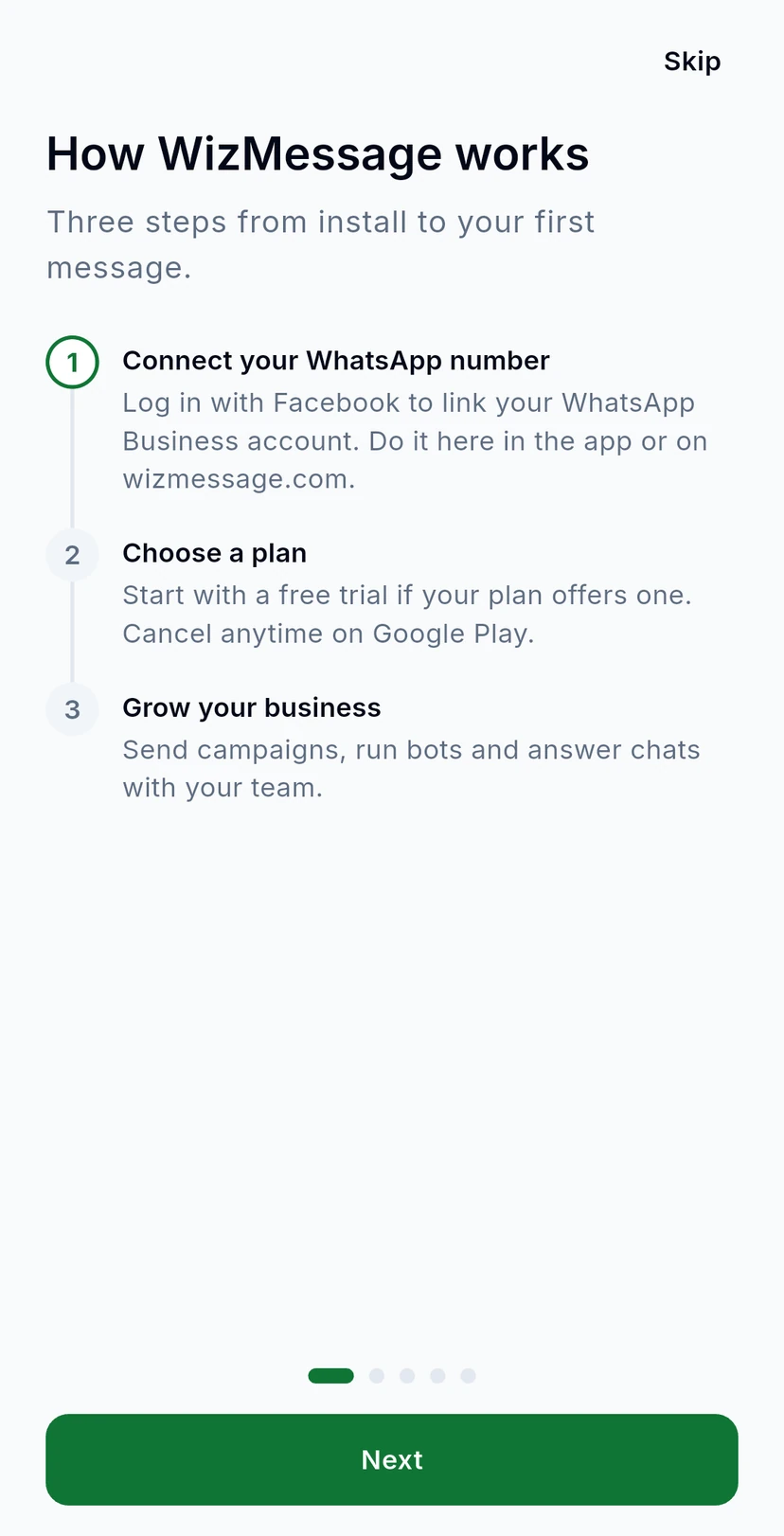
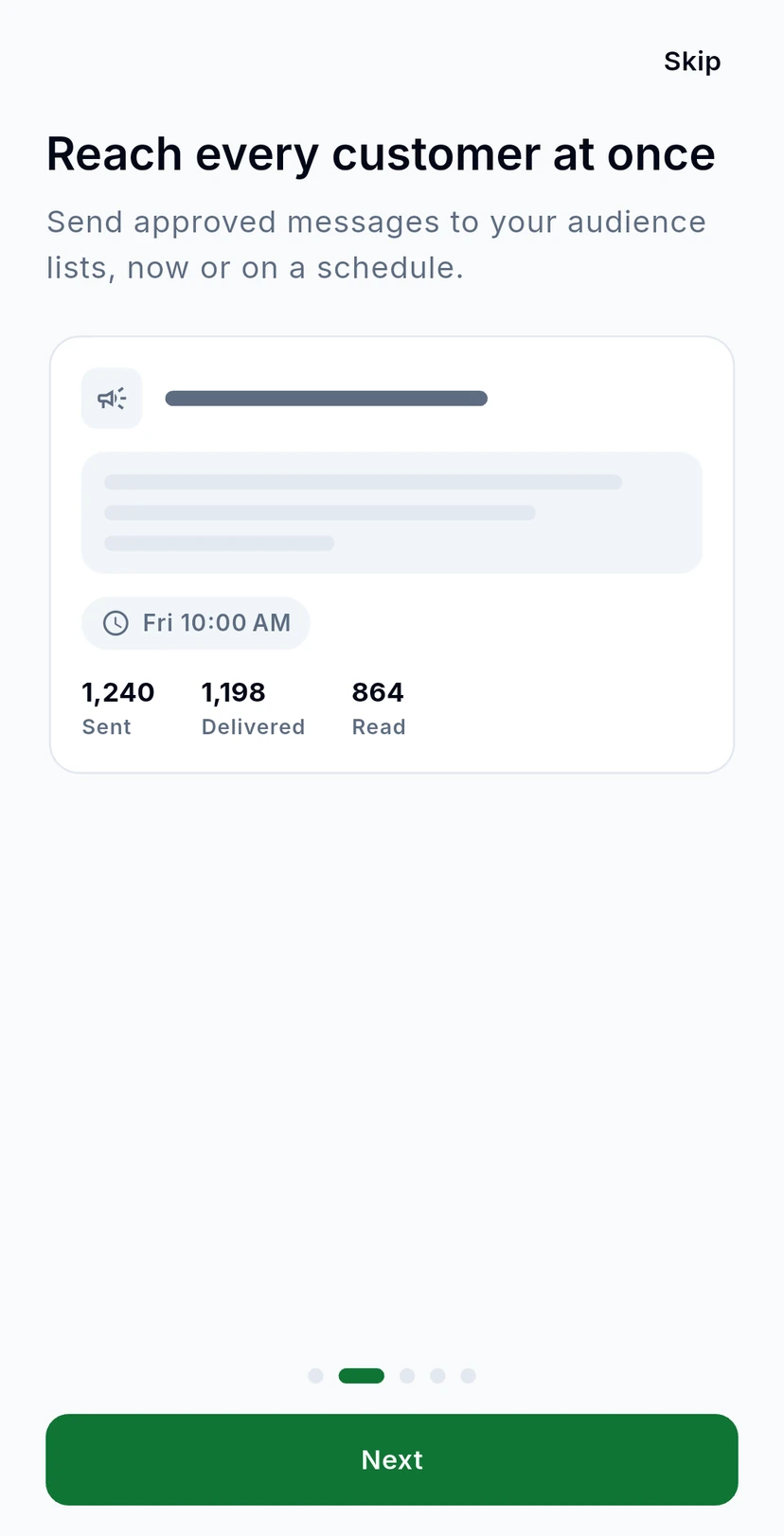
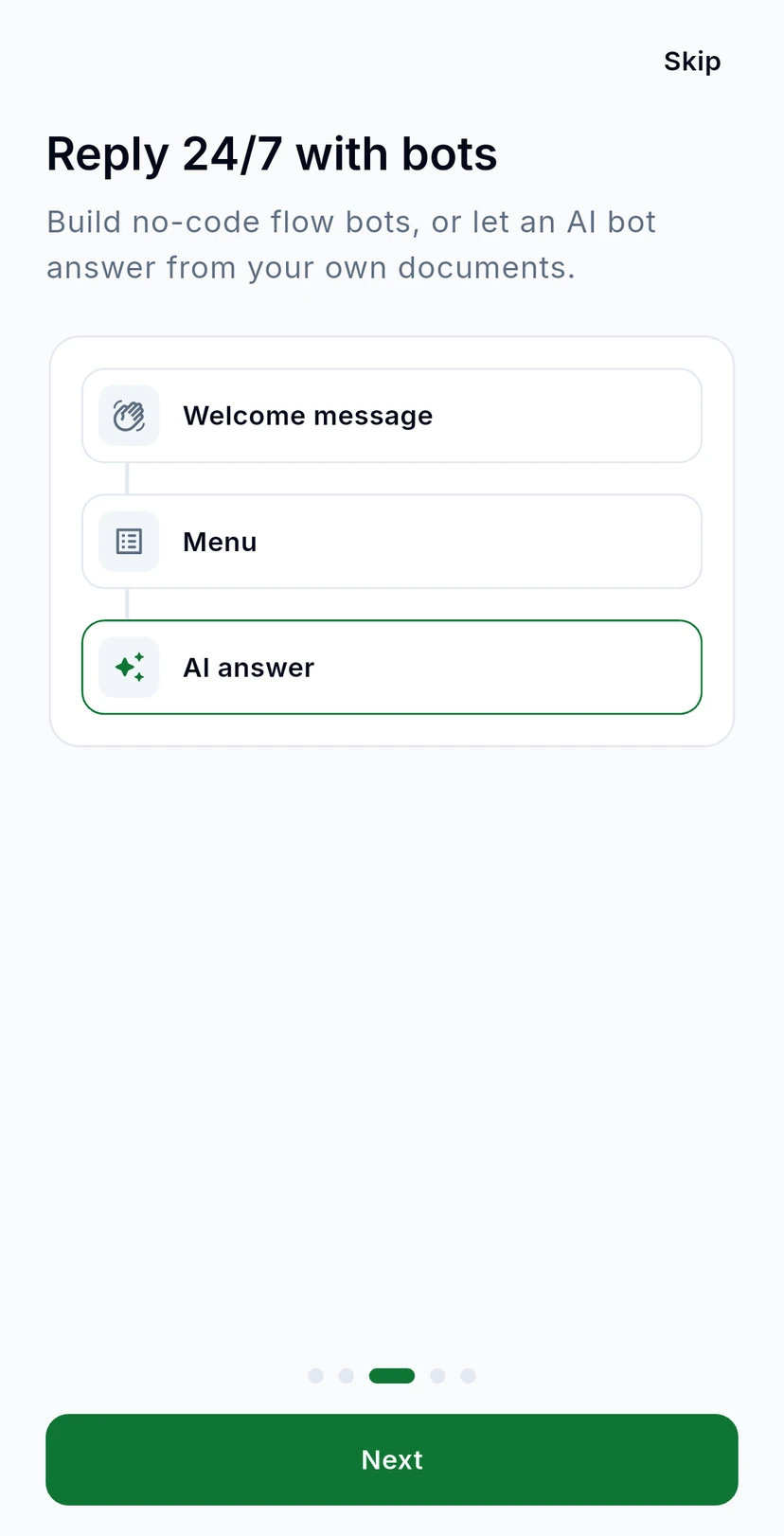
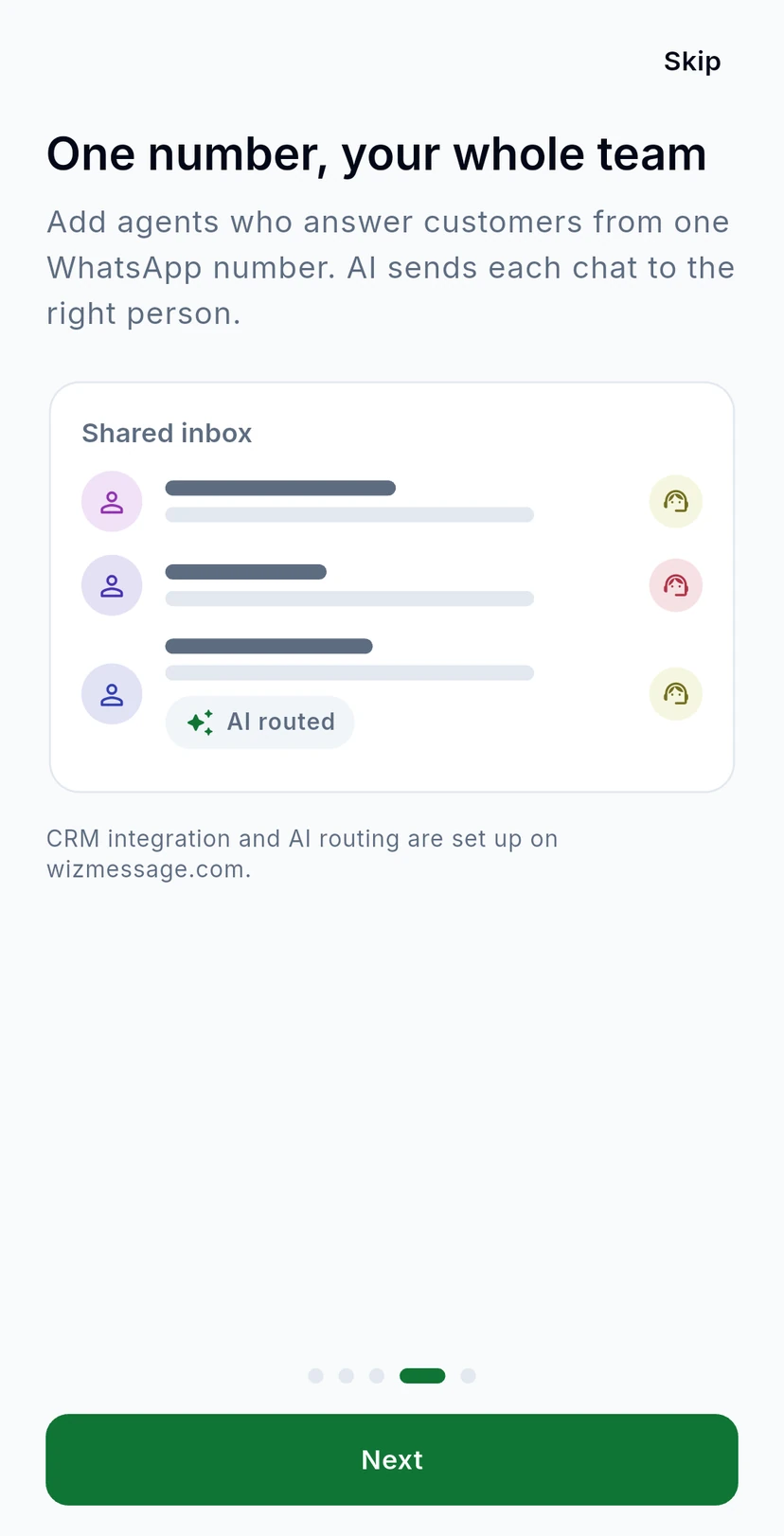
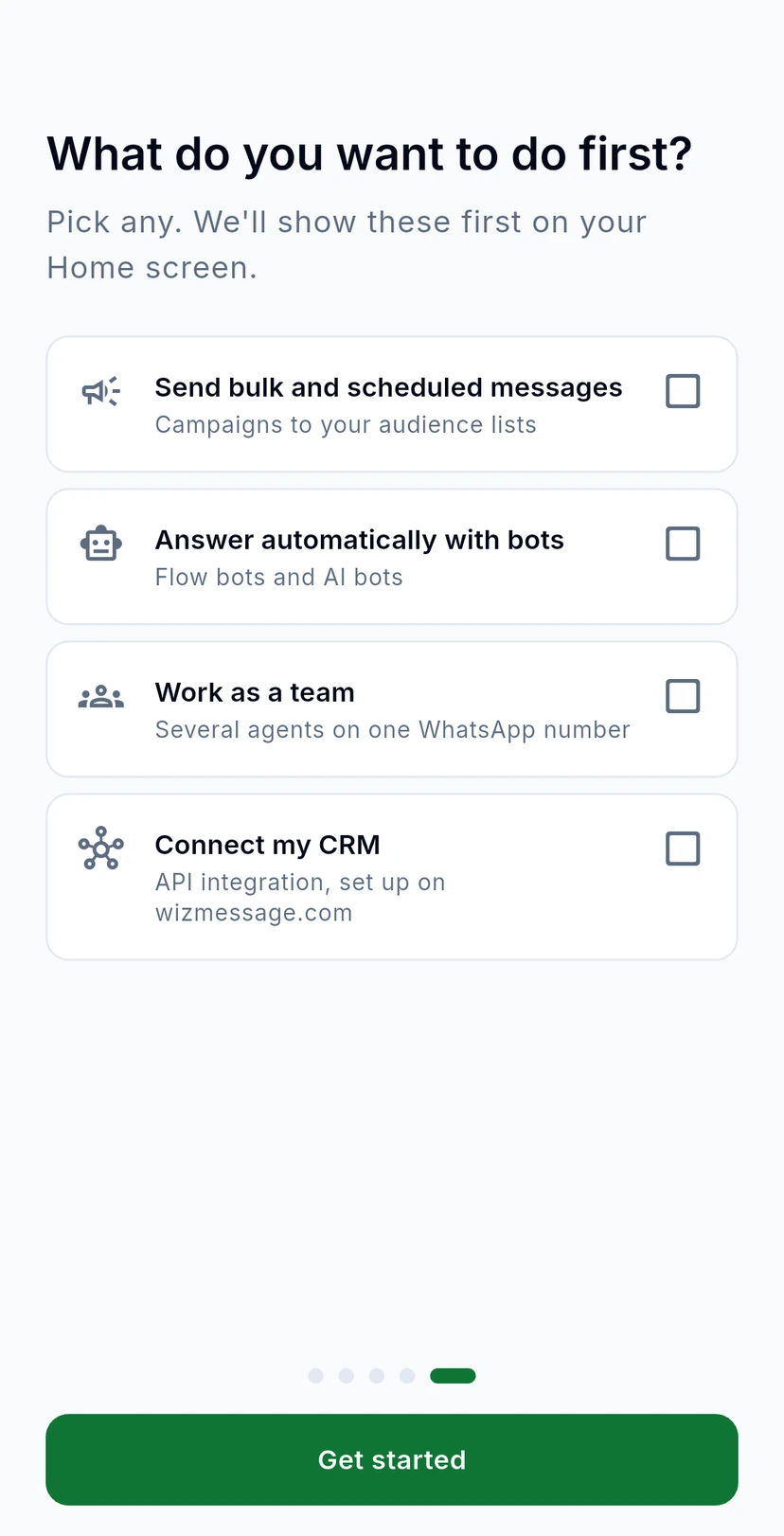
This guide walks through your first minutes in the app: logging in, what Home shows you, where every product lives in the menu, and how to replay the introduction.
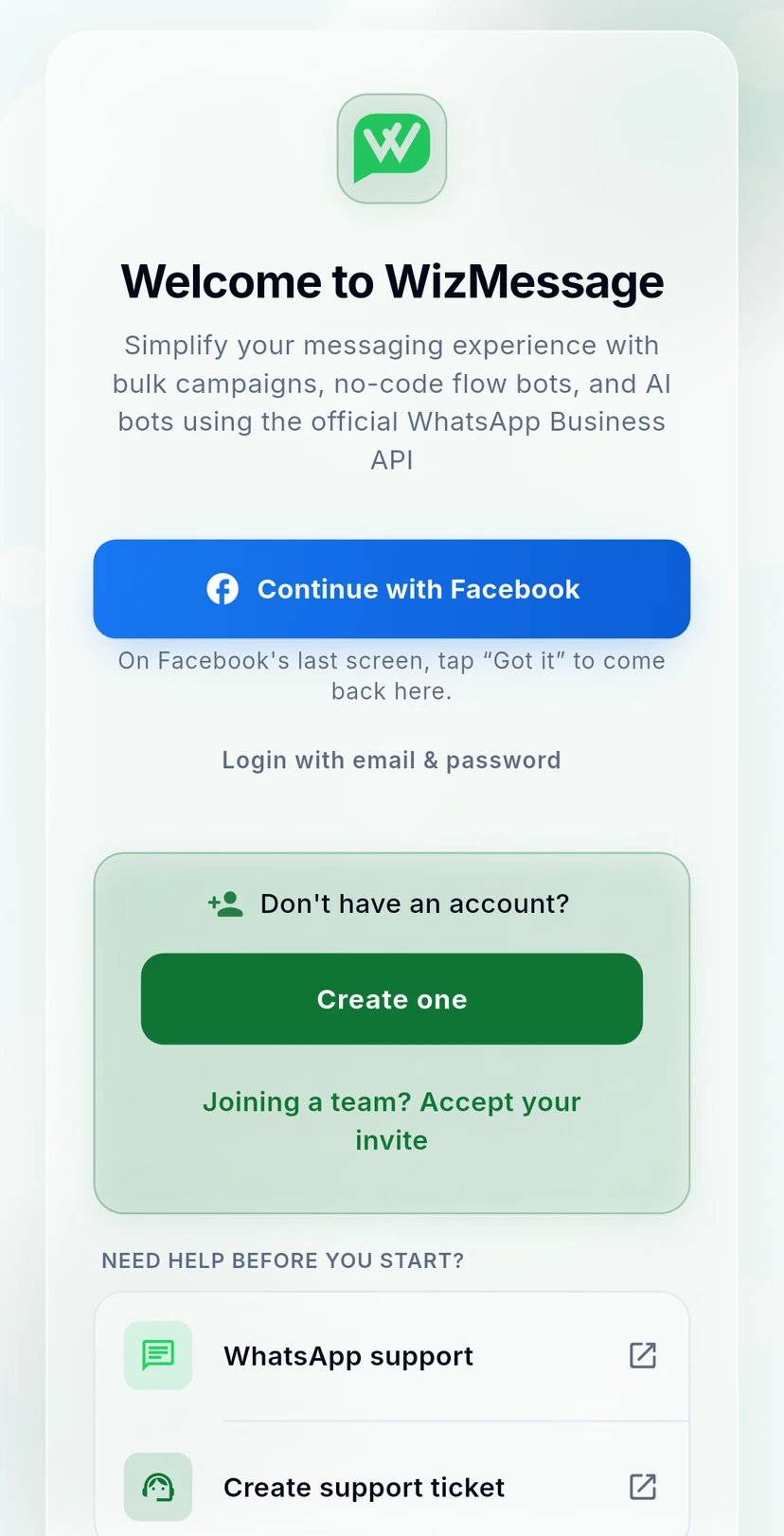
Open WizMessage. Already have an account? Tap Continue with Facebook, or Login with email & password. New here? Tap Create one. Invited to someone's team? Tap Joining a team? Accept your invite.
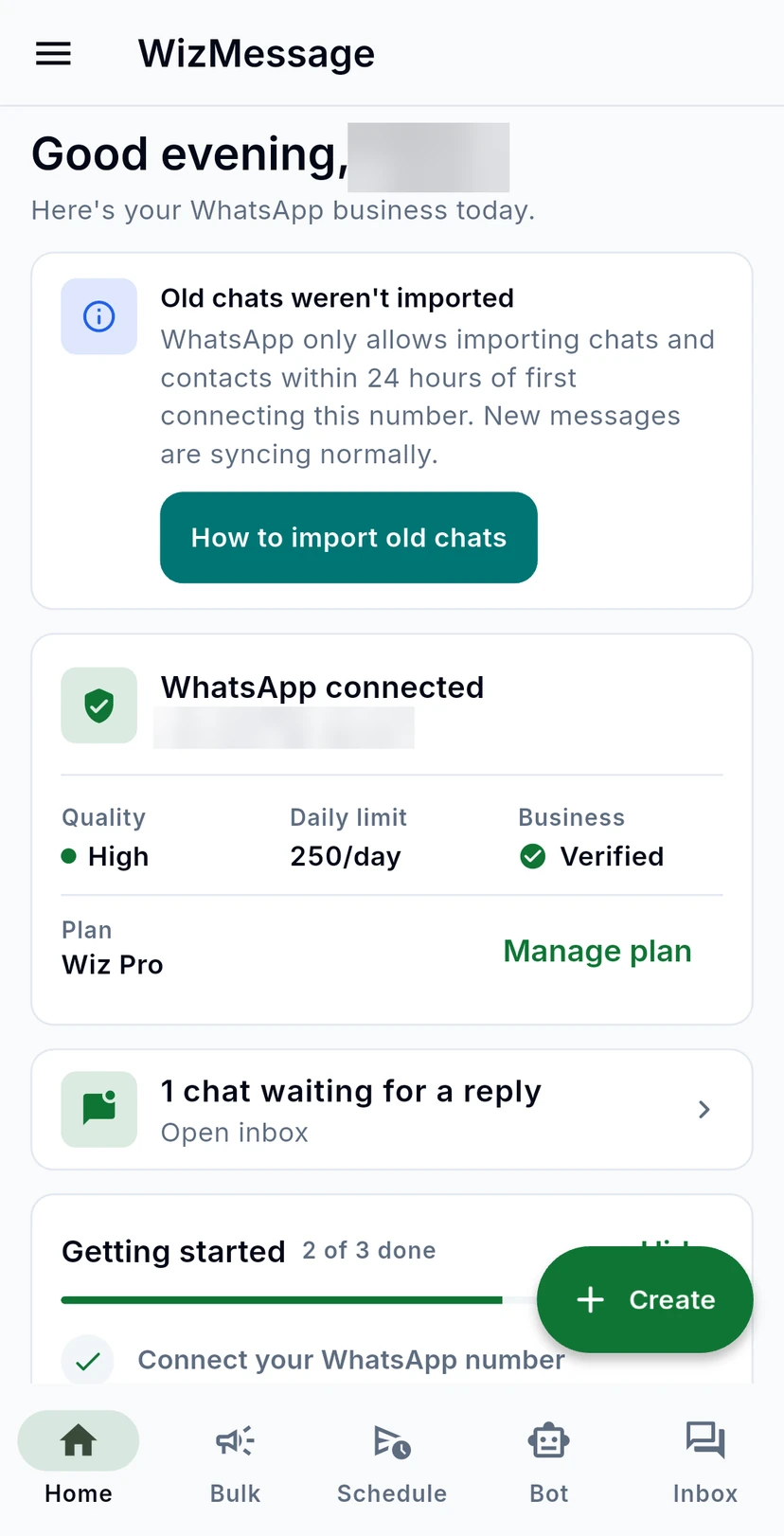
Home opens with your WhatsApp number's status: whether it is connected, its Quality, its Daily limit, whether Meta has verified your Business, and your Plan. If WhatsApp could not bring in your older chats when you connected, a notice above it explains why. Below the status card are the chats waiting for a reply: tap to open the inbox.
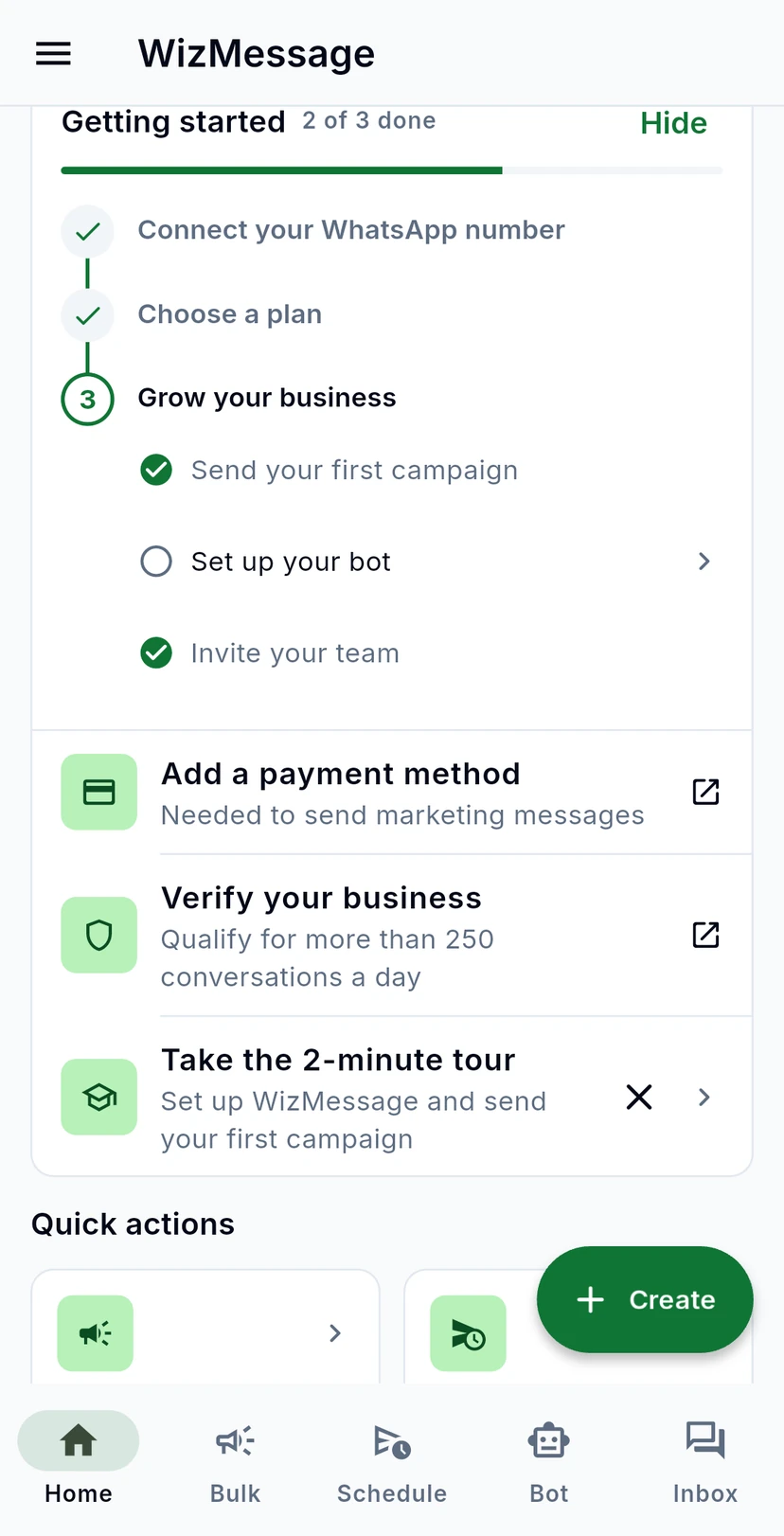
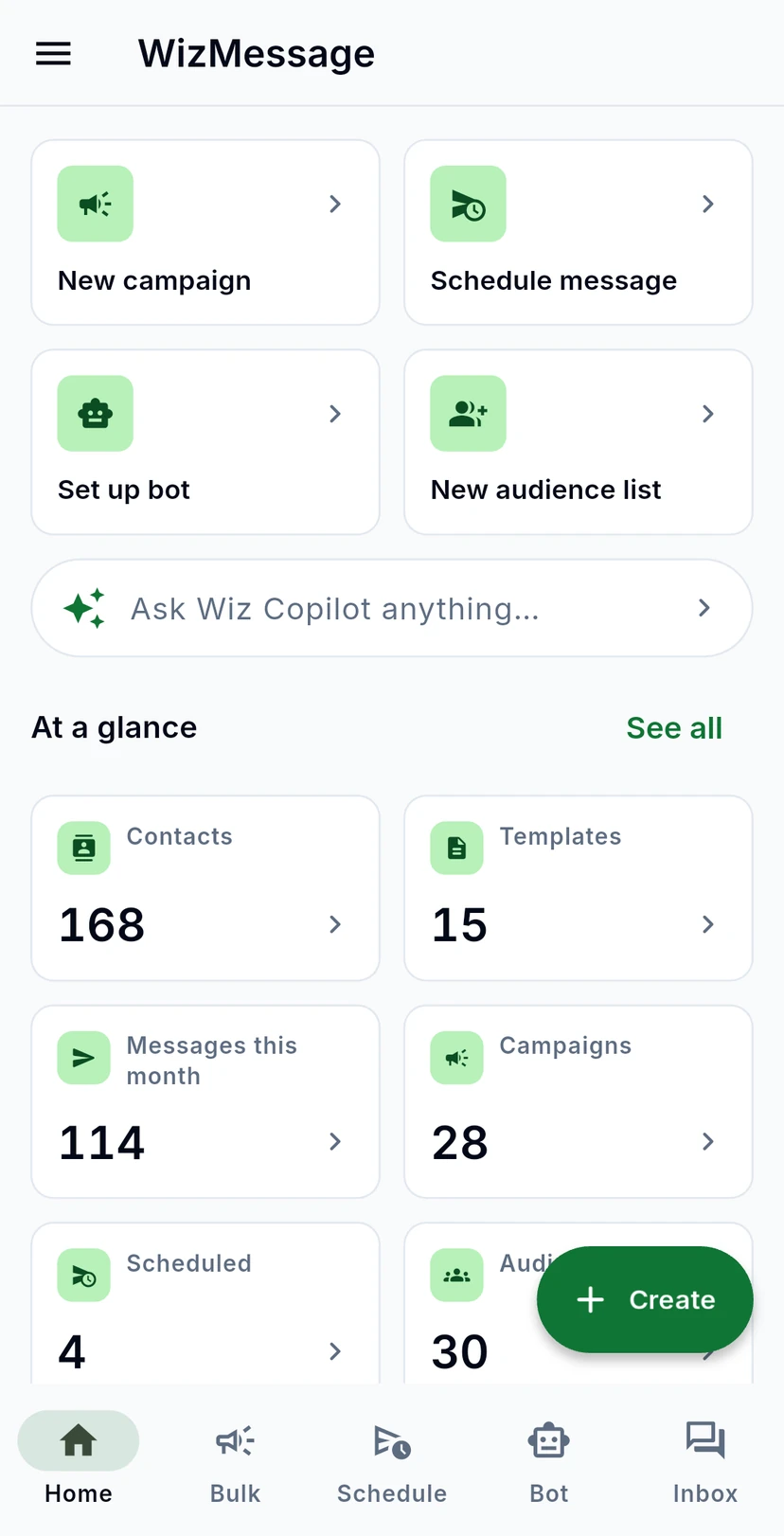
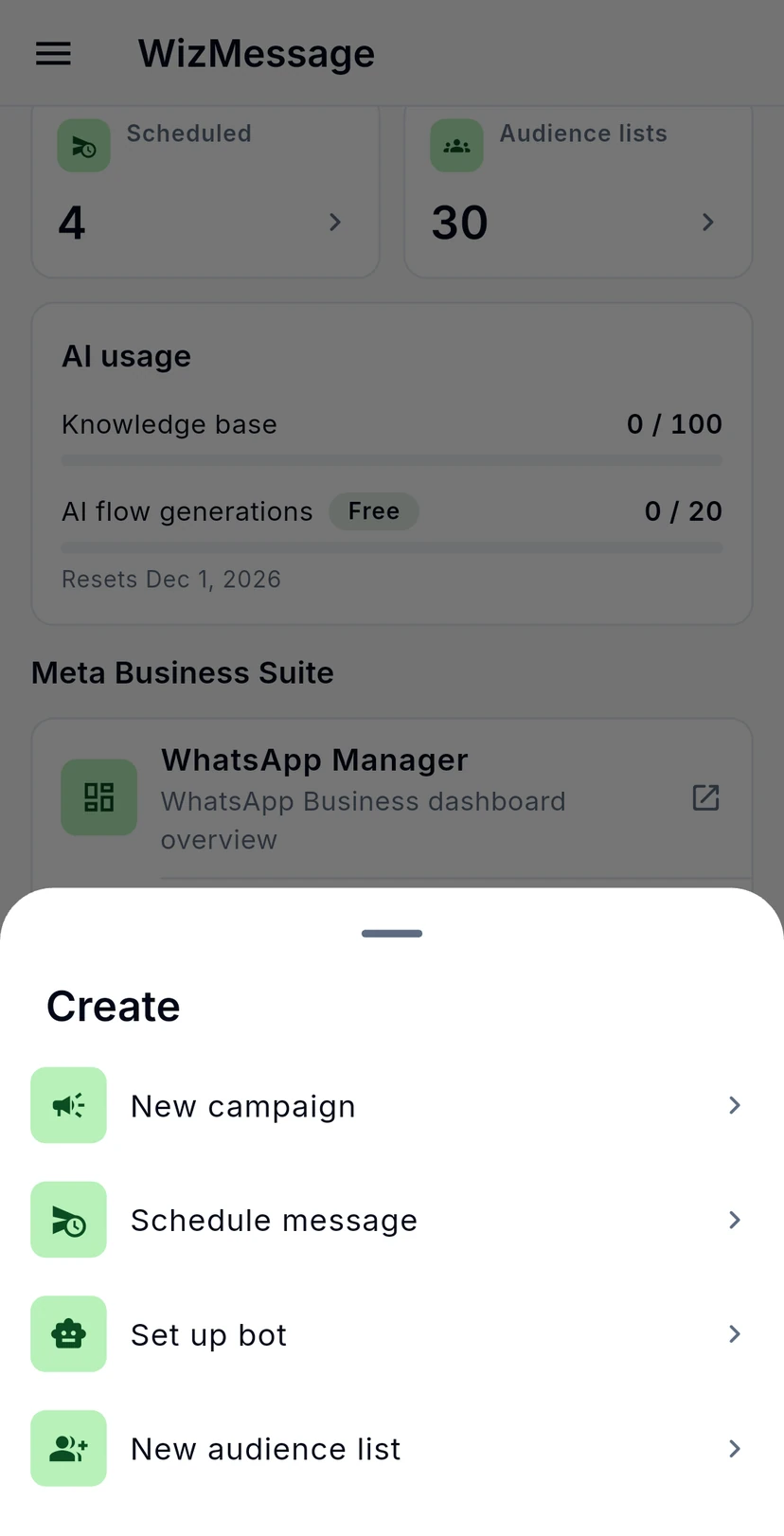
Getting started tracks your setup and shows the next step. Quick actions start the things you do most: New campaign, Schedule message, Set up bot and New audience list.
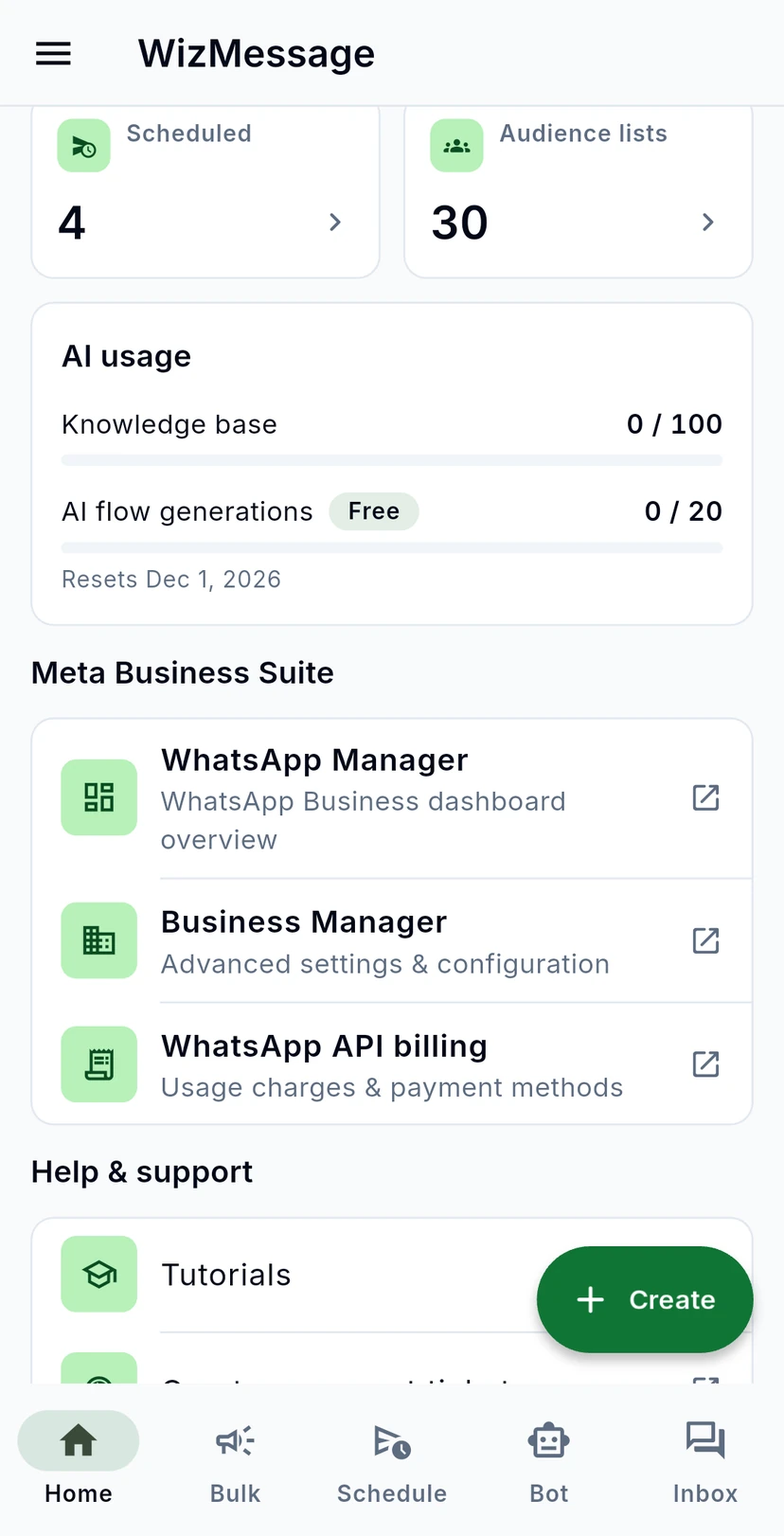
At a glance counts your contacts, templates, messages, campaigns and lists. See all opens Analytics. AI usage shows how much of this month's AI allowance you have used, and when it resets.
At the bottom of Home, Meta Business Suite links to WhatsApp Manager, Business Manager and your WhatsApp API billing at Meta. Help & support opens the Tutorials, lets you Create a support ticket or Chat with support on WhatsApp.
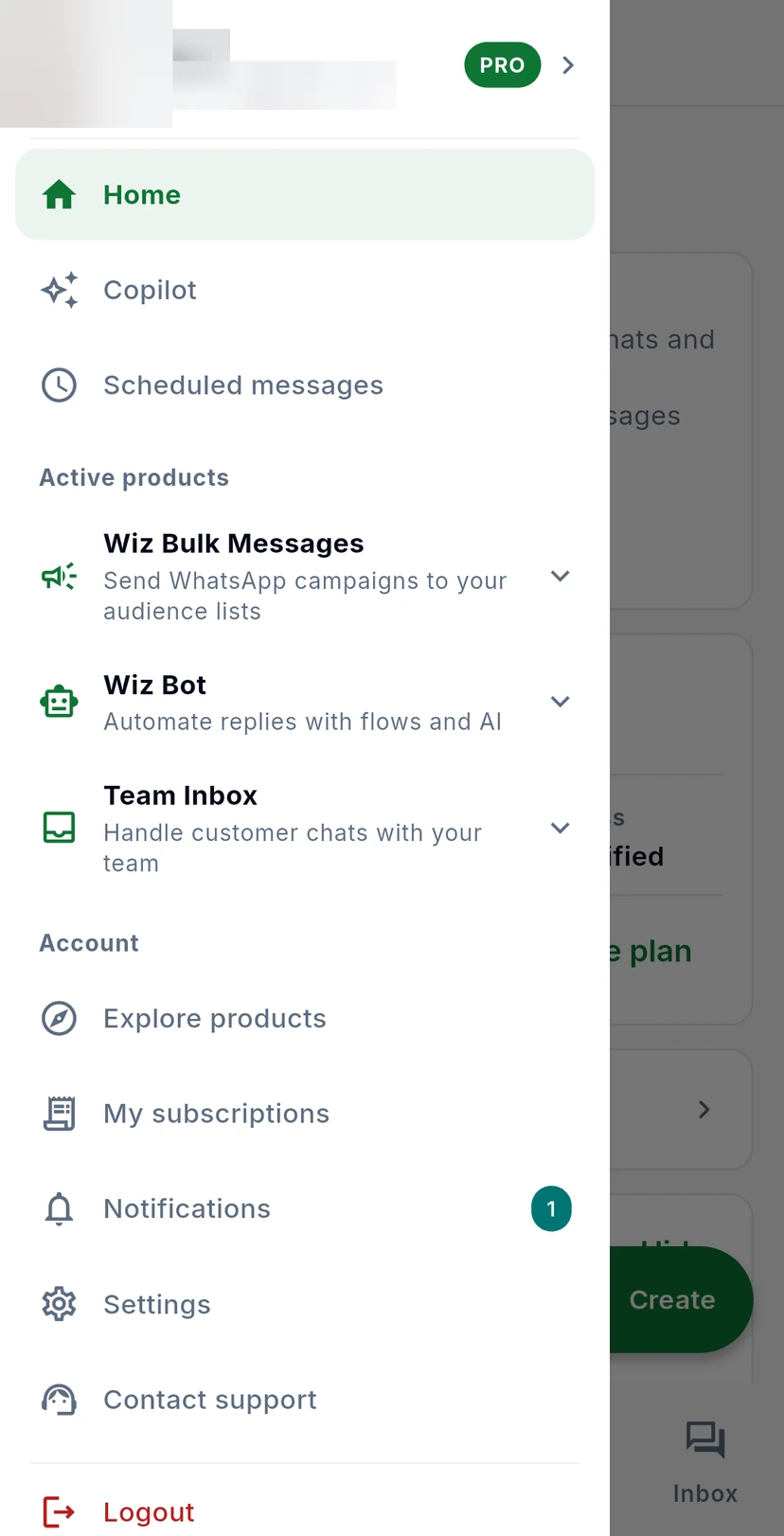
Tap the three lines at the top left to open the menu. It holds every product: tap one, such as Wiz Bulk Messages, to see its screens. The bar at the bottom of the app takes you to Home, Bulk, Schedule, Bot and Inbox in one tap.