The WhatsApp Inbox
The inbox is where your customers' messages arrive and where your team answers them. This guide walks the whole of it: the counters at the top and what window they cover, the conversation list and what each row is telling you, opening one conversation and working it, and the controls that let a team of several people share one WhatsApp number without answering over each other. It also says plainly which parts of this page are only ever showing you the last seven days.
The inbox
The whole page
The inbox opens on four counters and, below them, one row for every person who has messaged this number recently. There is no folder structure and nothing to file: the list is simply ordered by who wrote most recently, and everything you can do to a conversation is done from its row or from inside it.
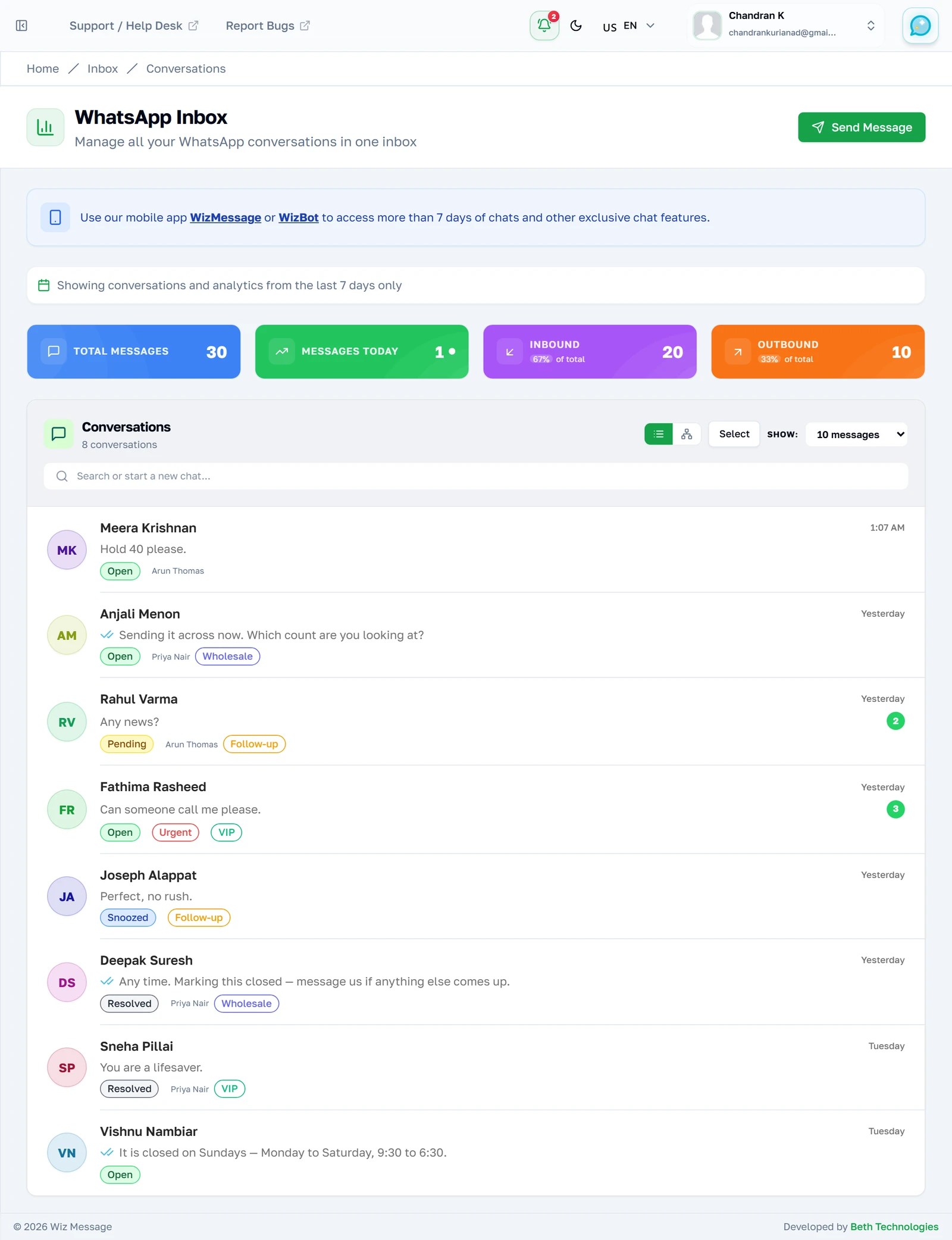
The four counters
Four counts of the same thing from different angles: everything in the window, just today, and the split between what came in and what went out. The inbound/outbound share is the one worth watching over time — a number that is mostly outbound is broadcasting rather than talking, and WhatsApp treats those very differently.
Note: All four cover the last seven days and nothing older. There is no control on this page to widen that, and a quiet week genuinely reads as a quiet week rather than as an error.

The conversation list
One row per person, newest at the top. The count beside the heading is how many rows are currently showing rather than how many conversations exist — search filters it, and so does the page size control on the right. Everything in this list is shared: your colleagues are looking at the same rows.
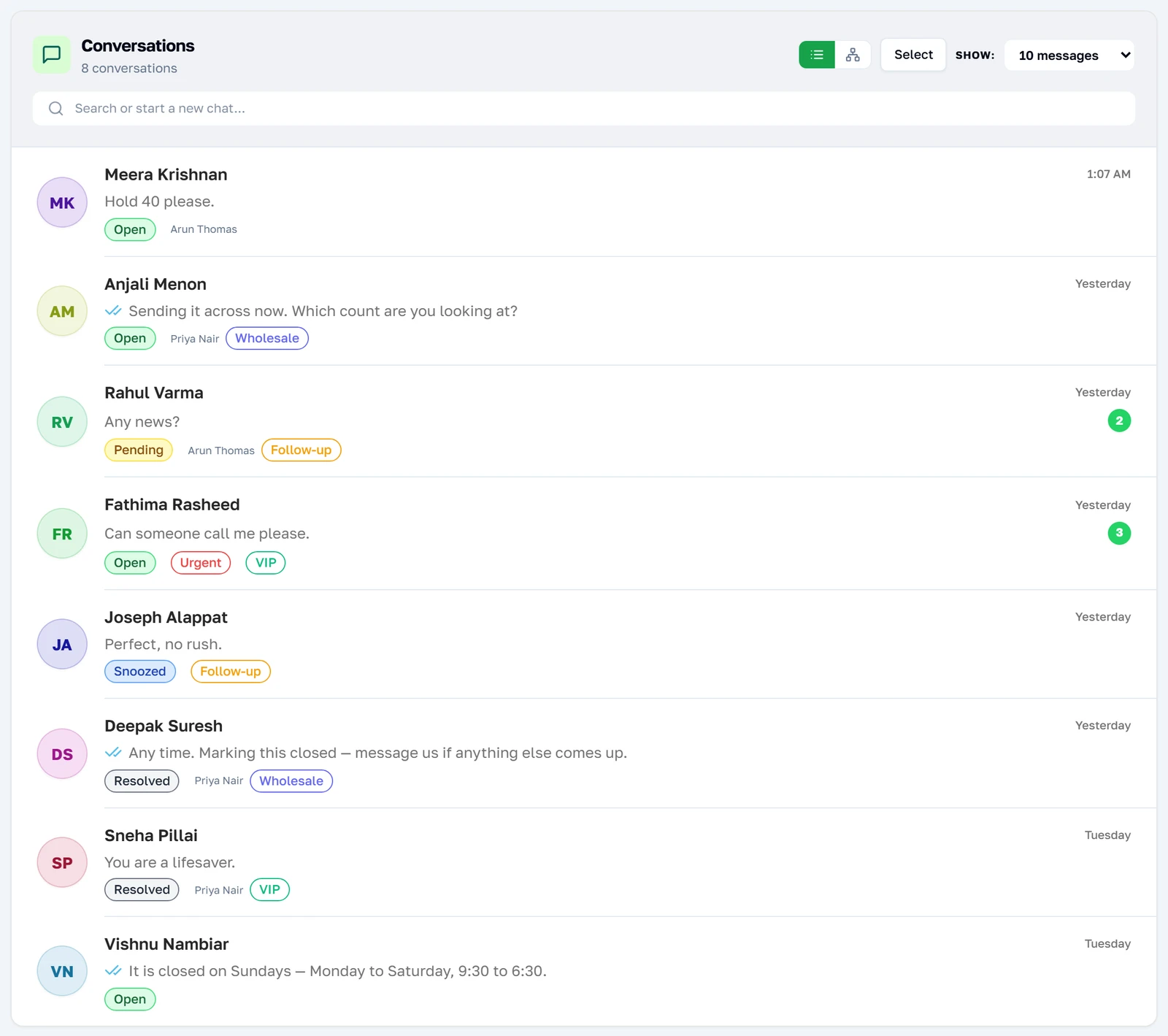
Reading one row
A single row is dense on purpose. Above the fold of it: who wrote, what they last said, and when. Below: the conversation's status, who it is assigned to, whatever labels your team has applied, and a red flag if an SLA target was missed. The green circle on the right is how many of their messages nobody has opened yet — it disappears the moment anybody opens the conversation.
Note: The unread count is worked out from the messages themselves rather than from a stored total, so it is always the truth about what nobody has read.

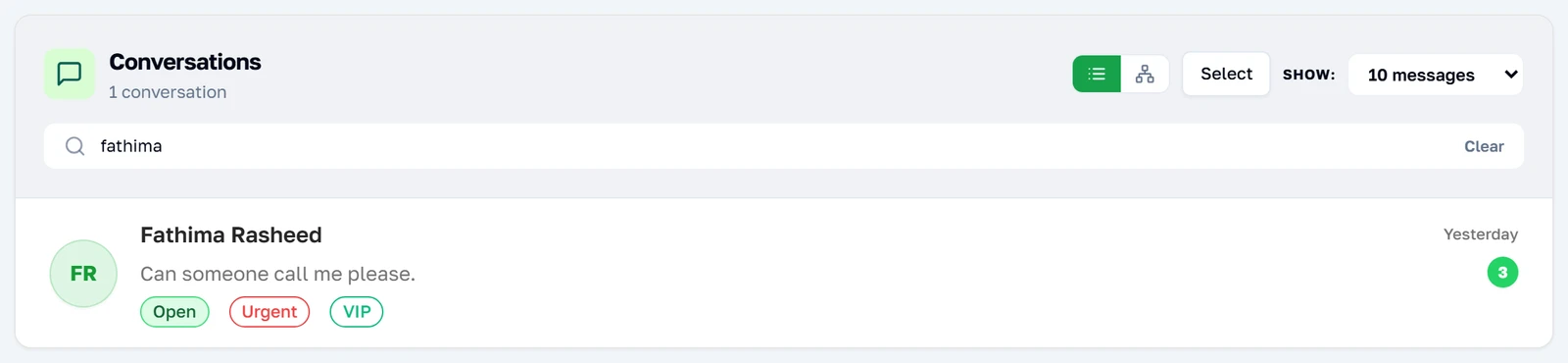
Finding one person
Search narrows the rows in front of you as you type — by name, by number, and by the text of the last message. It is a filter over what is loaded rather than a search of your whole history, which is why it is instant and why it cannot find a conversation from last month.
Note: Nothing older than seven days can be found here at all, however you spell it. That is the window, not the search.
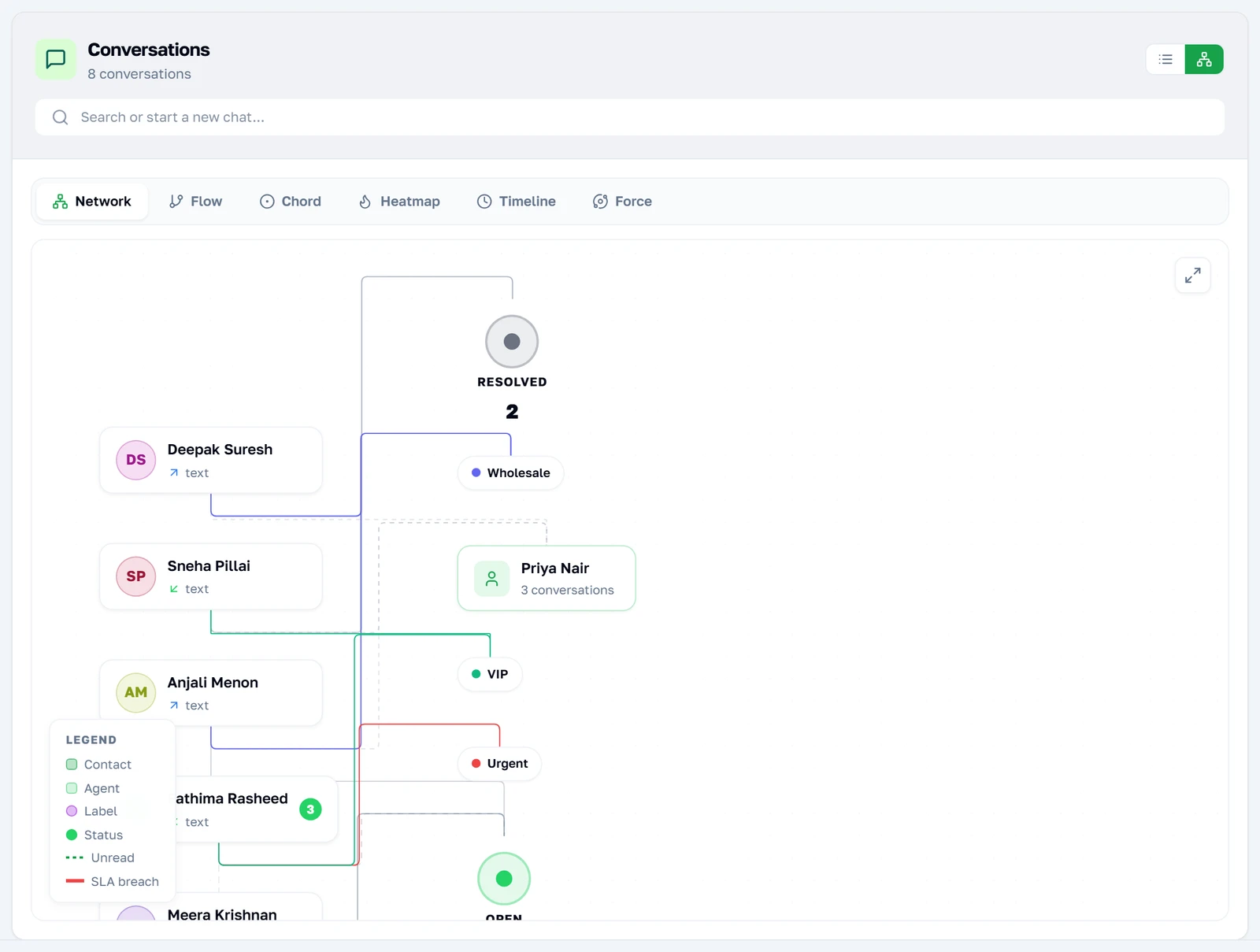
The same inbox as a picture
The second view mode draws the same conversations as a picture instead of a list. Network is the one shown here: contacts on the left, and the statuses, agents and labels they connect to on the right, with a red edge wherever an SLA was missed. Five more drawings sit behind the tabs above it — Flow, Chord, Heatmap, Timeline and Force — each answering "where is the work piling up?" differently. All six read the same seven days and none of them adds data the list does not already have.
Note: The legend in the corner is worth reading once: a dashed edge is unread, a red edge is an SLA breach, and the ring colours separate contacts from agents, labels and statuses.
Working one conversation
Inside a conversation
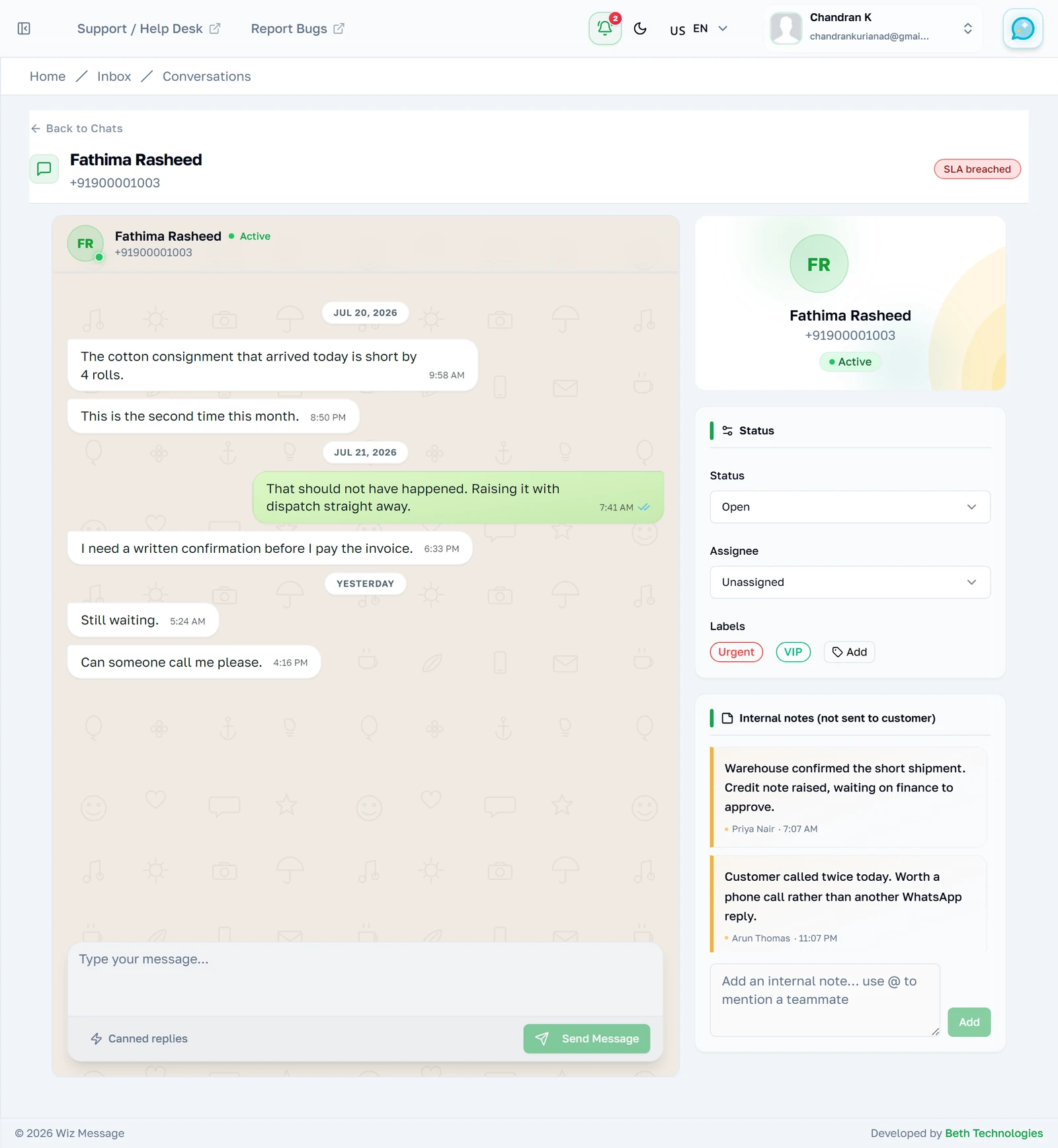
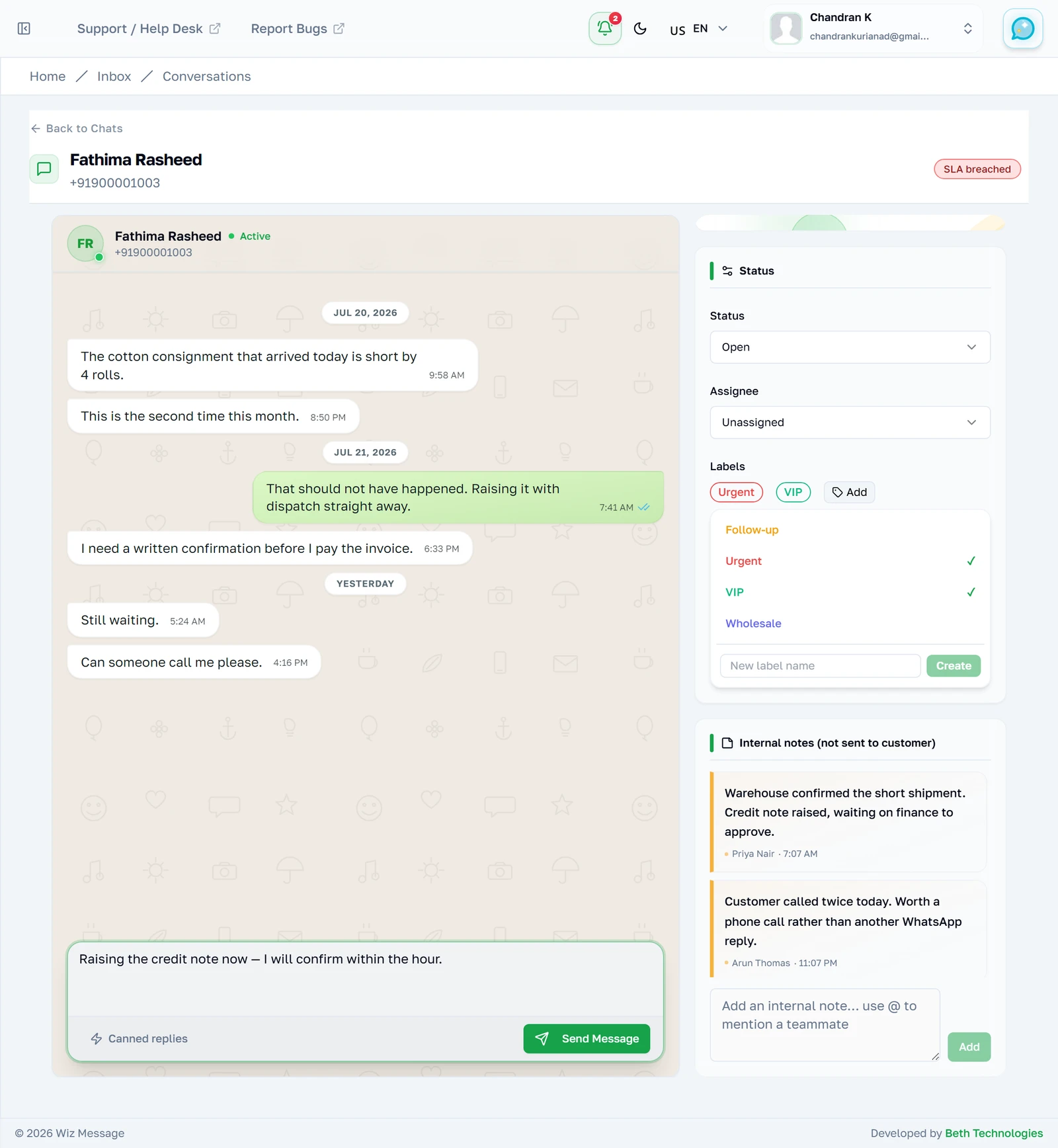
Opening a row gives you the transcript, a composer beneath it, and a rail down the right where the conversation's state lives. The transcript is the real WhatsApp history for that person on this number — including whatever the bot said, which is not marked differently, because to the customer it was all one conversation.
Marking where it has got to
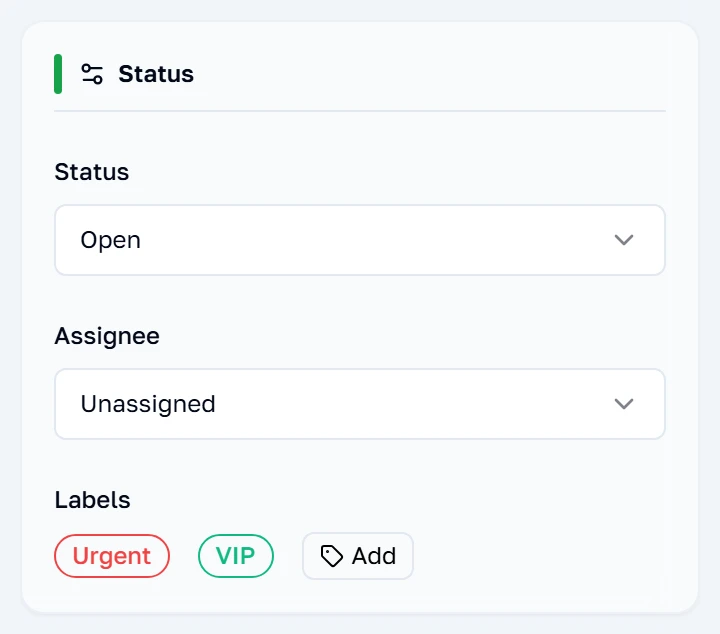
The status control is the top of the rail. It is a note to your own team and the customer never sees it. Resolving is safe rather than final: if the same person writes again the conversation comes back as open by itself, so there is no need to leave things open "just in case".
Labelling it
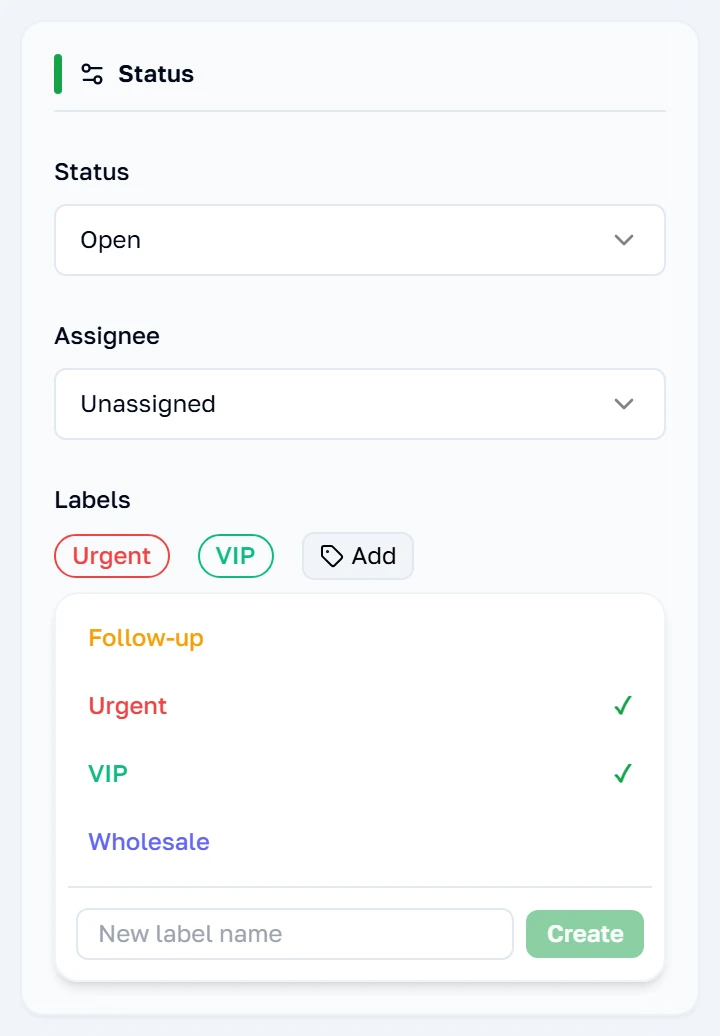
Labels are the account's own vocabulary — Urgent, Wholesale, VIP, whatever you decide — and they are shared, so a label one agent attaches is the same label everyone else filters by. They appear on the row back in the list, which is what makes them worth applying at all. This conversation carries two. Defining them is covered in Labels, hours and SLAs.
Note: Attaching and detaching take effect immediately. There is no save on this rail; the label is written the moment you pick it.
Talking to your own team
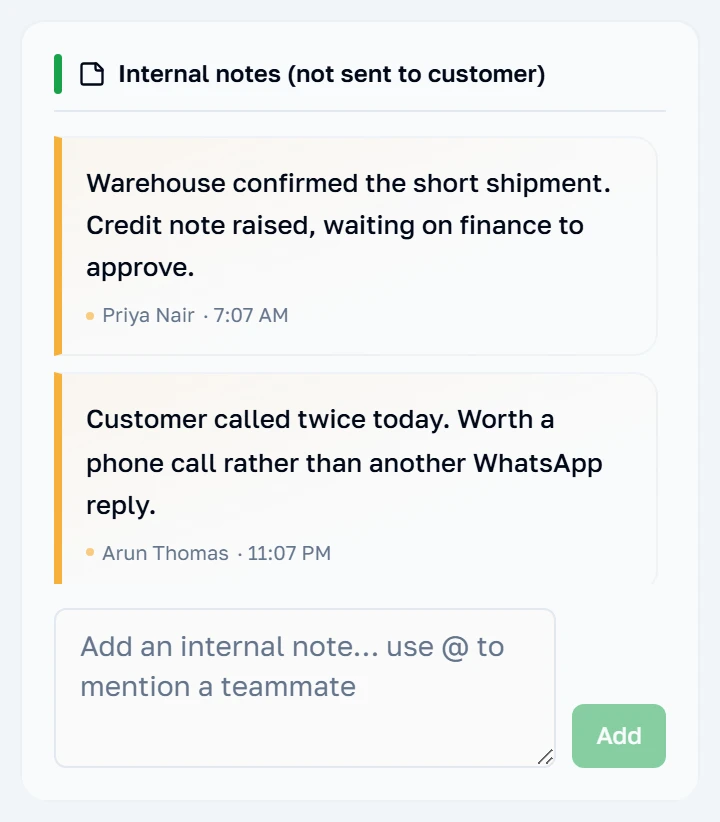
Notes are for your colleagues and are never sent to the customer — the heading says so because the consequence of getting that wrong is the kind you cannot take back. Typing an at-sign offers your teammates by name, and mentioning someone raises a notification for them wherever they are in the dashboard.
Replying
The composer is a normal message box while WhatsApp's 24-hour customer service window is open — that is, for a day after the customer's last message. Once it closes you may only send an approved template, and the composer changes to say so rather than letting you type something that would be rejected.
The same screen, nothing wrong
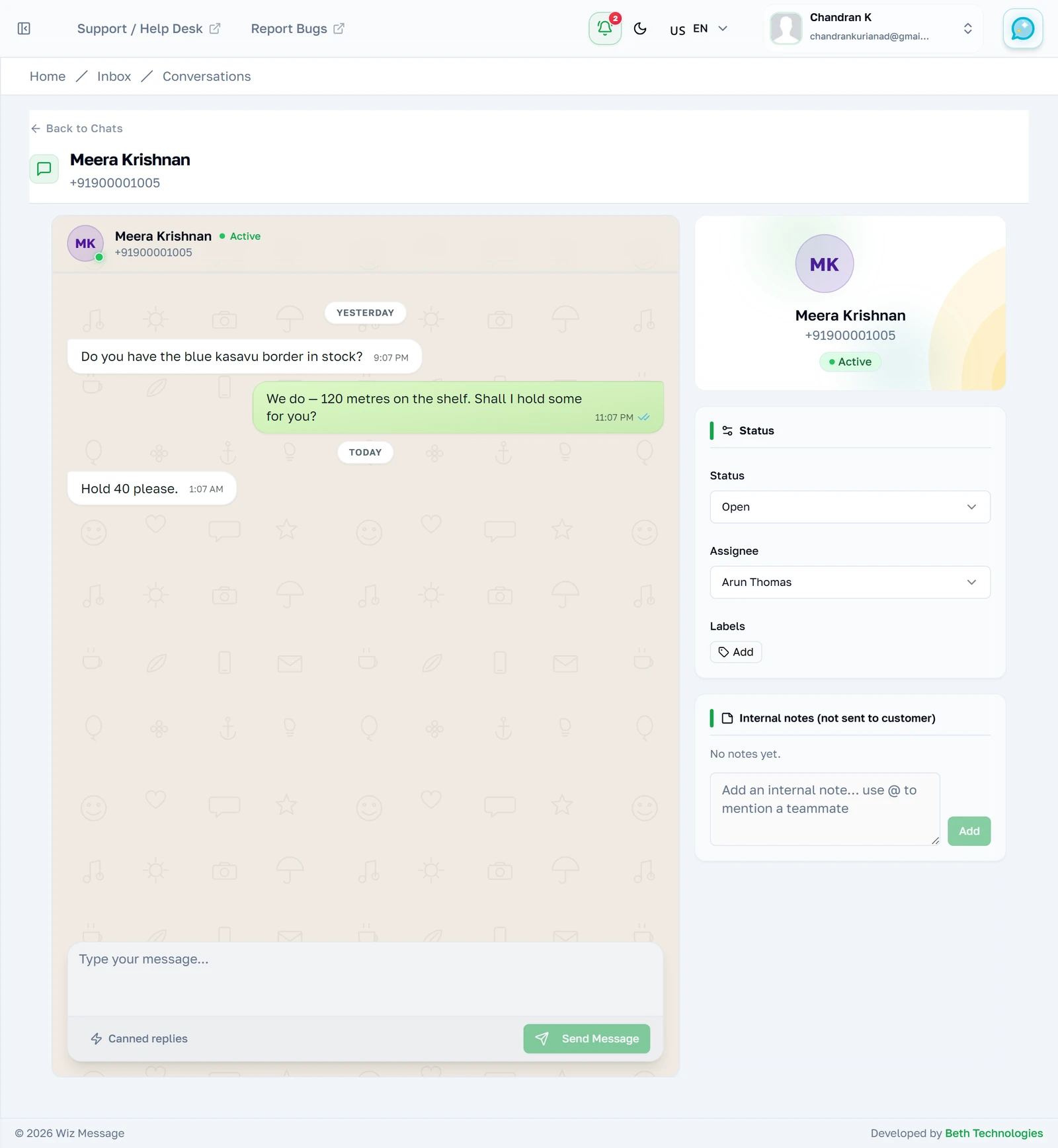
For contrast, the same screen on a conversation that is behaving: assigned to an agent, inside its SLA targets, no labels, nothing flagged. Most of your inbox should look like this, and it is worth knowing what the quiet version of the page is before reading anything into the noisy one.
Several at once
Selecting rows
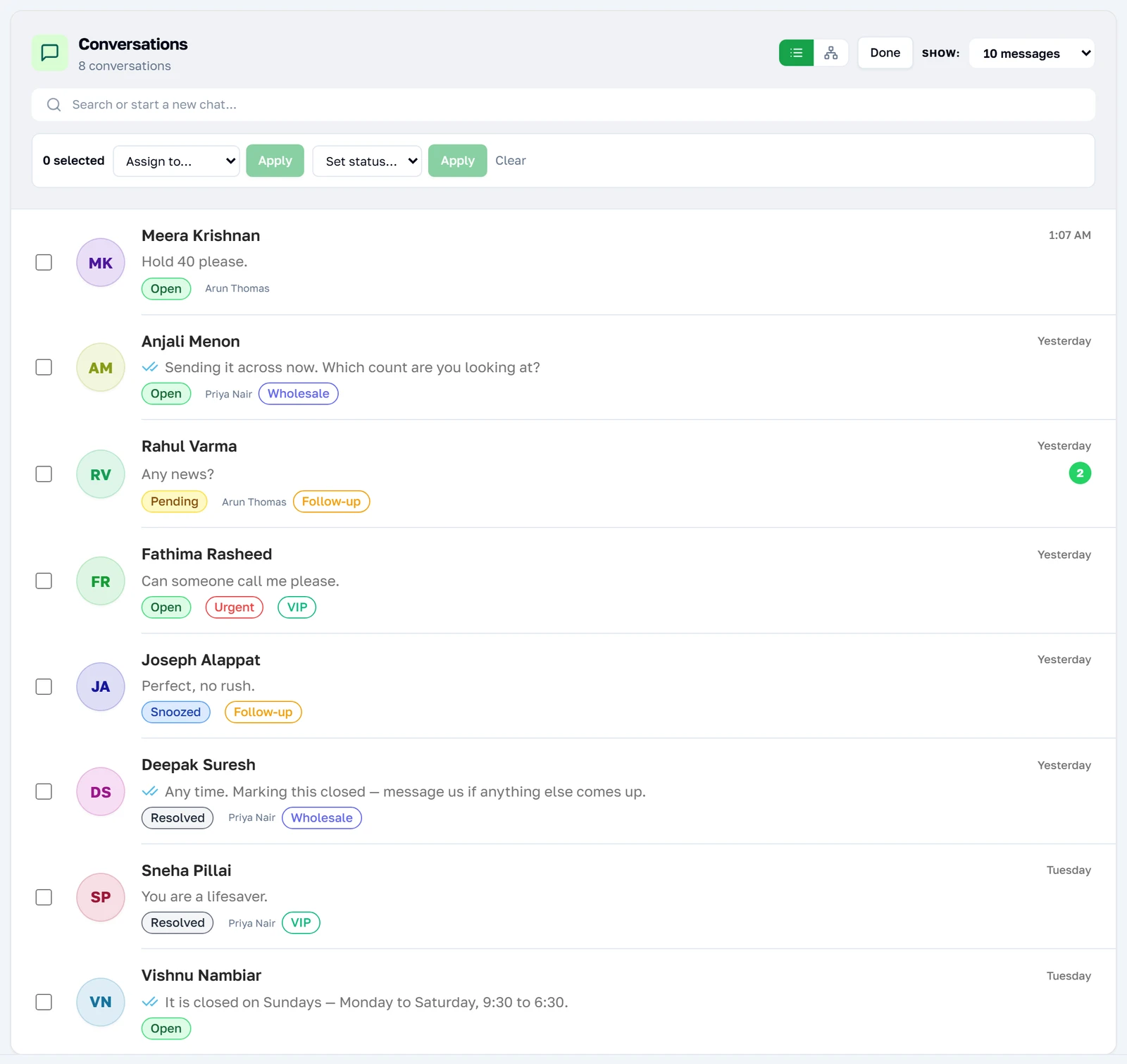
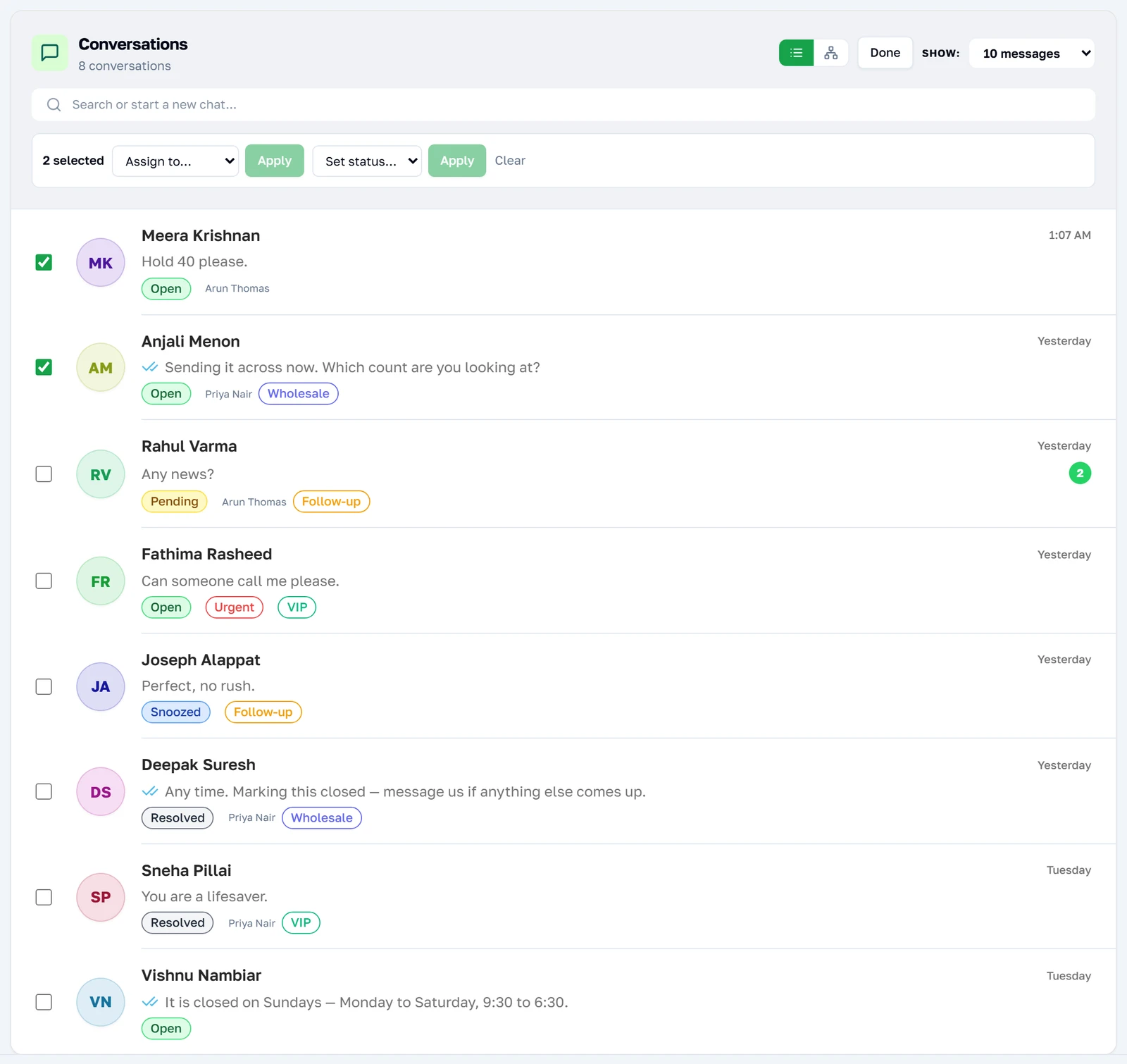
Select puts a checkbox against every row that has a conversation record behind it. Rows without one — a message from somebody entirely new — get no checkbox, because there is nothing yet to assign or set a status on. The selection survives searching and paging, so you can gather rows from several searches before acting.
Assigning or closing a batch
With rows selected, the bar offers the same two actions the rail offers one at a time: hand them to a teammate, or set them all to one status. Up to two hundred rows go in a single request, and a row that fails is skipped rather than failing the batch — so the count it reports back is what actually changed.
Reference
What this page reads and writes underneath, for anyone who needs to know exactly what a control changes.
The seven days, precisely
Every number and every row on this page is drawn from the last seven days. It is not a filter you can widen from the screen: the window is applied when the page is built, and the note under the counters says so rather than offering a control.
| What you see | What it counts | Over what period |
|---|---|---|
| Total Messages | Every message in or out on this number. | The last 7 days. |
| Messages Today | The same, since midnight. | Today only — so it is small in the morning. |
| Inbound / Outbound | The same total, split by direction. | The last 7 days. |
| The conversation list | One row per person who messaged, newest first. | The last 7 days. |
A conversation that had no message in the last seven days is not shown at all, even though its status, assignee and labels are all still stored. The mobile applications read the whole history; this page deliberately does not, because it is drawing counters over it.
Note: "Messages Today" is counted from midnight in the server's timezone, not yours. Early in the morning it will legitimately read a very small number while the seven-day total is large.
What the four statuses mean
Status is a note to your own team about what is left to do. None of it is visible to the customer and none of it changes what the bot does.
| Status | What it means | How it is set |
|---|---|---|
open | Somebody still has to answer. | The default, and where a new message puts it. |
pending | Answered; waiting on the customer. | By hand. |
resolved | Finished. | By hand, or by an SLA policy that auto-closes. |
snoozed | Deliberately parked until later. | By hand. |
Note: A resolved conversation reopens by itself when the customer sends anything else. That is the only automatic transition on this list, and it is the reason resolving is safe.
Assignment is not permission
Assigning a conversation records who is dealing with it. It does not hide the conversation from anyone else, and it does not stop anyone else replying. Every member of the team sees every conversation on the account — that is what a shared inbox is.
Only people on the team roster can be assigned, and the server checks that on every attempt rather than trusting the list the browser sent. Assigning to nobody is a normal state, not an error.
Note: The account owner does not appear on the team roster page, but can still be assigned conversations — the owner is not stored as a member. See Your team for what that means in practice.
How the list keeps itself current
The inbox subscribes to a per-account event stream and reloads the conversation list when anything changes it — a status another agent set, a label somebody attached, a note that mentions you. The reload is debounced, so a burst of changes produces one refresh rather than ten.
If the stream cannot be established the page still works — it simply stops noticing other people's changes, and nothing on screen says so. Reloading the page is the fix.
Note: A note that @-mentions you raises a toast even while you are on the list rather than inside the conversation, which is the one event that reaches you without the list changing.