Labels, hours and SLAs
Four small pages that together decide how a busy inbox is kept honest: the words your team files conversations under, the hours you are actually open, the targets you hold yourselves to, and the report that says whether you met them. They are covered in one guide because they are one mechanism — a target is measured against a calendar, and the report only counts conversations a policy applied to. Each page on its own is ten minutes' work; understanding how they fit is the part worth reading.
Labels
The labels page
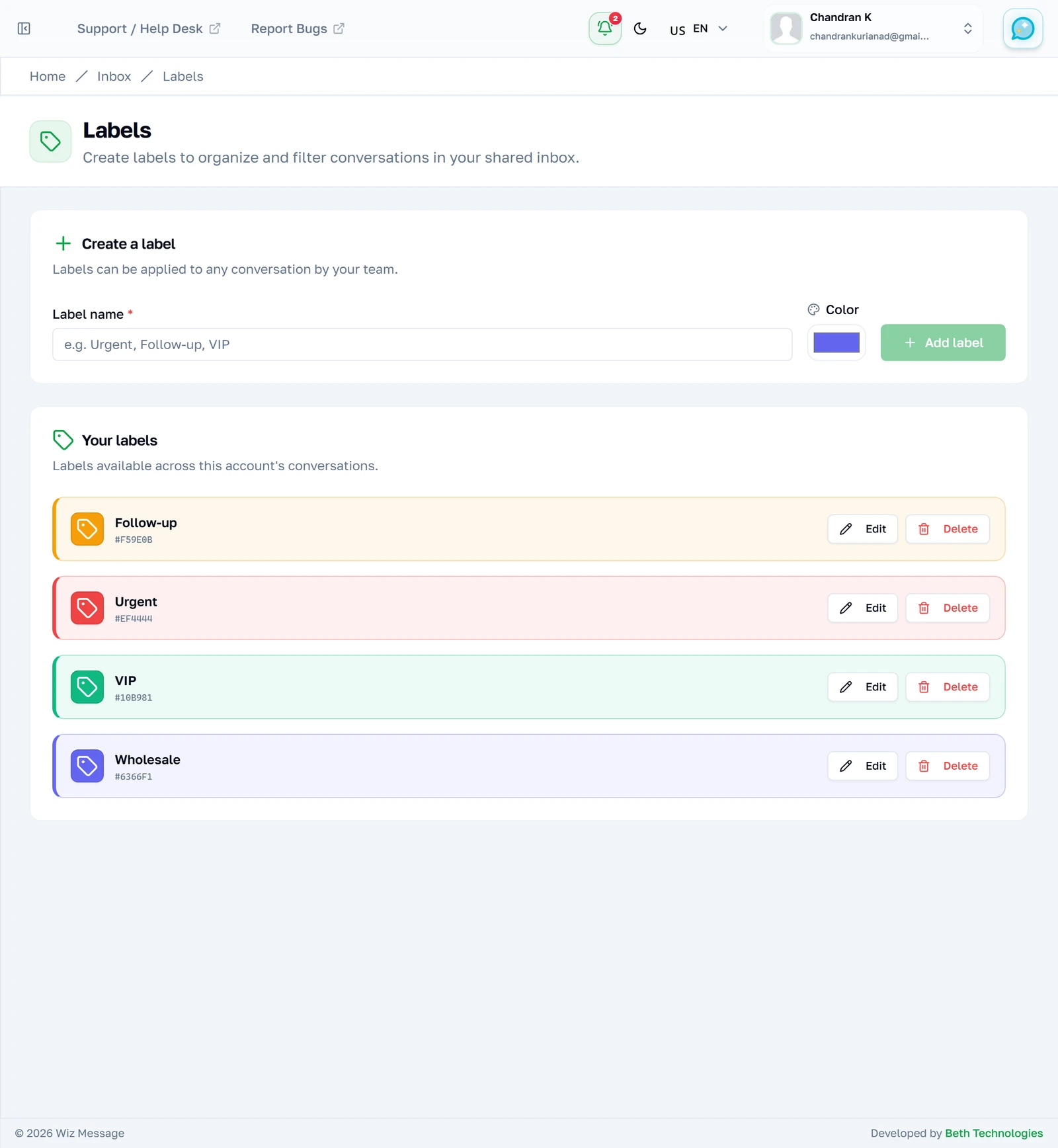
Labels are the words your team files conversations under. You define them once here and they become available on every conversation on the account — any agent may apply and remove them, but only an admin may add, rename or delete the definitions. This is the only one of the four pages that has nothing to do with measuring anything.
Adding one
A name and a colour, and nothing else — there is no description, no parent label and no per-label permission. Keep the names short: they are shown as small pills on a crowded conversation row, and a long one is truncated where nobody will read it.

The ones you have
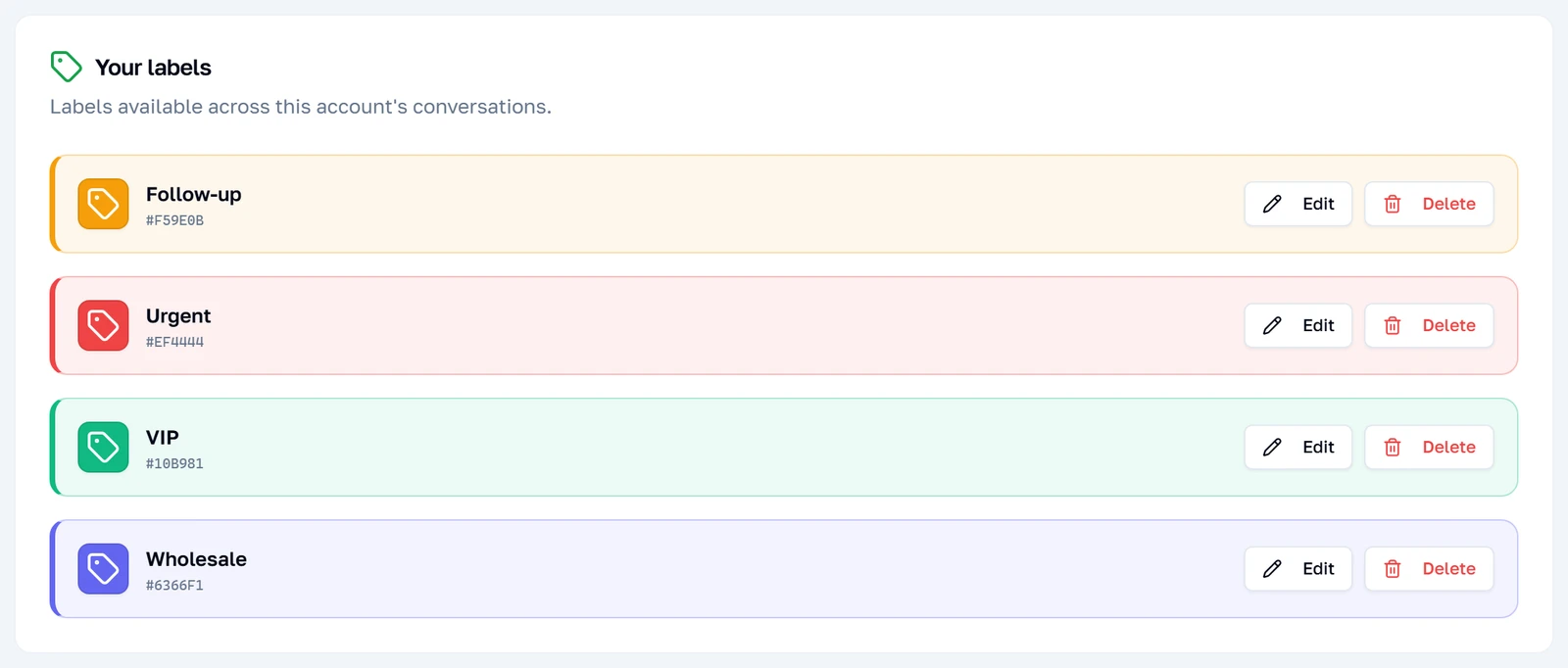
Each label carries the colour you gave it down its left edge and again as a swatch, with the hex value beneath so you can match it elsewhere. Editing renames or recolours it everywhere at once; deleting removes it from every conversation that carried it, which is what the confirmation is warning you about.
Business hours
The calendars page
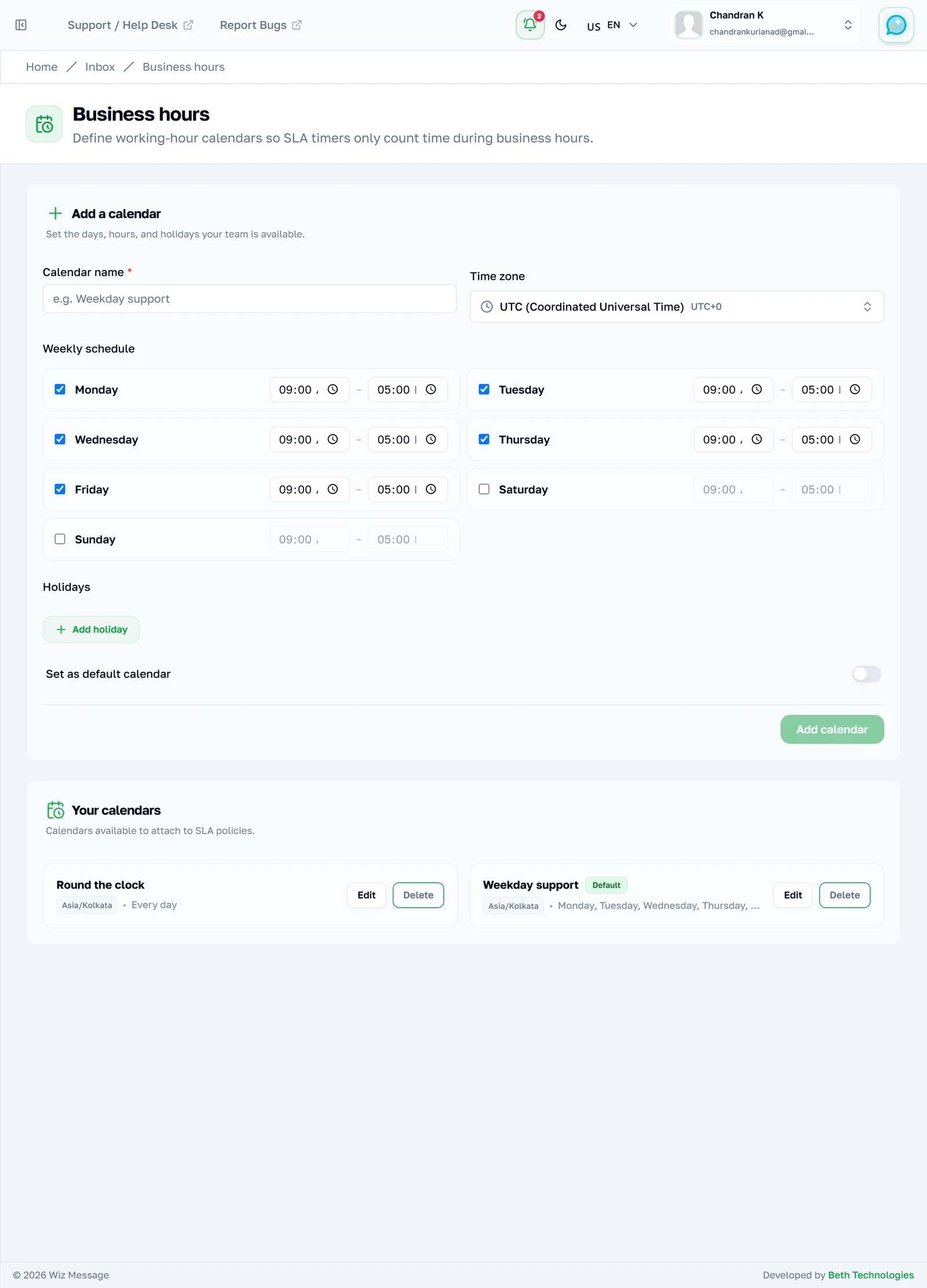
A business-hours calendar is a weekly schedule, a timezone and a list of holidays. By itself it changes nothing whatsoever — it only takes effect once an SLA policy points at it, and then it decides which minutes count towards that policy's targets. Most accounts need one; some need two.
The weekly grid
One row per day, each with a tick and an open-and-close time. Unticking a day closes it entirely rather than leaving it open all day — that is the greyed-out row, and it is the setting people get backwards. Holidays are added as individual dates, so they are a list to revisit each year rather than a recurring rule.
Note: The timezone defaults to whatever your browser reports, not your account's. If you are setting up a calendar for a team in another country, change it before you save — the times are read in whichever zone is selected here.
The calendars you have
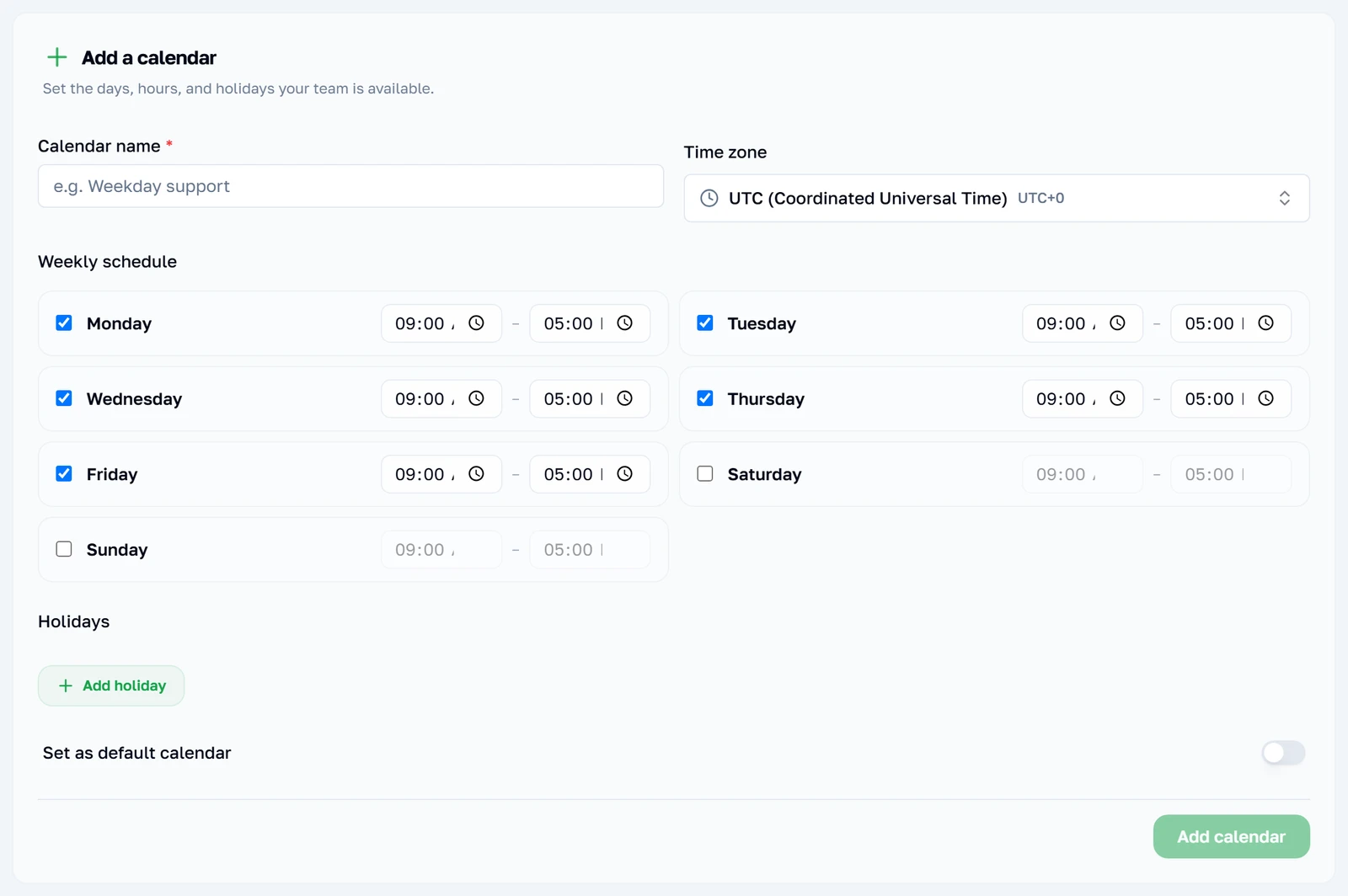
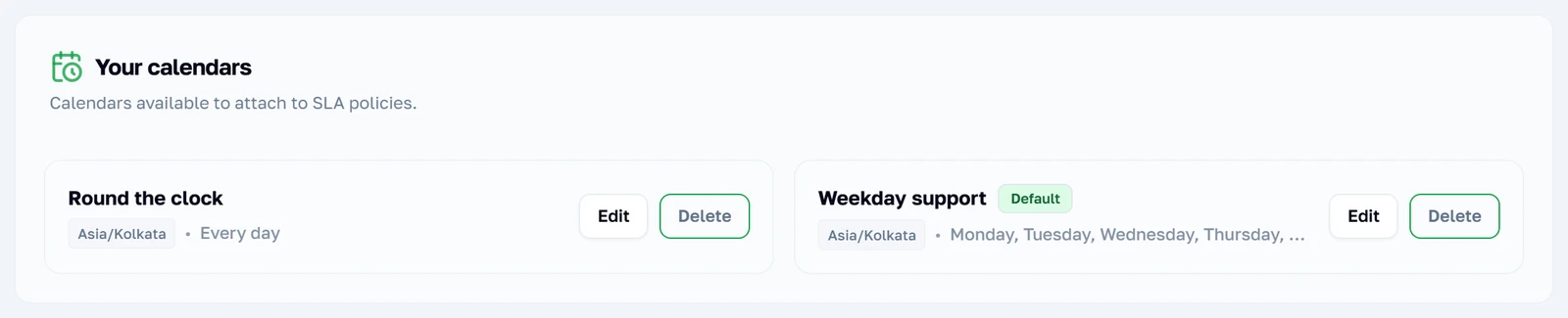
Each calendar summarises itself: the timezone, then the days it is open. The green badge marks the default, which is the one a new policy offers first. Two are shown here because they are genuinely different instruments — a trading week for ordinary work, and a round-the-clock one for the customers you have promised more to.
Note: Deleting a calendar does not delete the policies using it. They fall back to 24/7 — which measures far more minutes than the calendar did, and will turn met targets into breaches overnight.
SLA policies
The policies page
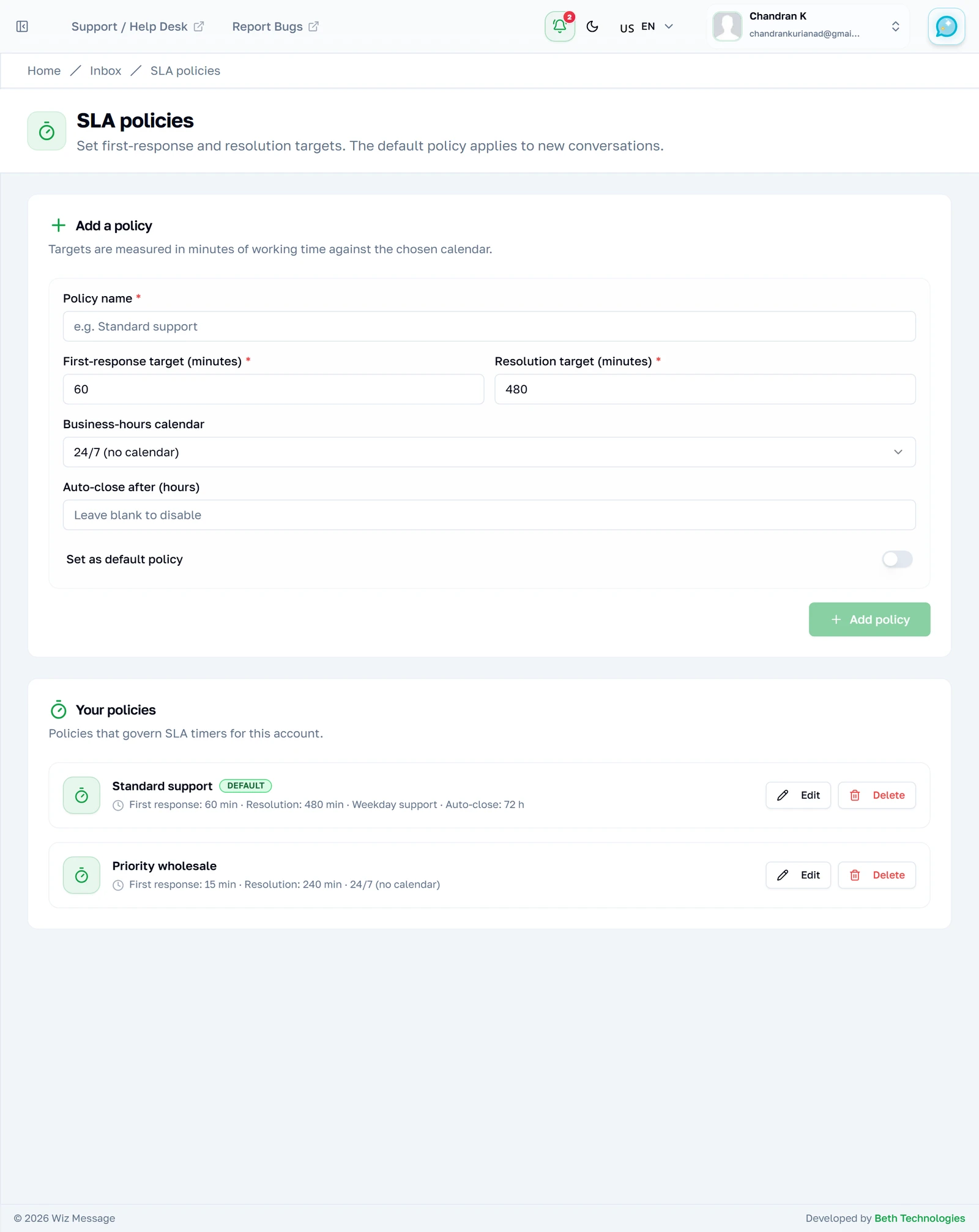
A policy is two promises in minutes — answer within this long, finish within this long — measured against a calendar of your choosing. One policy is marked the default and every new conversation takes it. That is the whole model; there is no routing, no per-label policy and no escalation ladder.
Setting the targets
Both targets are in minutes, which is worth converting before you type: a working day is 480 and a working week is 2400. The calendar dropdown includes "24/7 (no calendar)" as a real choice rather than an empty state — pick it and every minute counts, including the night. Auto-close is the one setting here that changes a conversation rather than merely measuring it.
Note: Leaving auto-close blank disables it. A number here silently resolves conversations that have gone quiet, which is tidy on a busy account and alarming on a slow one.
The policies you have
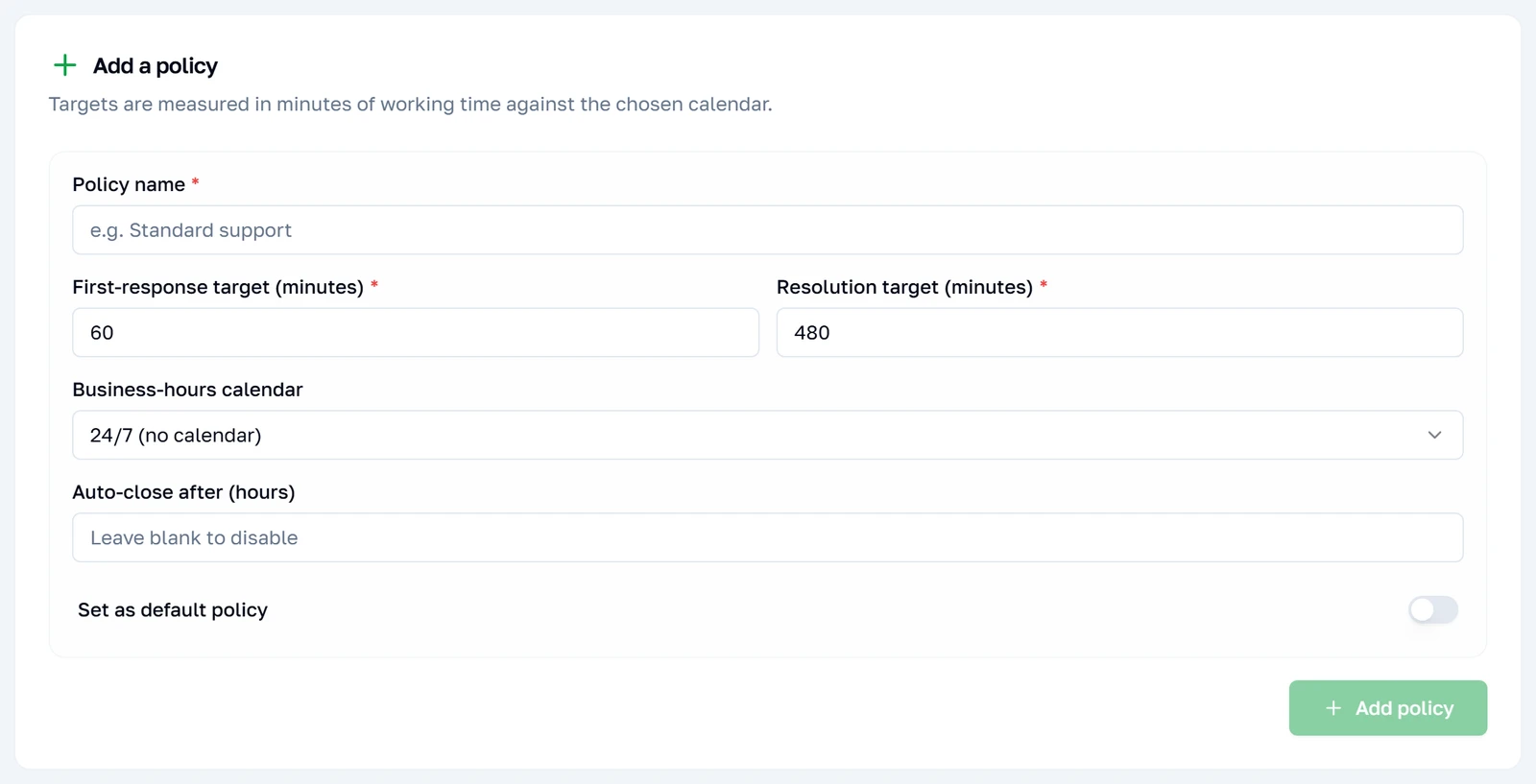
Each policy summarises itself on one line, which is the quickest way to see whether two of them really differ. The pair here do: the default measures against the trading week and closes idle conversations after three days, while the priority one measures every minute of the clock and never auto-closes.
The report
Did we meet them?
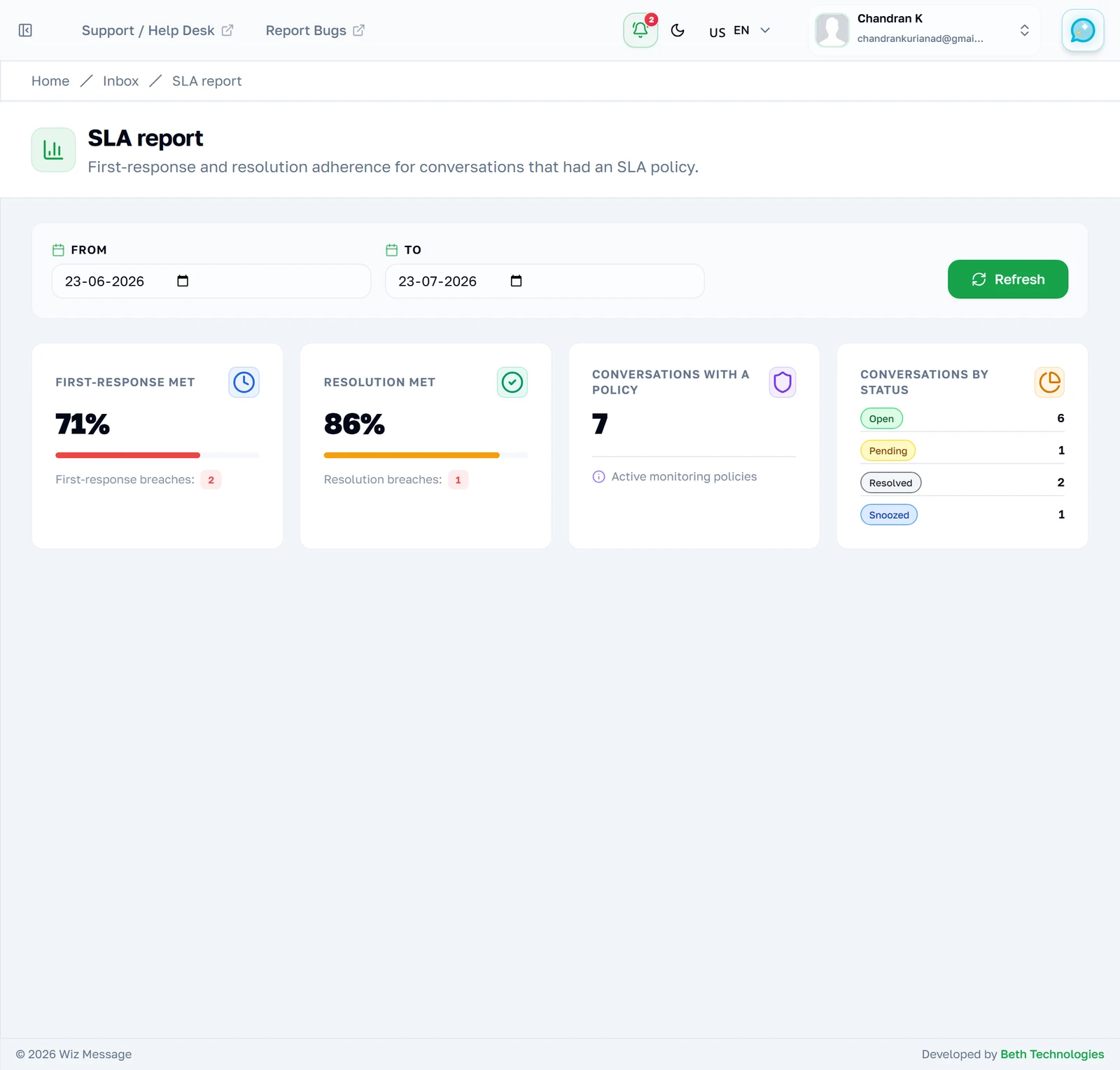
The report is the only one of these four pages that reports rather than configures. Four tiles over a date range that defaults to the last thirty days: how often you answered in time, how often you finished in time, how many conversations were being measured at all, and how everything in the range is currently sitting.
Reading the two percentages
Each percentage has a bar beneath it that is coloured rather than merely proportional: red below 75, amber to 90, green above. Both are the share of conversations with a policy that met their target — not the share of all conversations — and the count beside each one is how many missed.
Note: An em-dash instead of a percentage means nothing in the range had a policy, so there was nothing to measure. It is not the same as 0%, and the empty panel underneath says so explicitly.
Changing the range
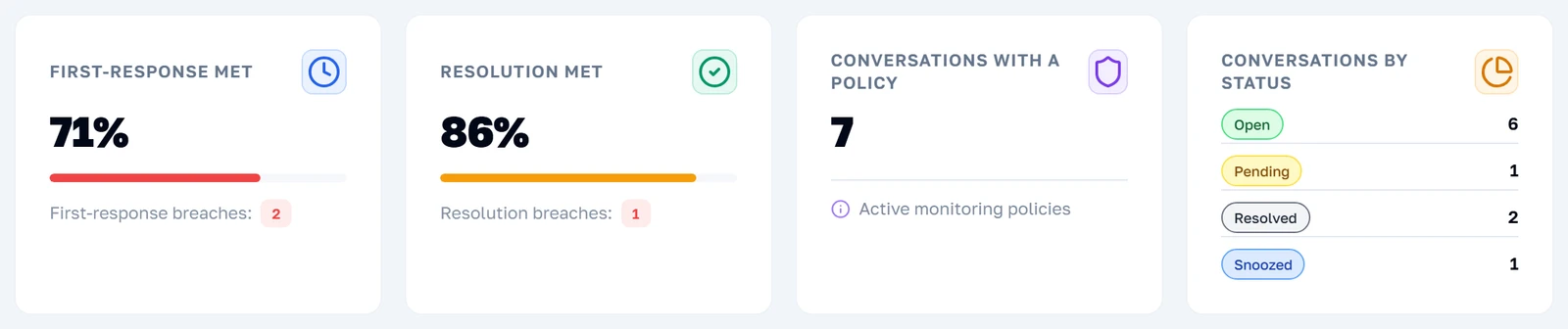
The two date fields and Refresh are the only controls on the page. Changing them does not reload the page; the numbers are fetched and swapped in, which is why the range you pick is not kept when you come back. Widening the range brings older conversations in, and the percentages will move.

Reference
What these four pages read and write underneath, for anyone who needs to know exactly what a control changes.
Labels, precisely
A label is a name and a colour, defined once per account and applied to as many conversations as you like. There is no hierarchy, no per-label permission and no limit worth worrying about. Any agent may apply and remove them; only an admin may create, rename or delete the definitions. Applying one is covered in The WhatsApp Inbox.
Deleting a label removes it from every conversation that carried it, which the confirmation says. There is no archive and no undo: recreating a label with the same name and colour gives you a new label that no old conversation is attached to.
Note: Labels are also the one thing on these four pages that has nothing to do with SLAs. They are how a team filters and finds work; the other three pages are how a team measures it.
What a calendar changes
A calendar is a weekly schedule, a timezone and a list of full-day holidays. On its own it does nothing at all — it only matters once an SLA policy points at it, and then it decides which minutes count towards that policy's targets.
| Field | What it does | Worth knowing |
|---|---|---|
| Weekly schedule | One open window per day. | A day left unticked is closed, not "open all day". |
| Time zone | The zone the times are read in. | Defaults to your browser's, which may not be your team's. |
| Holidays | Whole days treated as closed. | Dates, not recurring rules — next year needs adding again. |
| Default | Which calendar a new policy offers first. | Only one may be the default. |
Note: Deleting a calendar does not delete the policies that use it. They silently fall back to 24/7, which is a much stricter measurement than the one you had — the confirmation warns about it, and it is the single most consequential delete on these four pages.
What a policy measures
A policy sets two targets in minutes and, optionally, points at a calendar and sets an auto-close. Both targets start when the customer's message arrives.
| Setting | What it measures | When it stops |
|---|---|---|
| First-response target | How long until anybody replies at all. | The first outbound message. |
| Resolution target | How long until the conversation is closed. | The status becoming resolved. |
| Business-hours calendar | Which minutes are counted. | Leave it at 24/7 and every minute counts. |
| Auto-close after | Idle hours before it closes itself. | Blank disables it entirely. |
| Default | Which policy new conversations get. | Only one may be the default. |
A conversation takes the default policy when it is created and keeps it. Changing which policy is the default therefore affects new conversations only — the ones already running keep the targets they started with, which is what makes the report comparable over time rather than rewriting history.
Note: Missing a target does not do anything to the conversation beyond flagging it. Nothing is escalated, nobody is emailed, and the bot is not involved. The flag is a prompt for a human.
Reading the report honestly
The report answers one question — of the conversations that had an SLA policy, how many met their targets — over a date range that defaults to the last thirty days. The two percentages are the useful part; the two counts beneath them are what those percentages are made of.
| Tile | What it counts |
|---|---|
| First-response met | Of conversations with a policy, the share that were answered in time. |
| Resolution met | Of the same set, the share closed in time. |
| Conversations with a policy | The denominator. Not the total number of conversations. |
| Conversations by status | All conversations in the range, policy or not. |
That last row is the trap, and it is worth stating plainly: the status breakdown counts everything, while the two percentages count only the subset that had a policy. In the account photographed here that is seven conversations out of ten, so the two halves of the page genuinely disagree — and both are right.
Note: A range in which nothing had a policy shows an em-dash rather than 0%, and a dashed panel saying so. An em-dash means "nothing to measure", not "you scored zero" — the difference matters.
Who may see these pages
The four pages do not all gate the same way, and the difference is worth knowing before you send a colleague a link. The roles themselves are covered in Your team.
| Page | An agent following the link gets |
|---|---|
| Labels | The page, read-only — the create form and the per-label buttons are absent. |
| Business hours | Refused outright. |
| SLA policies | Refused outright. |
| The SLA report | Refused outright. |
Labels are the exception because agents genuinely need to read the list — they apply labels to conversations all day, and the page is the same list. The other three are configuration an agent has no use for, so they are gated at the door rather than emptied out.
Agents are otherwise unaffected in their daily work: they apply and remove labels on conversations, and they see the SLA flag on a row that missed its target. What they cannot do is change the definitions those things come from.