Your team
One WhatsApp number, several people answering it. This page is where you say who those people are and how much each of them may do. It covers inviting someone, what happens between the invitation and them actually appearing, the difference between the roles, and how to take access away again. It is short, because the page is short — but two things on it are easy to misread, and both are called out below.
Who is on your team
The whole page
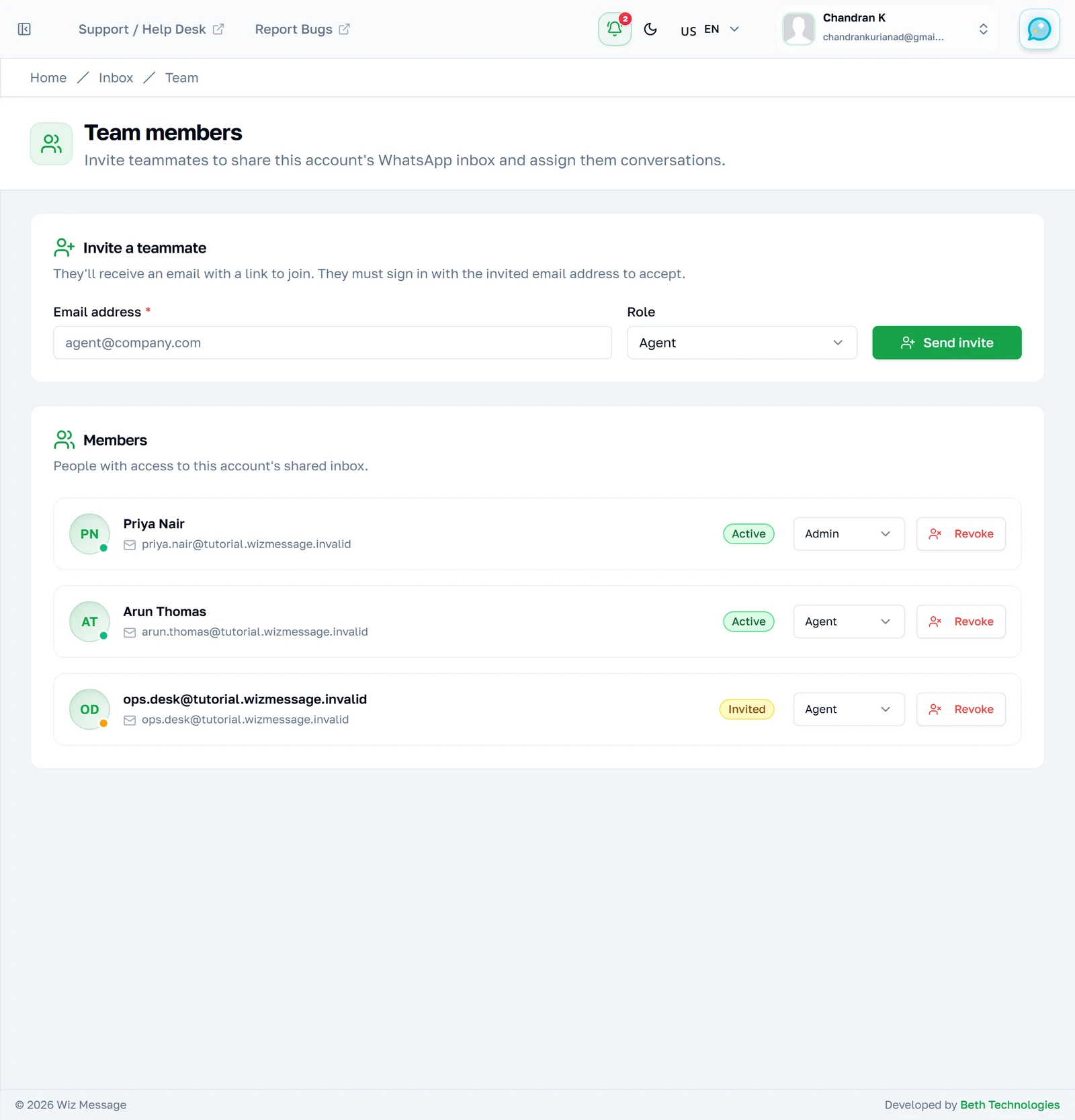
Two cards: a form for inviting somebody, and the list of people who already have access. That is the whole page. Everything about permissions in this application is decided here, by choosing one of two roles for each person — there is no per-conversation or per-feature permission to configure.
Inviting somebody
An address and a role, and that is the invitation. They receive a link; opening it and signing in as that same address is what turns the invitation into membership. If they have never used this application before, the link also lets them create the account in the same step.

The roster
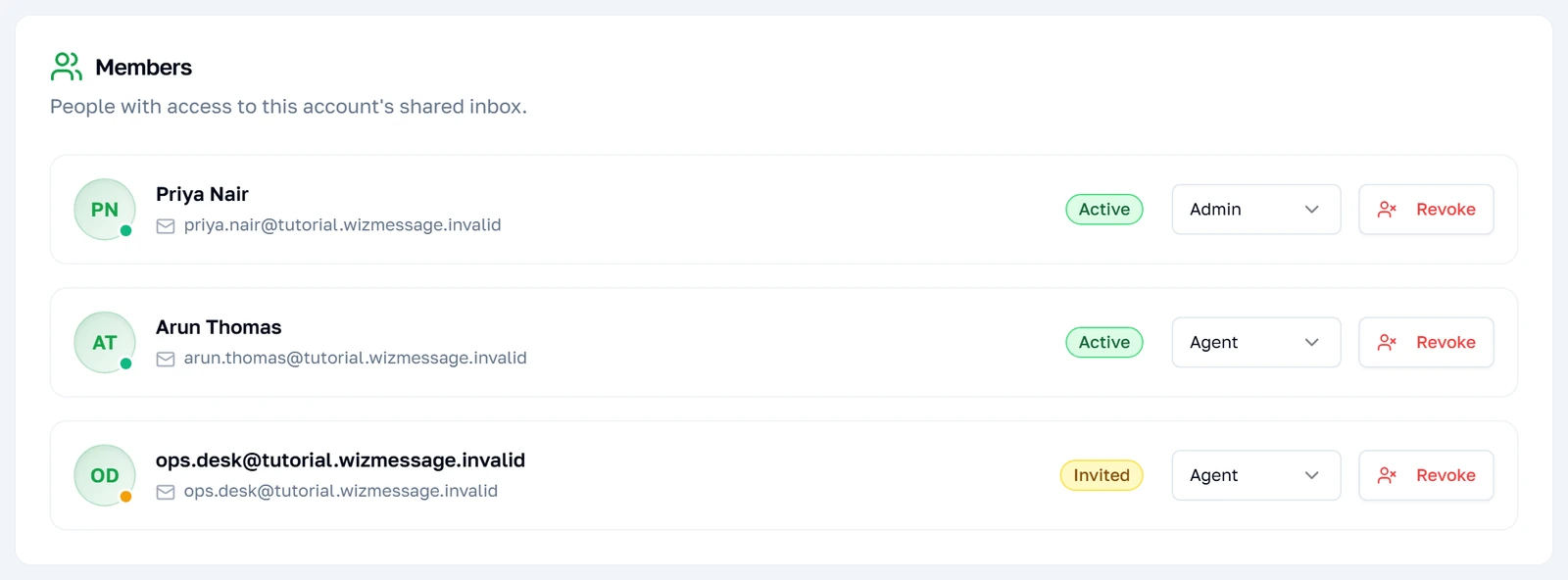
Everyone who has been given access, in the order they were invited. The coloured dot on each avatar is the quickest read: green means they have accepted and are working, amber means the invitation is still outstanding. The badge on the right says the same thing in words.
Note: You are not in this list. The account owner has no membership record, so there is nothing here to show — see "Why the owner is not in the list" below.
Reading a row
Somebody who has joined
An accepted member shows their real name, their address, a green status dot and an "active" badge. The two controls on the right are the only things you can do to them: change which of the two roles they hold, or take their access away. This one is an admin, so they can manage the shared settings as well as answer customers.

Somebody who has not
An outstanding invitation looks different in three ways: there is no name, because nobody has accepted yet; the dot is amber and pulses; and the badge reads "invited". Until this becomes active there is no account behind it, so this person cannot be assigned a conversation — they will not appear in the assignee list inside a chat.
Note: The row is created whether or not the email was delivered. An invitation sitting here for days usually means the message went astray, not that the person is ignoring you — resend by revoking and inviting again.

Changing what somebody may do
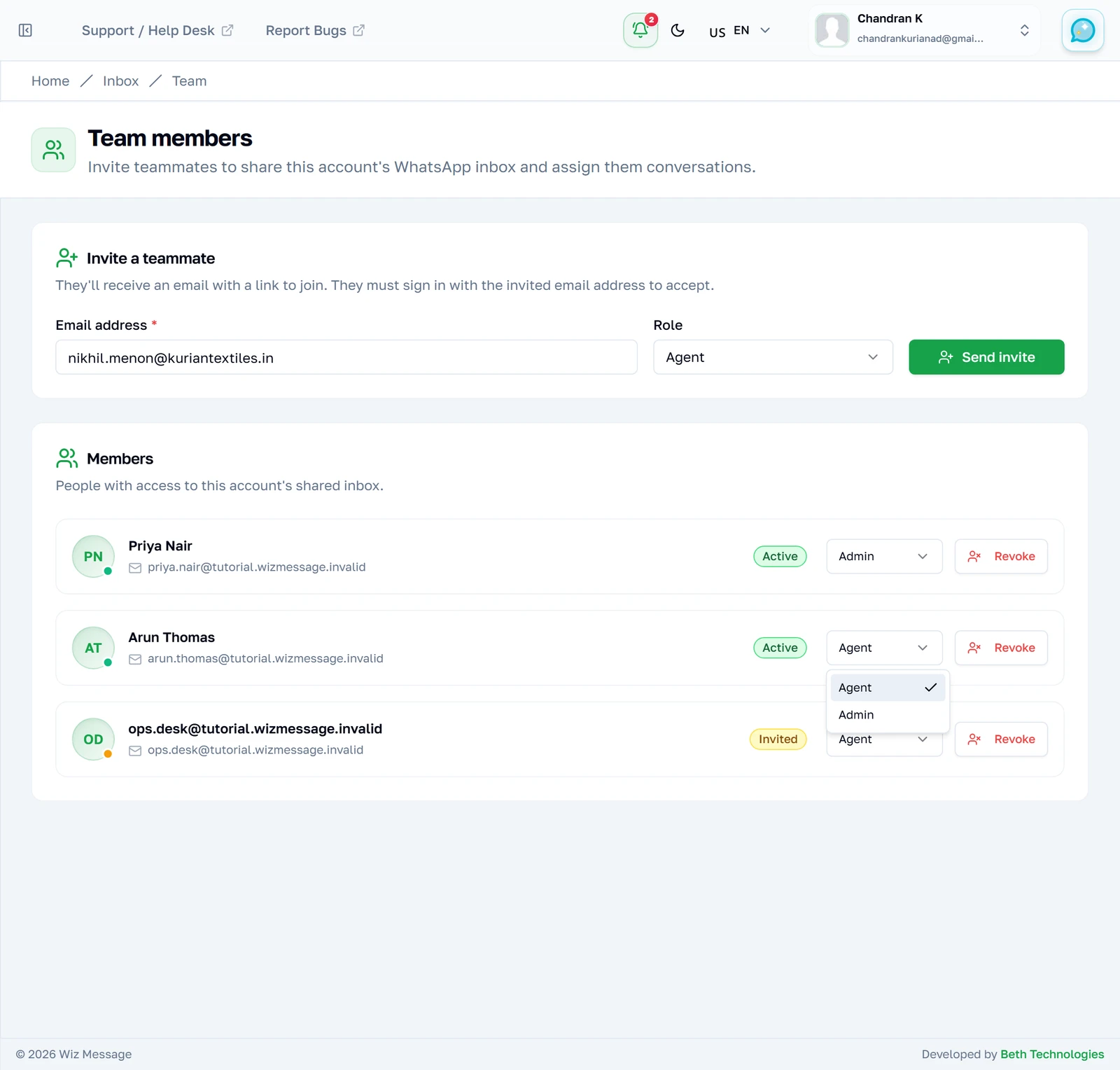
The dropdown offers exactly two roles, because owner is not something you can hand over from here. Promoting an agent to admin gives them the shared settings — labels, business hours, SLA policies and this page. Demoting is the same control in reverse and takes effect on their very next request rather than at their next sign-in.
Taking access away
Revoke ends access at once. There is no "are you sure", so it is worth being certain before pressing it. What it does not do is erase anything: replies they sent stay in the conversations, notes they wrote stay on them, and anything assigned to them stays assigned. Only the access goes.

Reference
What this page changes underneath, for anyone who needs to know exactly what a control does.
What each role may actually do
Three roles, and the line between the last two is the one that matters day to day: an agent works conversations, an admin also changes the settings all the conversations are governed by.
| Action | Owner | Admin | Agent |
|---|---|---|---|
| Read and reply to any conversation | Yes | Yes | Yes |
| Set status, assign, label, write notes | Yes | Yes | Yes |
| See the team roster | Yes | Yes | Yes |
| Invite, change roles, revoke | Yes | Yes | No |
| See the label list | Yes | Yes | Yes — read-only |
| Create, rename or delete a label | Yes | Yes | No |
| Business hours and SLA policies | Yes | Yes | No — the pages are refused |
| The SLA report | Yes | Yes | No — the page is refused |
| Bot settings, billing, the number itself | Yes | No | No |
Roles are checked on the server for every action, not merely used to hide buttons. An agent who reconstructs the request by hand is refused in the same place the button would have been. The settings those last three rows point at are covered in Labels, hours and SLAs.
Why the owner is not in the list
The roster shows invited and active members. It does not show you, the account owner, and there is no row on this page representing you at all — an owner is not stored as a member.
The practical consequences are small but worth knowing. You cannot change your own role or revoke yourself from here, which is correct. You can still be assigned conversations, and you appear in the assignee dropdown inside a conversation even though you are absent from this page — so the two lists legitimately disagree.
The invitation, precisely
Inviting someone writes the row first and sends the email second. If the mail fails the row still exists, which is why an invitation that never arrived shows on the roster as amber rather than vanishing — and why re-inviting the same address is refused as a duplicate.
| Situation | What happens |
|---|---|
| The address already belongs to a user | The invite is linked to that account at once; they accept by signing in. |
| The address is new to this application | The join page lets them set a name and password, and joins them in one step. |
| They are already invited or a member | Refused as a duplicate. Revoke first if you want to start over. |
| You invite your own address | Refused. You are already the owner. |
| The invitation is old | Refused as expired. Send a new one. |
| They sign in as a different address | Refused — the invited address must match. |
The join link is deliberately reachable without signing in first, because somebody who has never used this application has no account to sign in with. It is still safe: the link is an unguessable identifier, it expires, and accepting it requires proving control of the invited email address.
Note: An invited member cannot be assigned a conversation until they have accepted, because until then there is no account to assign to. The row exists; the person behind it does not yet.
Revoking
Revoking ends access at once and drops the person off the roster. It does not delete anything they did: their replies stay in the conversations, their internal notes stay on them, and conversations assigned to them stay assigned to them.
A revoked membership is kept rather than deleted, so the record of who had access and when survives. Inviting the same address again creates a new membership rather than reviving the old one.
Note: There is no confirmation step on Revoke. It takes effect on the press, and the only way back is a fresh invitation the person has to accept again.