Your chatbot
Bot Settings is where you decide what answers your customers on WhatsApp, and how. It covers the choice of engine, the knowledge the bot answers from, the words it uses, what happens before the AI is consulted at all, and what each of those things costs. This guide walks the whole page tab by tab. Almost every control here changes the behaviour of a live number, so it also says plainly which switches take effect the moment you save and which are only ever advisory.
Choosing what answers
The page
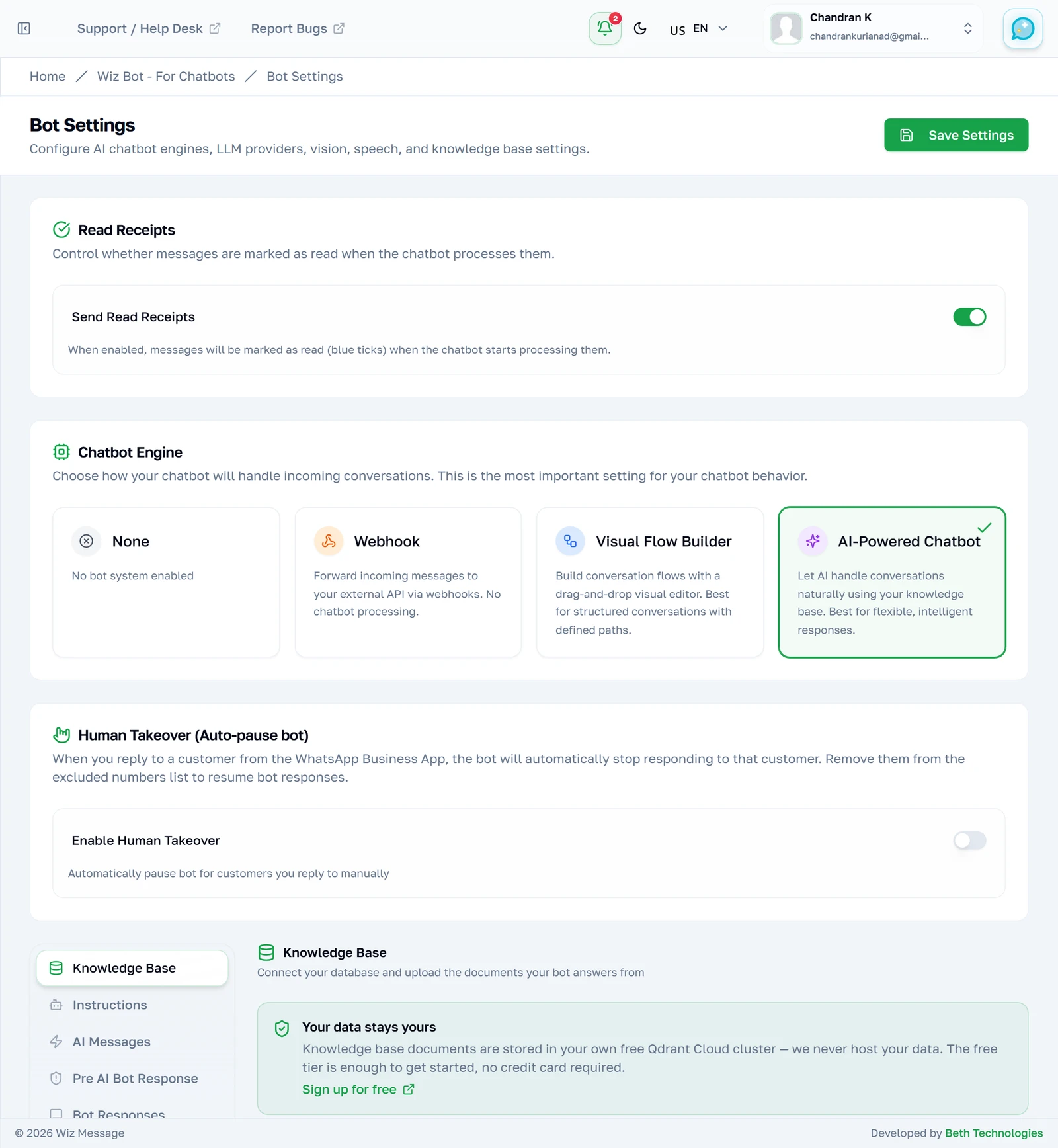
Bot Settings opens on the one decision the rest of the page depends on: what answers your customers. Underneath that choice sits a column of tabs, and those tabs exist only for the AI chatbot — pick any other engine and the page is just the three cards at the top.
Note: Bot Settings needs the Wiz Bot or Wiz Pro subscription, and the gate is on the page rather than on the menu. Without one of those plans you are turned away before any of this loads, rather than shown a disabled version of it.
The four engines
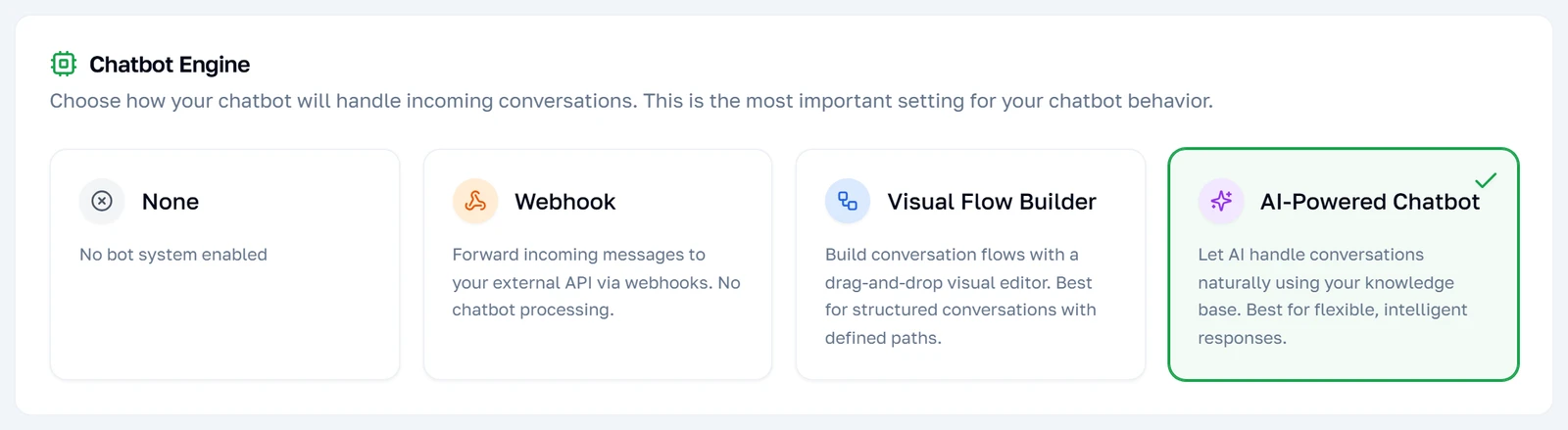
Four engines, and they are alternatives rather than layers — exactly one runs. None leaves every message for a human. Webhook hands each message to your own server. Flow Builder runs a flow you drew by hand in the flow builder, which is predictable and never surprising. AI Chatbot is the one this page is mostly about, and it is the only one with anything to configure below.
Read receipts
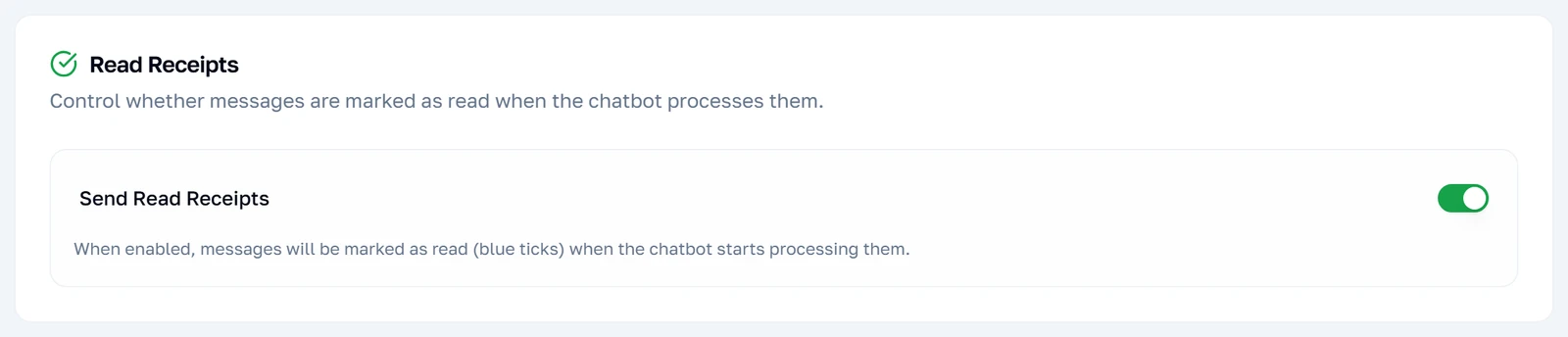
Whether the bot marks incoming messages as read — the blue ticks the customer sees. This is the one switch above that applies to every engine rather than just the AI, despite living beside them. Turning it on tells the customer their message landed; leaving it off keeps the conversation looking untouched until a person opens it.
Stepping in yourself
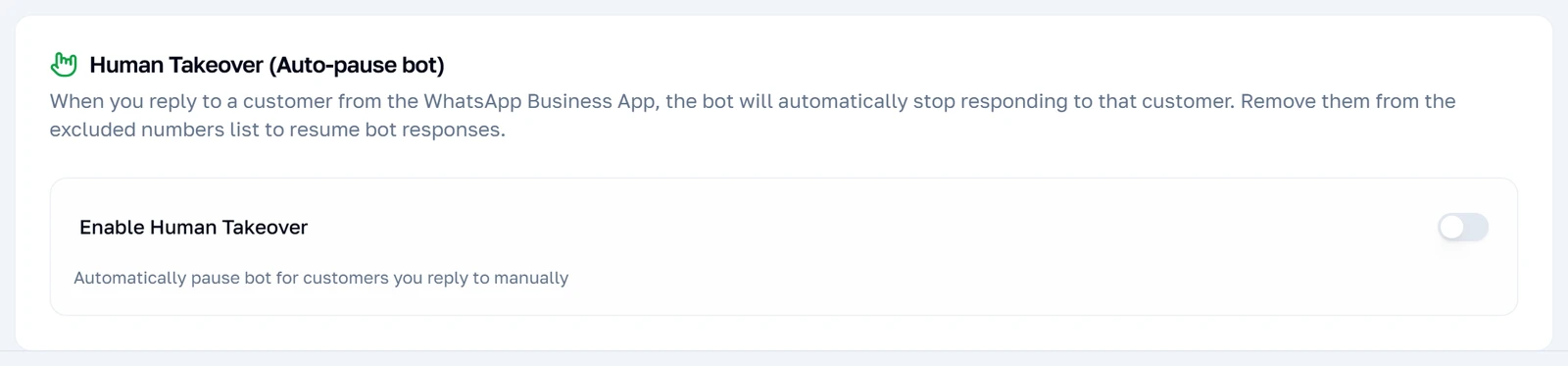
Human takeover watches for you replying from the WhatsApp Business app on your own phone. When it sees one, it stops the bot answering that customer — just that customer — so the two of you are not talking over each other. It is the single most useful switch on this page for anyone who still handles some conversations personally.
Note: The pause does not expire. Once a number is muted this way the bot stays silent on that conversation until you take the number off the exclusion list yourself, which is not done from this page.
The eleven tabs
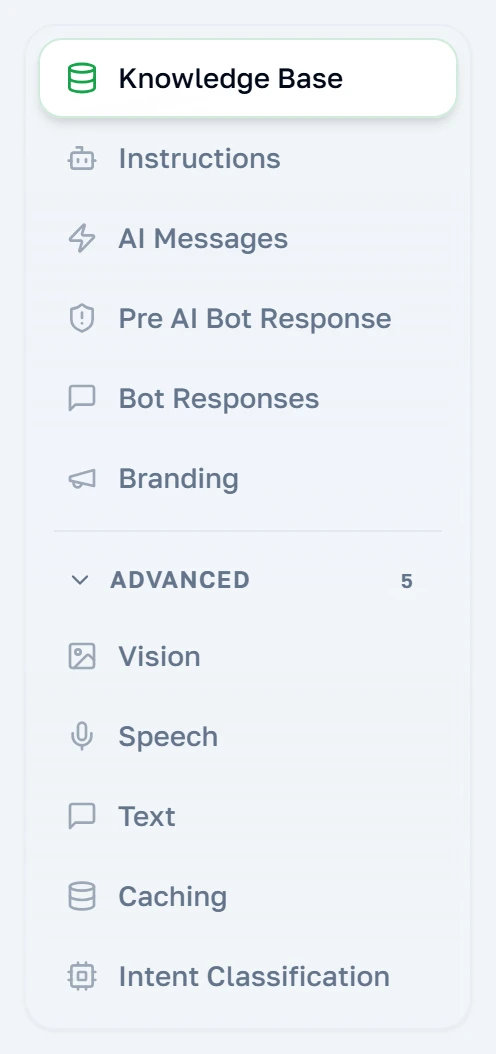
With the AI chatbot selected, eleven tabs appear down the left. Six are the everyday ones; the other five sit behind Advanced and are the ones that cost money or need explaining. They are not ordered by importance but by the order you would set them up in — the knowledge base first, because without it the bot has nothing to answer from.
What the bot knows
The knowledge base
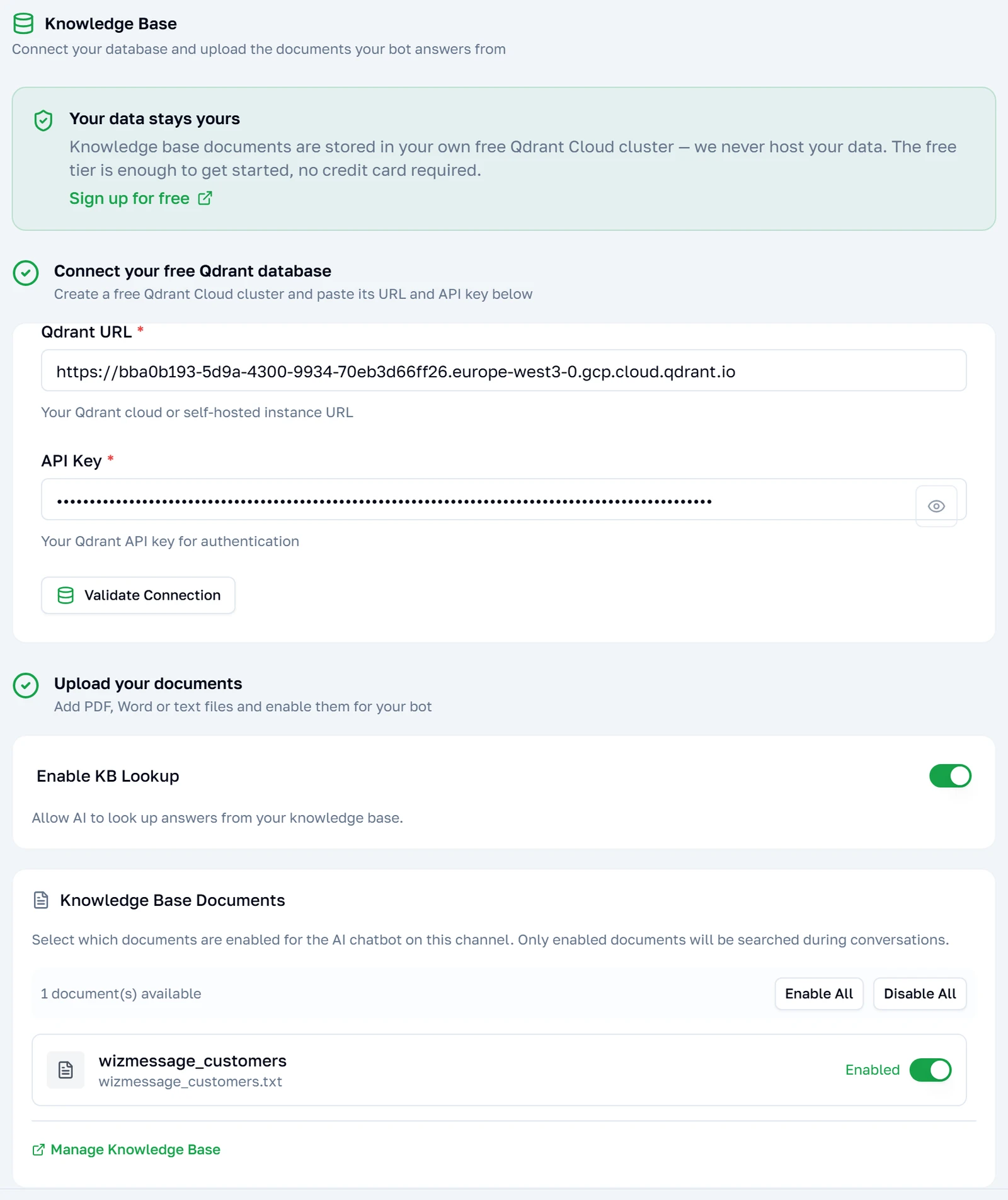
This is the first tab because nothing else works without it. The bot does not know anything about your business until you give it documents, and it does not answer from general knowledge — ask it something your documents do not cover and it will say it does not know. The tab is two steps: a connection to somewhere the documents can be stored, and then the documents.
The connection
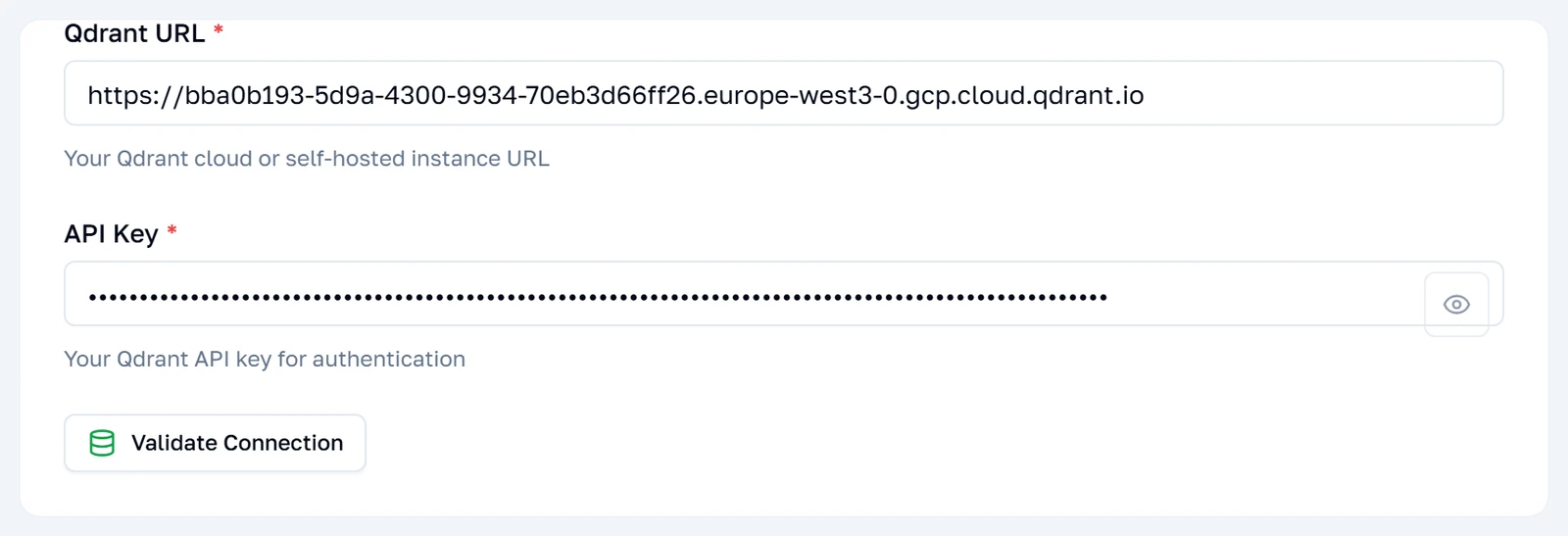
Qdrant is the database the documents are stored in, and it is a separate service you sign up for — the link on this card goes to a free tier that is ample for a knowledge base of ordinary size. Validate Connection tests the address and key immediately, which is worth doing, because these details are checked again the moment you press Save and a bad one blocks the whole save.
Note: This check is not a formality. If the connection stops working later, saving any setting on this page fails until it is fixed or the AI engine is switched off — including settings that have nothing to do with the knowledge base.
Using it, or not
A single switch that decides whether the bot consults your documents before answering. Off is not the same as having no documents: they stay uploaded and searchable, but the bot stops reading them, which leaves it able to do only the things that do not need your content. It is the fastest way to test whether a bad answer came from a bad document.

What the bot says
Telling it how to behave
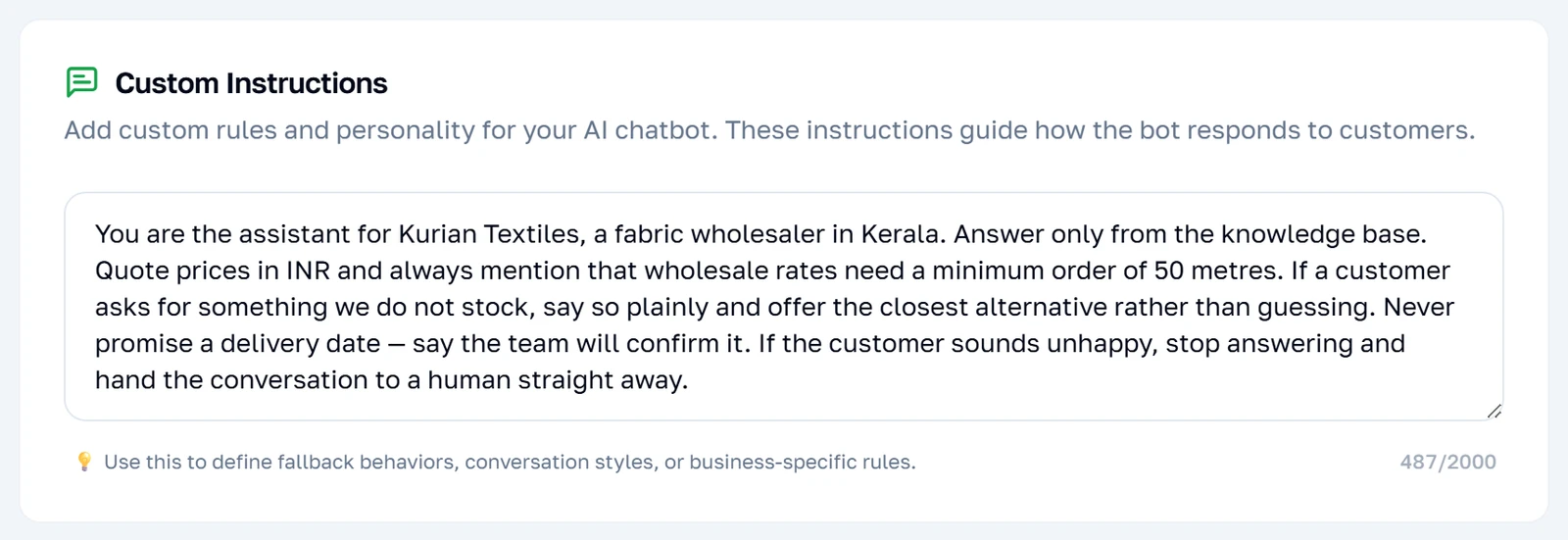
One box, and it is the highest-leverage control on the page. Whatever you write here is handed to the AI with every single message, so it is the place for standing orders: what currency to quote, what to do when it does not know, when to stop and fetch a human. Write it as instructions to a new member of staff rather than as a description of your business — the documents already cover the business.
Note: Two thousand characters, and the box stops accepting text at that point rather than warning you. The counter turns red near the limit; past it, typing simply does nothing.
The bot's own words
Three moments have wording of their own rather than being written fresh by the AI: the greeting, what it says when a complaint is escalated, and what it says to acknowledge that escalation. Each starts with a sensible default and can be overwritten. Above them sit two switches that change the tone of everything else.
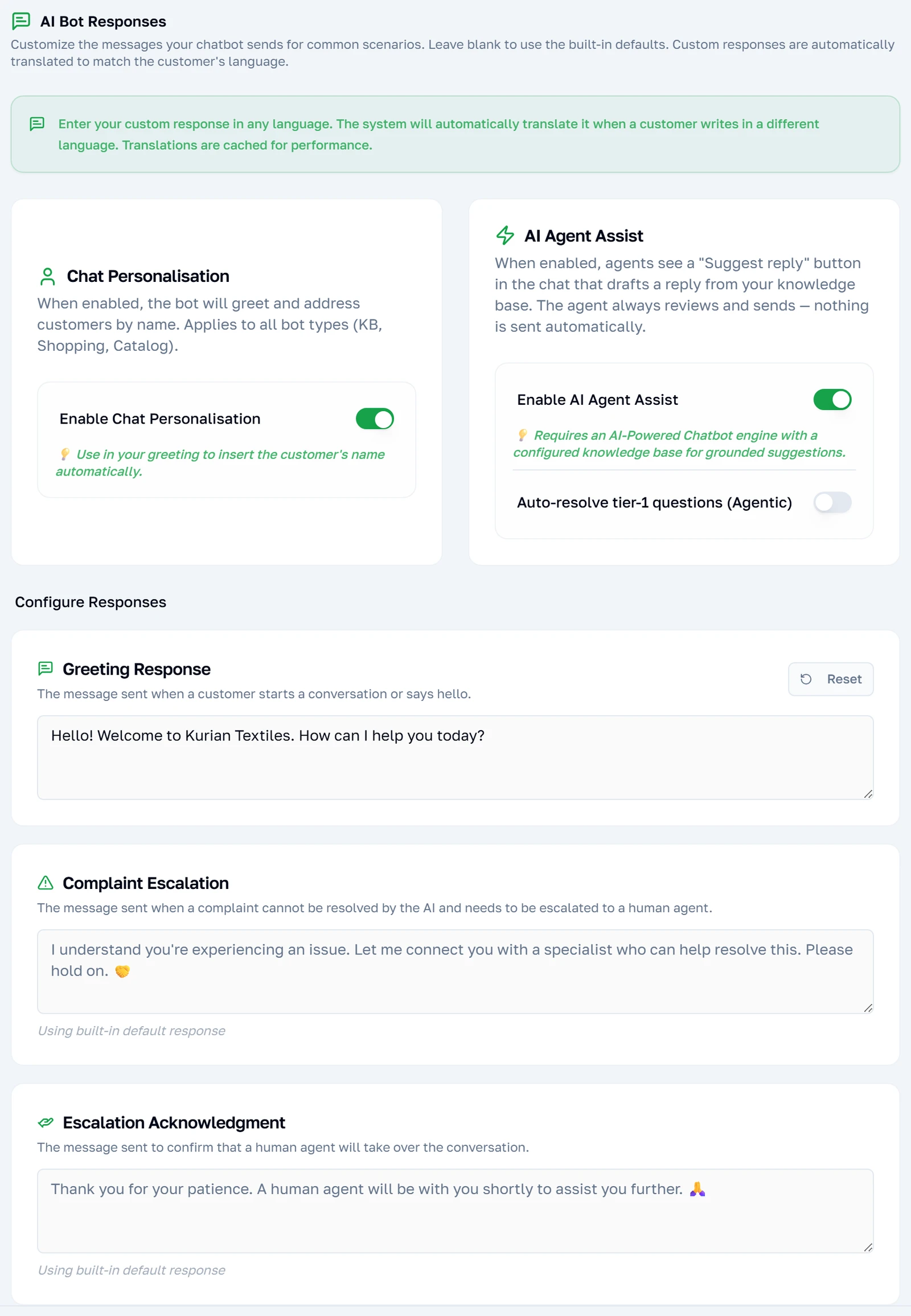
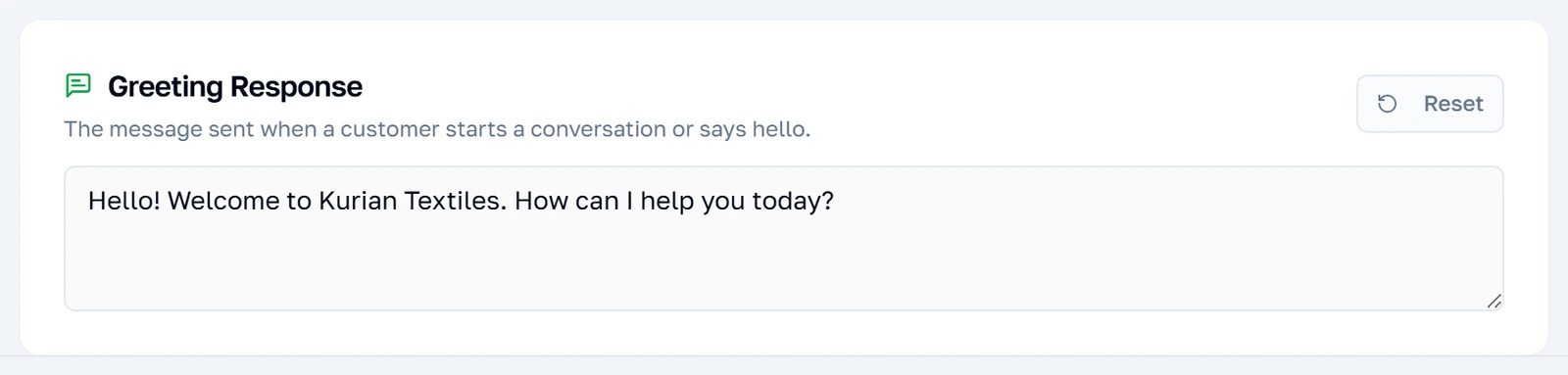
Overwriting one of them
An overwritten response looks like this. The Reset control appears only on responses you have actually changed, which is how you tell at a glance which of the three are yours and which are still the defaults. Resetting all of them removes your wording entirely rather than storing it as a copy of the default.
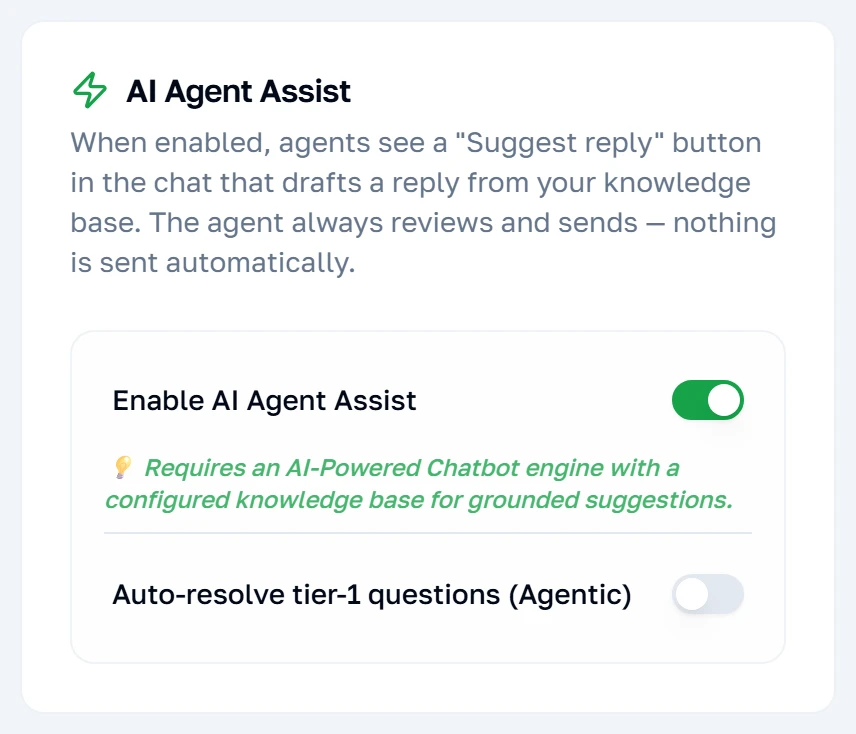
Helping your agents
Separate from the customer-facing bot, this decides what the AI does inside the shared inbox. Assist writes a suggested reply and leaves it for an agent to send, change or discard — nothing reaches the customer without a person. Agentic goes further and answers straightforward questions on its own, escalating the rest. The difference between them is whether a human is in the loop.
Dressing the reply
Branding wraps what the bot writes in a header, a footer and a button, turning a plain message into something that looks like it came from your business. It applies to bot replies only — a message typed by one of your agents is unaffected.
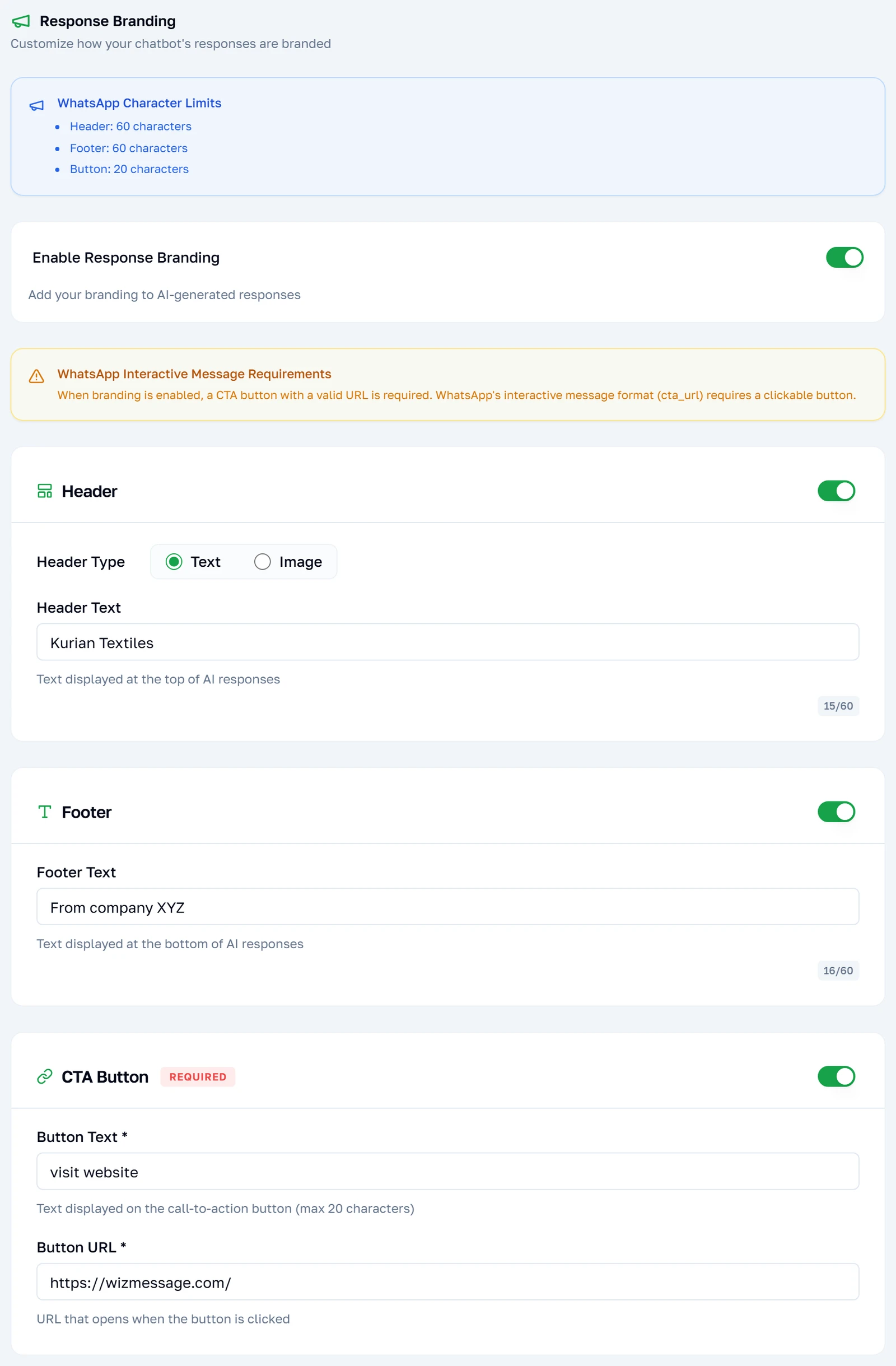
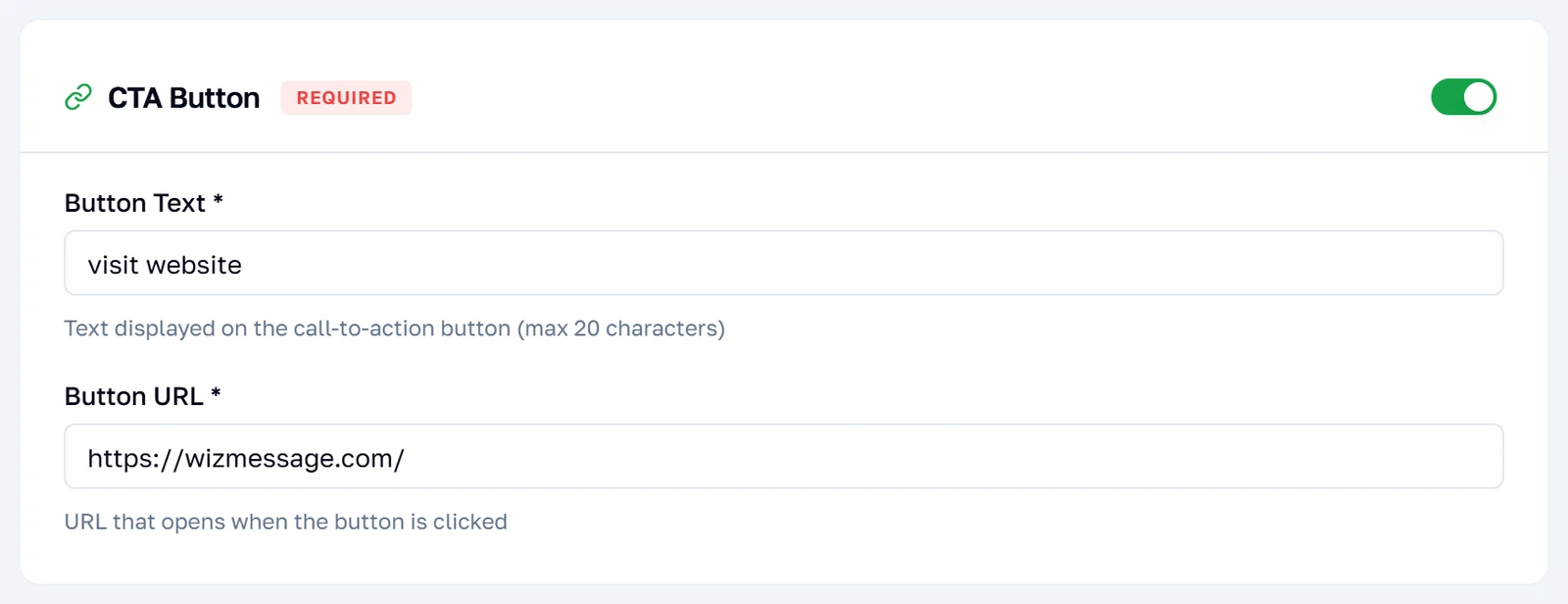
The button is not optional
Once branding is on, the button is required — its card is outlined in red until it has both a label and a working address, and Save refuses while it is incomplete. This is not the application being fussy: the message format branding uses is WhatsApp's interactive format, and that format has no version without a button.
Note: Twenty characters for the label. The address must be a genuine link — a bare domain with no protocol is rejected at save time, not while you type it.
Before the AI answers
Answering without the AI
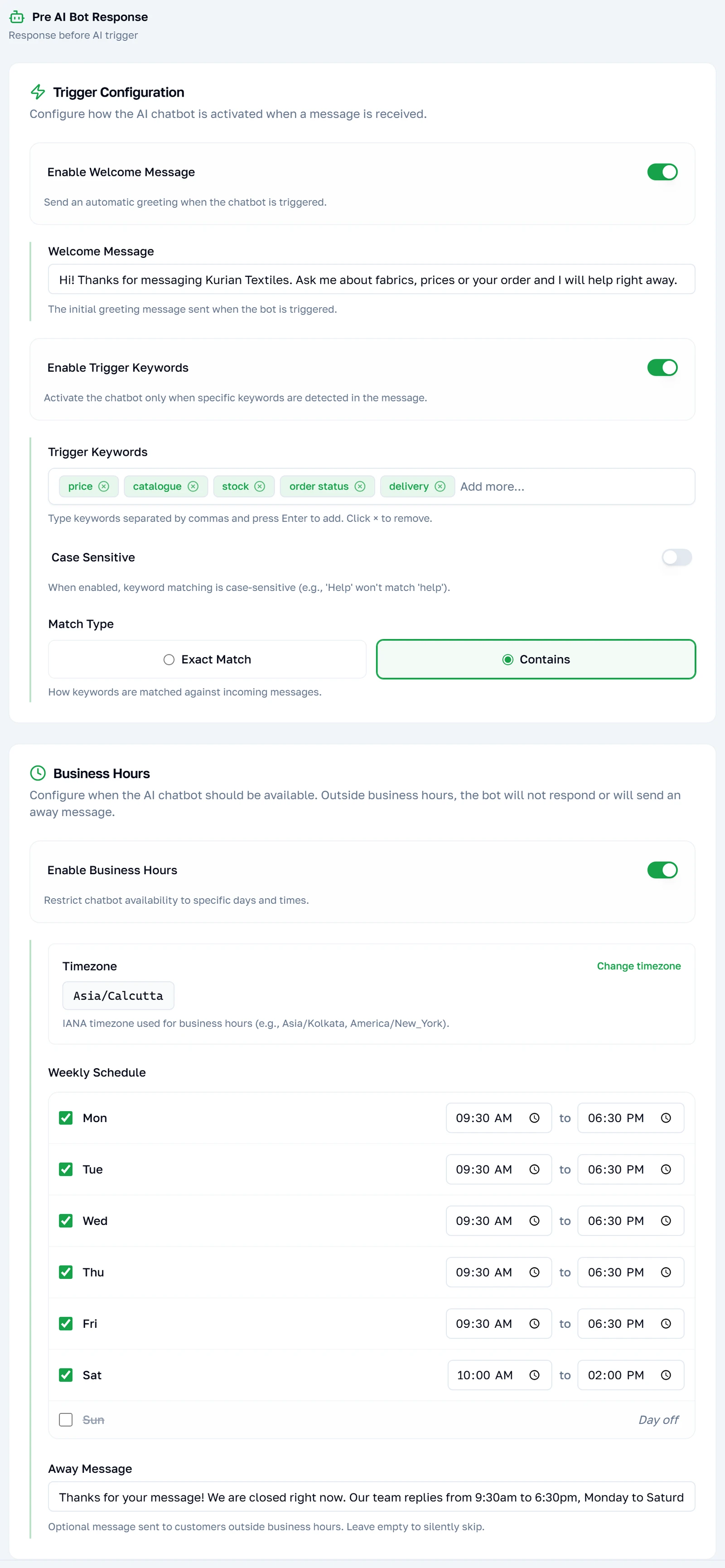
Everything on this tab happens before the AI is consulted, and each part can answer a message entirely on its own. That makes it the cheapest tab on the page: a message handled here costs nothing, because no AI ran. It is also the one most worth setting up first, since a great deal of what customers send is a greeting or an out-of-hours enquiry.
The welcome, and the keywords
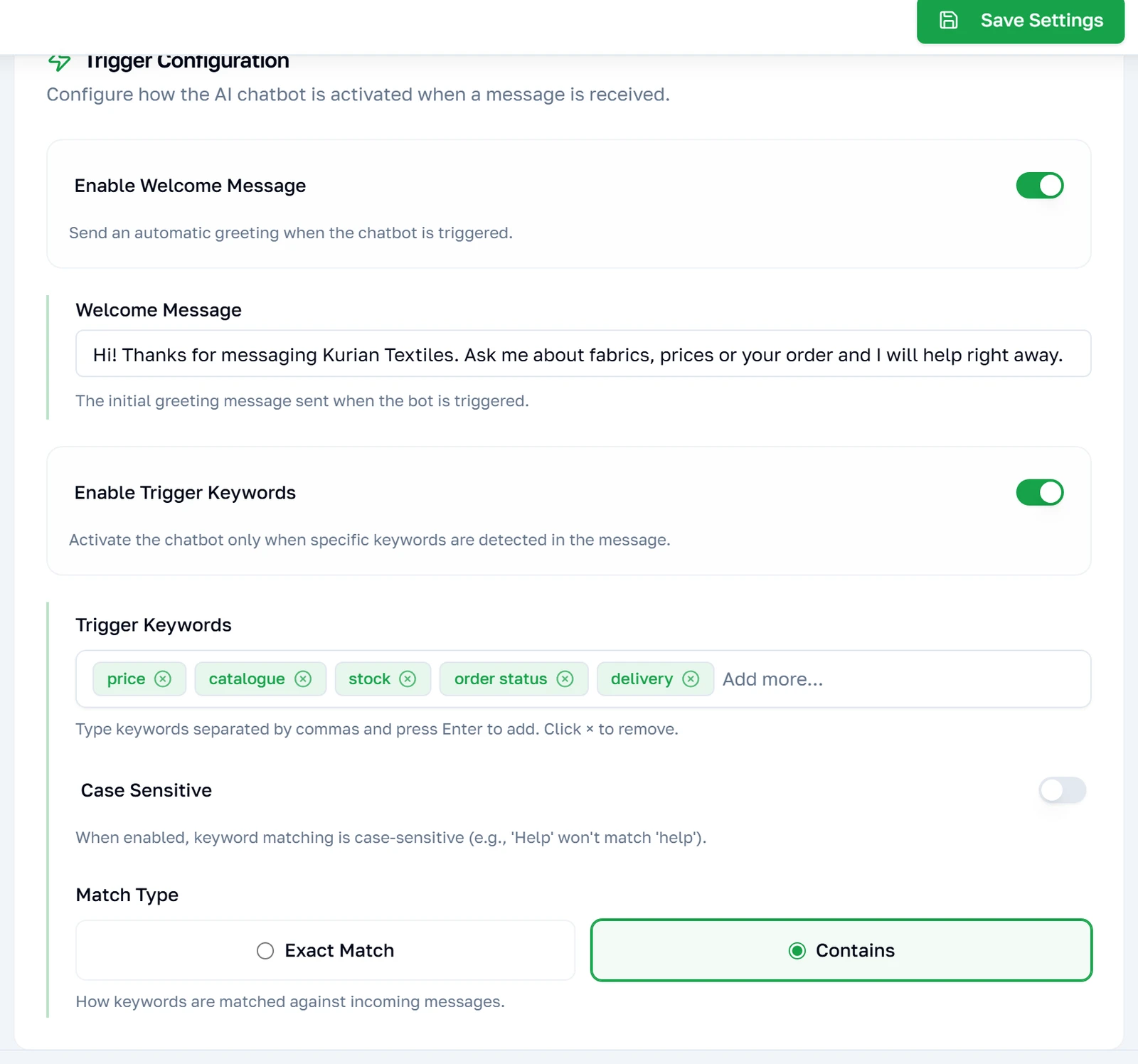
The welcome message is sent once, on a customer's first message, before anything else happens. Trigger keywords are stricter than they look: switch them on and the AI answers only messages containing one of them, and stays silent on everything else. Leave the switch off and the AI answers everything — which is what most people want, and why it is off by default.
Note: Contains matches the word anywhere in the message; exact requires the whole message to be that word and nothing else, which almost never matches real messages. Start with contains.
Opening hours
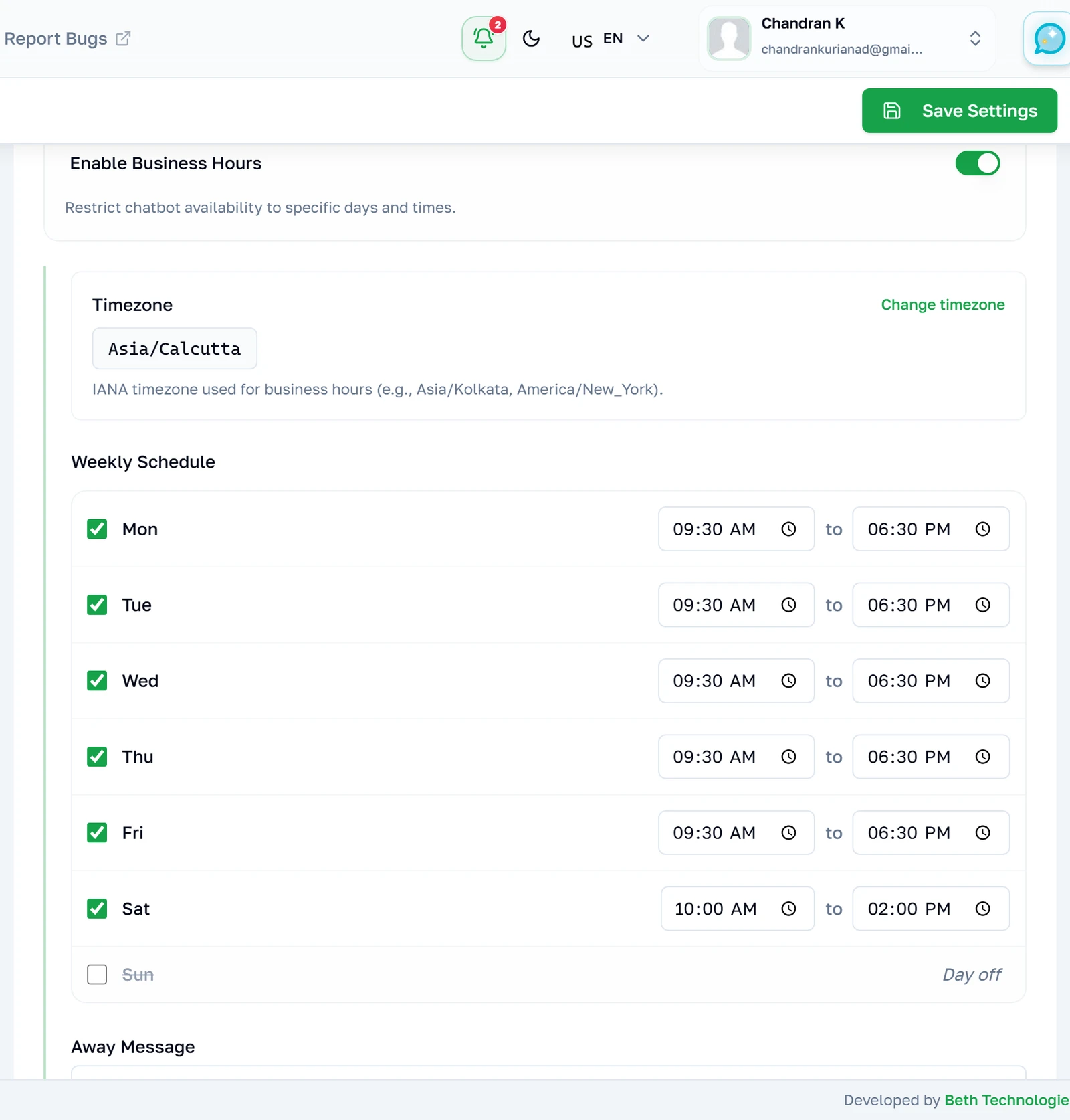
A schedule per day, in a timezone you choose rather than the server's. Outside those hours the away message is sent and the AI is not consulted at all — so this is a genuine off switch rather than a change of tone. Unticking a day closes it entirely, which is what the greyed-out row means.
Note: The timezone defaults to the one on your profile the first time you switch this on. If your profile has none set, it falls back to UTC, and a schedule that reads 9:30 to 18:30 will not be your 9:30 to 18:30.
Cost and capability
What is left in the tank
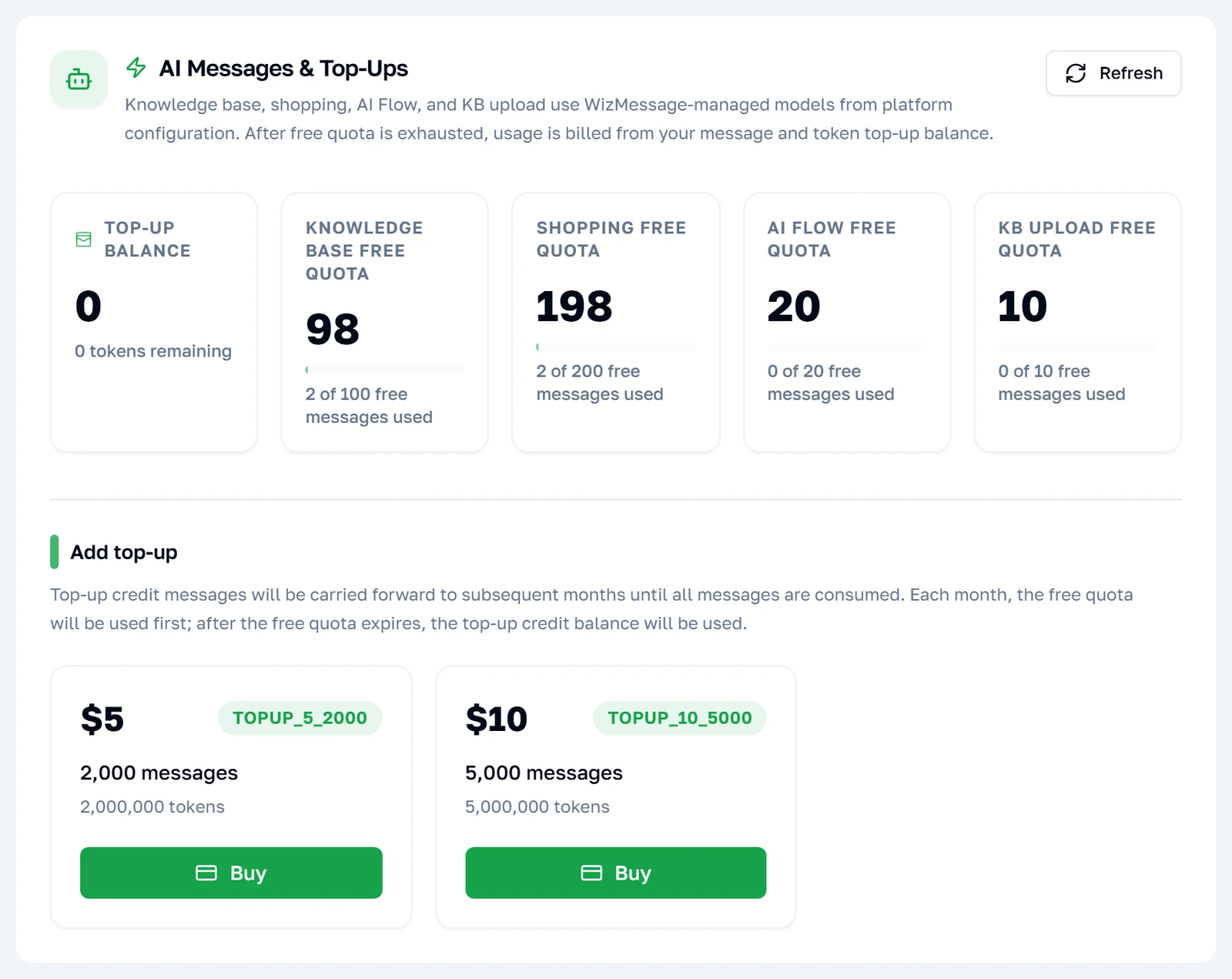
The AI answers are metered, and this is where the meter is. It shows what remains, what the free allowance gives you, and packs to buy more with. Nothing on this tab is a setting — it is the one tab that only reports. When the balance runs out the bot stops answering rather than charging you automatically.
Reading pictures
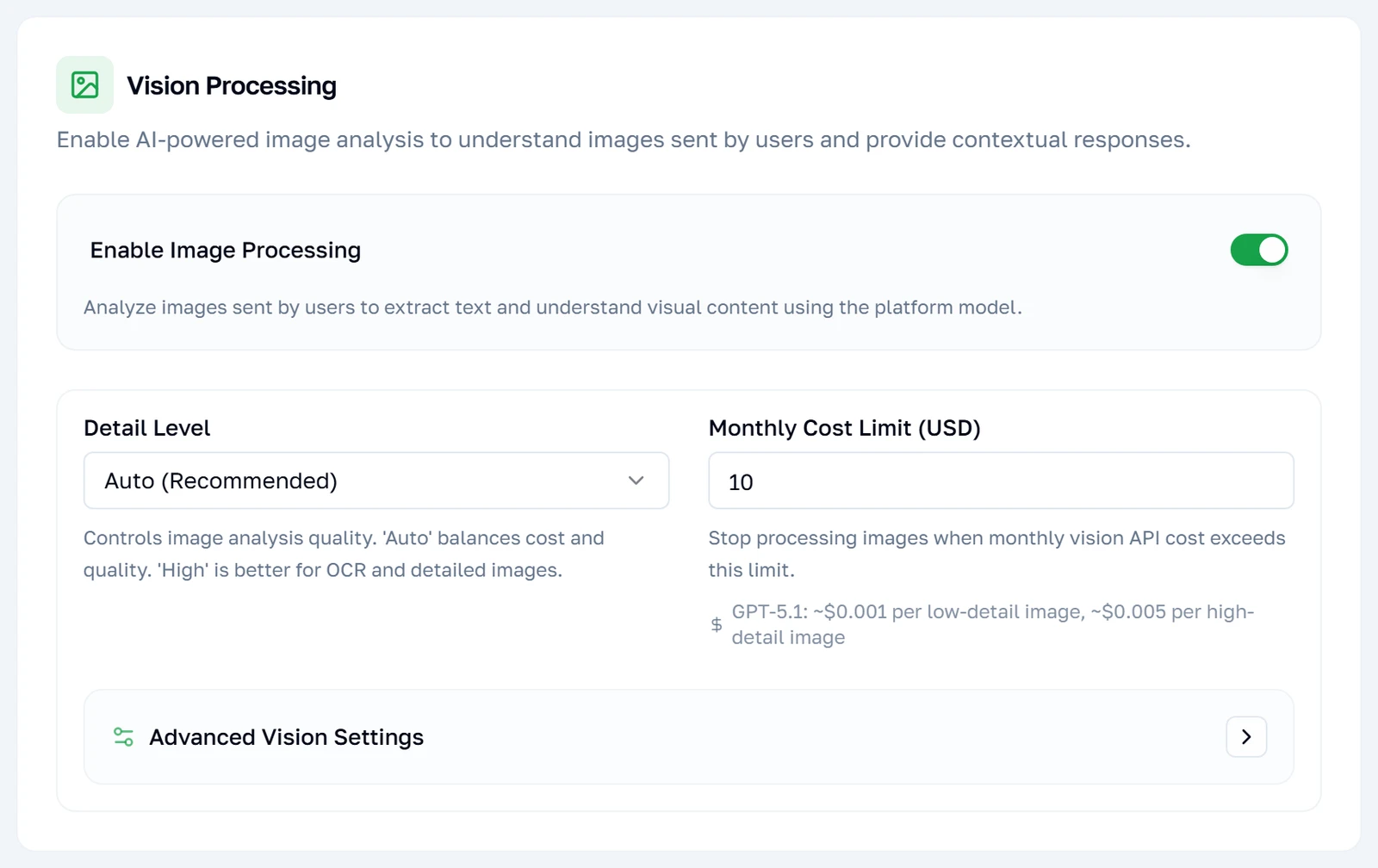
With this on, a photograph a customer sends is looked at and described to the AI, so a "do you have this?" with a picture attached becomes answerable. It charges per image received — including images that turn out to be irrelevant — which is what the monthly ceiling is for. The ceiling is a hard stop: past it, images are ignored rather than billed.
Note: Detail level is a cost dial as much as a quality one. Auto is the sensible default; low is markedly cheaper and enough to tell a shirt from a saree, but not enough to read small print in a photograph of a document.
Listening to voice notes
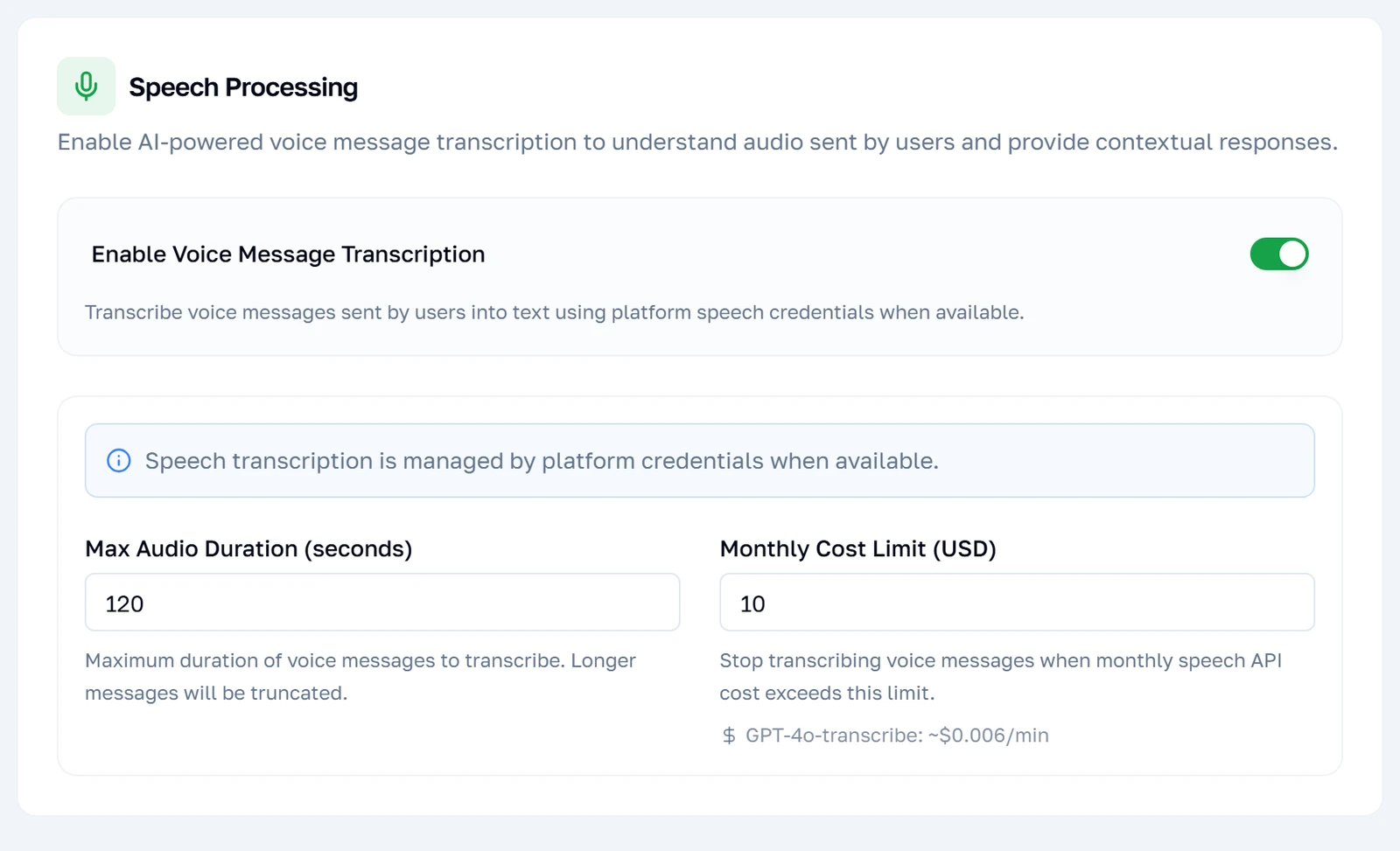
Voice notes are transcribed and then treated exactly like a typed message. The maximum length is a protection rather than a preference: a customer who sends a four-minute ramble costs four minutes of transcription, and anything past the limit is skipped instead. As with vision, the monthly ceiling stops rather than warns.
Waiting for people to finish
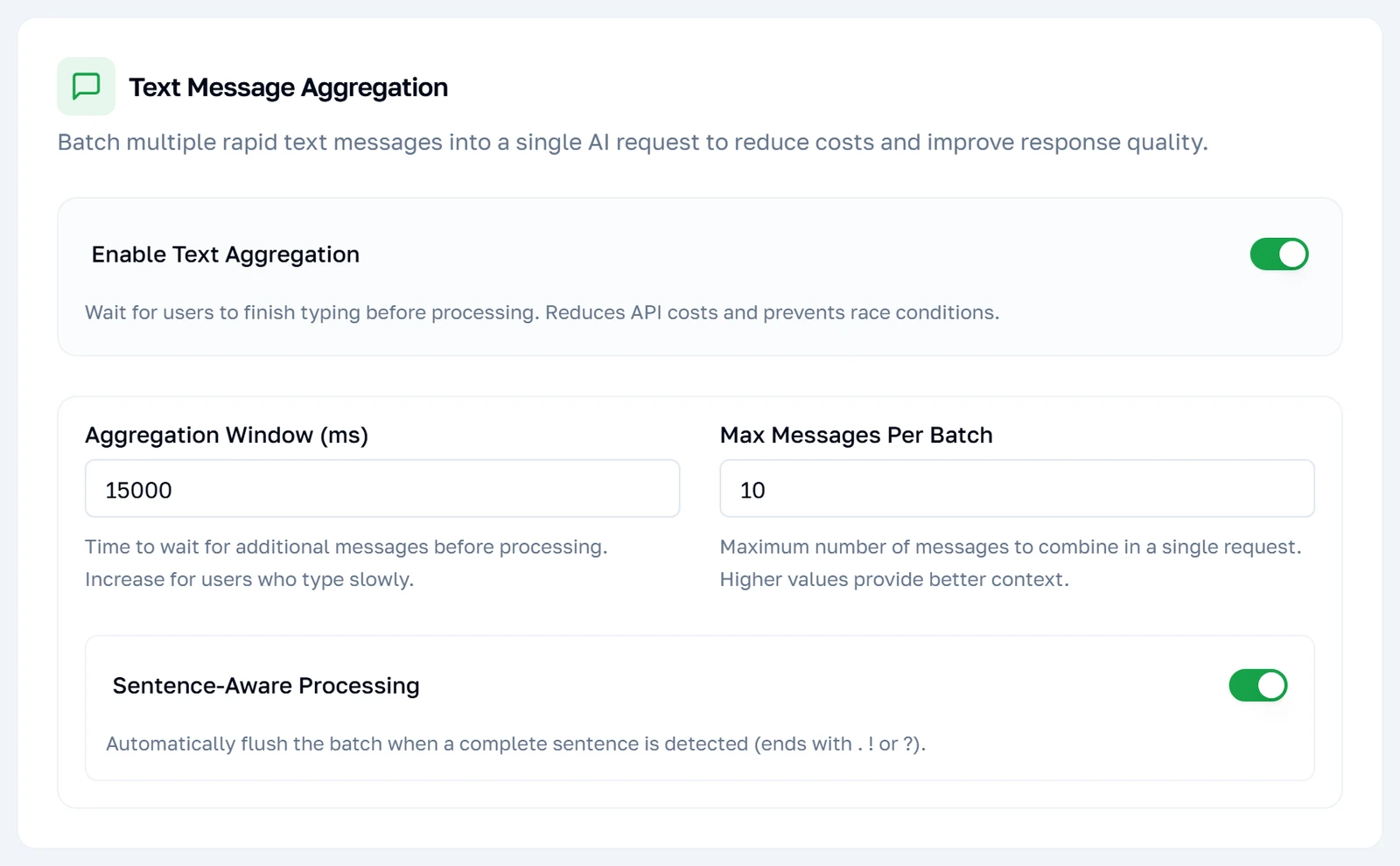
People type the way they talk — four short messages instead of one sentence. Without this, each fragment is a separate question and the bot answers the "hi" before the actual question arrives. Aggregation holds a burst for a few seconds, joins it, and answers once. It is the closest thing on this page to a free improvement: it makes the bot both cheaper and noticeably less silly.
Not paying twice for the same answer
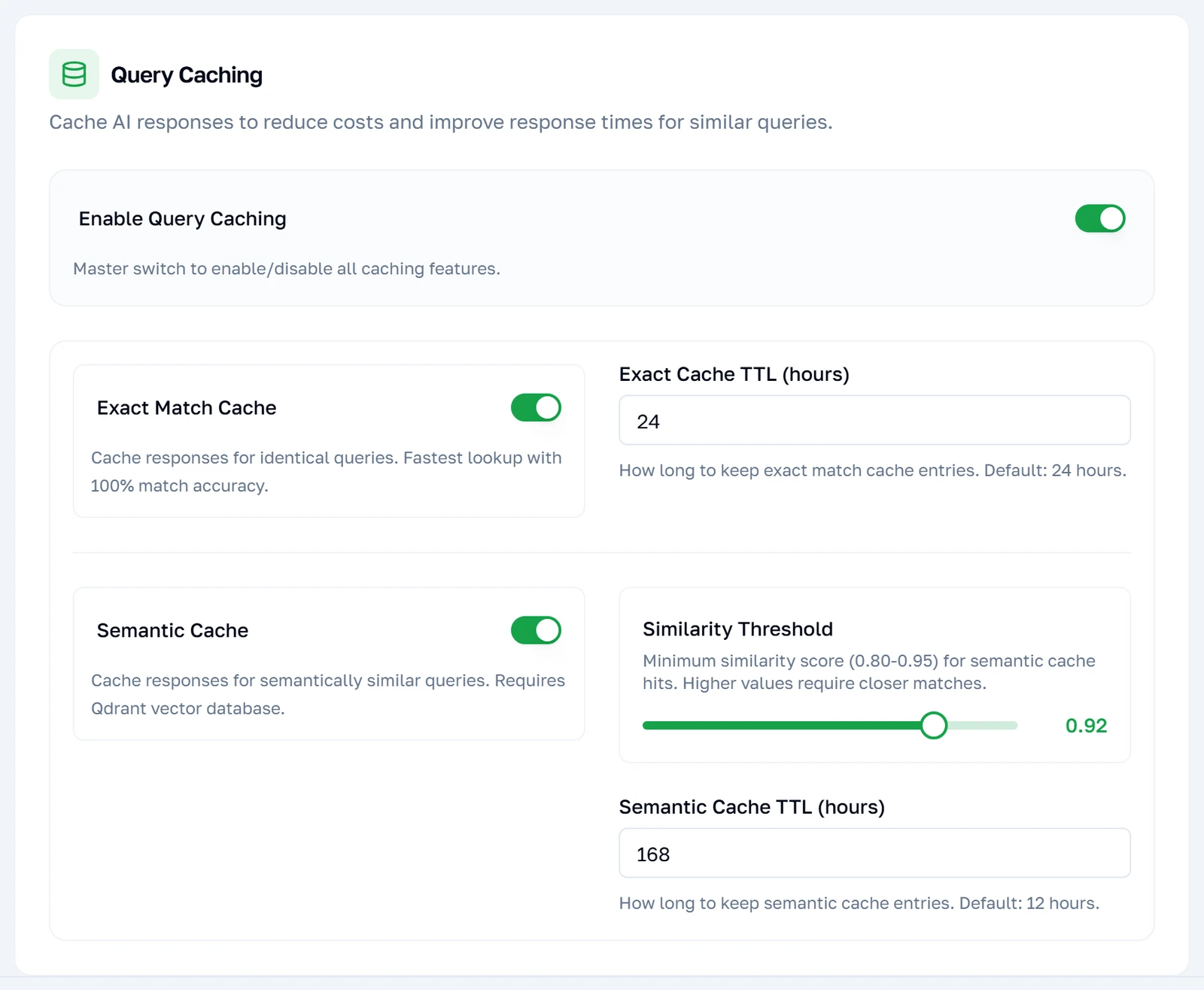
Customers ask the same handful of questions endlessly. Caching answers the repeats from what was worked out before instead of paying for it again. The first tier matches the same words; the second matches the same meaning in different words and needs the knowledge base connection, because it uses the same machinery. The similarity setting is how alike two questions must be before they count as the same one.
Note: A higher similarity is safer. Set it too low and "how much is silk" and "how much is cotton" start looking like the same question, which produces a confidently wrong answer rather than a slow one.
Teaching it what people mean
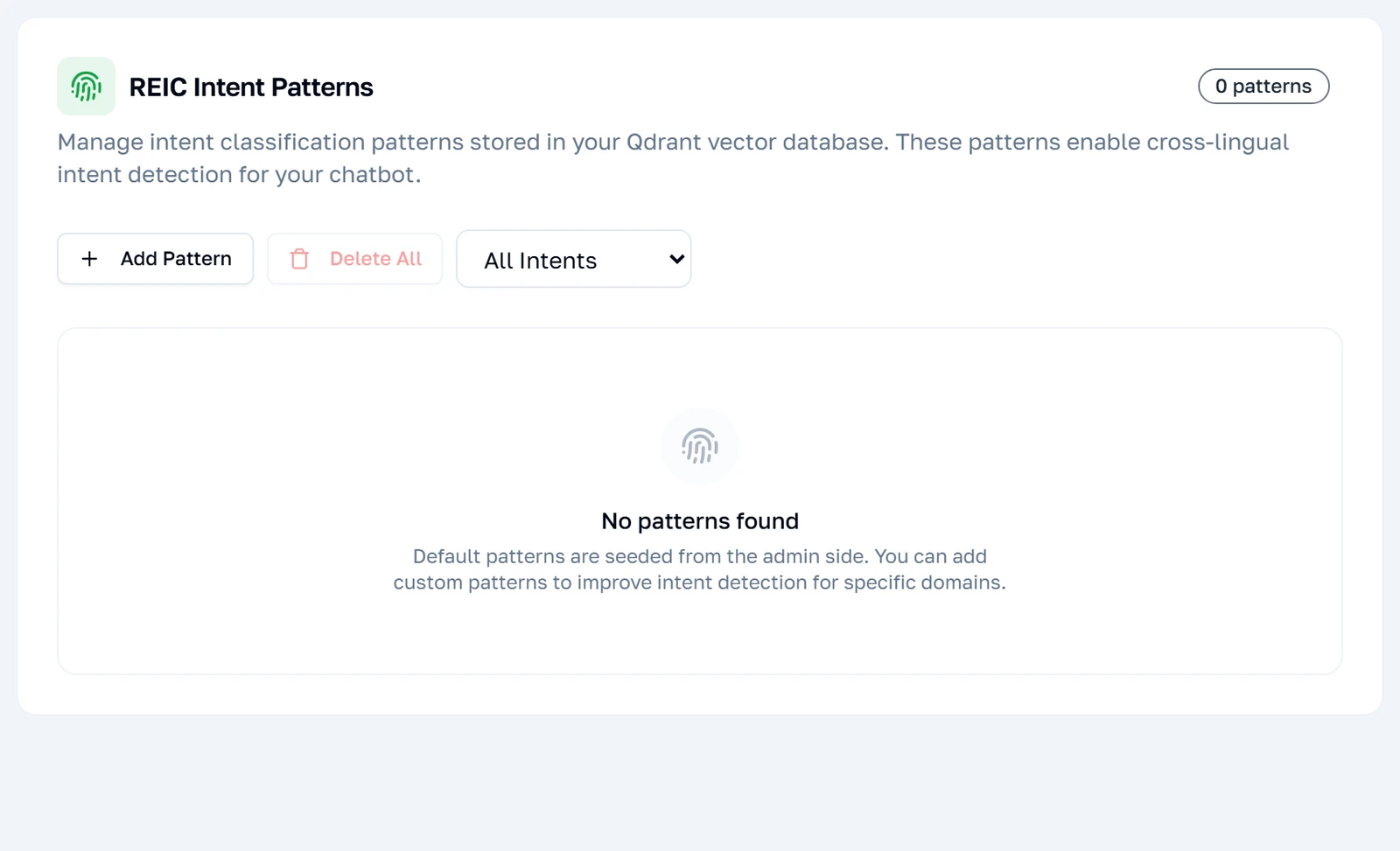
The last tab teaches the bot what your customers' phrasings mean. Each pattern is an example message paired with what it is really asking for, and the bot compares incoming messages against them. It starts empty, as here, and the bot works perfectly well without any — this is a speed and cost optimisation, not a requirement.
Note: This tab does not use the Save button. Patterns are added and removed immediately, and they are stored in your knowledge base connection rather than with the rest of these settings.
Adding a pattern
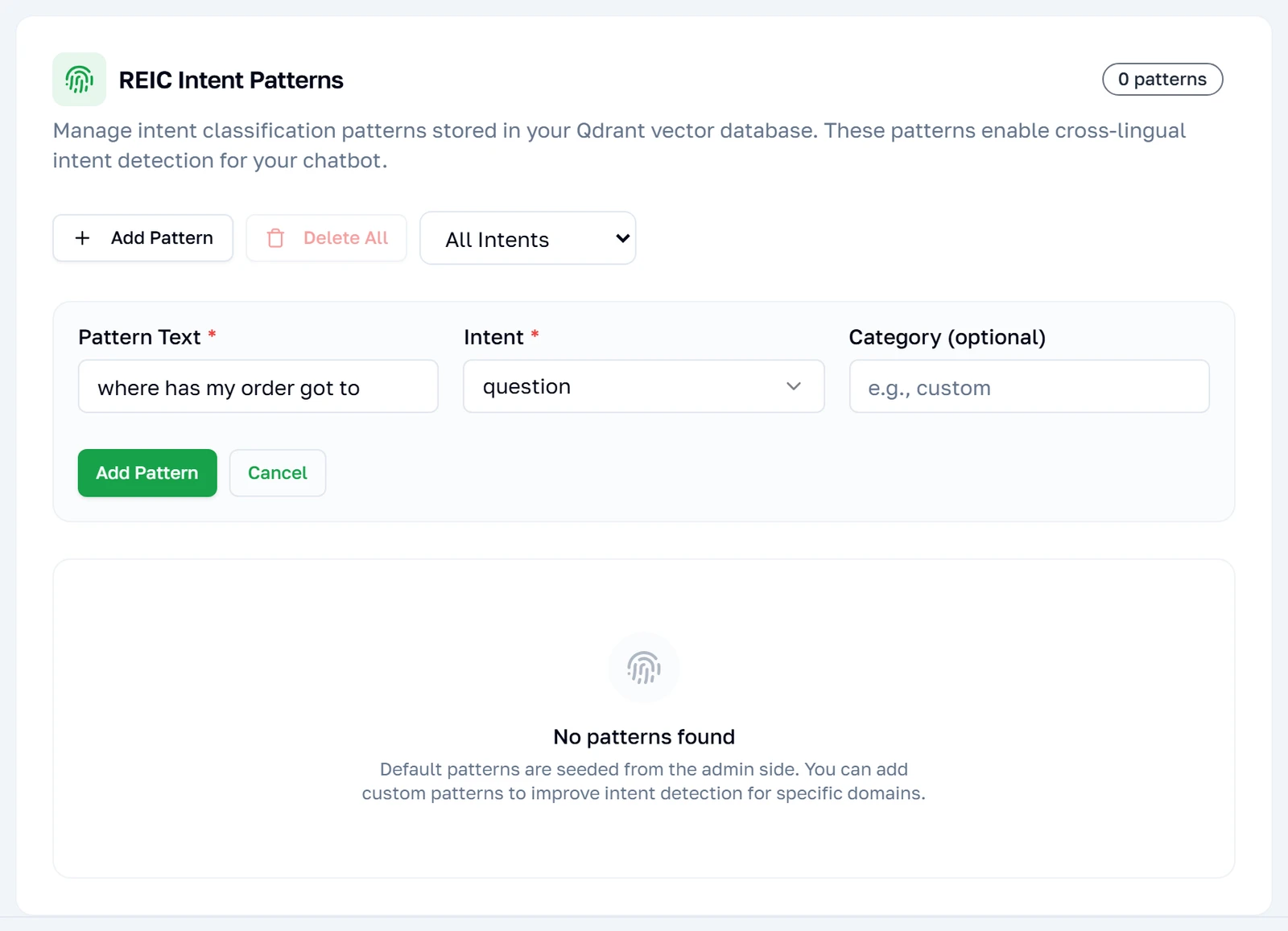
Adding one takes a phrasing and the intent it belongs to. Write phrasings the way customers actually type — misspelt, abrupt, without punctuation — because that is what will be matched against. Several patterns per intent work far better than one, since the vote needs alternatives to choose between.
Saving
Saving all of it at once
There is one Save, at the top and repeated at the bottom, and it writes every tab at once — including tabs you never opened. Before it writes, it checks that the knowledge base fields are filled, that the connection genuinely works, and that branding has a valid button. Any one of those failing stops the whole save; nothing is written in part.
Note: The connection check is a live call to your knowledge base every time you save. If that service is down, this button will not save an unrelated change until it is back or the AI engine is turned off.

Reference
What each screen touches underneath, for anyone who needs to know exactly what a switch changes.
Where these settings are kept
Everything on this page except the intent patterns lives in a single document, one per connected WhatsApp account. There is no per-setting record and no history: saving rewrites the document, and the previous values are gone. Two accounts on the same login keep entirely separate documents, which is why the account pills at the top of the page change every tab beneath them at once.
The intent patterns on the last tab are the exception, and they are not stored here at all — they live in your knowledge base collection alongside the documents. That is why they save the instant you add them, and why they survive independently of anything the Save button does.
Note: One field is deliberately dropped on the way in and on the way out: the knowledge base belongs to the account you are looking at and cannot be pointed at another account's. If you run two numbers, each needs its own documents uploaded.
What Save Settings actually does
Pressing Save runs three checks before anything is written, and any one of them stops the save outright rather than saving part of it.
| Check | What fails it | What you see |
|---|---|---|
| Knowledge base fields | The address or API key is blank while the AI engine is selected. | The page jumps to the Knowledge Base tab with the field marked. |
| Knowledge base credentials | The address and key are filled in but the service rejects them. | The save stops and the error names the connection, not the form. |
| Branding | Branding is on but the CTA button is missing or its address is not a valid link. | A red panel on the Branding tab lists what is wrong. |
The credential check is a real network call to your knowledge base, made from your browser through this application, every time you save. A knowledge base that has gone offline therefore blocks saving a change to something entirely unrelated — the away message, say — until either the connection is fixed or the AI engine is switched off.
Note: Save writes every tab at once, not the tab you are looking at. There is no per-tab save and no partial save: the whole document is rewritten from what the form currently holds, including tabs you never opened.
The four engines, precisely
The engine is the single most consequential control on this page, because it decides whether the other eleven tabs exist. They are built only for the AI chatbot; under any other engine the tab strip is empty and the settings behind it, while still stored, are not consulted.
| Engine | Who answers | Tabs shown |
|---|---|---|
| None | Nobody. Messages sit in the inbox for a human. | None |
| Webhook | Your own server, which receives every message and decides. | None |
| Flow Builder | A flow you built by hand in the flow builder. | None |
| AI Chatbot | The AI, answering from your knowledge base. | All eleven |
Note: Switching away from the AI engine does not erase anything on the tabs. The values stay in the document and come back exactly as they were when you switch back — but while another engine is selected they have no effect whatsoever, including the ones that cost money.
Which switches spend money
Most of this page is free to leave on. Four things are not, and they are worth knowing apart, because three of them charge per message received rather than per reply sent — a busy day costs more than a quiet one whether or not the bot was useful.
| Setting | When it charges | Its own limit |
|---|---|---|
| AI replies | Every answer the AI writes. | Your message balance, on the AI Messages tab. |
| Vision | Every image a customer sends, whether or not it was relevant. | A monthly cost ceiling in dollars. |
| Speech | Every voice note, charged by its length. | A monthly ceiling, plus a maximum clip length. |
| Caching | Never — it is what stops the three above from charging twice. | — |
Note: Caching is the only setting here that reduces the bill, and semantic caching — the tier that recognises the same question asked in different words — needs a working knowledge base connection. Without one, only the exact-wording tier is available.
The limits you will actually hit
Several fields silently stop accepting characters rather than warning you, because the limits come from WhatsApp's own message format and not from this application. Typing past them is not an error you will be shown — the text simply stops growing.
| Field | Limit | Where it comes from |
|---|---|---|
| Custom instructions | 2000 characters | This application, checked again on the server. |
| Branding header text | 60 characters | WhatsApp's interactive message format. |
| Branding footer text | 60 characters | WhatsApp's interactive message format. |
| CTA button text | 20 characters | WhatsApp's interactive message format. |
| CTA button address | 2000 characters | WhatsApp's interactive message format. |