Bulk campaigns
A campaign sends one WhatsApp template to many people at once — a festive offer, a price list, a launch announcement. This guide covers the whole module: reading the list of what you have sent, building a campaign and checking it before it goes, watching one run, and reading the results afterwards, down to why an individual message failed. Campaigns are built from approved templates: if a template is not approved by Meta, it cannot be sent here.
Every campaign you have sent
The campaign list
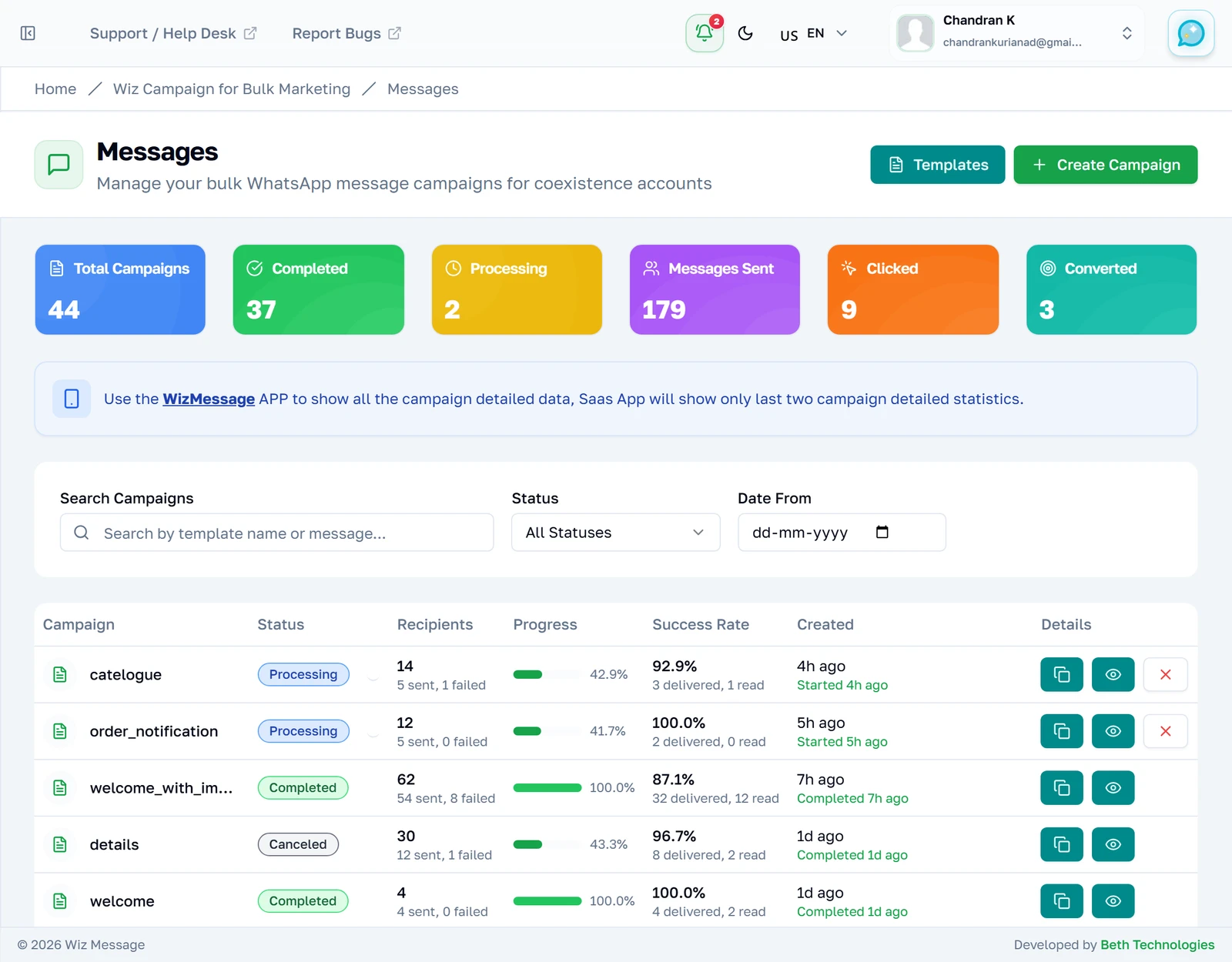
Every campaign you have ever sent, newest first. There is no folder structure and no archive: this one list is the whole history. A campaign is named after the template it sent, because a campaign has no name of its own — two campaigns that used the same template are told apart by their date and their recipient count, not by their title.
Reading the six counters
These describe your whole account and do not change when you filter the list below them. Messages Sent counts individual messages across every campaign, not campaigns. Clicked and Converted only ever move for campaigns sent through the Marketing Messages API — for every other campaign they stay at zero, which is not a measurement of nothing happening but an absence of measurement.

What one row tells you
Recipients shows the total with sent and failed underneath. Progress is how far through the list the sender got — it reaches 100% on any campaign that stopped, including a failed one, because every recipient has been settled one way or the other. Success Rate is the share that were accepted by WhatsApp, so it counts sent messages, not read ones.

Filtering by status
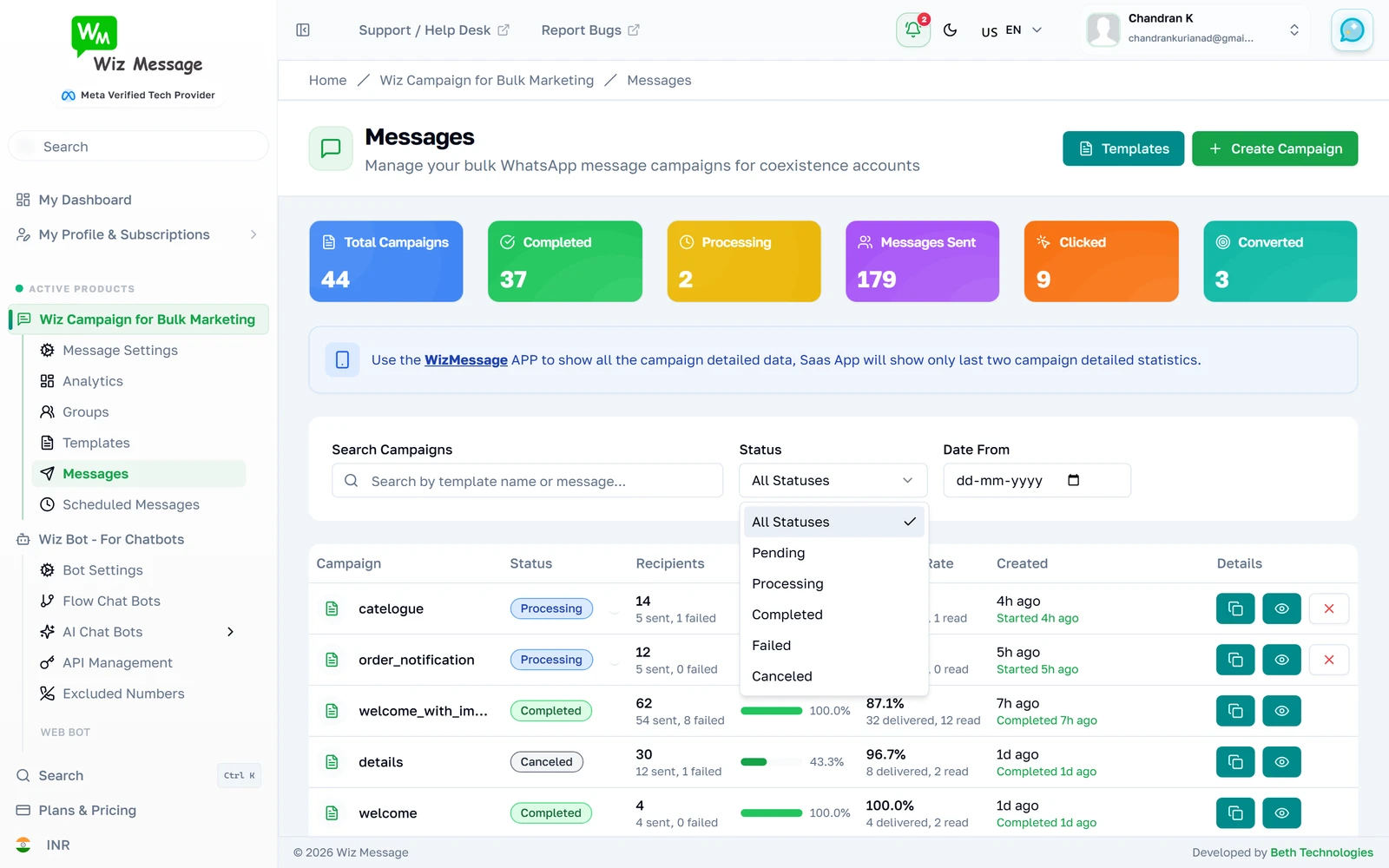
The status dropdown narrows the list to one kind of campaign — the statuses themselves are set out in the reference at the end of this guide. Search and the status filter combine, so you can look for one template among the campaigns that are still sending.
Only the ones still sending
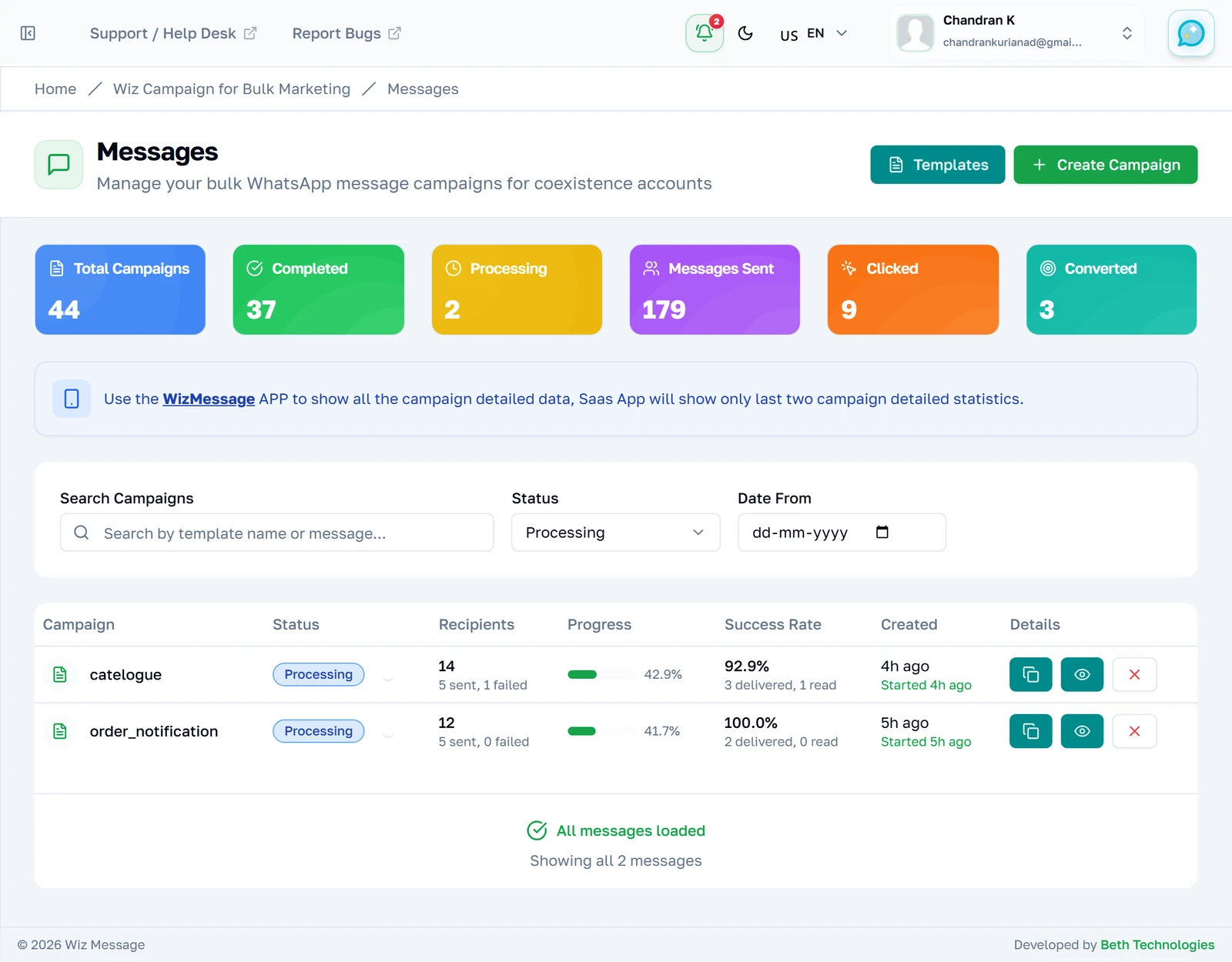
Choosing a status reloads the list immediately; there is no second Apply step. The counters above do not change, because they always describe the whole account. Note that the two campaigns left here are the only ones with a Cancel button — that control appears for pending and processing campaigns and for nothing else.
Searching
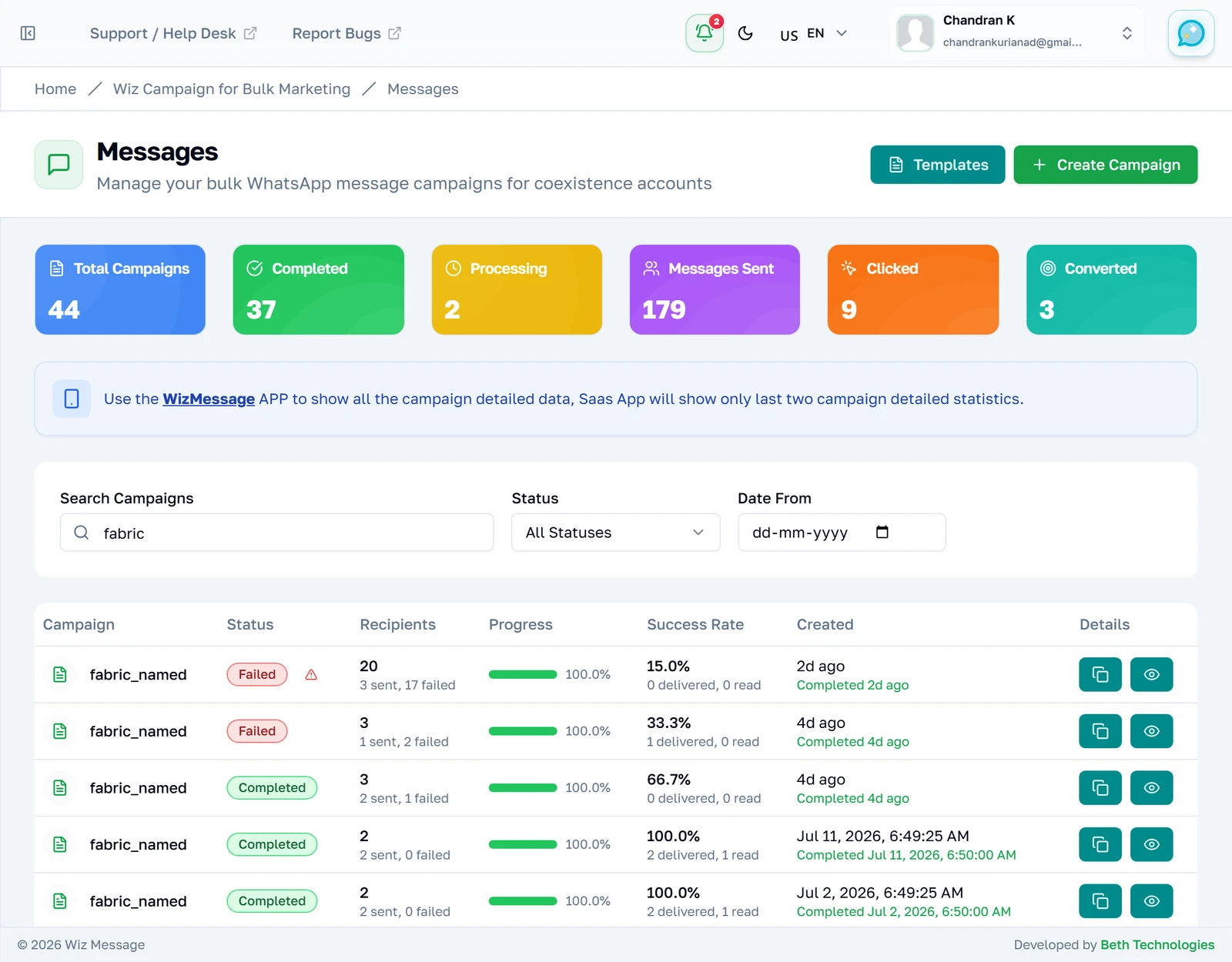
Search matches the template name and, for plain text campaigns, the message body. It does not search recipients: you cannot find "the campaign I sent to Mathew" from here.
The rest of your history
The list loads 25 campaigns at a time, and the line beneath the button counts what is on screen against your total. Older campaigns are not gone, just not fetched yet — nothing here is archived or hidden.

The end of your history
Pressing it appends the next 25 to the list rather than replacing them, so the page never moves under you. Once everything has been fetched the button is replaced by this confirmation — that is the end of your whole history, not the end of a page, and there is nothing further back to reach.

Building a campaign
The builder
Four stacked cards and a preview that follows you down the page. The account at the top is not a choice — you have one connected WhatsApp number and it is used. Templates, contacts and groups all arrive a moment after the rest of the page: they are fetched separately, the template list from Meta itself, which is why that card can still be a placeholder when everything else has drawn.
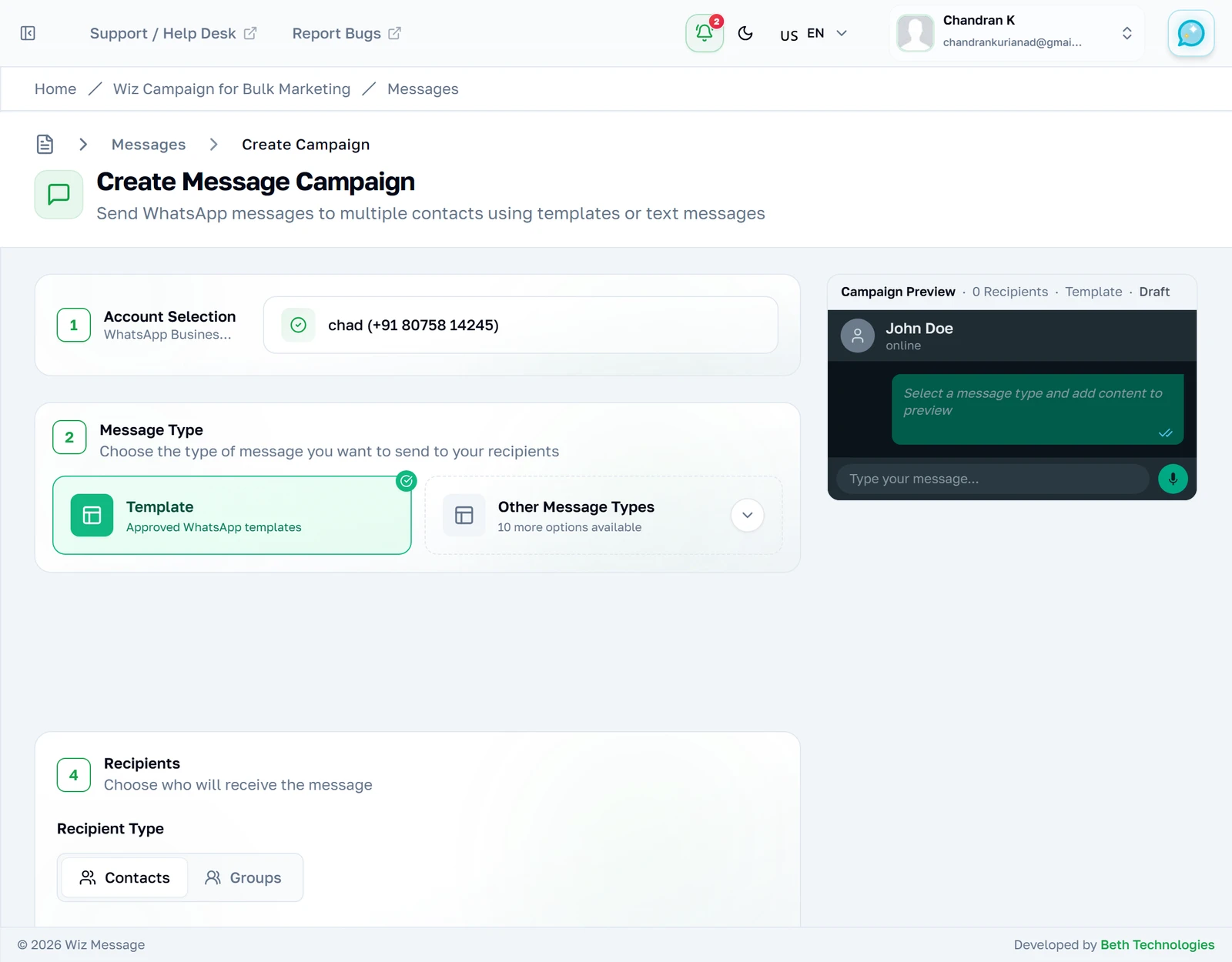
Choosing what to send
Eleven types are offered, but the choice is narrower than it looks. WhatsApp only lets a business start a conversation with an approved template; the other types are for replying to someone inside an open 24-hour window, which a bulk campaign to a cold list is not. Choose Template unless you know the whole list has messaged you recently.
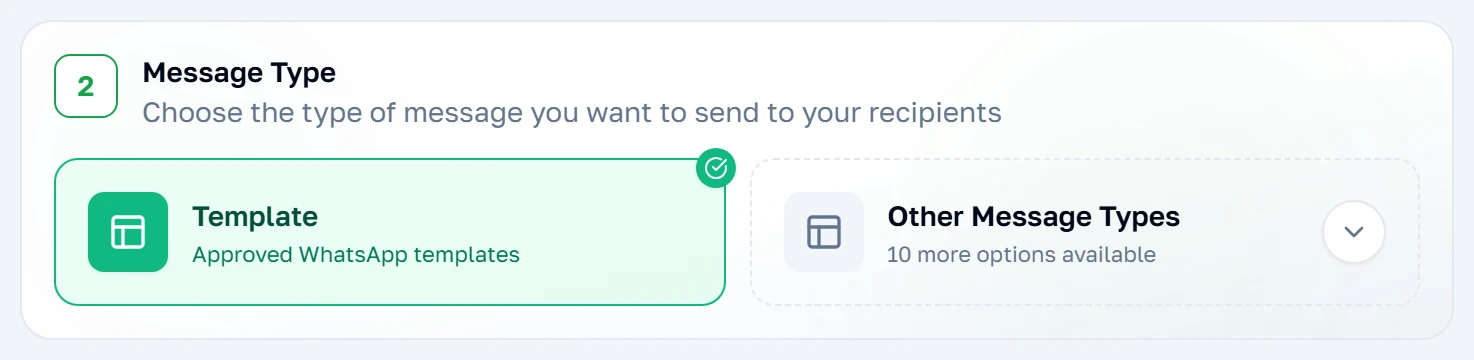
Picking a template
Only approved templates appear in this list. A template still in review, or one Meta rejected, is simply absent — if something you expect is missing, its status on the message templates page is the place to look. Templates that require per-recipient payment details are also excluded, because a single bulk send cannot fill them in.
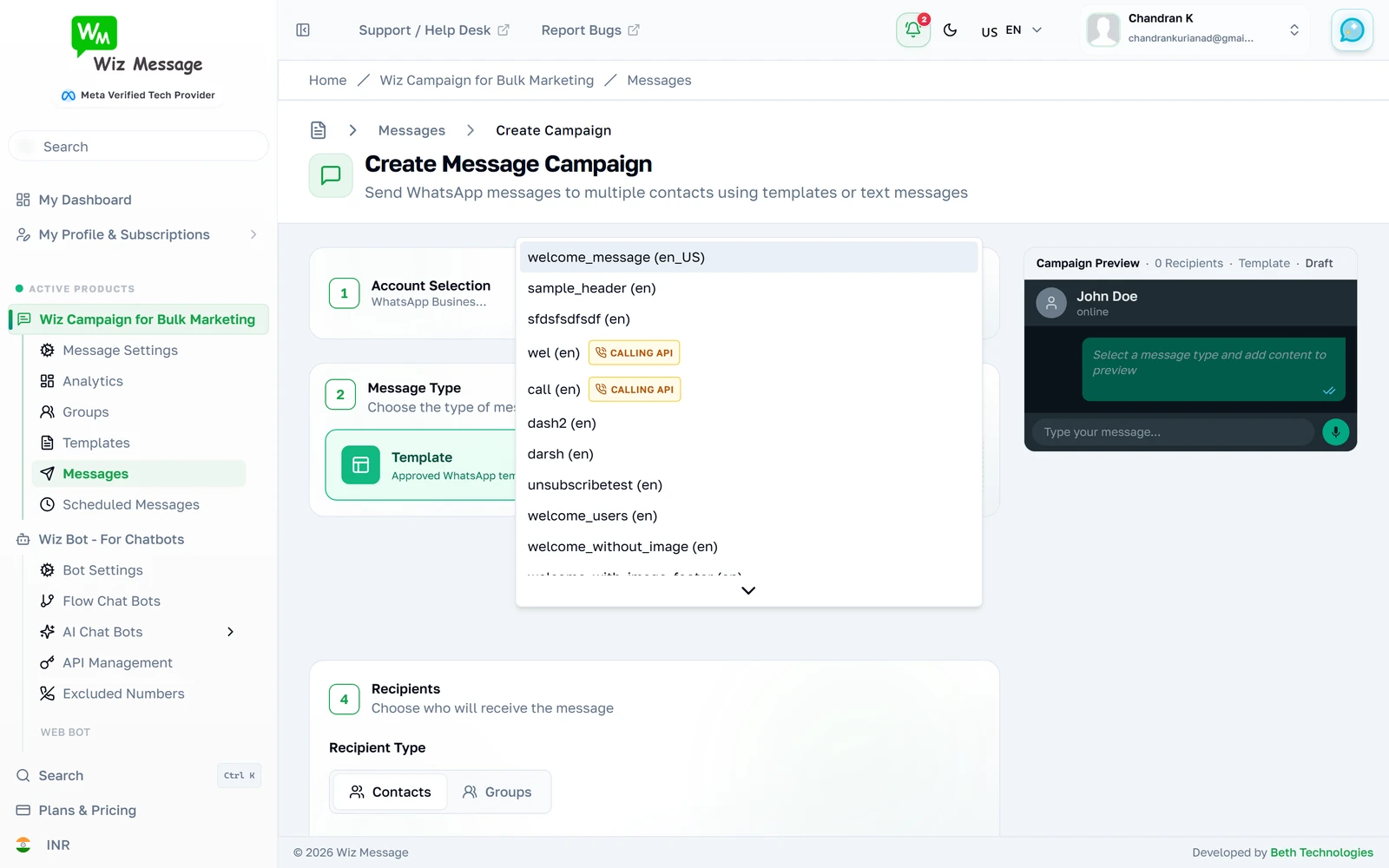
The template, chosen
Choosing a template pulls in its actual wording, and any variables it declares appear as fields to fill. Whatever you type is used for every recipient — these are campaign-wide values, not per-person ones. There is no way to give each recipient a different value from this screen.
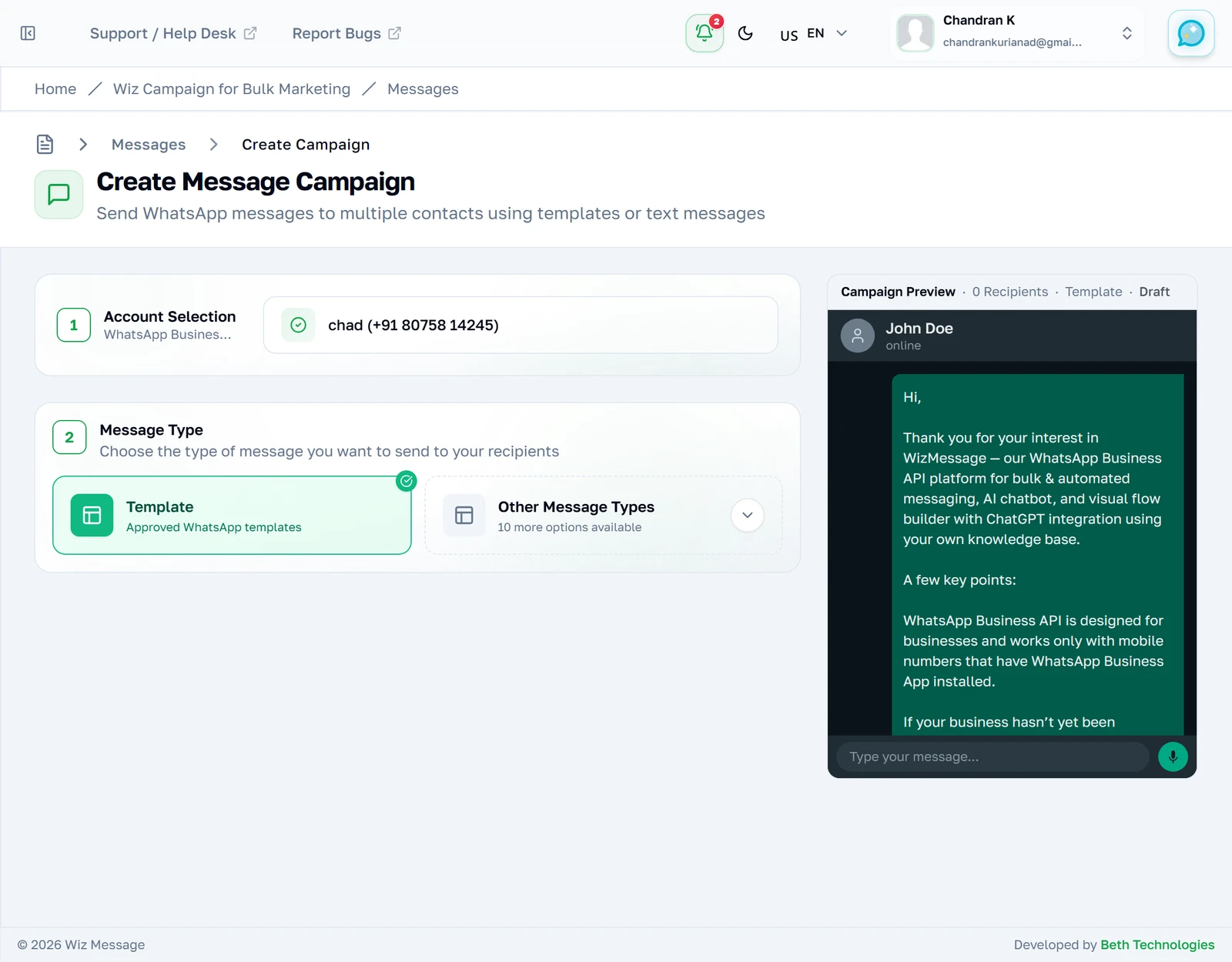
Choosing who receives it
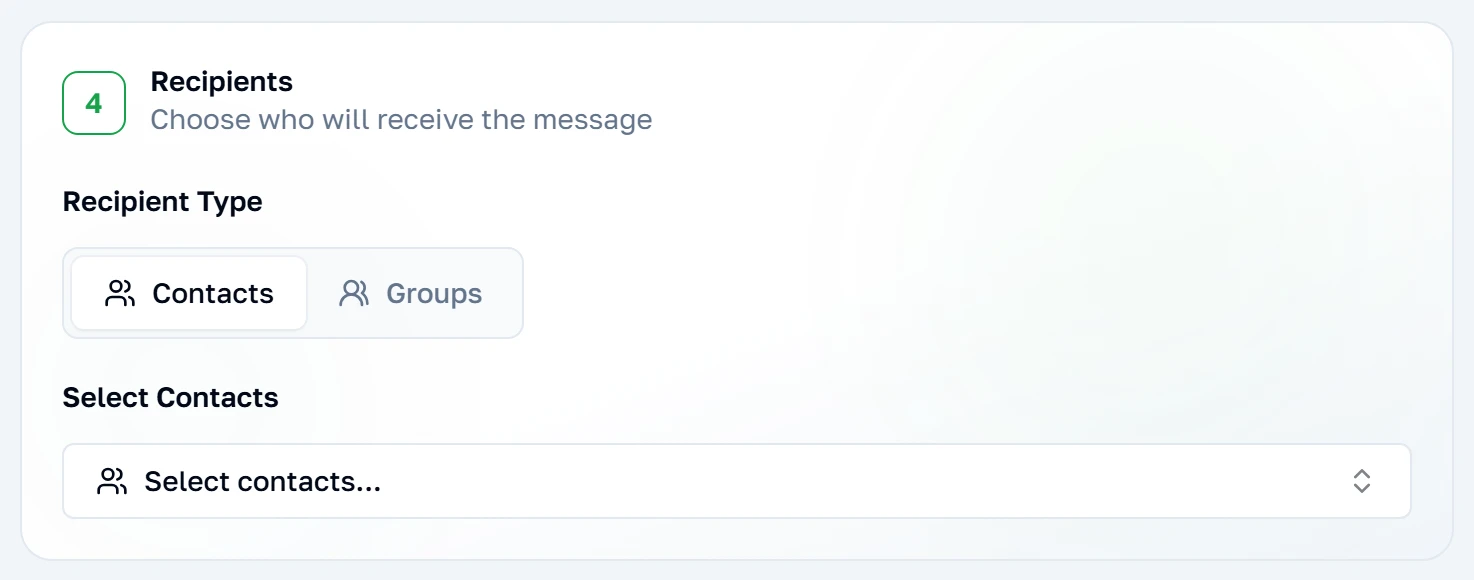
Recipients come either from groups or from individually chosen contacts — one or the other, not both at once. Picking groups is the safer route for anything large: the group stays the source of truth, and someone added to it later is included next time you send to it. Contacts chosen here are a snapshot taken now.
The preview
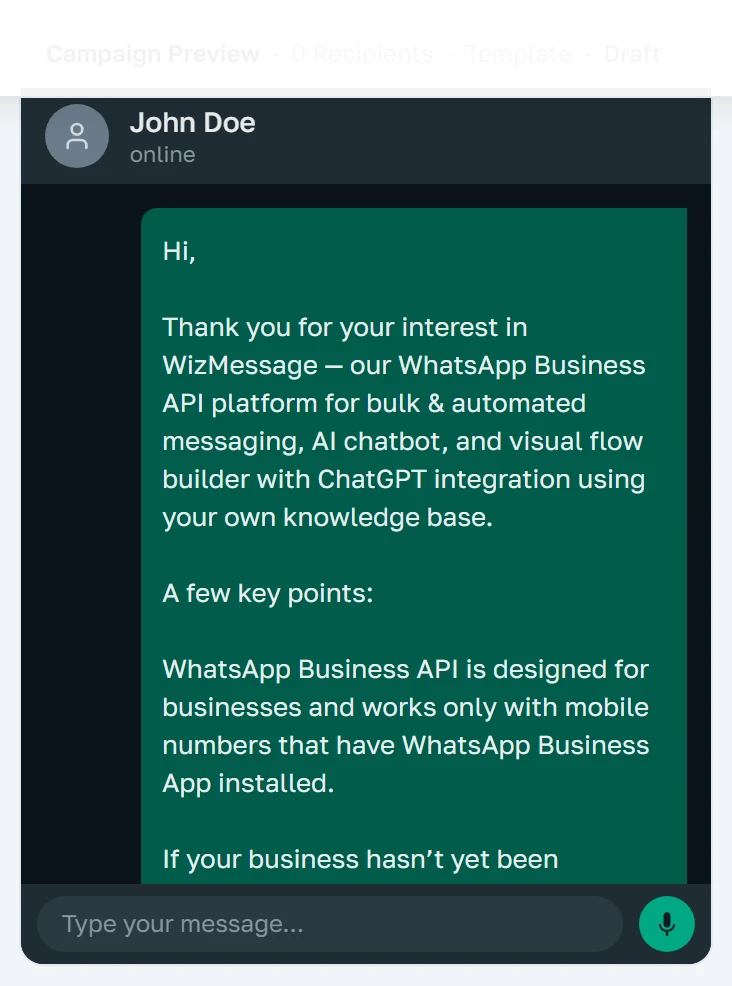
The preview renders the message as a WhatsApp bubble, with the recipient count underneath. It updates as you change the form. It is drawn from the template's content and your variable values, so it is a genuine rendering rather than an illustration — but it cannot show you whether a number is still on WhatsApp.
Watching a campaign run
A campaign in flight
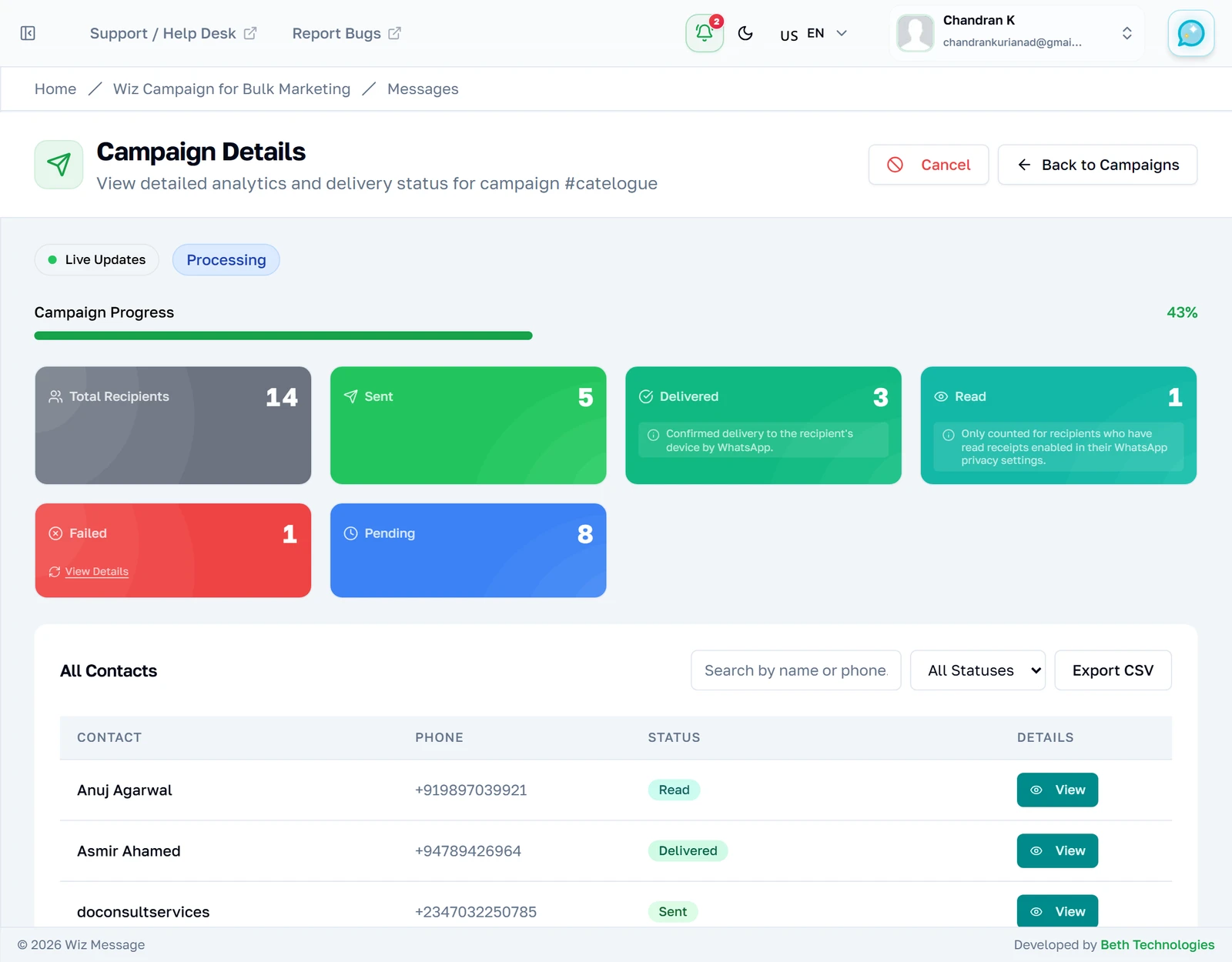
While a campaign is sending, this page updates itself — the dot beside Live Updates is the page's own connection to the server, not the campaign's health. Cancel appears only while a campaign is pending or processing.
What the progress bar counts
Progress is the share of recipients that have been settled: accepted by WhatsApp or rejected. It is not delivery. A campaign can reach 100% with a great many messages still marked Sent rather than Delivered, because delivery is reported back afterwards.

Recipients not yet reached
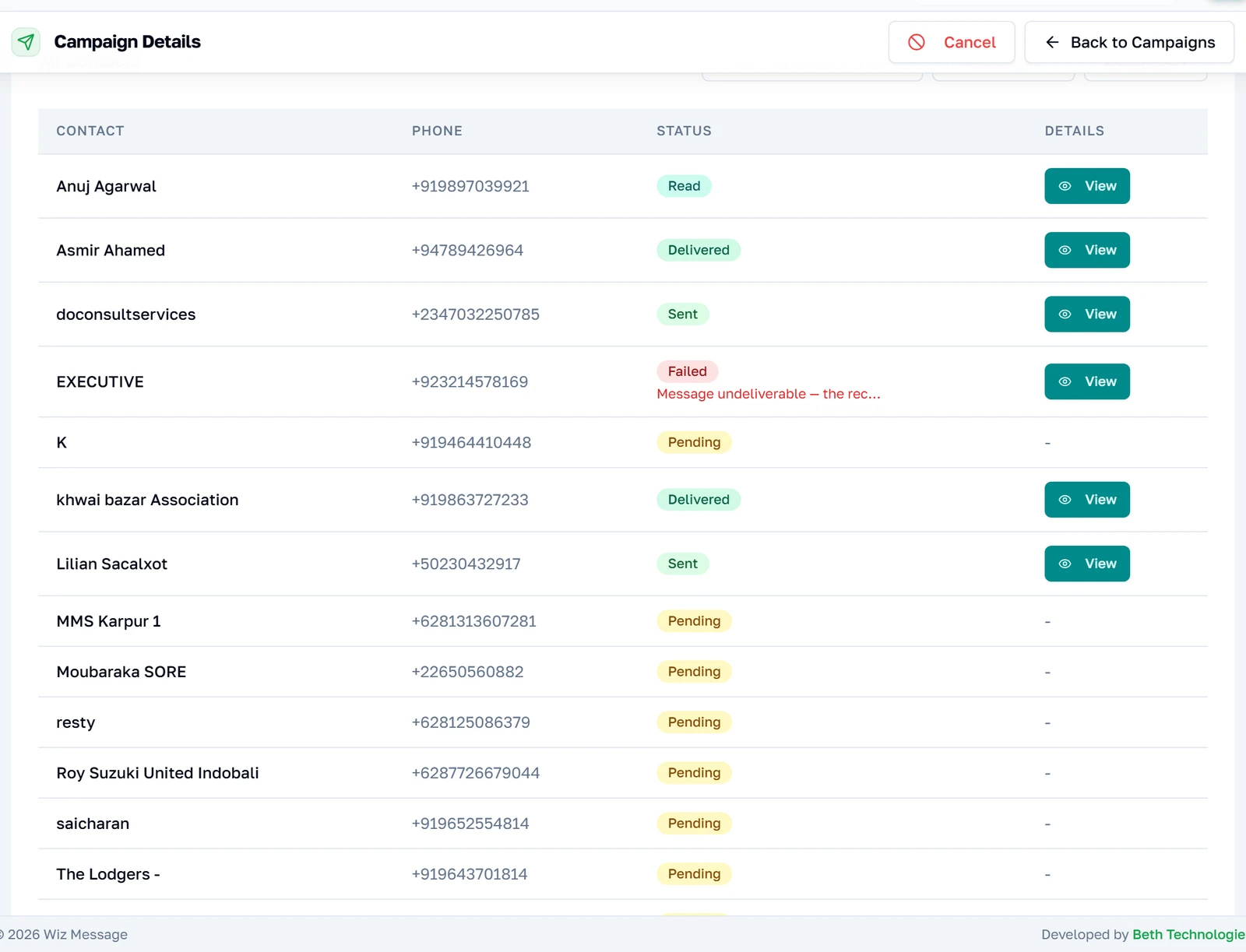
Recipients the sender has not reached yet sit as Pending with an empty Details column — there is no message id to show, because nothing has been sent to them. As the run proceeds these rows change status in place.
Reading the results
A finished campaign
A completed campaign. The violet badge marks a campaign sent through Meta's Marketing Messages API, which is what makes the Clicked and Converted counters meaningful — on any other campaign those two are absent rather than zero.
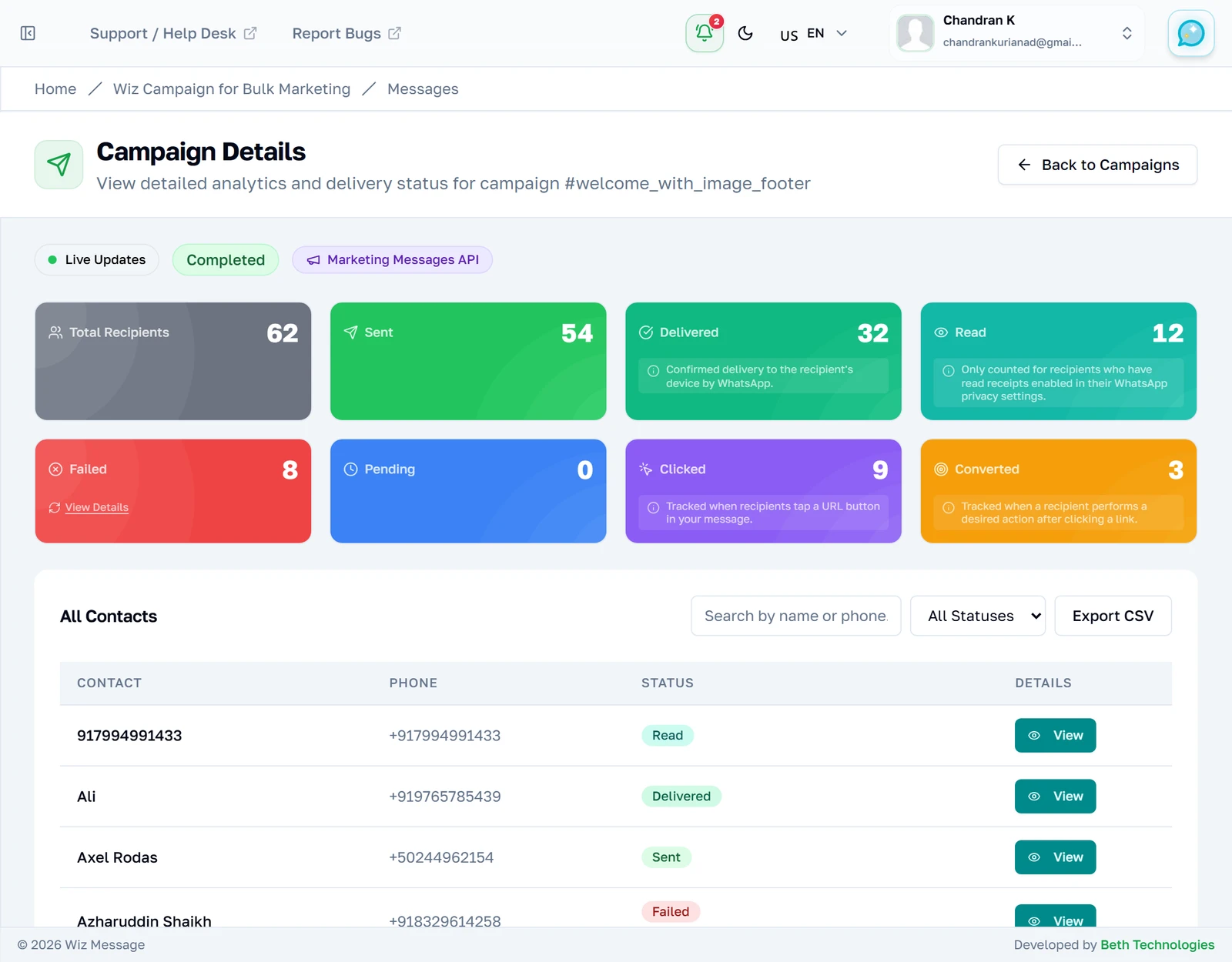
The counters, in order
Read these as nested subsets, not as separate totals: everything delivered was sent, and everything read was delivered. Sent plus Failed is the whole list once a campaign has finished. Delivered and Read carry their own notes because both depend on Meta reporting back, and Read additionally depends on the recipient having read receipts switched on.
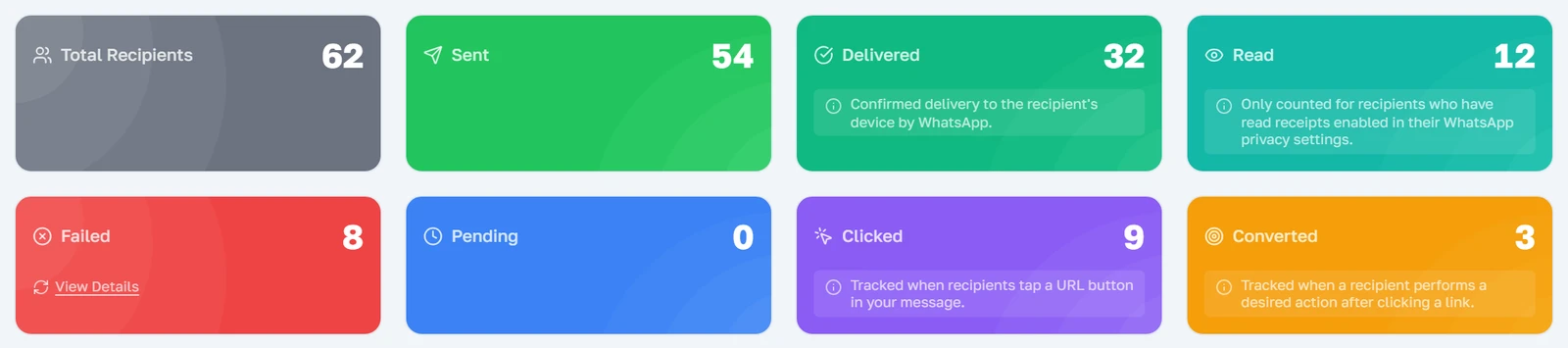
The engagement funnel
The same numbers again as proportions of the whole list, which is the quickest way to see where a campaign lost people. The first bar is always the full list at 100%; each bar below is measured against that same total, not against the bar above it.
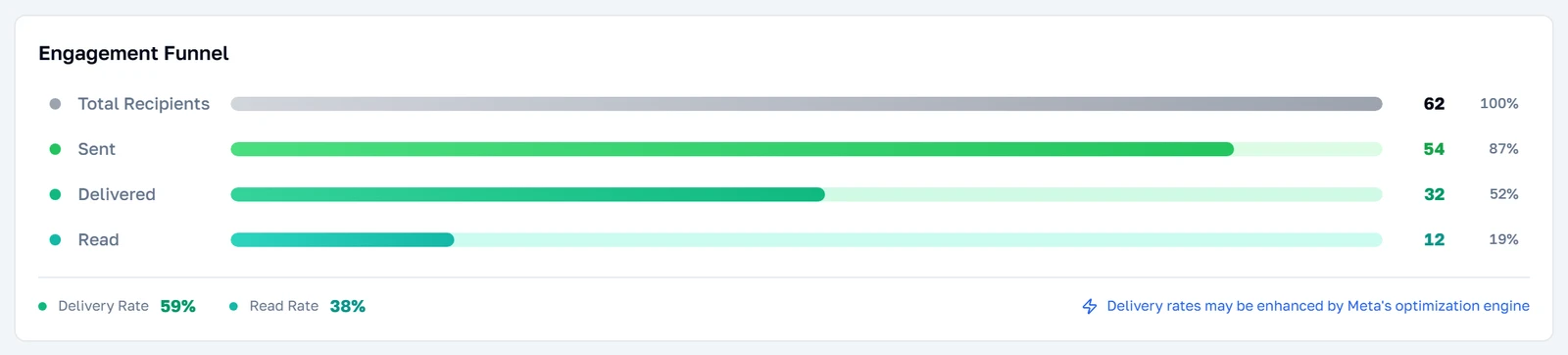
Every recipient, one by one
Every recipient with their own status, 25 to a page. A failed row shows the beginning of its reason inline. Details opens the full record, and appears only for recipients that have something to show — a message id or an error.
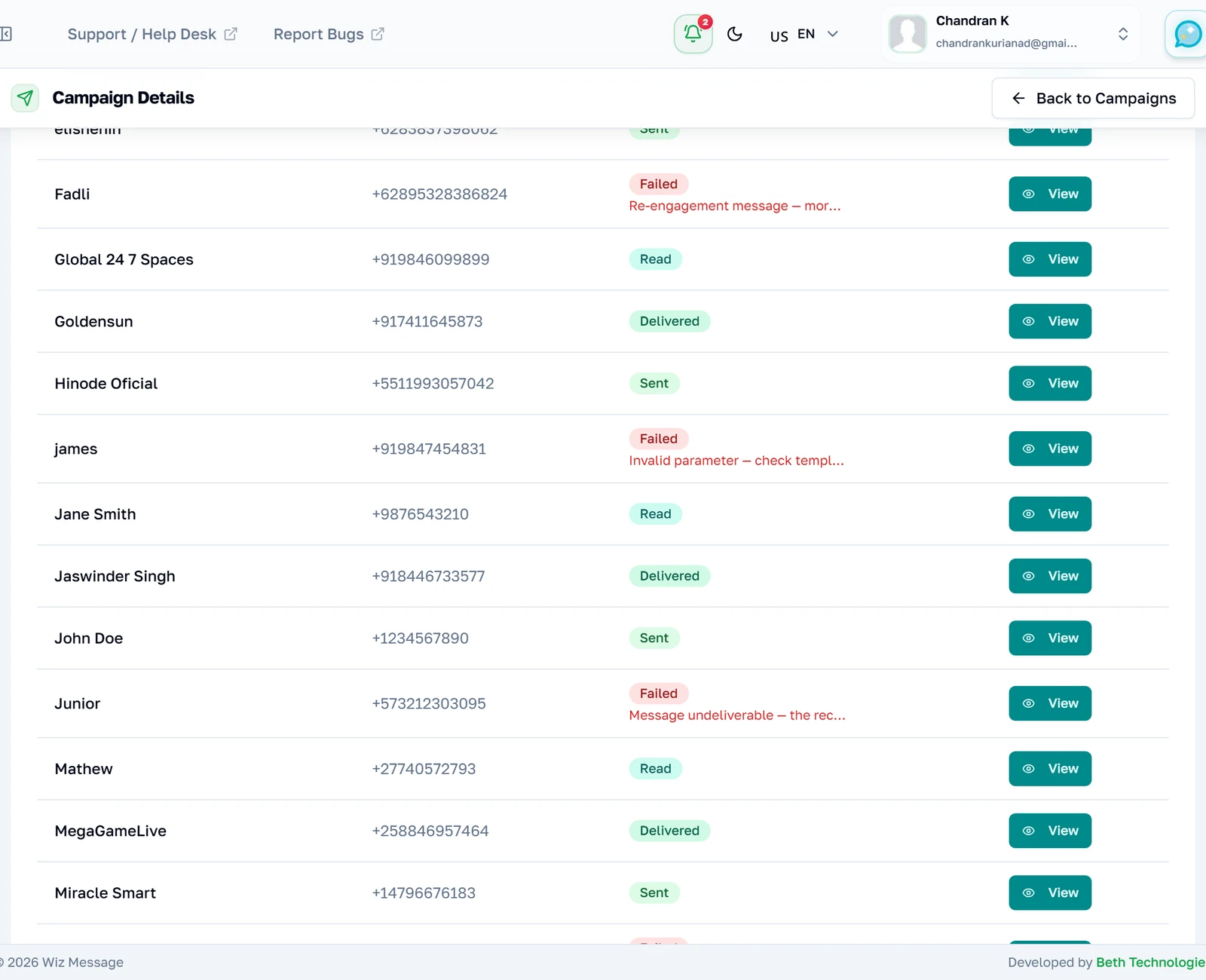
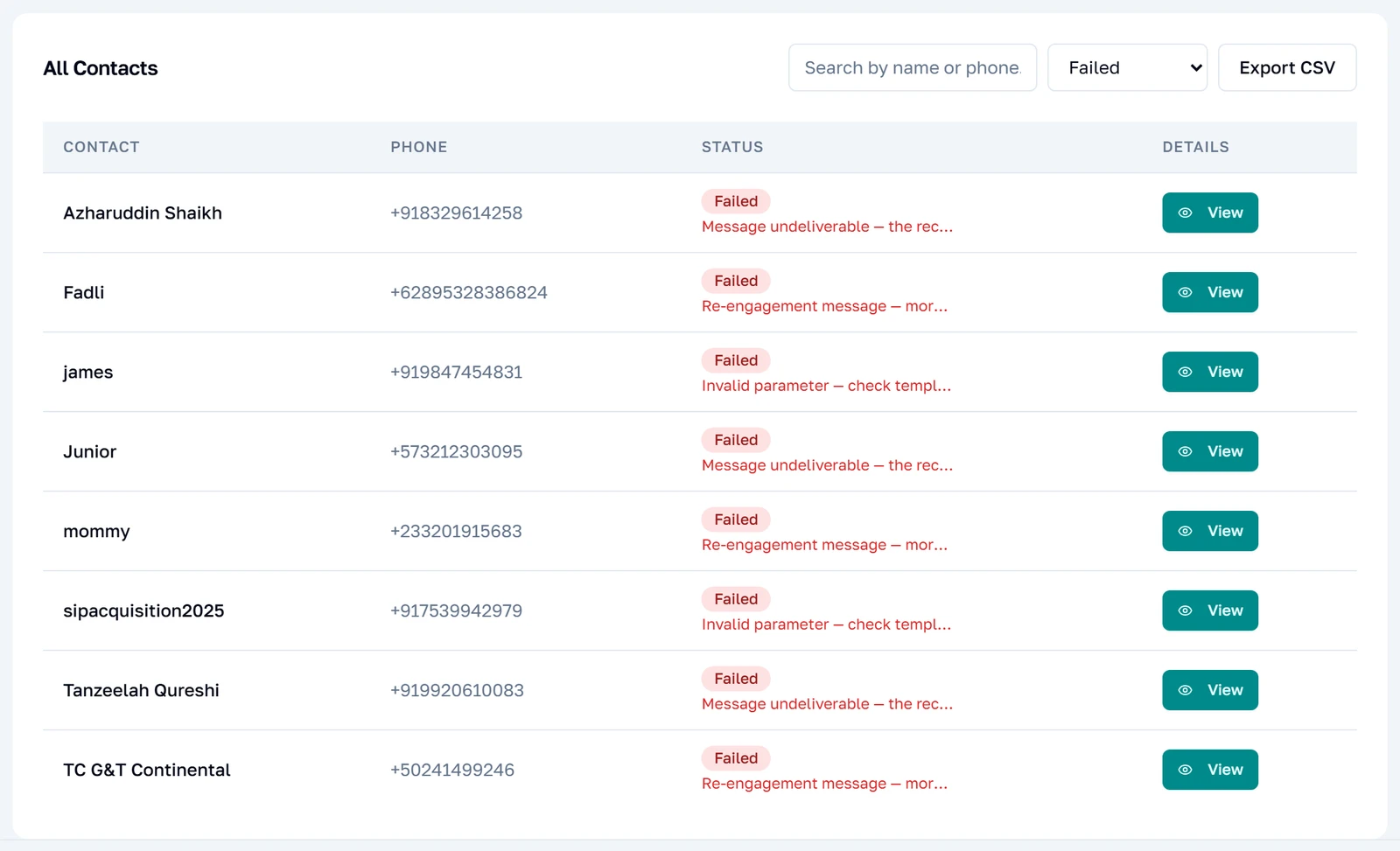
Narrowing to the failures
The status filter narrows the table, and Export CSV then exports exactly what the filter left — not the page on screen, and not the whole campaign. Filtering to Failed and exporting is the fastest way to get a list worth acting on.
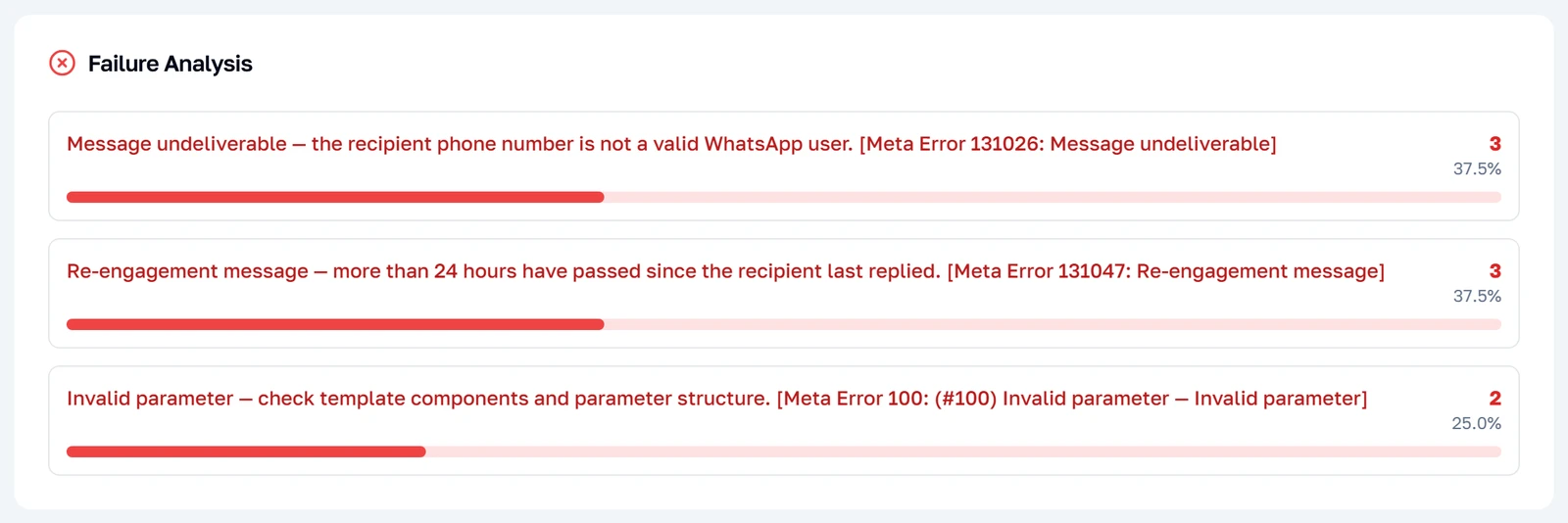
Failures, grouped by reason
The same failures counted by reason rather than listed by person. This is the panel to read first when a campaign has a lot of failures: one reason at 80% is a configuration problem you can fix, while a dozen reasons at 8% each is the ordinary attrition of any large list. Only the ten most common reasons are shown, and the panel is absent entirely from a campaign that had no failures.
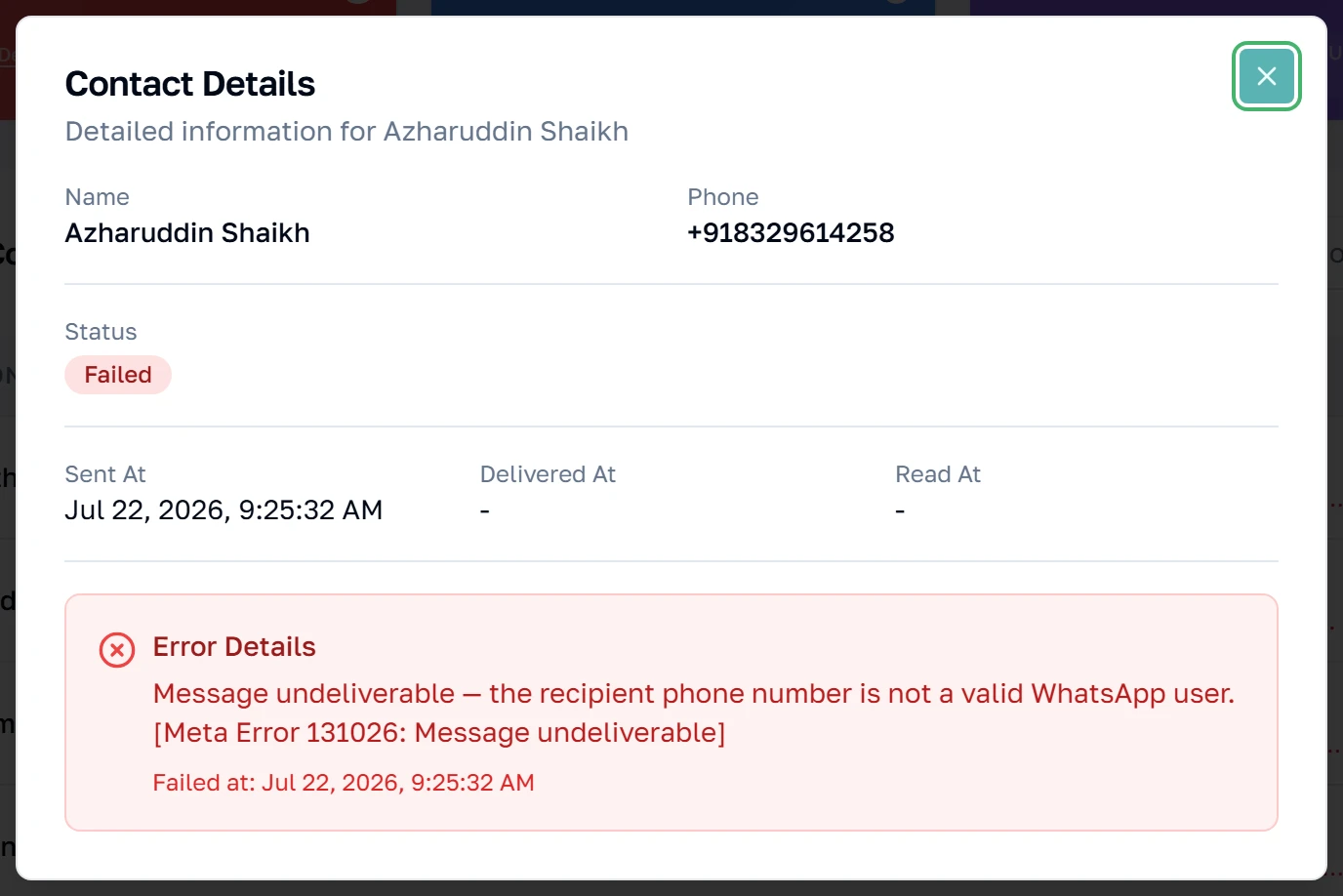
One recipient in full
The full record for one recipient: the exact status, the timestamps behind it, the message id WhatsApp assigned, and the error in full rather than truncated. The message id is the thing to quote if you ever need to ask Meta about a specific message.
An old campaign, after the clear-out
Per-recipient rows do not last forever: 90 days after a campaign finishes they are deleted, and a second clear-out keeps only your most recent campaigns' detail regardless of age. The counters above survive, so an old campaign still reports what it did — but the recipient table is replaced by this notice rather than appearing empty. Export anything you need to keep while the campaign is recent; after the clear-out the per-recipient detail, including the failure reasons, is gone permanently.

When a campaign stops early
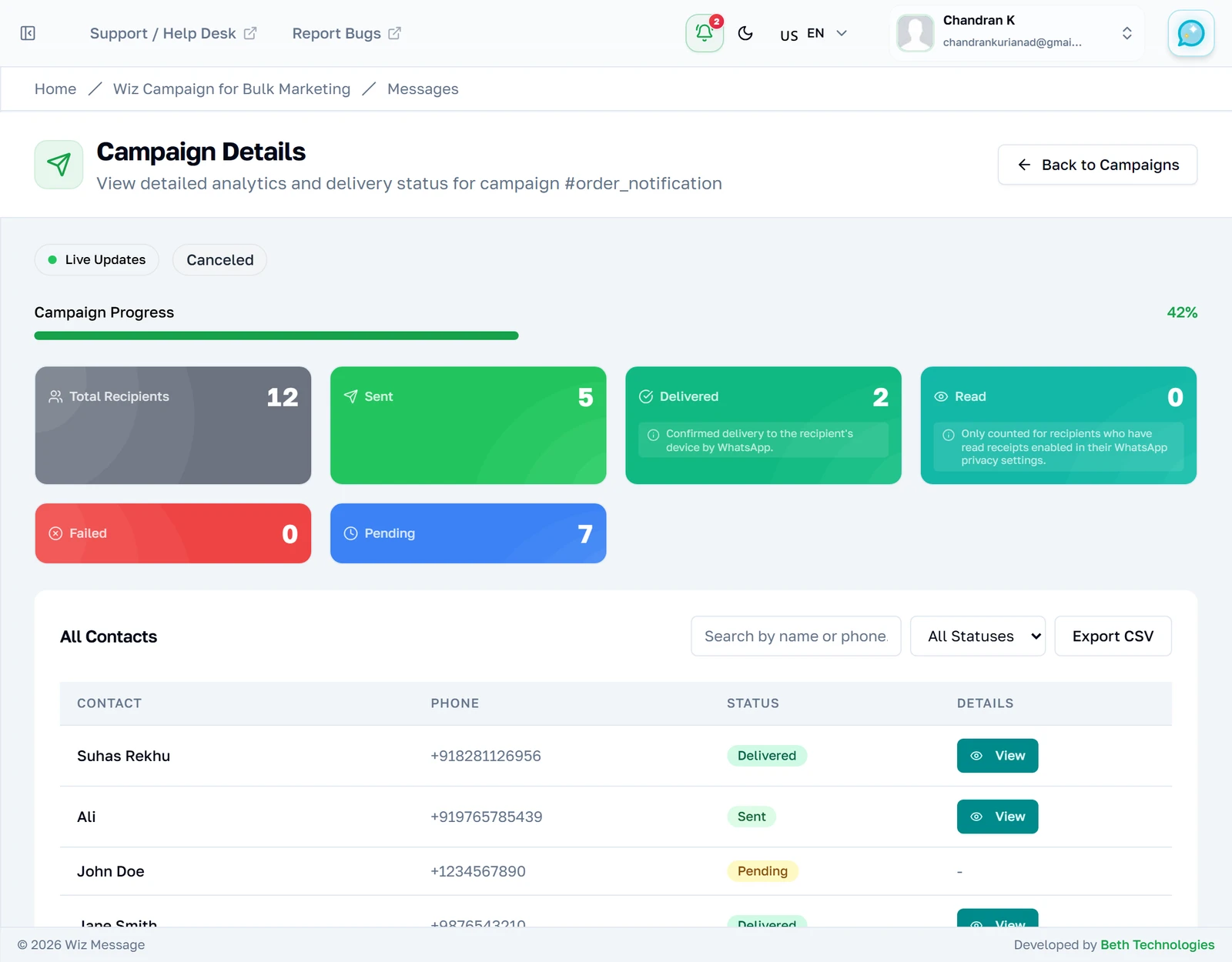
A cancelled campaign
A cancelled campaign keeps the progress it made. Everything sent before the stop stays sent and continues to report delivery and reads afterwards; everything the sender never reached keeps its pending status permanently. That mix is the signature of a cancellation.
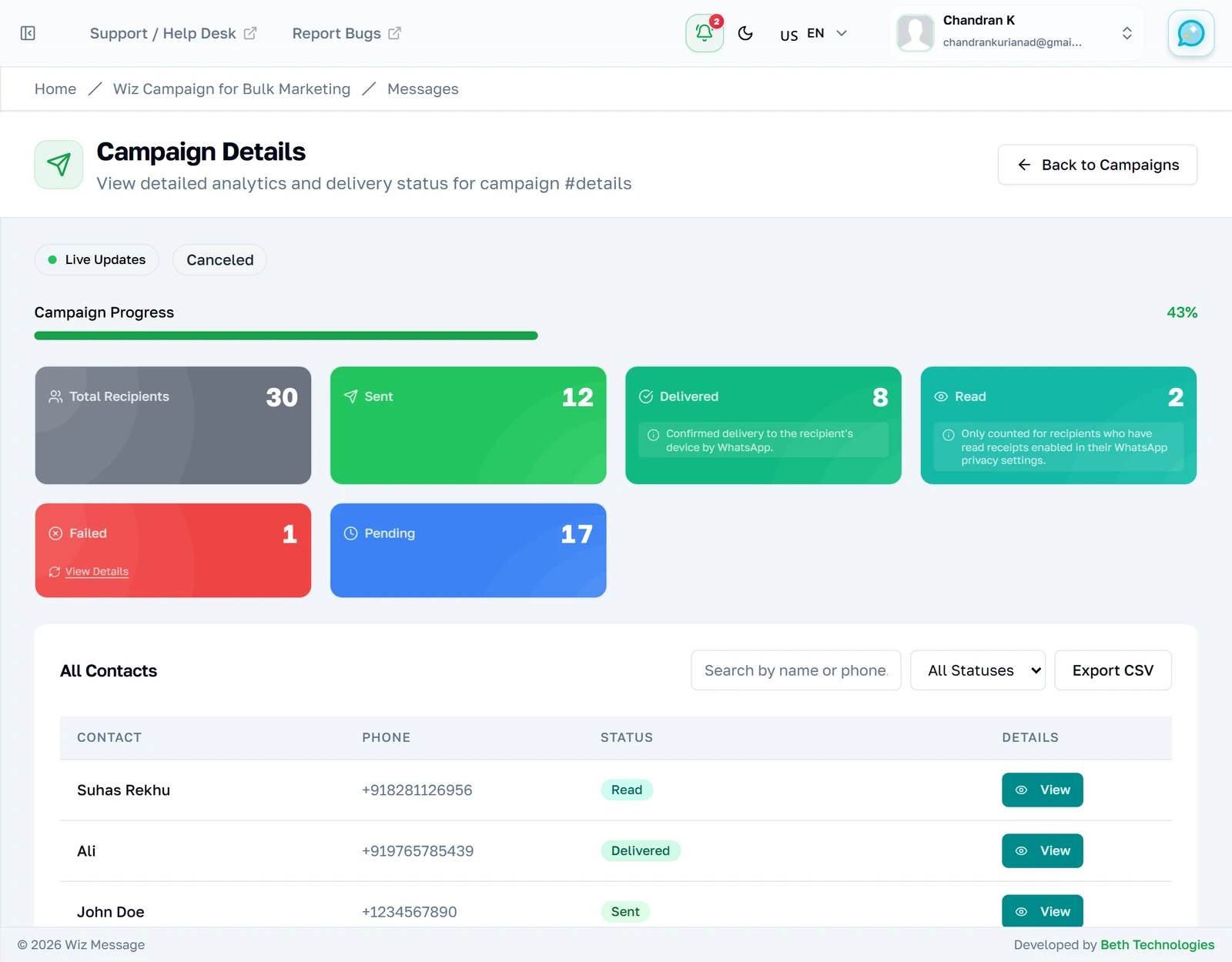
A failed campaign
A failed campaign is one where the sending itself broke down — most often the connection to WhatsApp being rejected part-way through. Read the counters as a partial record: the messages that went out before the break really were sent, and the rest were never attempted at all. The red panel at the top says what stopped it.
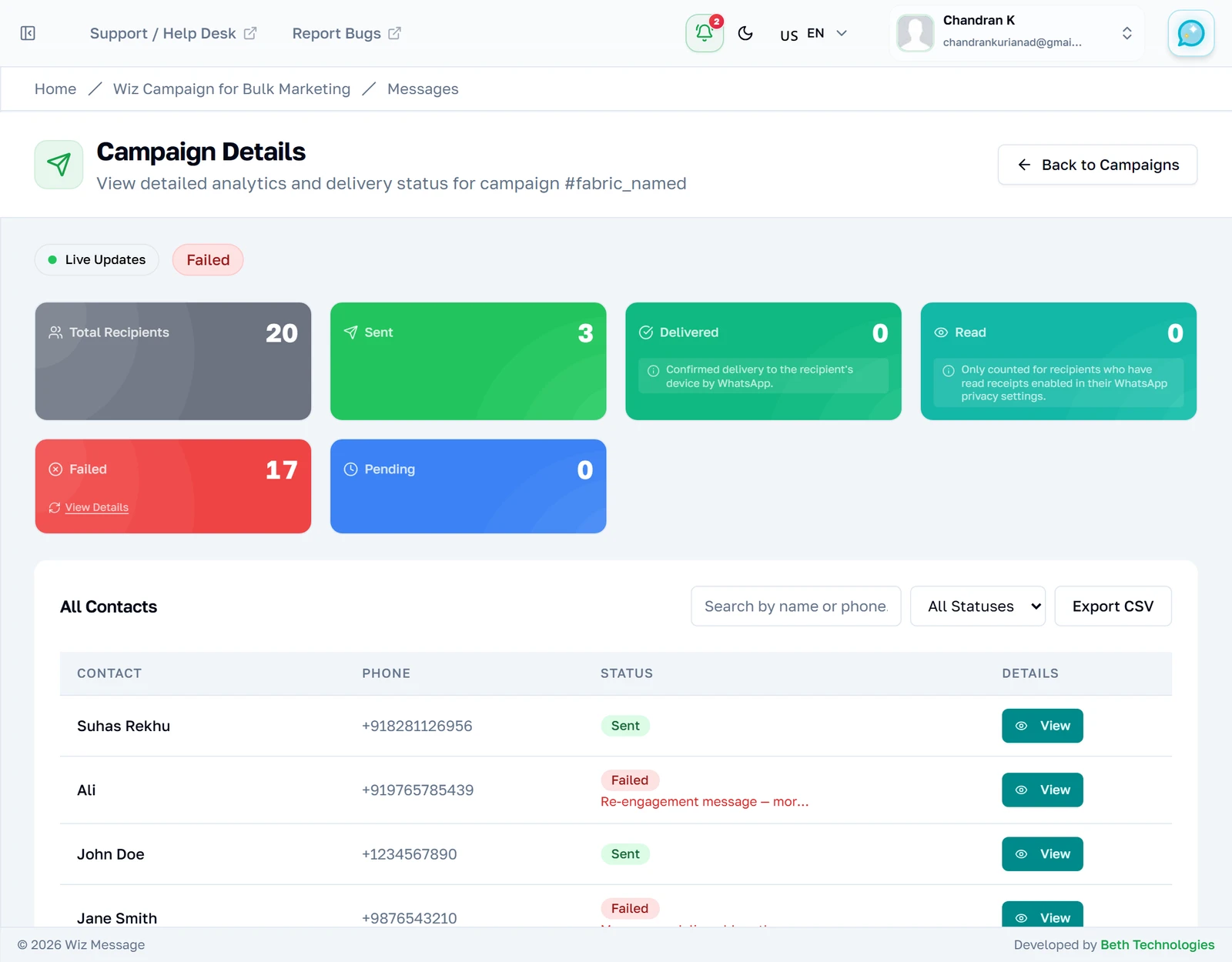
Why it stopped
The reason the run died, recorded against the campaign itself rather than against any one recipient — this is about the sender, not about a person who did not receive their message. A lost connection, as here, means the WhatsApp account needs reconnecting before you try again; sending it again without doing that will fail the same way.

Stopping a campaign
Cancel asks for confirmation in a browser dialog, then stops the campaign. Stopping is not instantaneous: the sender notices the change every 25 messages, so a few more can still go out after you confirm. The campaign lands in Cancelled and the Cancel button is gone, because there is nothing left to stop. A short confirmation appears in the corner as well.
Reference
What each screen does underneath, for anyone who needs to know exactly what a button touches.
The campaign statuses
A campaign is created as Processing and dispatched to a background worker straight away. There is no draft state and no approval step: pressing Create Campaign sends the messages. In practice you will see four statuses; the system defines a fifth that it never assigns.
| Status | What it means |
|---|---|
| Processing | Sending now. This is the only status with a live progress bar. |
| Completed | The worker finished the list. It does not mean every message succeeded. |
| Failed | The run itself died — commonly an expired token — and stopped early. |
| Cancelled | You stopped it. Messages already sent stay sent. |
| Pending | Defined but never assigned — see below. You will not encounter it. |
Note: Completed and failed describe the run, not the messages. A completed campaign with 8 failures is normal and is exactly what the figures above show; a failed campaign means the sender stopped, so the recipients it never reached have no status at all.
Pending is listed for completeness because the software still recognises it and you may meet the word in an export or an API response. Nothing sets it: campaigns go straight to Processing on creation. Scheduled sending is a separate feature with its own screen.
The five per-recipient statuses
Each recipient carries its own status, and it only ever moves forwards: pending, then sent, then delivered, then read. Delivered and read arrive later as Meta reports them back, so a campaign that finished seconds ago will show many Sent and few Delivered — that is the reporting catching up, not a problem with the send.
| Status | What it means |
|---|---|
| Pending | Queued, not yet handed to WhatsApp. |
| Sent | Accepted by WhatsApp. It has a message id from this point on. |
| Delivered | Arrived on the recipient's phone. |
| Read | Opened — only if that recipient has read receipts switched on. |
| Failed | Rejected. The reason is stored per recipient and shown in the table. |
Note: Read counts are always an undercount. A recipient who has read receipts turned off never reports a read, and there is no way to tell that case apart from an unopened message.
What Cancel actually does
Cancelling flips the campaign's status to cancelled, for campaigns that are still pending or processing. It does not reach into the sender and stop it mid-message: the worker checks the campaign's status every 25 completed messages and stops when it sees the change. So between pressing Cancel and the sending actually stopping, up to 25 more messages can go out.
Messages already sent are not recalled — WhatsApp has no such facility. Cancel prevents the remaining ones. Recipients who were never reached simply keep their pending status forever, which is why a cancelled campaign's recipient list is a mix of settled rows and pending ones.
Note: Cancelling a campaign that has already finished does nothing and says so — "This campaign had already finished — nothing to cancel". A campaign that never had a running job behind it answers differently, that it has no active job and cannot be cancelled, because those are genuinely different situations.
Sending limits and what happens when you exceed them
Meta caps how many people a business phone number may message in a rolling day. The builder reads that cap before you send and blocks the attempt outright if your recipient list is bigger than what is left — this is a refusal, not a warning, and no partial send happens.
Underneath, the sender is also rate limited: it sends at most 15 messages per second and retries a message Meta rate-limits after 30, then 60, then 120 seconds. If 20 messages fail inside 30 seconds it gives up on the whole campaign rather than burning the rest of your list on a broken configuration.
Note: Batch size and rate-limit delay are not settings you can change. Every campaign sends at the built-in rate described above.
What the CSV export contains
Export CSV downloads every recipient matching the filters currently applied to the table — not just the page on screen. The file has eight columns, in this order: Contact Name, Phone, Status, Sent At, Delivered At, Read At, Message ID, Error. Timestamps are written in UTC in full ISO form, which is not the format the page displays.
Note: The filename carries the status filter but the numeric campaign id, not the id from the address bar: filtering to failed and exporting gives you
campaign-1412-contacts-failed.csv.
Why an old campaign shows no recipients
Per-recipient rows are deleted 90 days after a campaign finishes. A second clear-out keeps only your most recent campaigns' per-recipient detail and runs whenever a new campaign is created, so age is not the only way a campaign loses its recipient list. The campaign itself stays, and so do its counters.
An affected campaign therefore reads "26 sent" above no recipient table at all. The page names that situation plainly rather than leaving you to guess.
Note: Export anything you need to keep while a campaign is recent. After the clear-out the per-recipient detail is gone permanently, including the failure reasons and the message ids.