Message templates
A template is a message Meta has approved in advance, and it is the only thing you may send to someone who has not written to you in the last 24 hours. This guide covers the whole module: reading and filtering the list, one template in detail, submitting a new one for approval, deleting one, and comparing two side by side. Everything here is a view onto your WhatsApp Business account at Meta — the dashboard stores no templates of its own.
Your templates at a glance
The list
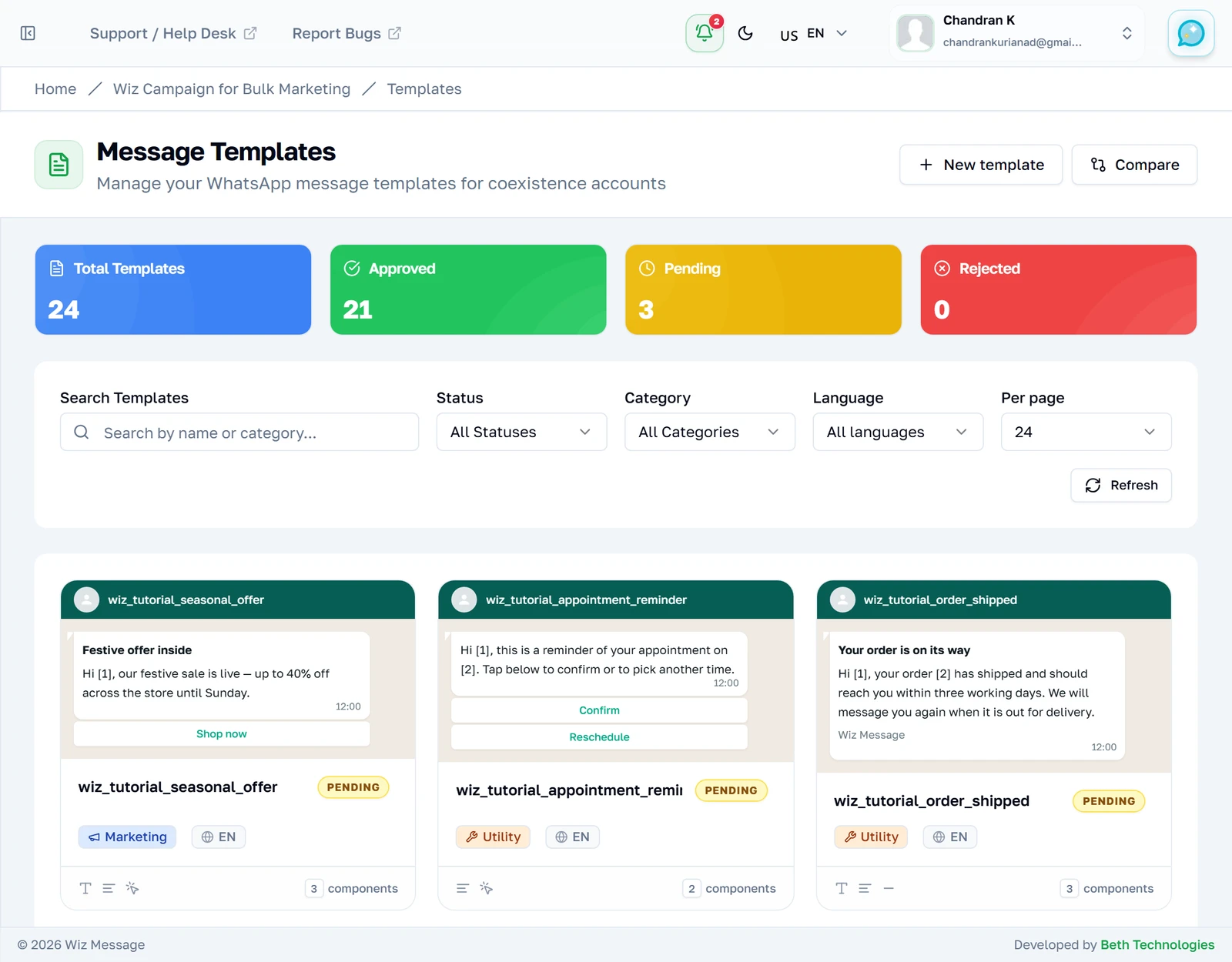
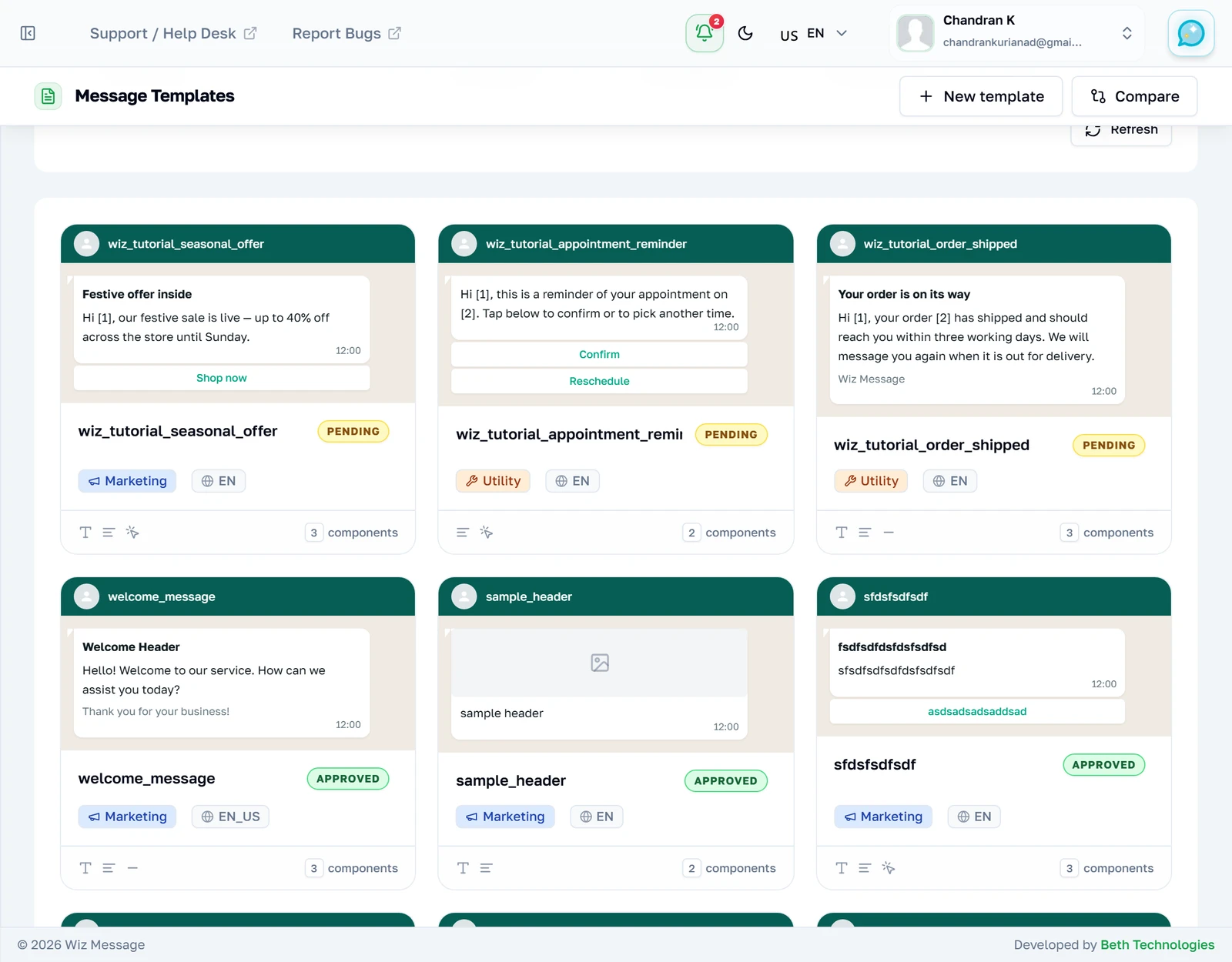
Every template on your WhatsApp Business account, as Meta currently has it. Each card is a small preview of what the message will actually look like in WhatsApp — header, body, footer and buttons — above the name, the status and the category. Click any card to open it in full.
Where everything else lives
The buttons at the top of the page are the rest of the module: the builder, and the side-by-side comparison. They are links, not actions — nothing is submitted by pressing one. On an account with a Business ID a third button appears here, opening Meta's own template manager in a new tab.

The four counters
These describe your whole account, not what the filters below are showing. They are computed over every template Meta returned, so they stay put while you search and filter — which is what makes them useful as a running total.

One card, explained
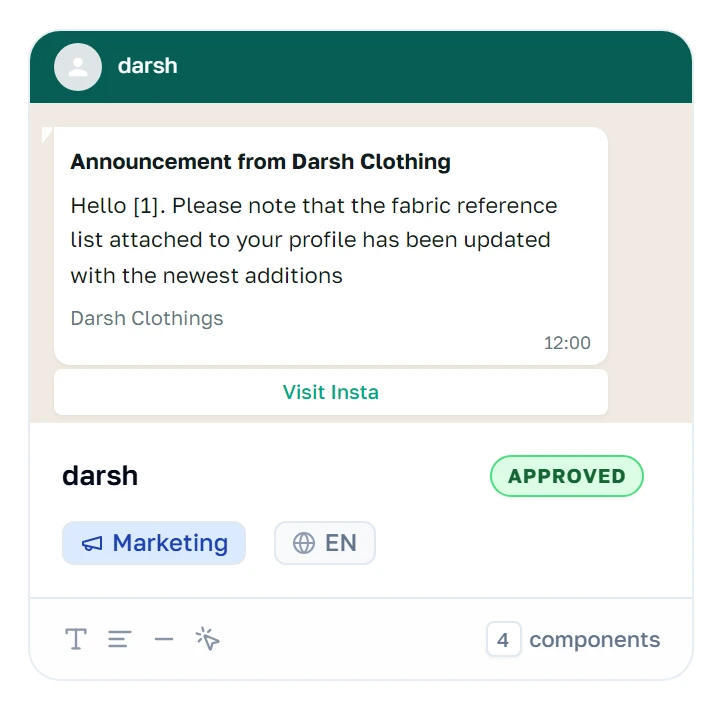
The green bar and chat bubble are a preview, not a screenshot of a real message: a numbered placeholder is shown as [1] so you can see where the personalised bits go. Underneath, the badges are status, category and language, and the small icons on the bottom row say which parts the template has — header, body, footer, buttons.
Searching
Search matches the template's name and its category — not the message text. It filters as you type, and it combines with the two dropdowns beside it.
Filtering by status
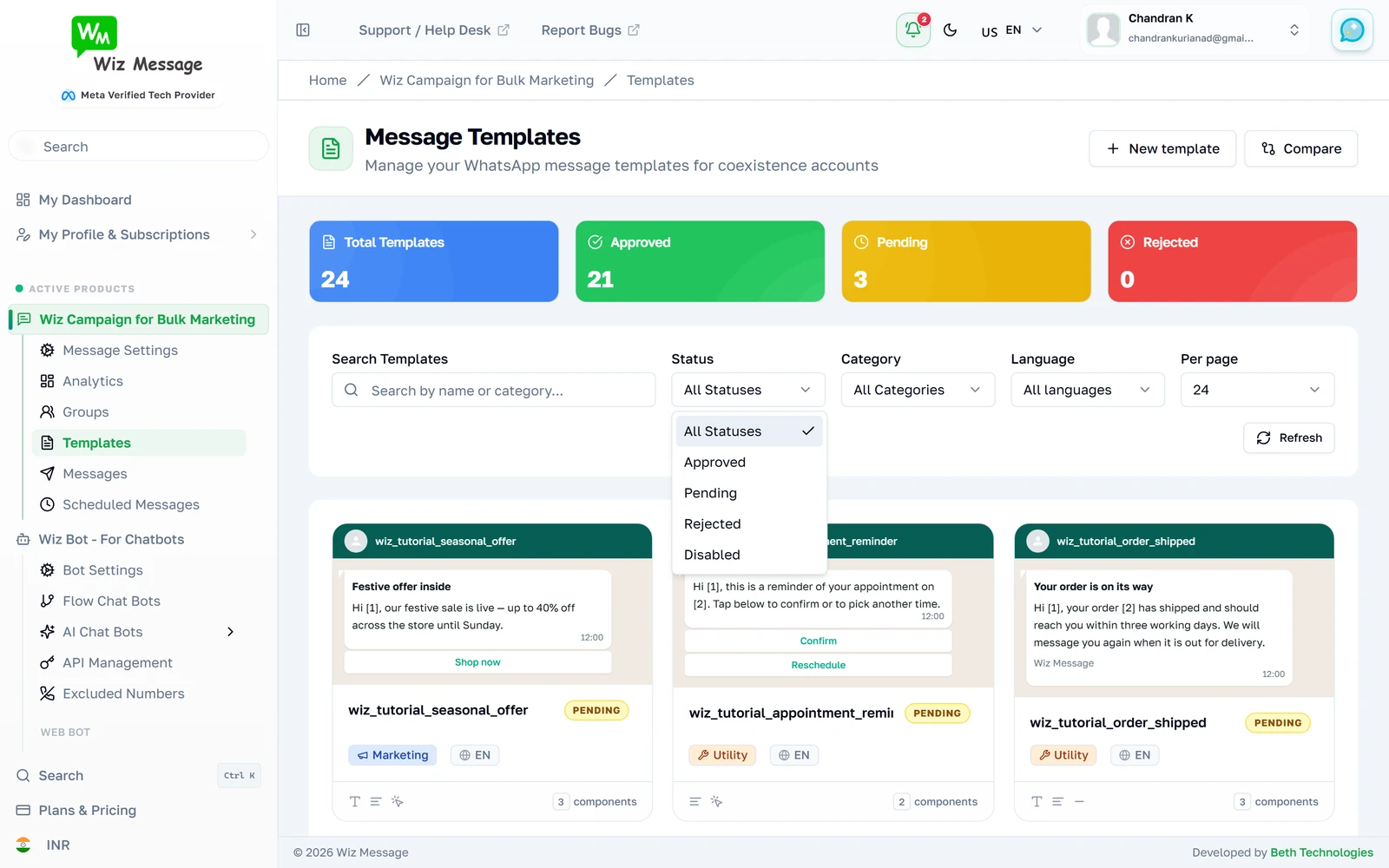
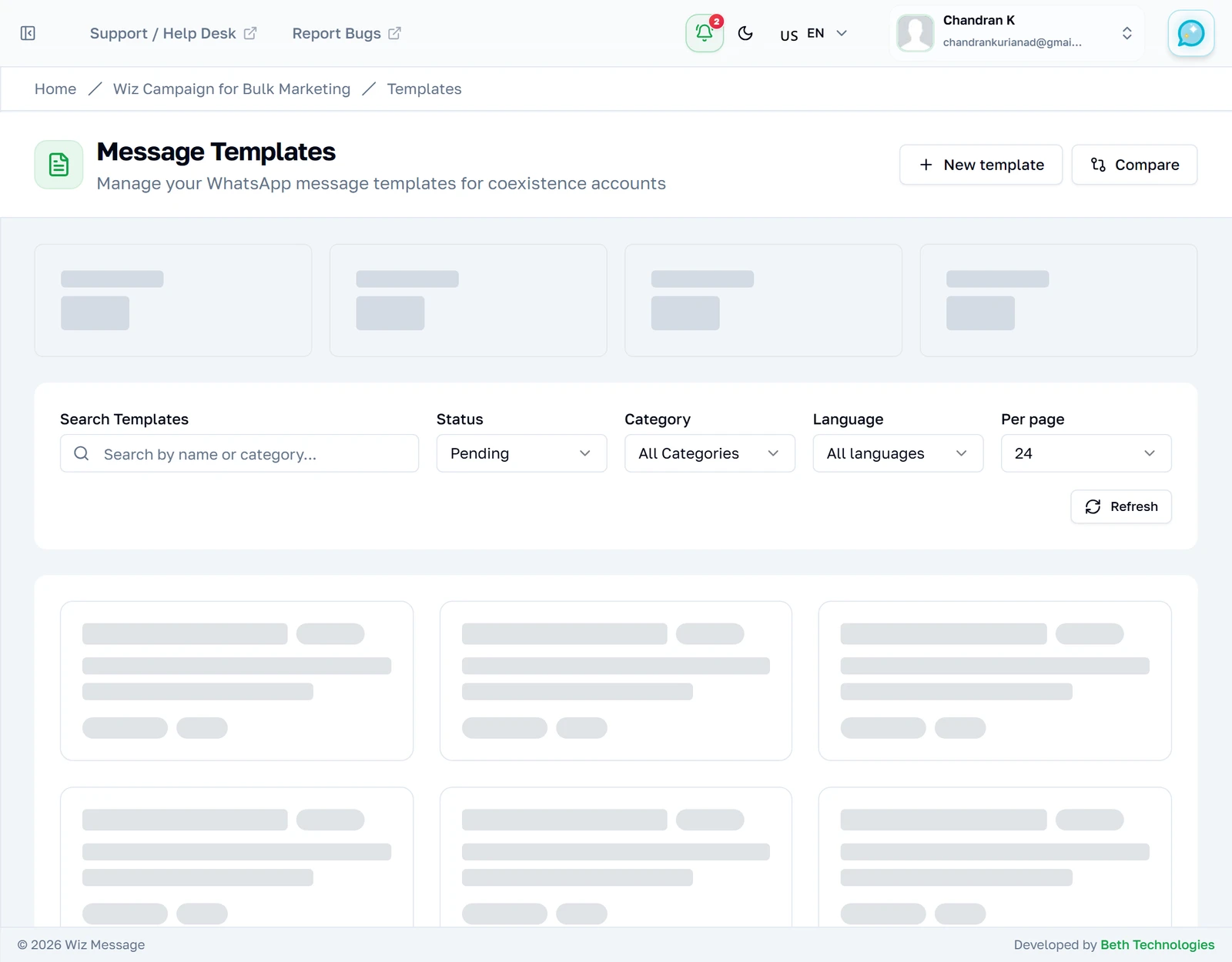
The status dropdown narrows the list to one kind of template: approved, pending, rejected or disabled.
Only the ones awaiting review
Choosing a status reloads the list immediately — there is no second Apply step. Note that the counters above are unchanged: they still describe the whole account.
Filtering by category
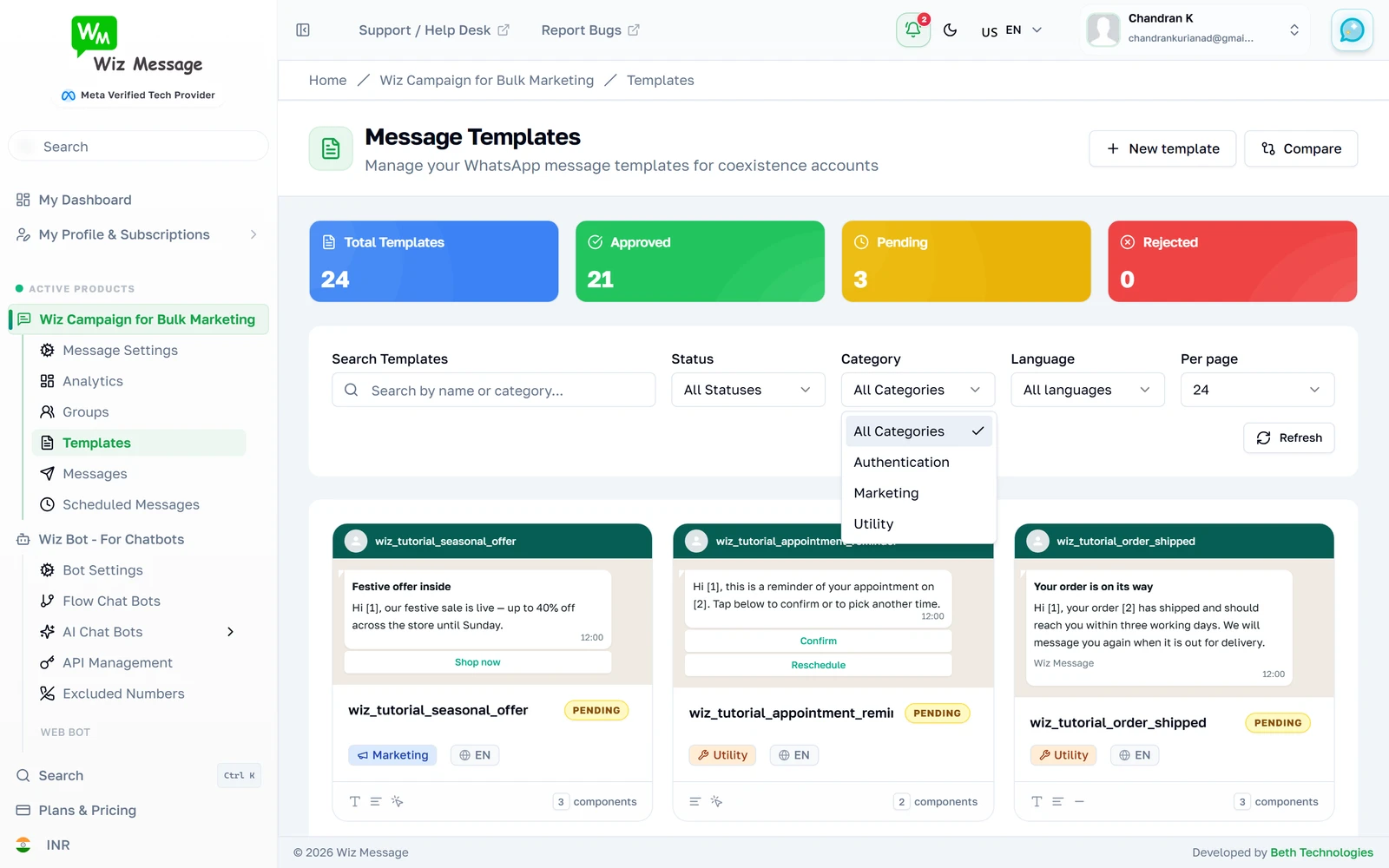
Meta sorts every template into one of three categories, and they are not interchangeable: Utility is for transactional messages a customer expects, Marketing for promotion, and Authentication for one-time codes. The category affects what Meta will approve and how much a send costs.
Filtering by language
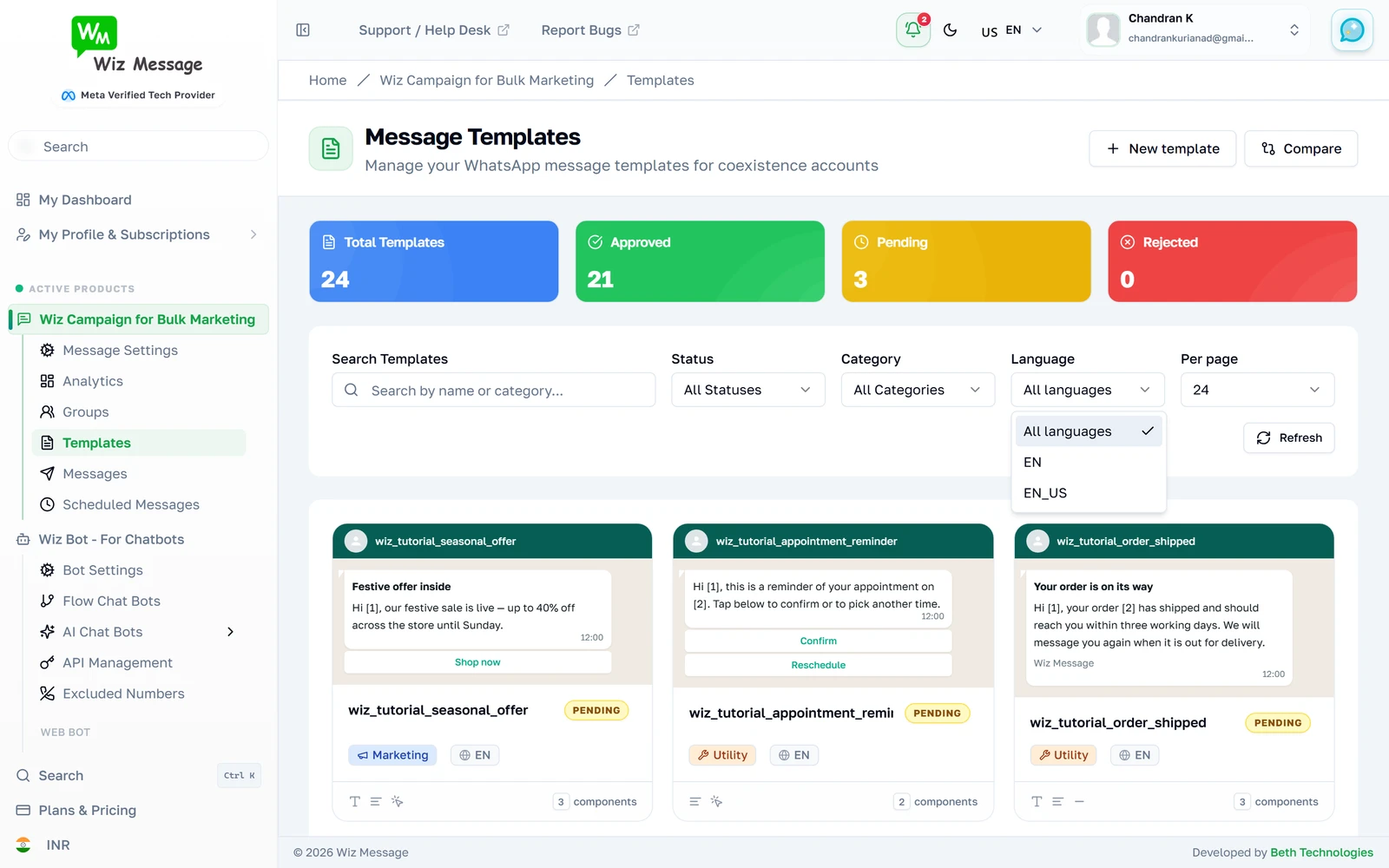
A template is identified by its name and its language together, so the same campaign translated three ways is three separate templates. This narrows the list to one of them. The dropdown lists only the languages your account actually uses, so it is short and it is never wrong.
Forcing a fresh read
Answers from Meta are cached for five minutes, so a template you created at Meta's own site can take that long to appear. Refresh skips the cache and asks Meta again — it is the only control in the module that does. Everything else is happy to serve you the cached answer.

How many to a page
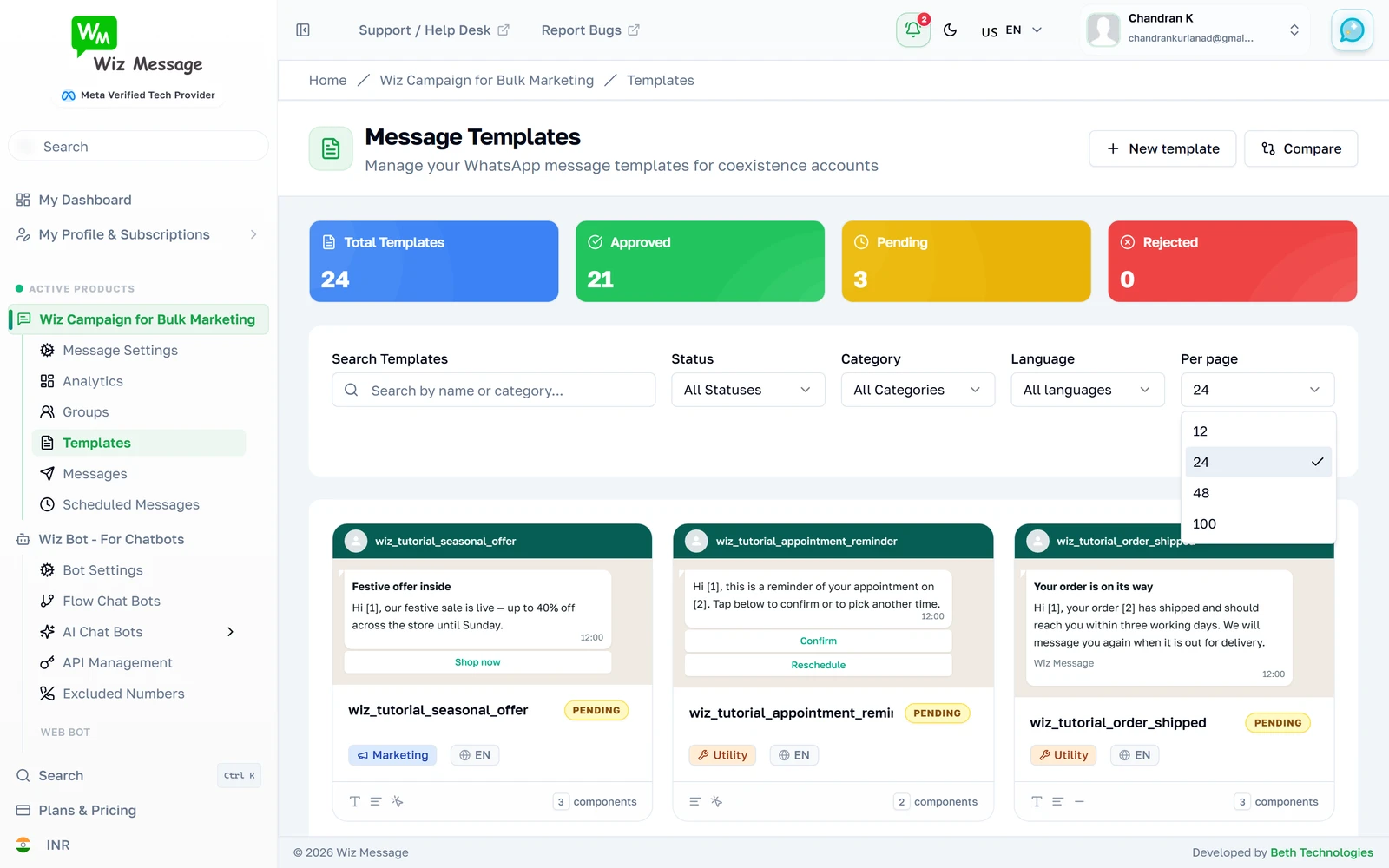
Twenty-four templates to a page by default. Lowering it is the quickest way to see the pager, which only appears when there is more than one page to move between.
Moving between pages
The pager sits under the grid and says exactly where you are. Paging keeps your search and filters — it re-asks for the templates only, not the whole page.

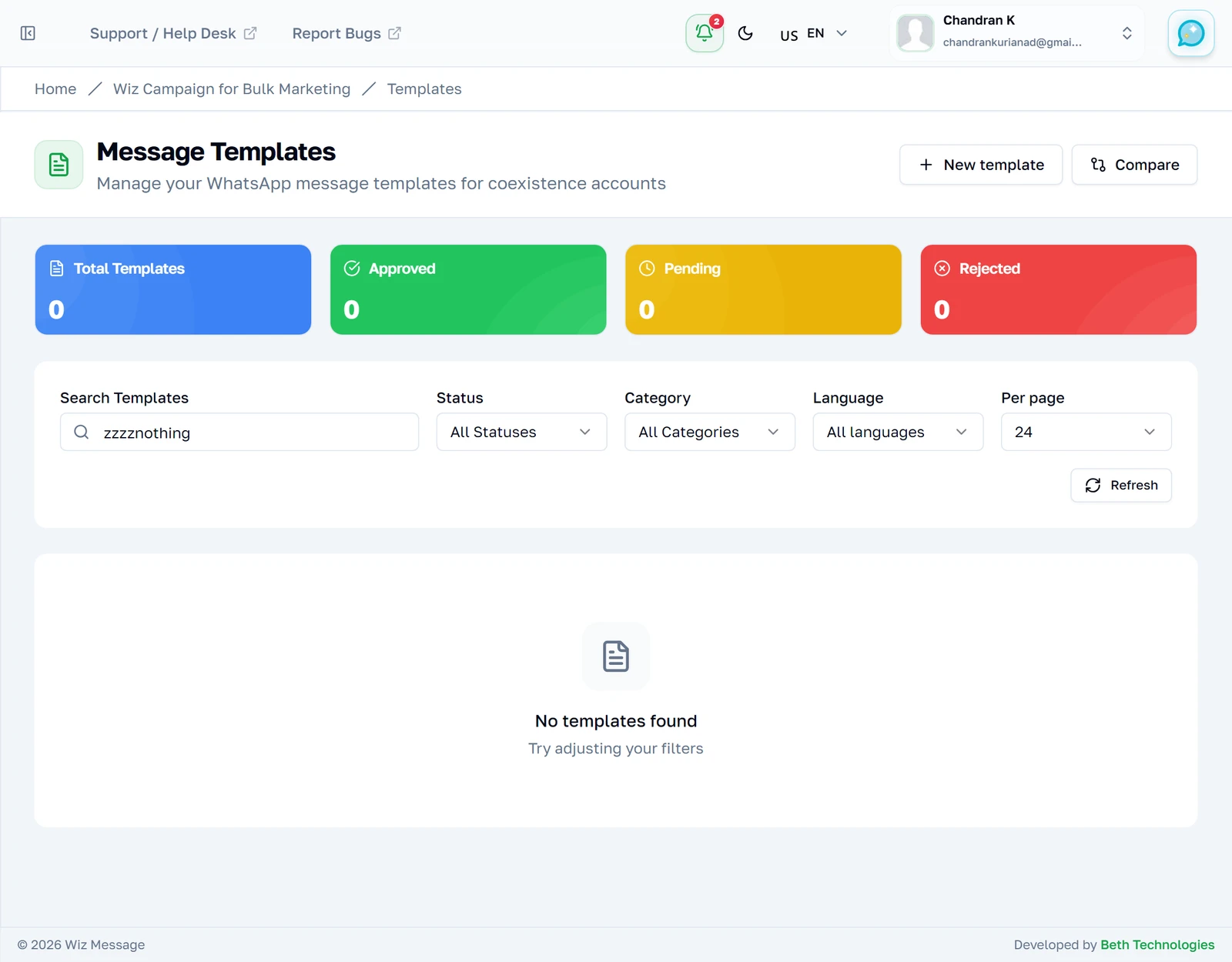
When nothing matches
A search with no matches says so and suggests loosening the filters. This means what it says: your filters matched nothing. It is not what you see when the connection to WhatsApp fails — that case has its own message, in an alert, naming the problem.
One template in detail
The detail page
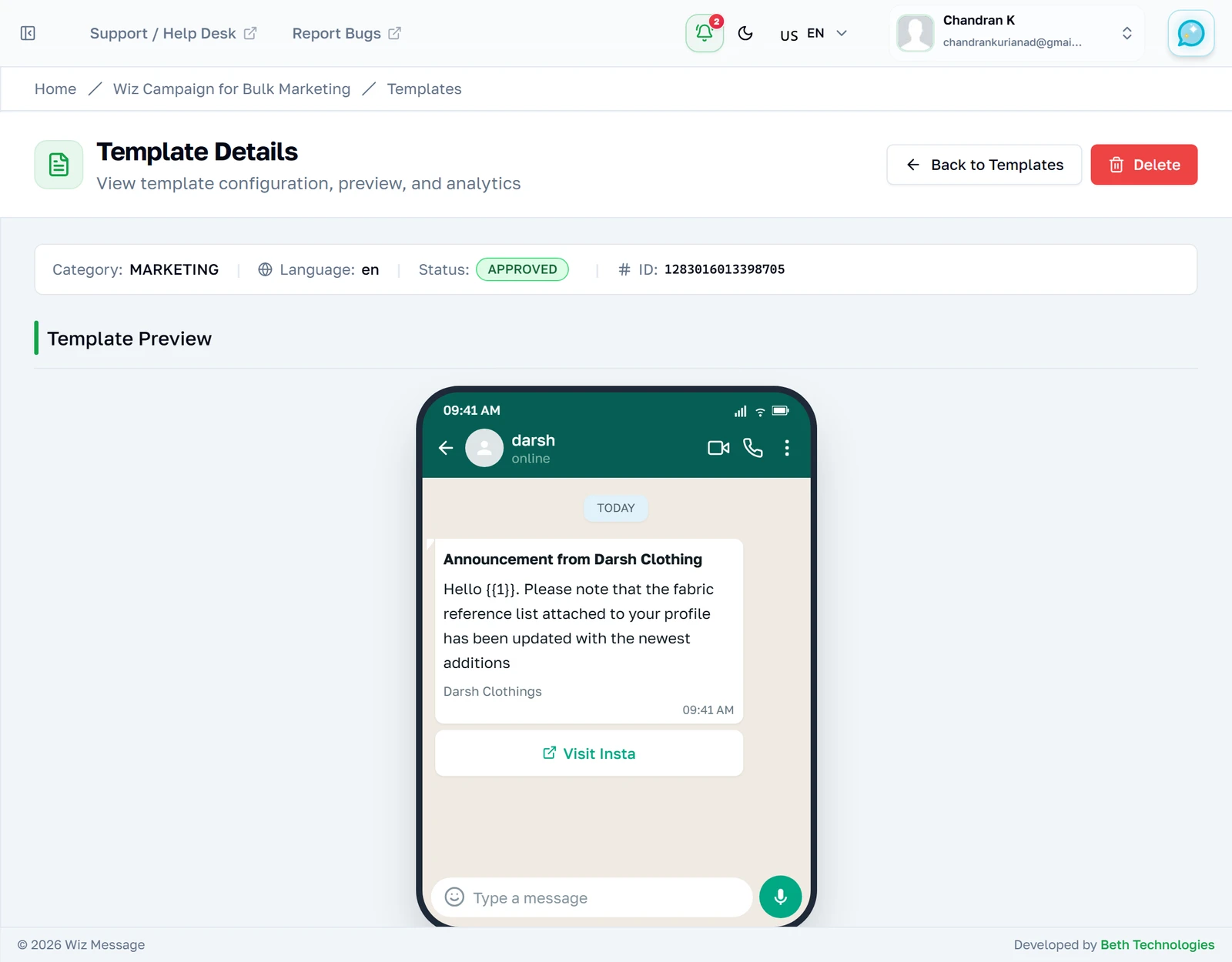
Opening a template shows it rendered inside a phone, the way the message will arrive. Everything above the phone is the template's own metadata: category, language, status and Meta's id for it. The Delete button in the corner is the only destructive action in this module.
The information strip
Category, language, status and Meta's id. The id is what the address bar carries, which is the thing to quote when someone at support asks which template you mean. There is no creation date here because Meta does not publish one for message templates — better an absent field than an empty one.

The preview
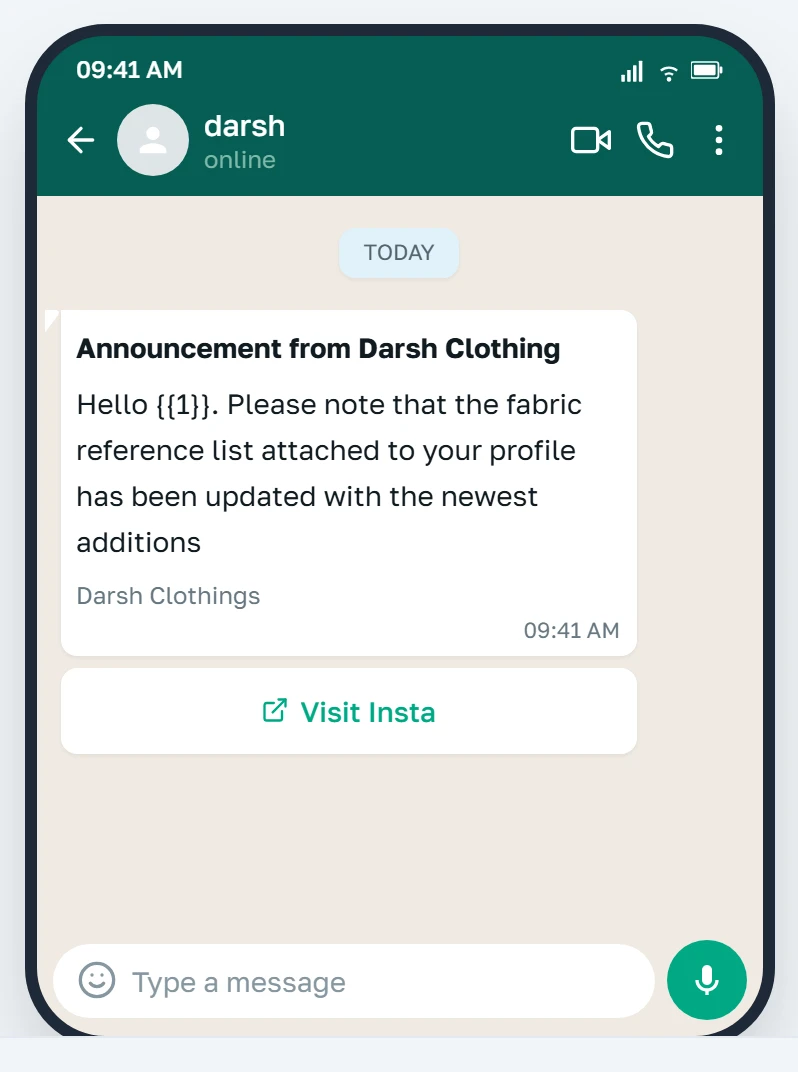
A faithful mock-up: the header in bold, the body beneath it with the placeholders left in, the footer in grey, and the buttons as WhatsApp draws them. What you cannot see here is the real content of a variable — that is supplied when you send.
A template still under review
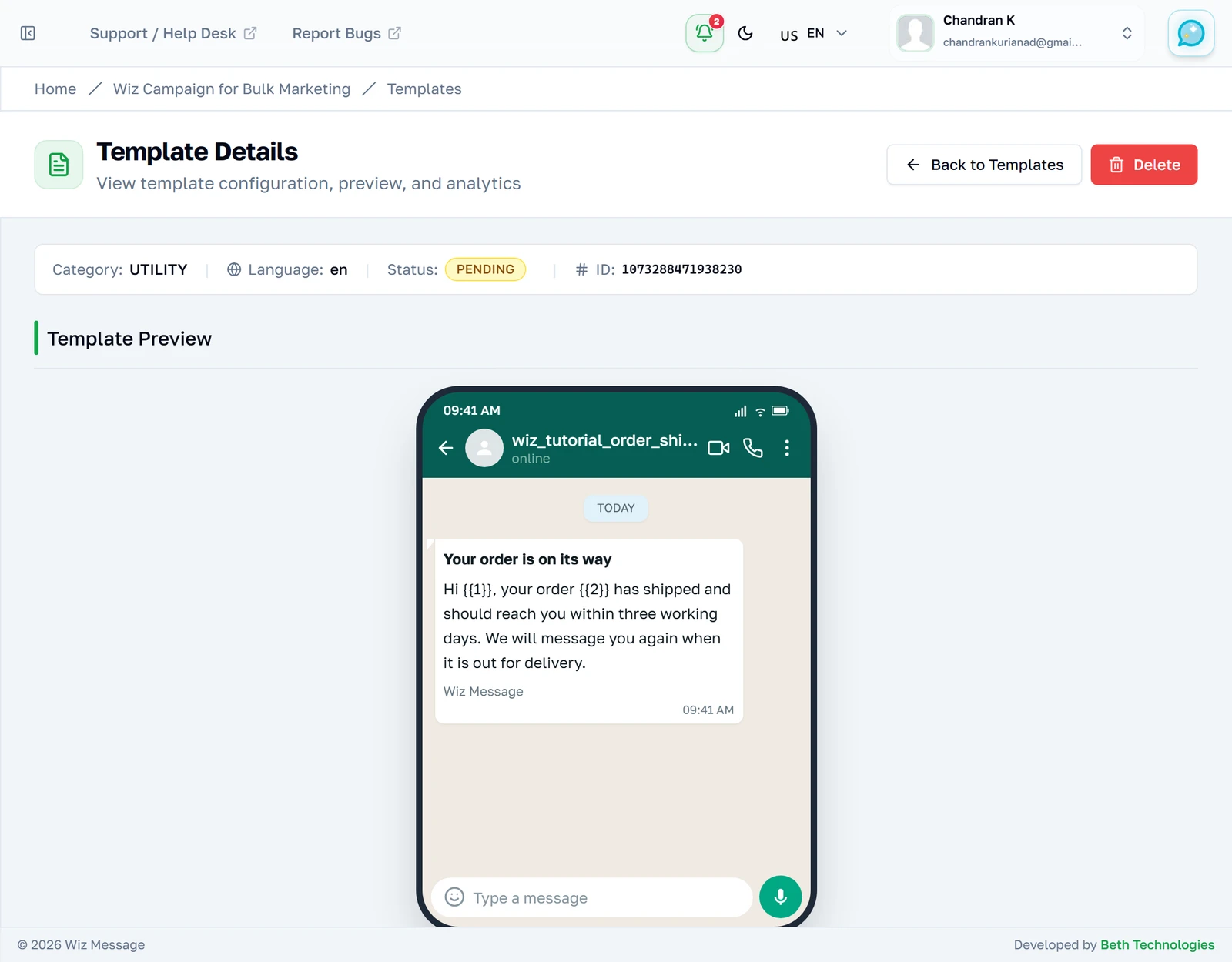
A template awaiting Meta's decision looks the same but carries a PENDING badge, and it cannot be sent yet. There is no progress indicator and nothing to press — Meta answers when it answers, usually within minutes.
Deleting a template
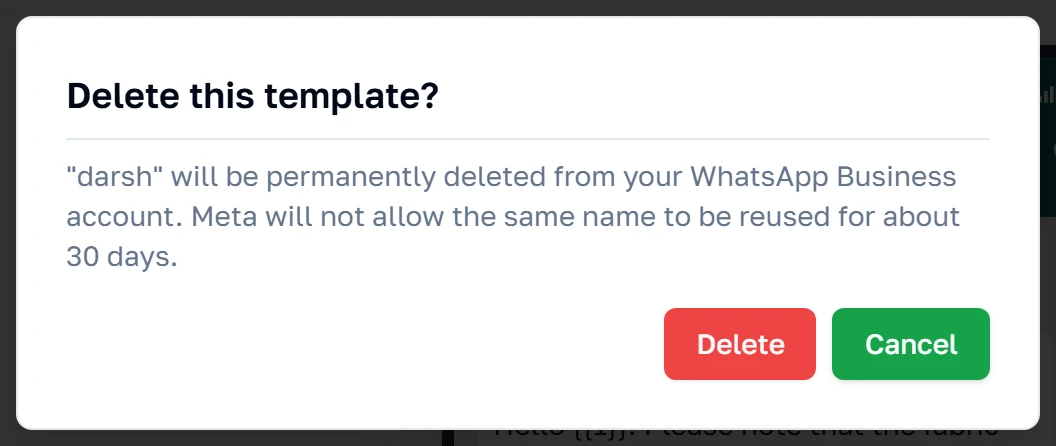
Delete removes the template from your WhatsApp Business account at Meta, not just from this dashboard, and the dialog says the part that catches people out: Meta reserves the name for about thirty days afterwards, so you cannot immediately submit a corrected version under the same name. Pick a new name, or wait.
Submitting a new template
The builder
The form is on the left and a live preview on the right, updating as you type. A body is added for you because every template must have one; the header, footer and buttons are optional and go on with the three small buttons at the top of the components box.
Name, language and category
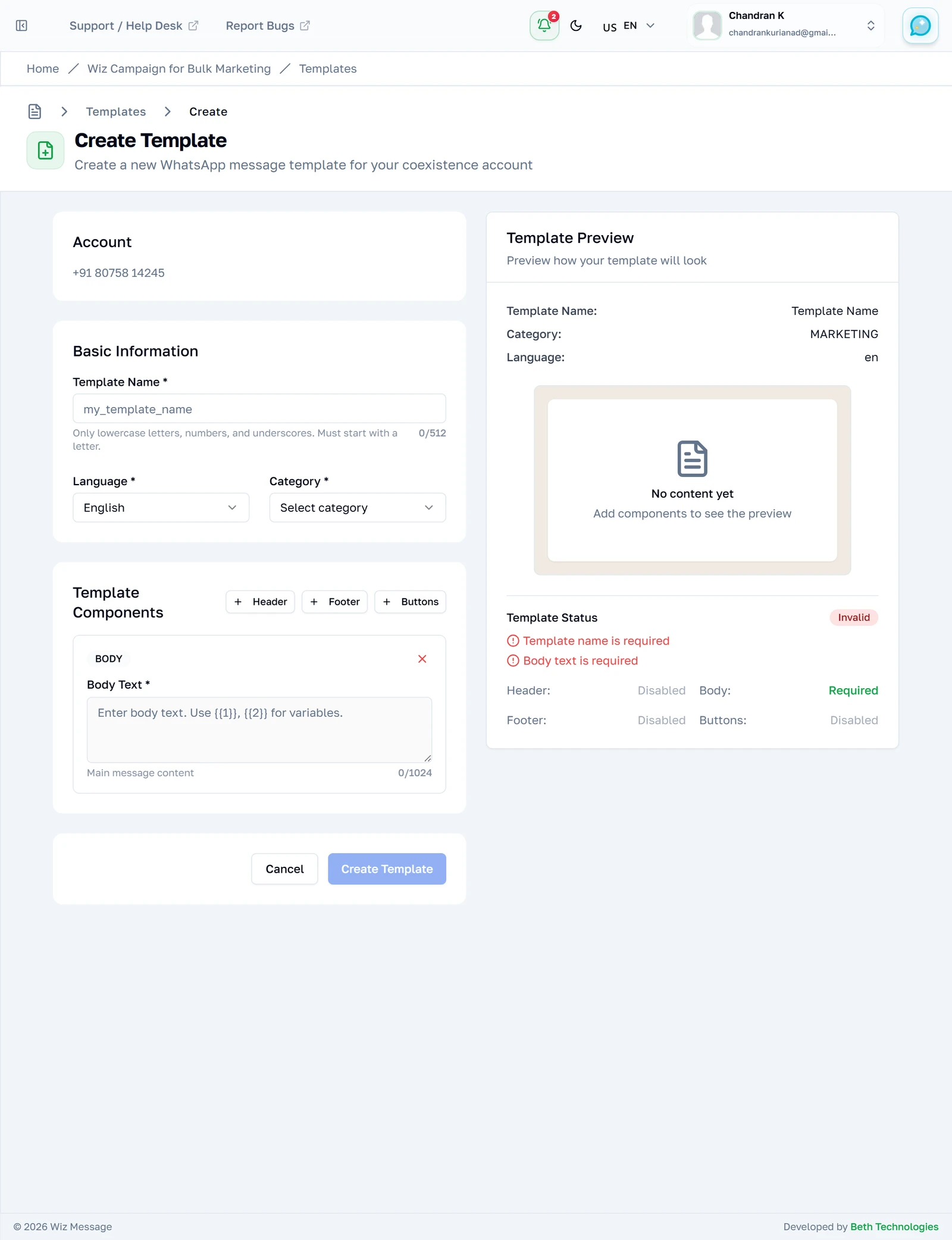
The name is how you will refer to this template everywhere else in the platform, and Meta's rules for it are strict: lowercase letters, numbers and underscores only, starting with a letter. The tick at the end of the field confirms the name is acceptable. Choosing a category changes the length allowed for the message — the line under the dropdown tells you which limit now applies.
When the name breaks the rules
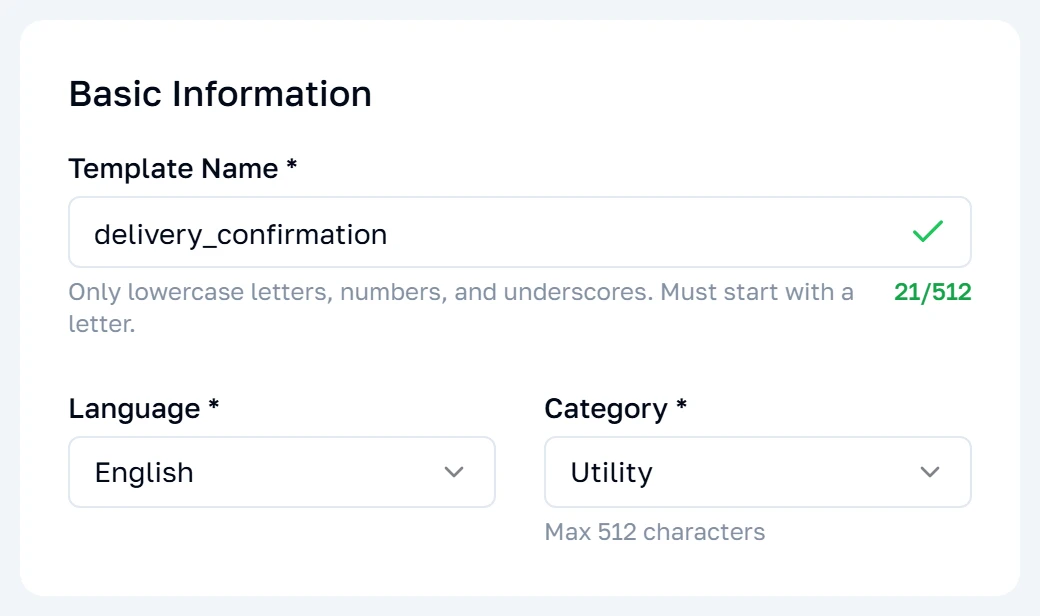
Capitals and a space are not allowed in a template name. Leave the field and it tells you so, under the input and in the panel on the right, which lists everything still standing between you and a submittable template. Create Template stays disabled until that list is empty.
The message itself
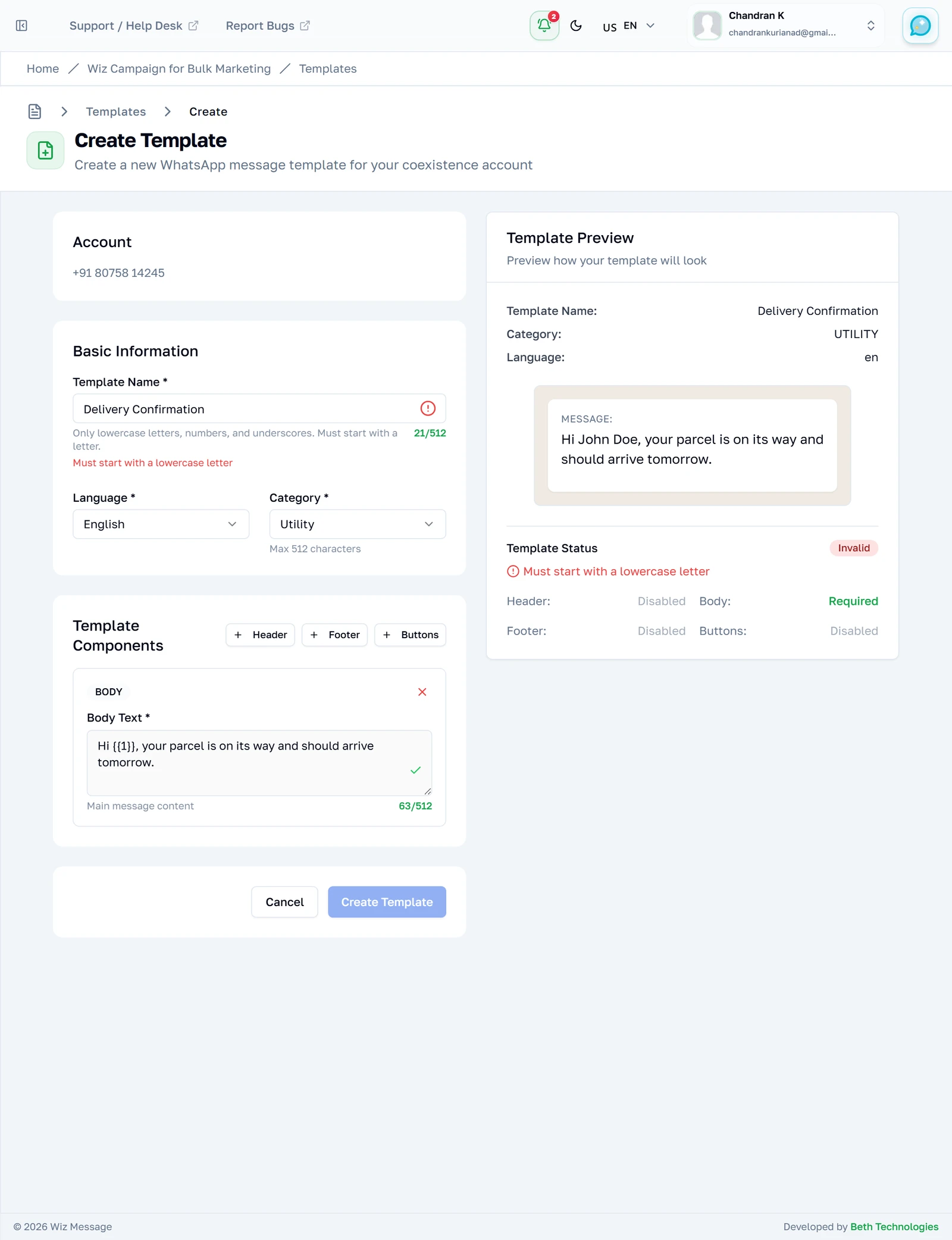
Write the message and mark the personalised parts with numbered placeholders — a number wrapped in double curly braces, {{1}} then {{2}}, counting up from one. The counter turns amber near the limit and red past it. Two rules catch people out: a message may not begin or end with a placeholder, and the numbers must run in order from the first one.
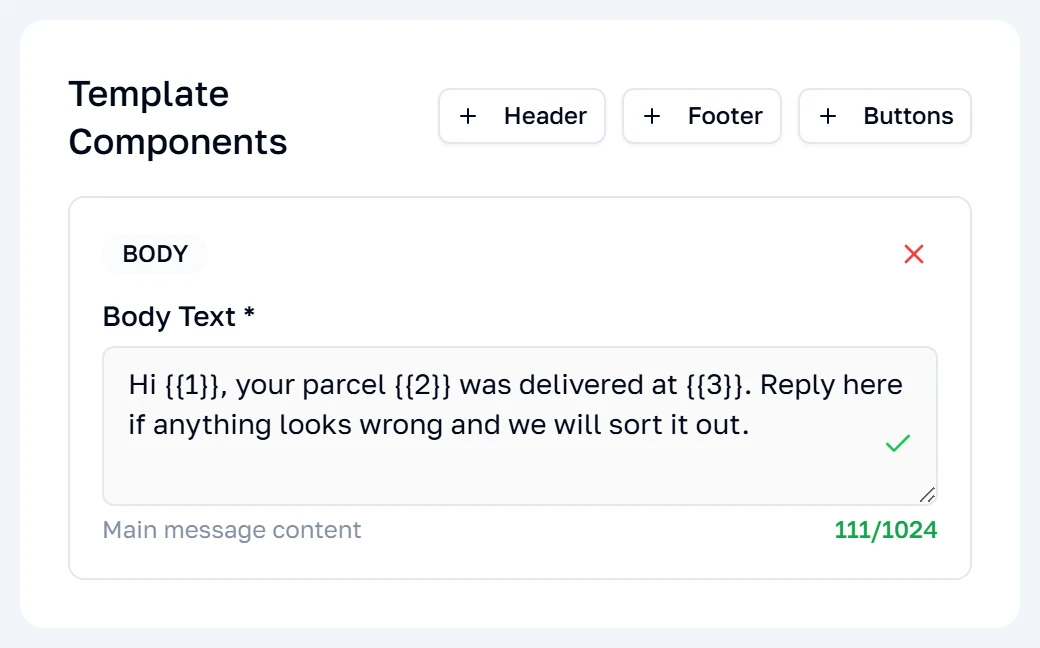
The four kinds of header
A header is optional and there can be only one. Text is a short bold line above the message; the other three replace it with an image, a video or a document. A template cannot have both a text header and a media header.
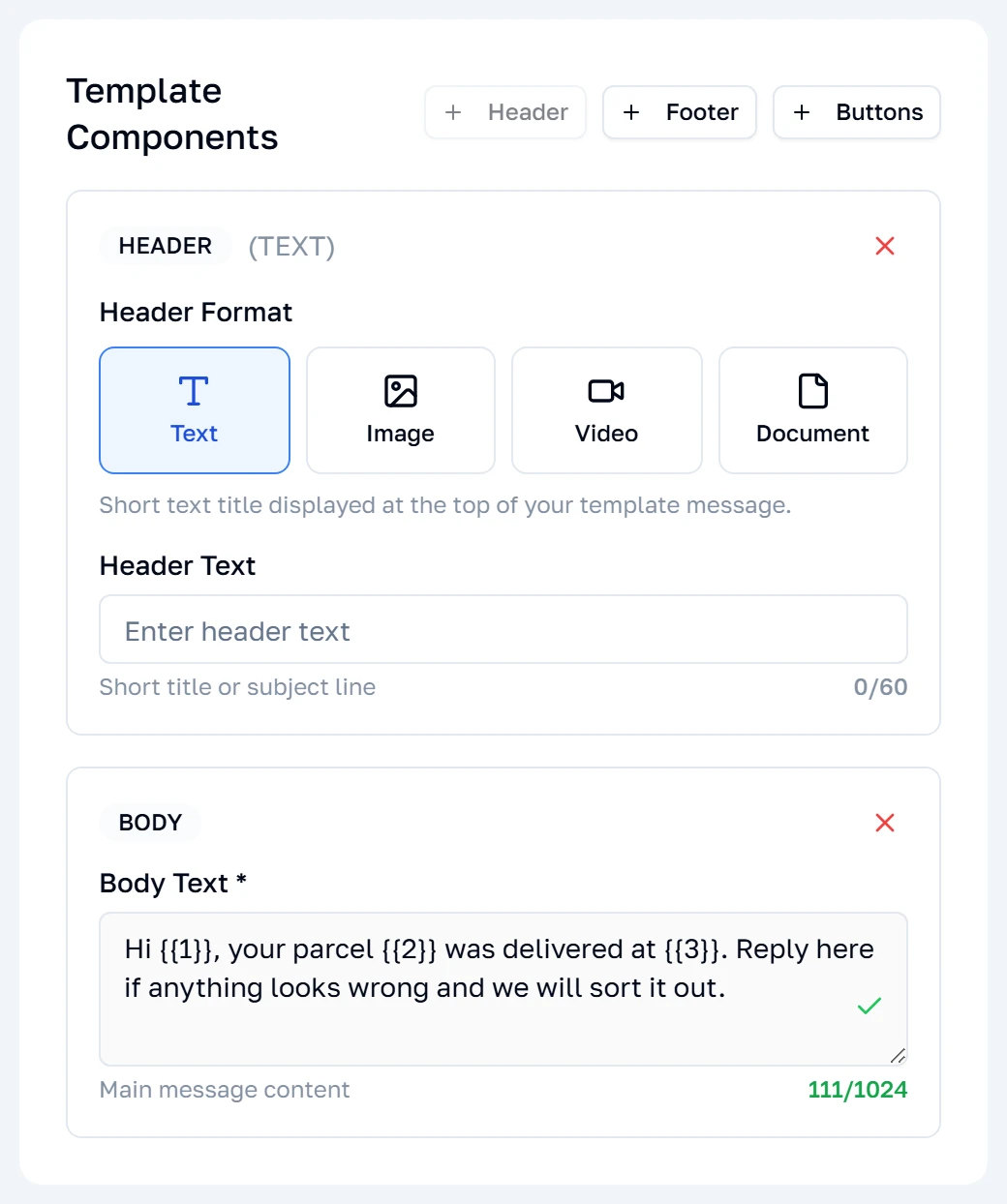
A media header wants a sample
Choosing Image, Video or Document swaps the text field for an upload area. The file you put here is used only for Meta's review — the real attachment is chosen when you send the message.
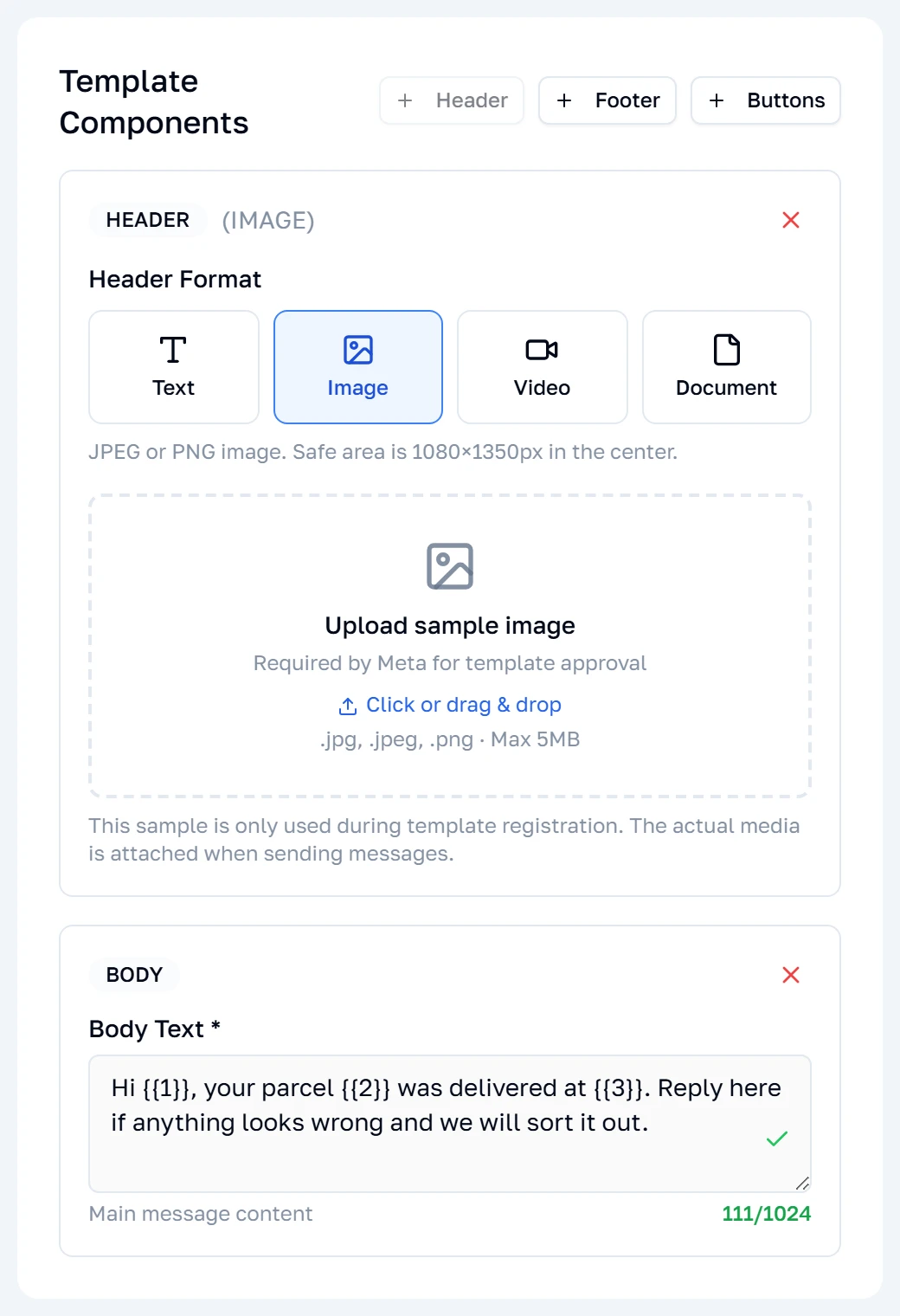
Buttons
Up to three, of two kinds: a quick reply sends its own text back to you as a message, while a URL button opens a link. Each label is capped at 25 characters, and the counter beside the heading tracks how many you have left.
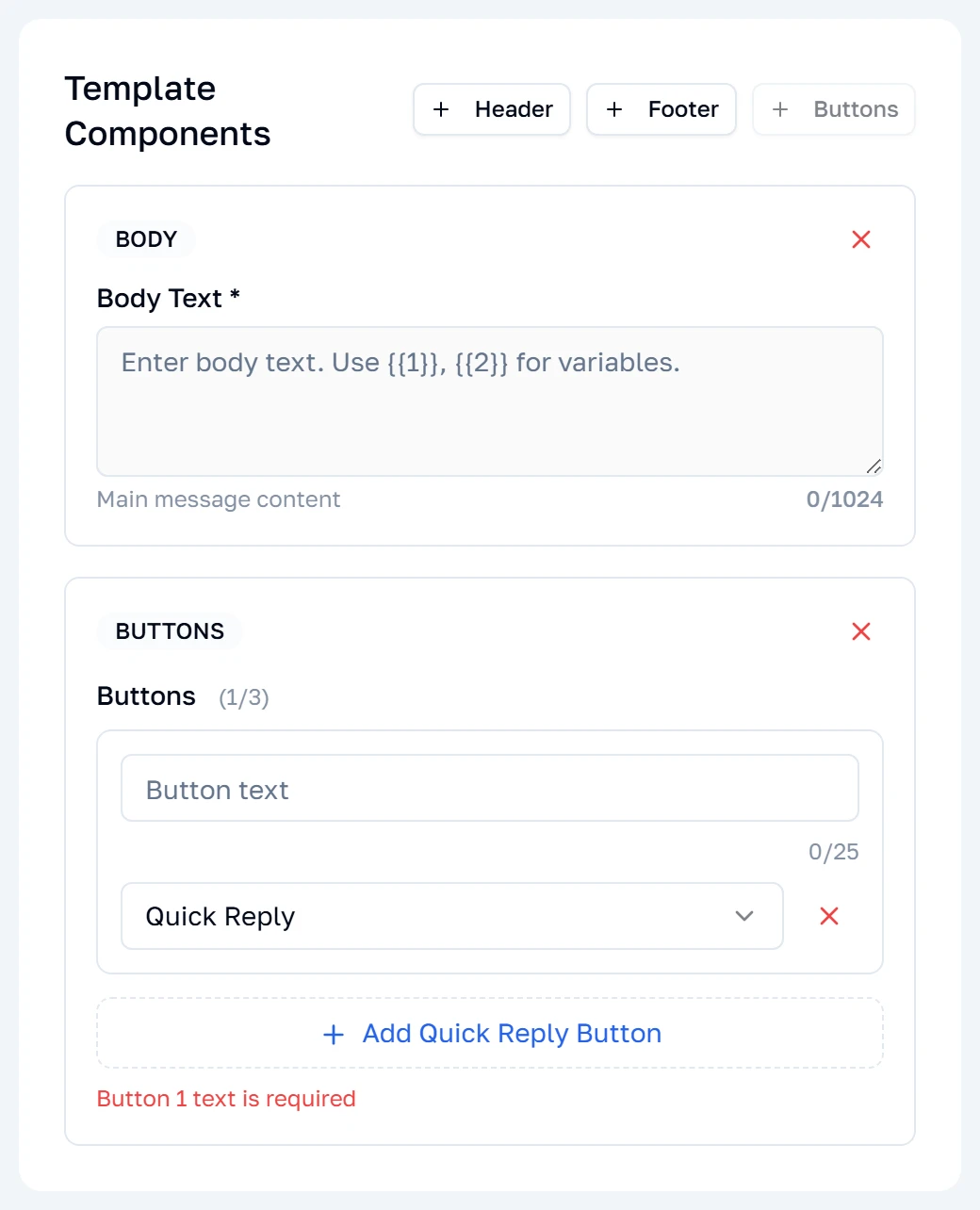
Removing the body
Every component can be taken off again with the cross in its corner — including the body. It is the one component you cannot do without, so the builder replaces it with a prompt to add it back rather than letting you submit.
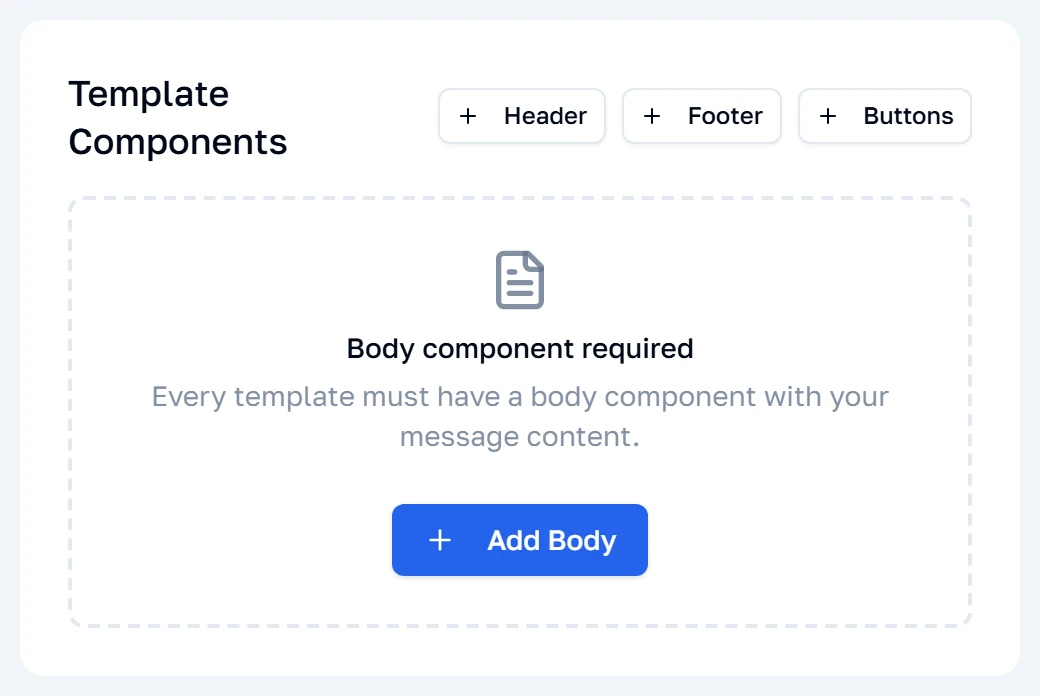
The live preview
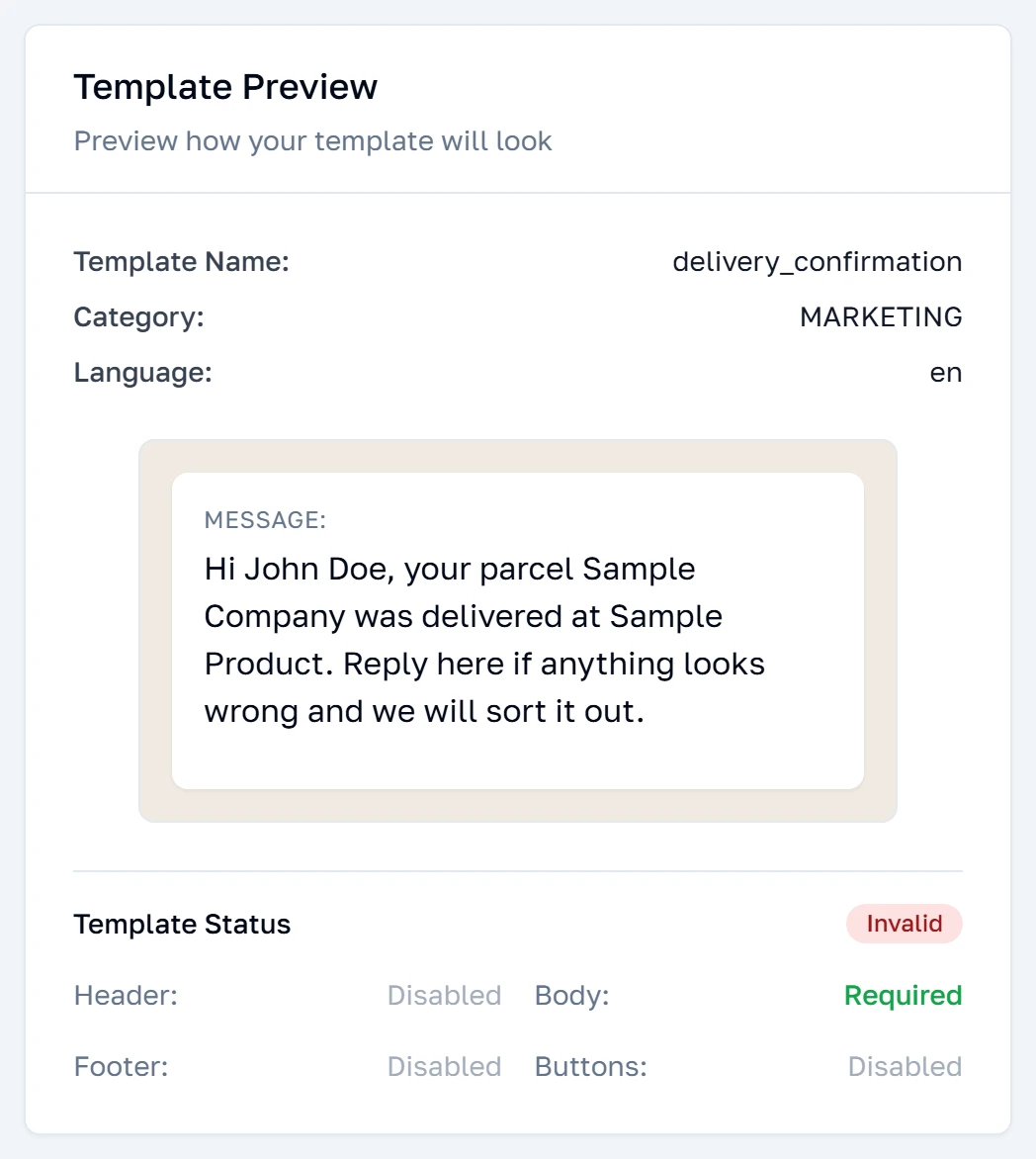
The panel on the right redraws with every keystroke. It fills your placeholders with sample values — the first one becomes a name like John Doe — so you are reading the message as a customer would, not the template as Meta stores it. Underneath it, a running verdict lists everything still wrong. It is the same verdict that governs the Create button, so when the panel says the template is valid, the button is live.
Submitting
Create Template stays disabled until the name, the category and the body are all valid. Pressing it hands the template to Meta and returns you to the list, where it appears at once with a PENDING badge. It cannot be edited afterwards — a change means a new template under a new name.
Compare
Comparing templates
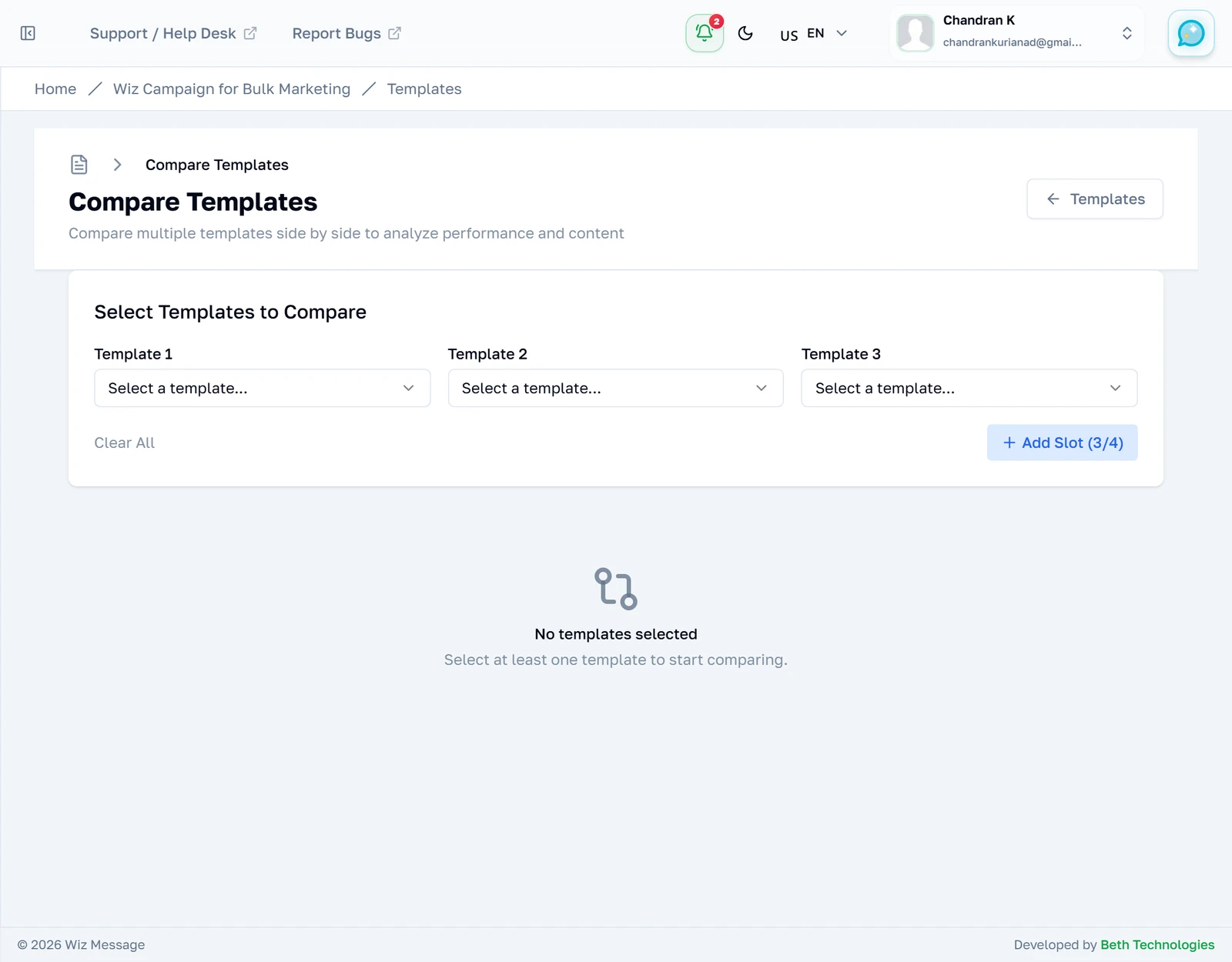
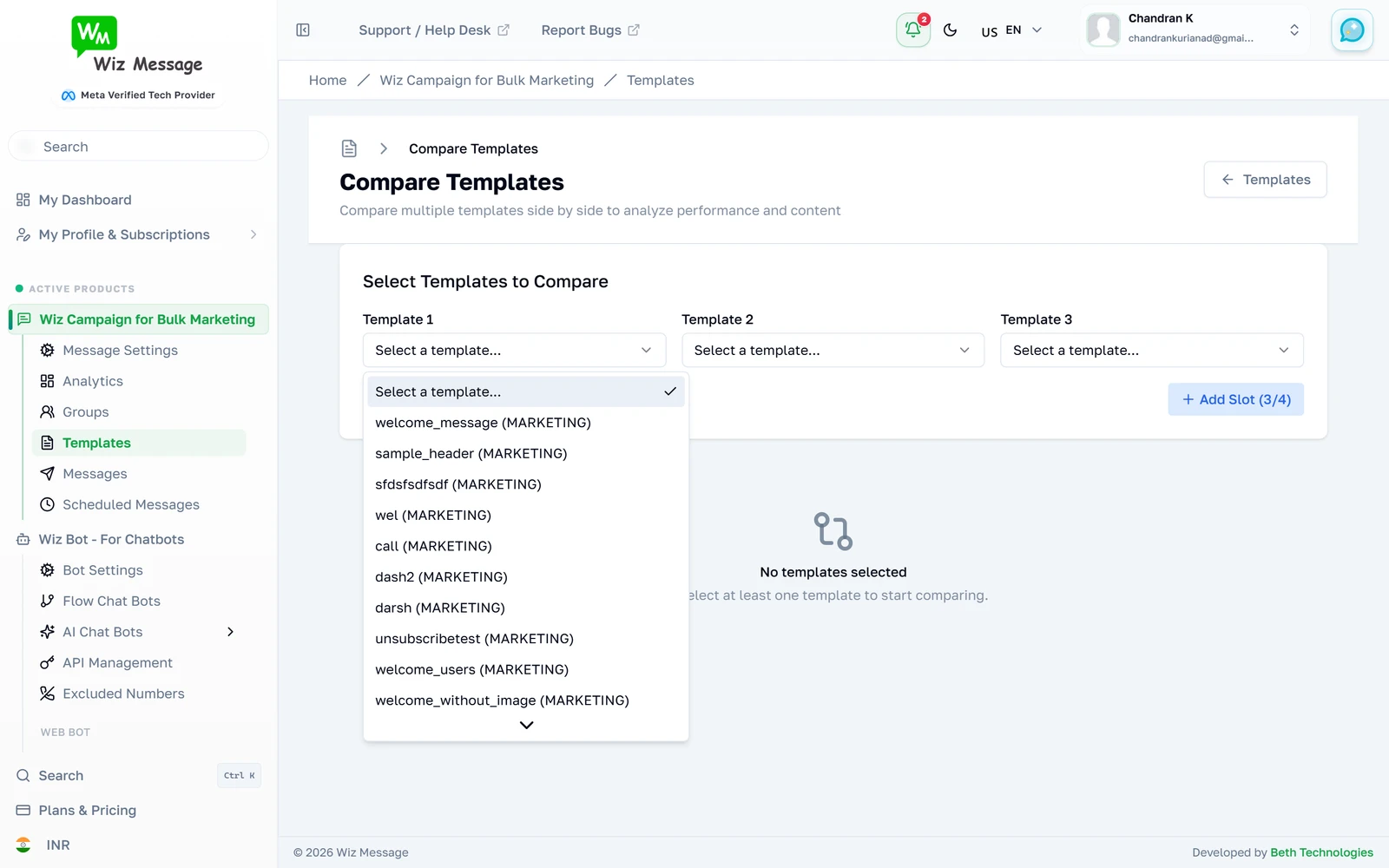
Compare puts two or more templates side by side, up to four at a time, so you can read their wording against each other. It starts empty: nothing is chosen for you. It compares content, not performance — for delivery figures, use Meta's own insights.
Choosing what to compare
Each slot is one template. Add a slot with the button beside the dropdowns, and clear the whole comparison with the other. Only templates on the connected account are offered.
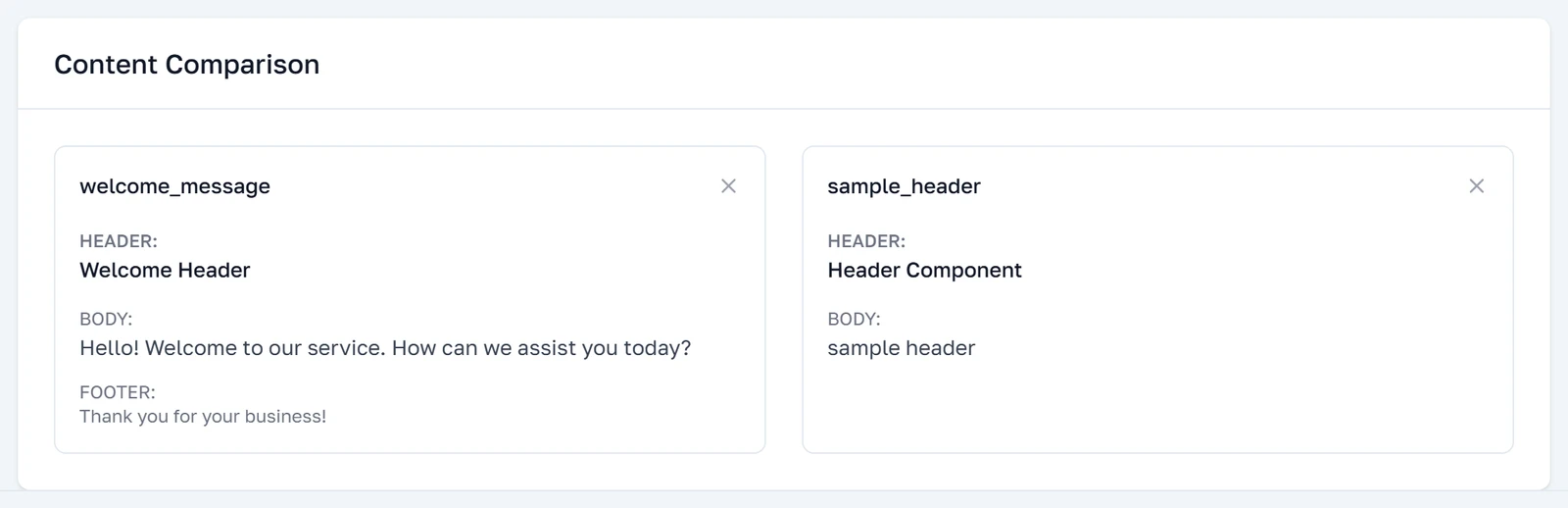
Two templates, side by side
With templates chosen, the page draws their content next to each other so wording, length and button choices line up for reading. Remove one with the cross on its column.
Reference
What each screen does underneath, for anyone who needs to know exactly what a button touches.
Where your templates actually live
There is no templates table in this application. Every screen in this module asks Meta's Graph API for your account's templates on the spot, and the id in a template's URL is Meta's id, not a row number here. That has three consequences worth knowing before anything looks broken: the list can be slower than the rest of the dashboard, it needs your Meta business connection to be alive, and a template created at Meta's own WhatsApp Manager appears here without anything being synced.
Answers are cached briefly to keep the page usable — five minutes for your account's own template list, thirty minutes for Meta's shared library. Creating a template through this dashboard clears that cache immediately, so a template you just submitted appears at once. One created at Meta's site can take up to five minutes to show up here.
Note: The list page loads in two stages on purpose: the page frame arrives first and the templates follow, which is why the counters start as grey bars. That is the page working, not hanging.
A template's detail page also needs the account it belongs to carried in the address, not just the template id. Every link inside the app adds it for you, so this only bites if you copy a link out of the address bar and hand it to a colleague.
What each status means
| Status | What it means | Can you send it? |
|---|---|---|
| APPROVED | Meta reviewed it and accepted it. | Yes. |
| PENDING | Submitted, waiting on Meta. Usually minutes, sometimes a day. | No. |
| REJECTED | Meta refused it. Fix the content and submit under a new name. | No. |
| DISABLED | Switched off after the fact — normally for poor quality feedback. | No. |
The status filter offers all four even when your account has none of a given kind, so choosing Rejected and getting an empty list is the filter working. The four counters above the list always describe your whole account and never the filtered view.
Only an approved template can go out to people who have not written to you recently, which is what bulk campaigns send: a campaign picks one approved template and fills its placeholders for every recipient.
The limits the builder enforces
The create form checks these as you type, before Meta ever sees the template. Marketing templates get a shorter body than the others because Meta treats them differently.
| Part | Limit |
|---|---|
| Name | 512 characters, and only lowercase letters, numbers and underscores. |
| Header text | 60 characters. One header per template, and it may be text or media, never both. |
| Body | 550 for Marketing, 512 for Utility and Authentication. 1024 until you pick a category. |
| Footer | 60 characters. |
| Buttons | Up to 3, each labelled at most 25 characters. Quick replies and URL buttons cannot be mixed freely. |
Note: A media header needs a sample file at submission time. It is used only for the review — the real image, video or document is attached when you send the message, not here.
When something goes wrong upstream
Because every screen here reads from Meta, the interesting failures are Meta's. The list page distinguishes three of them and says which one it hit, in an alert above the grid, instead of showing you an empty account.
| What happened | What you see | What to do |
|---|---|---|
| Too many requests | A plain notice that WhatsApp is rate-limiting the account. | Nothing. It clears on its own, usually within minutes. |
| The connection expired | A red alert with a link to reconnect the account. | Reconnect. This is the only case where reconnecting helps. |
| Anything else | A red alert saying WhatsApp could not be reached. | Try again shortly; if it persists it is not something this page can fix. |
Note: The distinction matters more than it looks. Being told to reconnect a working account costs you an OAuth round-trip and fixes nothing, so the rate-limit notice deliberately does not offer it.
What this dashboard cannot do
Editing an existing template is not possible from here, and it is not possible at Meta either — Meta treats the name plus the language as the template's identity. A correction is a new template under a new name. Deleting is possible, from the detail page, and it deletes at Meta.
Note: After deleting, Meta reserves the name for about thirty days. If you delete a template intending to resubmit a fixed version immediately, pick a different name.
Meta's shared template library is not browsable from this dashboard. The button on the list page opens Meta's own library in a new tab, which needs your Business ID — if your account was connected without one, that button and the whole Meta shortcuts panel are hidden rather than shown empty.