Getting started with your dashboard
My Dashboard is the first page you see after signing in. It tells you whether your WhatsApp number is connected and healthy, lists what is left to set up, and counts this month's campaigns and AI usage. Analytics, under Campaigns, goes further back: messages sent and delivered over time, and what they cost.
Your home page
My Dashboard
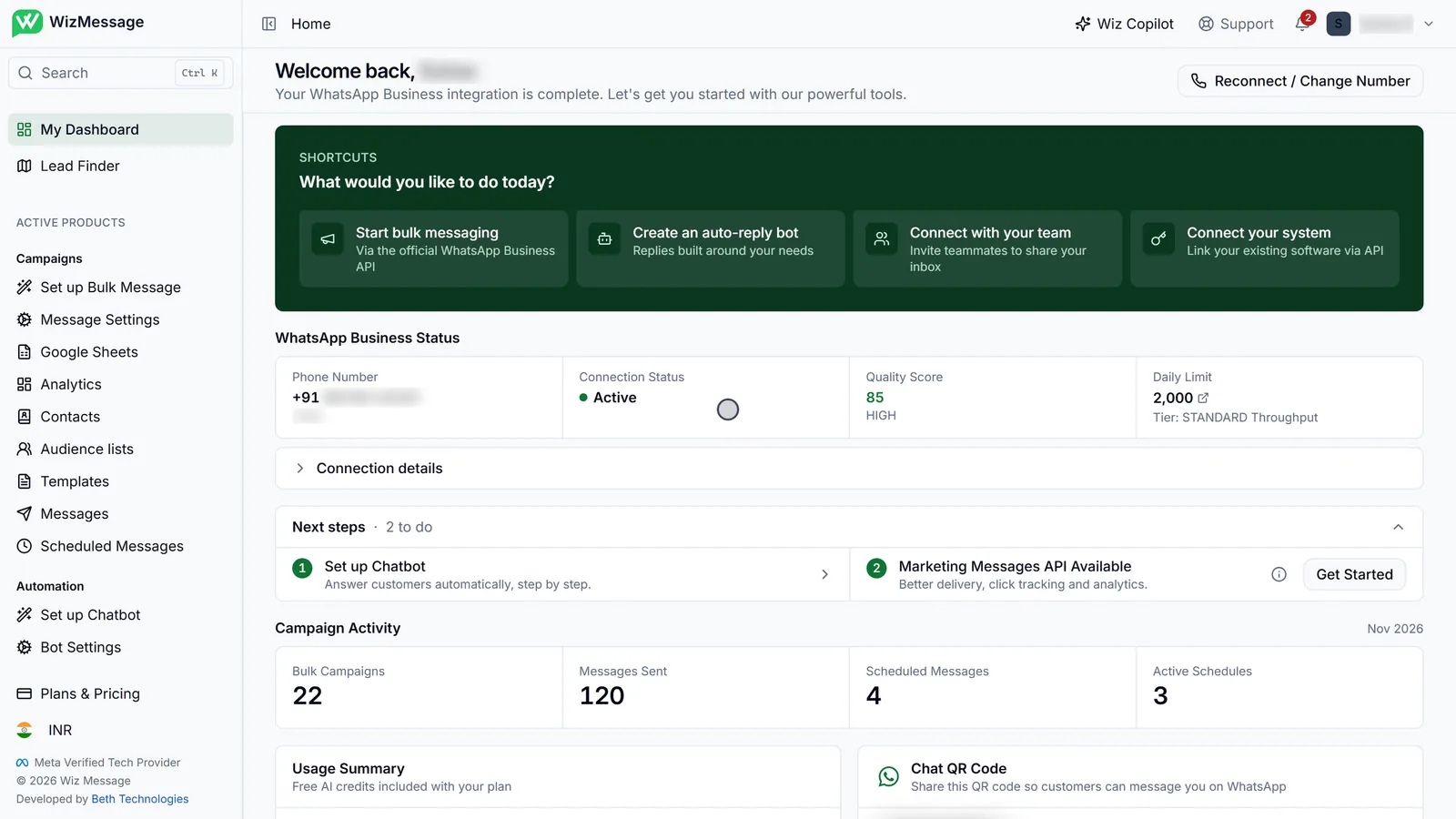
My Dashboard, at the top of the sidebar, opens after every sign-in and greets you by name. From the top: shortcuts into the main tools, your WhatsApp number's status, the setup steps still to do, this month's campaign activity, and your AI usage. Reconnect / Change Number, at the top right, is where you go to connect a different number or repair a broken connection.
Shortcuts
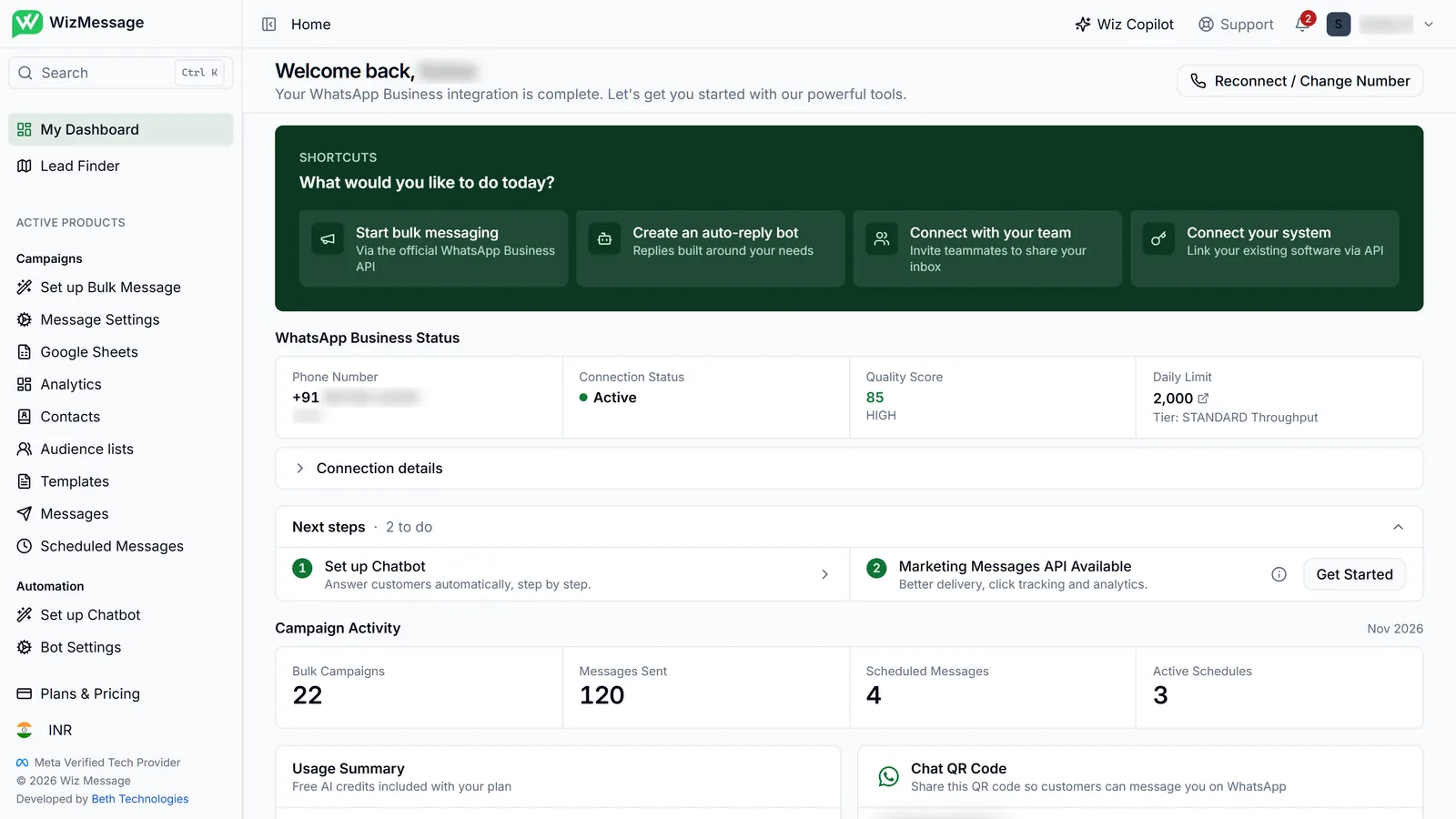
The shortcuts follow your plan. A campaign plan shows "Start bulk messaging", which opens the guided campaign setup. A bot plan shows "Create an auto-reply bot", which opens the chatbot setup, and "Connect your system", for API keys. "Connect with your team" opens Team, where you invite the people who share your inbox. Unlike Next steps, the shortcuts never go away.

Your WhatsApp number
Number, connection, quality and limit
The status strip reads your number in one line. Connection Status says whether WizMessage can send and receive on it. Quality Score is Meta's rating of the messages you send, from your customers' blocks and reports. Daily Limit is how many business-initiated conversations you can start in a rolling 24 hours, with the tier Meta has given you; click it to open WhatsApp Manager, where Meta shows the same figures and what it takes to raise them.

Connection details
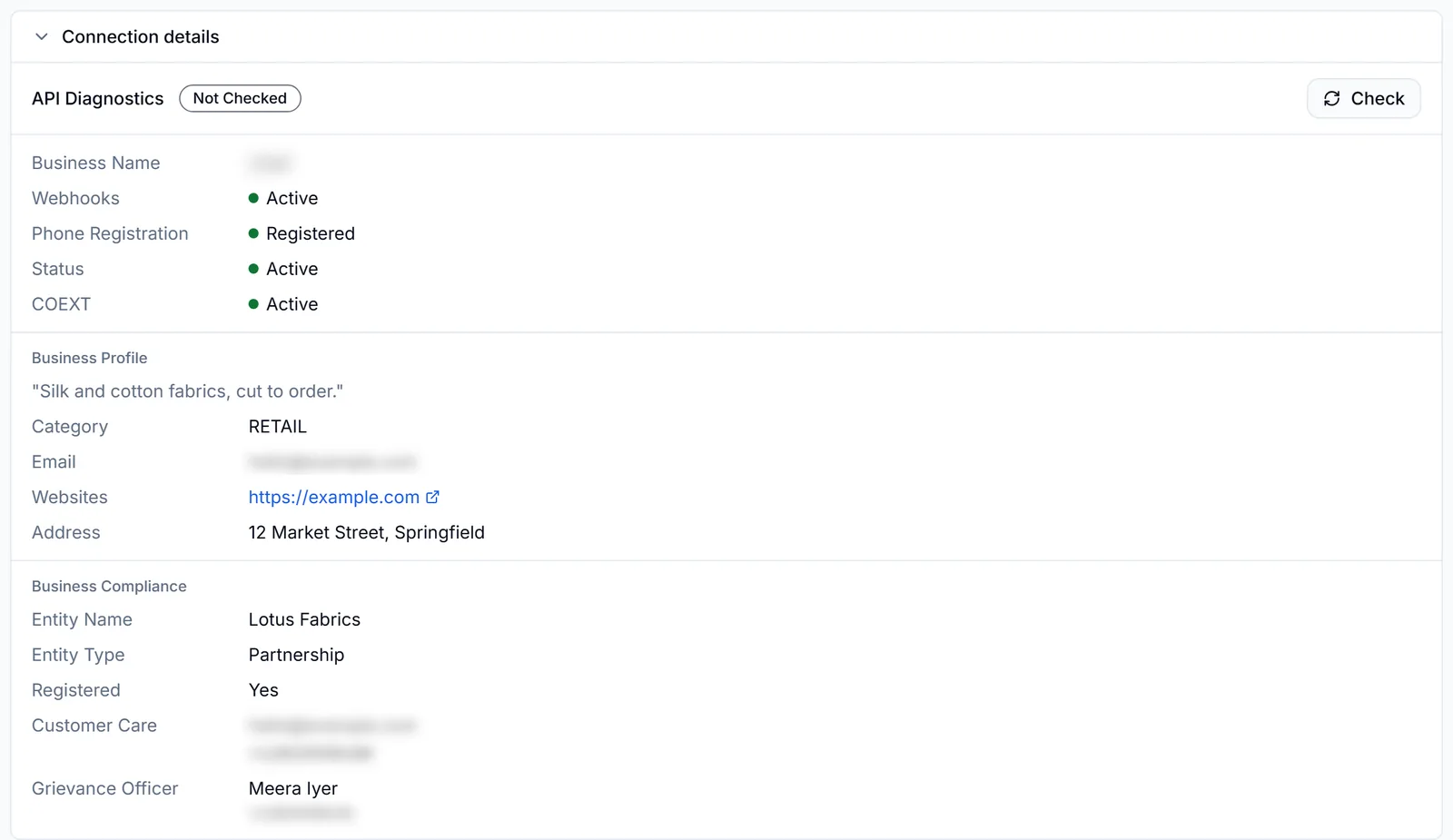
Connection details opens the diagnostics: whether your webhooks, phone registration and coexistence with the WhatsApp Business app are active, and, when Meta has them, your business profile and compliance details. Check asks Meta again right now. The panel opens by itself when something needs your attention — an error, or a reminder that your app's chat history is still syncing.
What is left to do
Next steps
Next steps lists only what is still missing, so it shrinks as you work through it. The rows it can show: add a payment method at Meta (until Meta confirms sending works), verify your business (while your daily limit is capped at 250), set up a chatbot (until a bot is answering), send your first bulk campaign, and turn on the Marketing Messages API. Each row opens the place where you do it; the information icon explains why that step matters. Click the header to fold the list away.

Campaigns this month
Campaign Activity counts the current calendar month, named on the right: bulk campaigns sent, the messages in them, scheduled messages, and the schedules still active. On a bot plan, Bot Activity sits below it with what your bot handled this month. For anything older, open Analytics.

AI usage
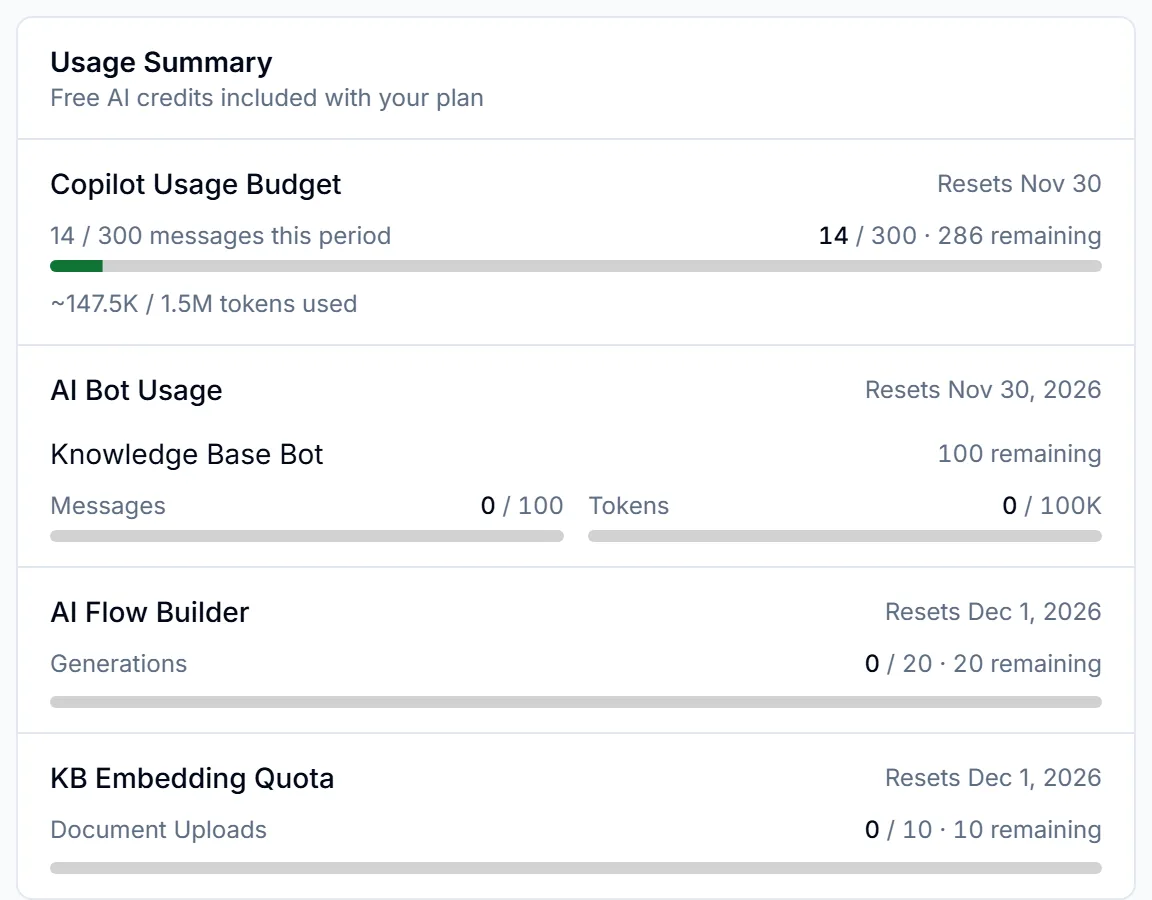
Usage Summary shows the AI allowances included with your plan, each with its reset date: Wiz Copilot messages, the knowledge-base bot's replies and tokens, AI flow generations, and documents you can add to the knowledge base. Beside it, on a bot plan, Chat QR Code gives you a code and a link that open a WhatsApp chat with your number — print it or share it.
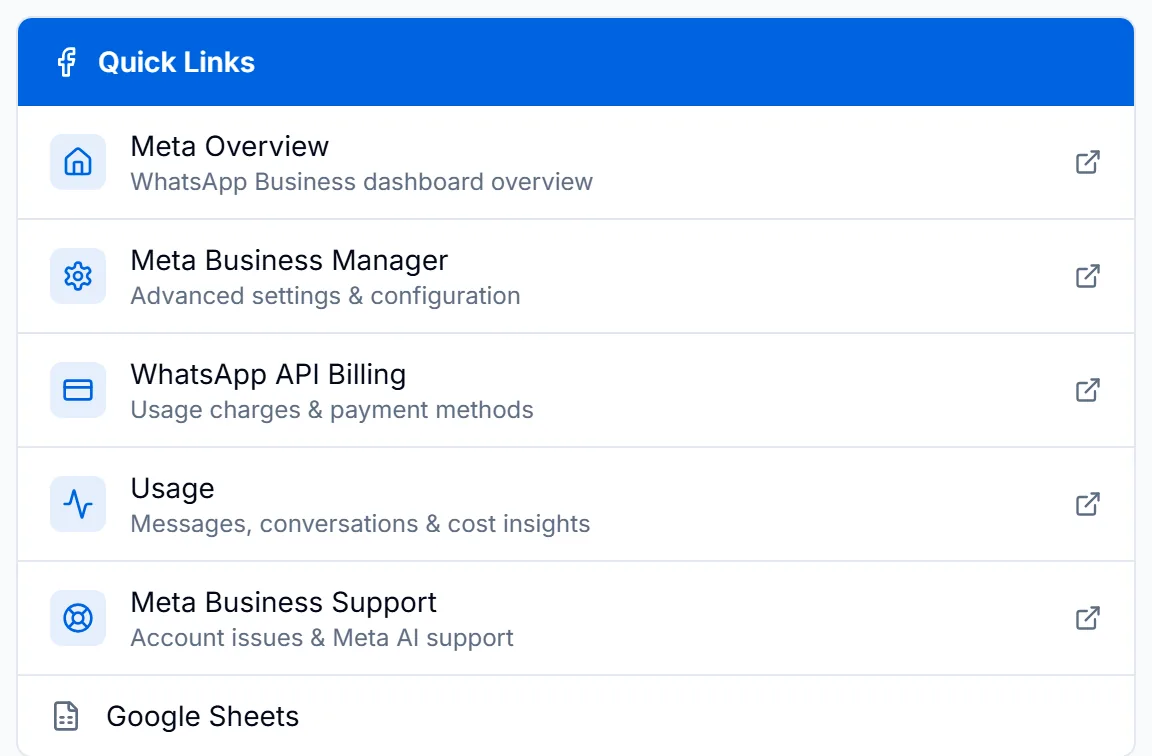
Quick Links
Quick Links, under the blue Meta header, open your business at Meta in a new tab: Meta Overview (the WhatsApp Business dashboard), Meta Business Manager, WhatsApp API Billing, where Meta holds your payment method and charges, Usage, Meta's own figures for messages, conversations and cost, and Meta Business Support when you need Meta's help with your account. Google Sheets, at the bottom, stays inside WizMessage.
Analytics
The Analytics page
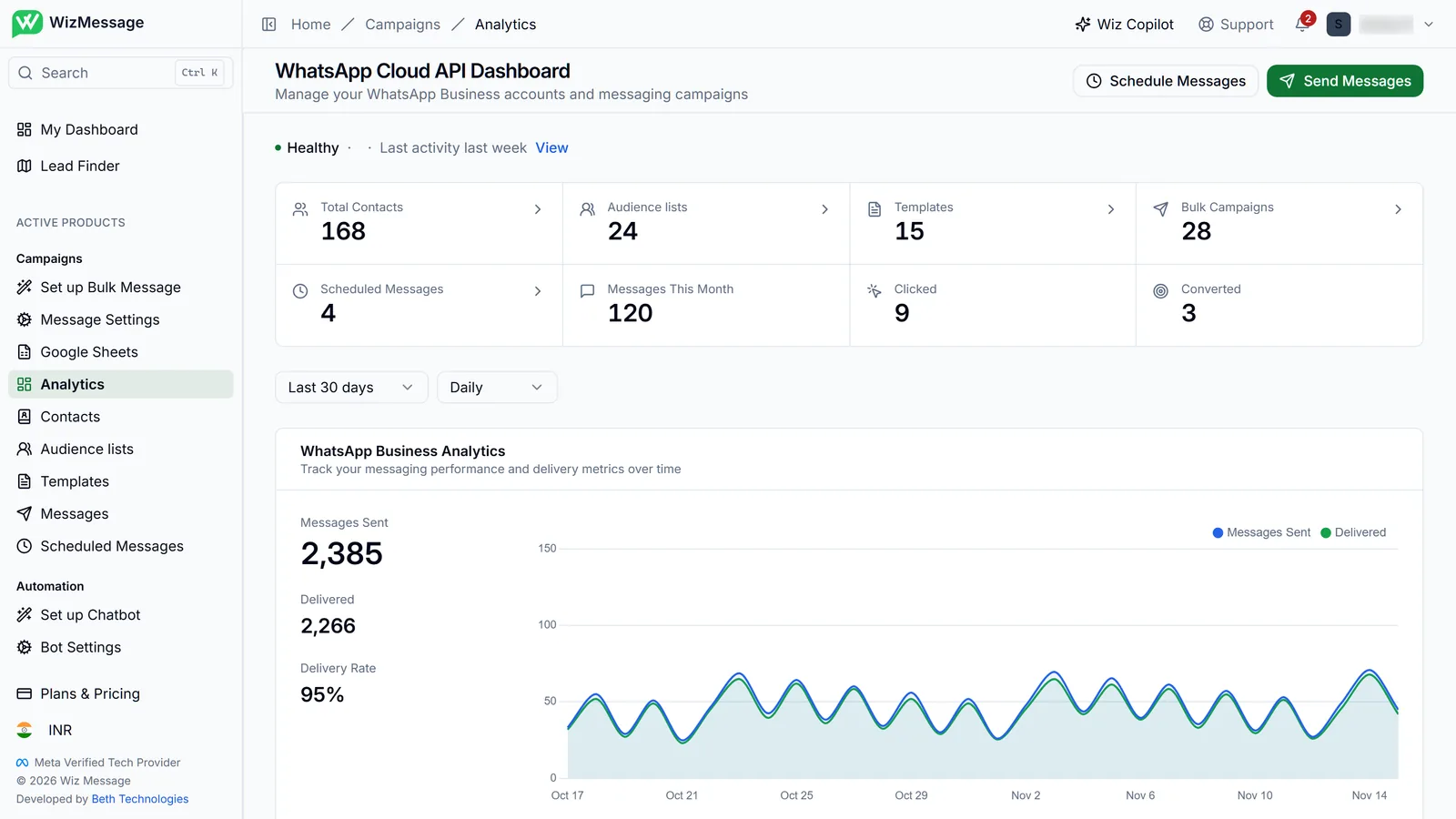
Analytics, under Campaigns in the sidebar, starts with your number's status and one strip of totals — contacts, audience lists, templates, campaigns and schedules, messages sent this month, and the clicks and conversions your campaigns have recorded. A total with an arrow opens its page. Send messages and Schedule messages sit at the top right.
Sent and delivered over time
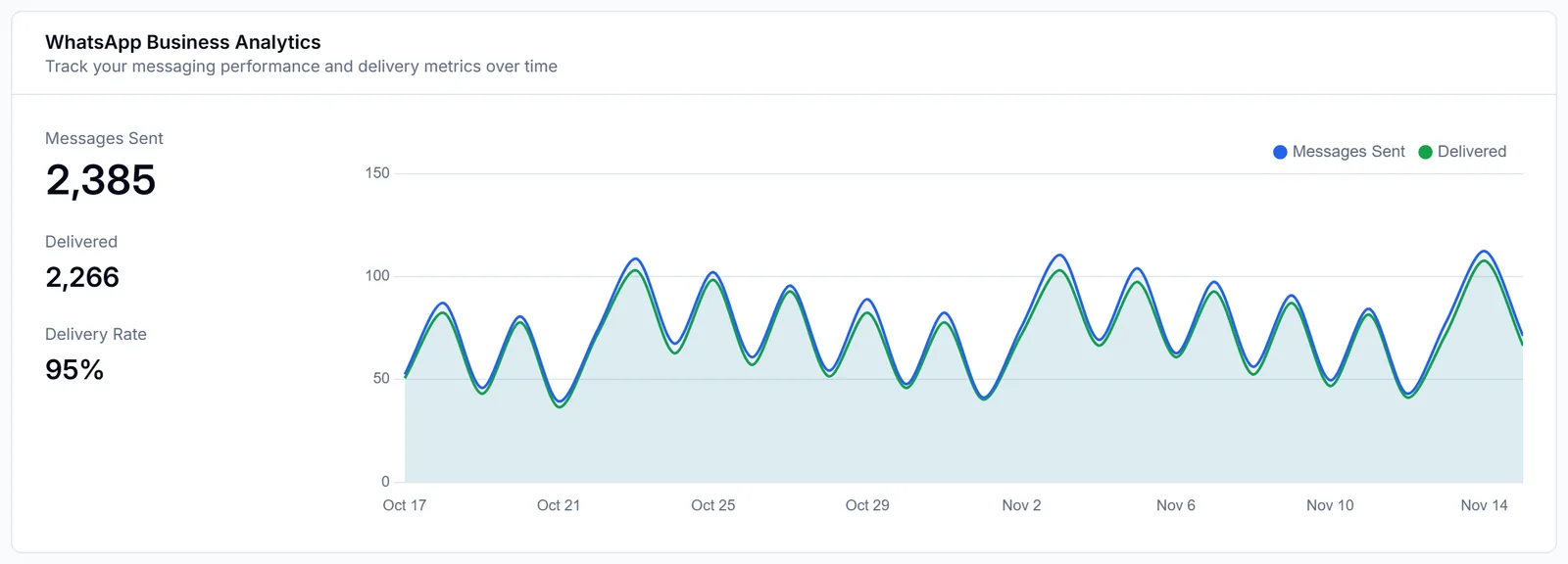
WhatsApp Business Analytics shows Meta's own count of the messages you sent and how many were delivered, for the last 30 days by default. Pick another range or a custom one, or half-hourly, daily or monthly points, above the card: both sections on the page reload with every change.
What your messages cost
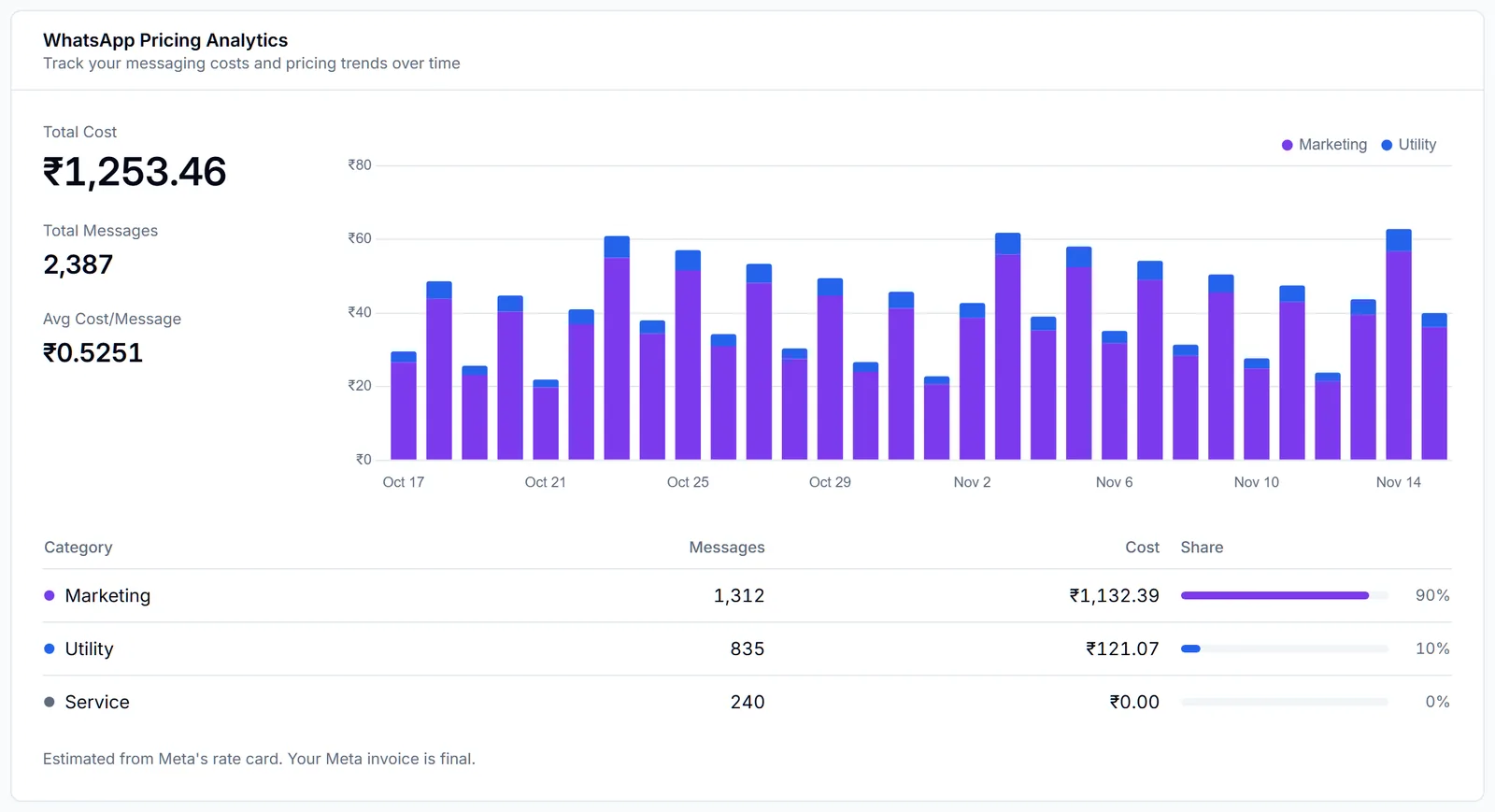
WhatsApp Pricing Analytics shows how many messages Meta counted as Marketing, Utility, Authentication or Service, and an estimate of the cost. Meta reports the volumes; WizMessage prices them from Meta's rate card for each country and category, and shows the total in your currency. Service replies inside a customer's 24-hour window are free. Your invoice from Meta is the final word.