Contacts
Contacts is everybody your WhatsApp number can write to. People land here by themselves when they write to you; you add others one at a time, from a spreadsheet, or from a Google Sheet. This page covers finding and changing them, putting several on an audience list, and taking them out again.
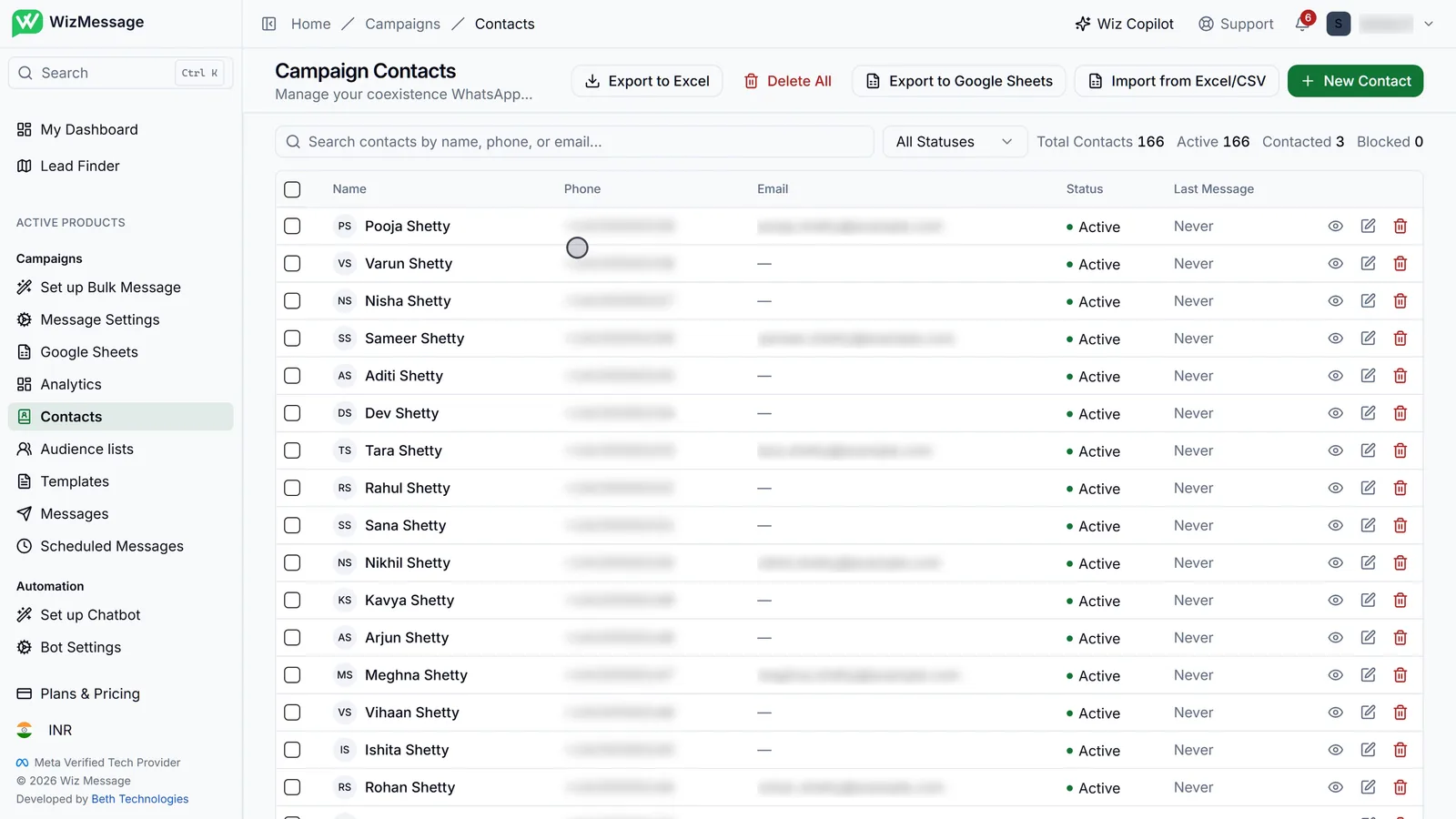
Your contacts
The list
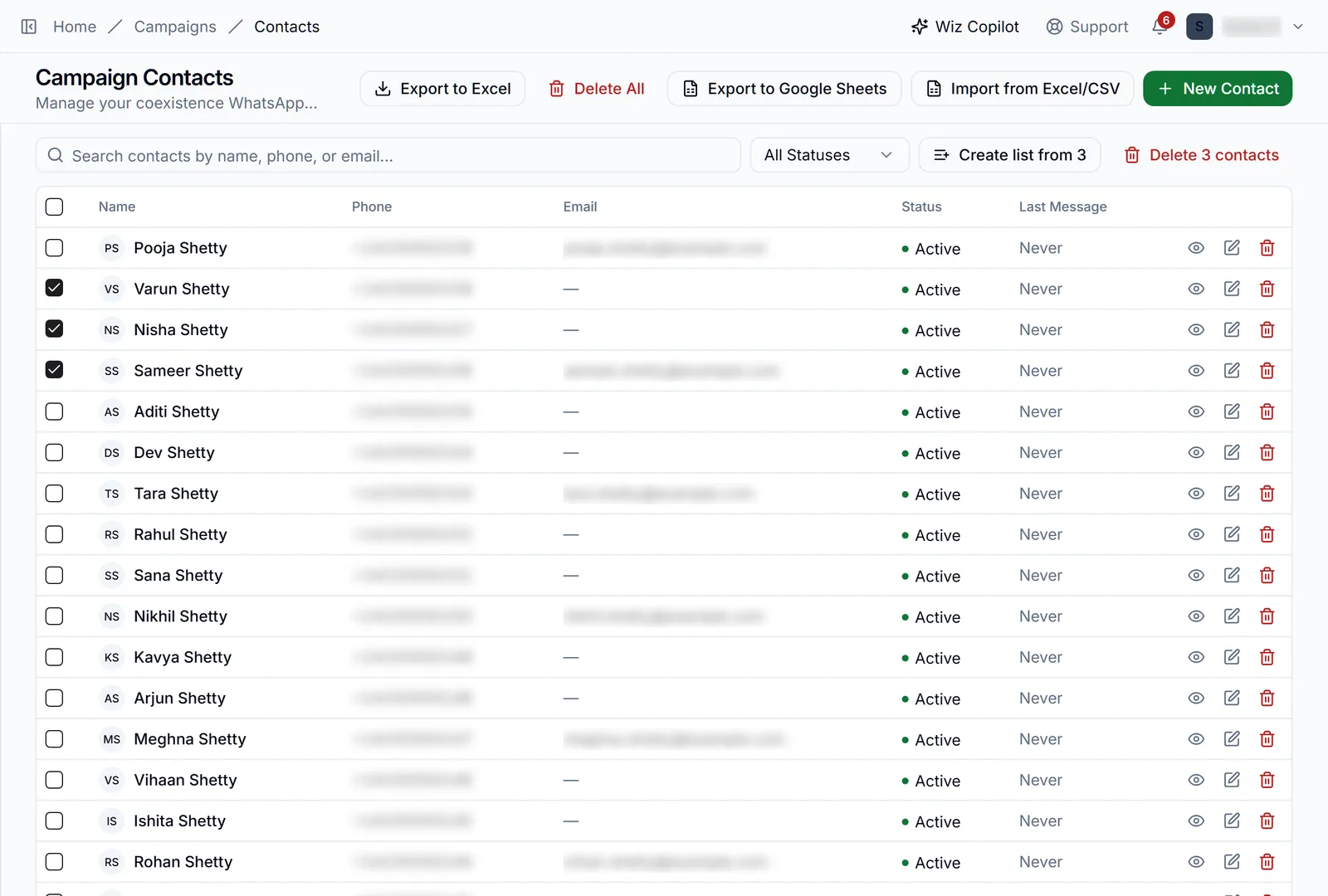
Contacts, under Campaigns in the sidebar, lists everybody your number can write to, the latest message first. The line beside the filters counts them: how many there are, how many are active, how many have been written to, and how many are blocked. Each row shows the number, the email, the status and the last message; View, Edit and Delete are at its end. Load More shows the next ones.
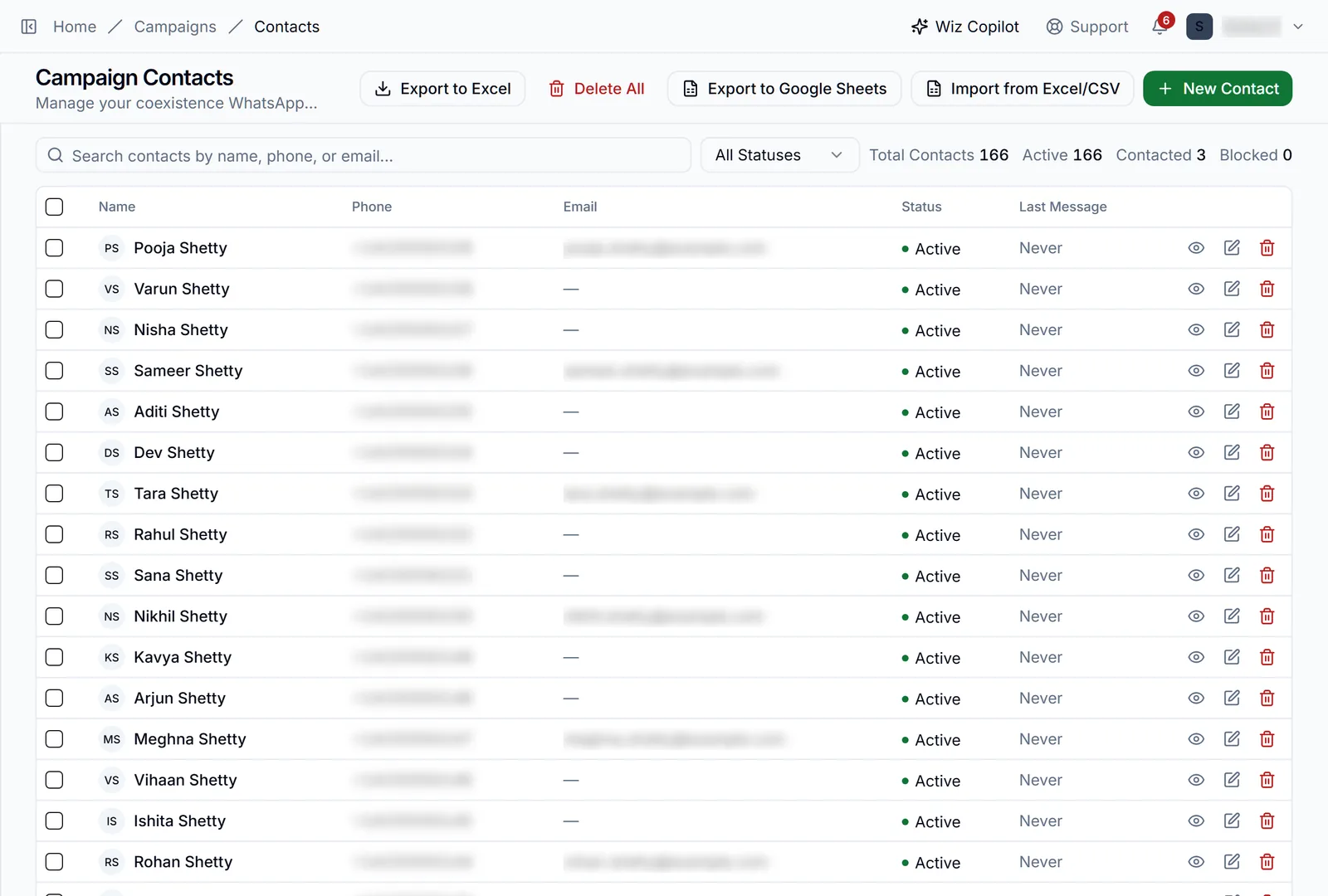
Finding somebody
Type part of a name, a number or an email in the search box and press Enter. The cross in the box clears it.
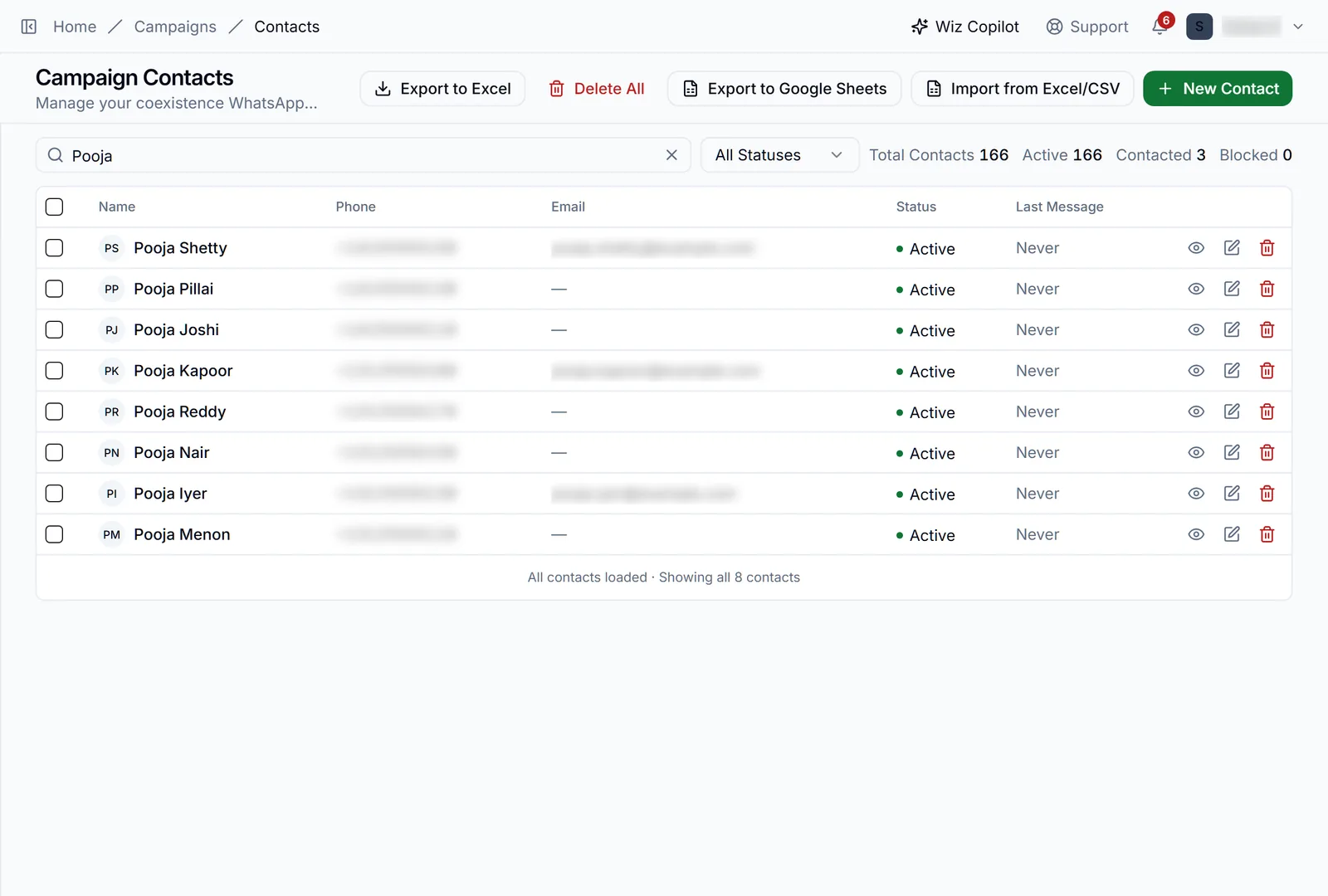
Only one status
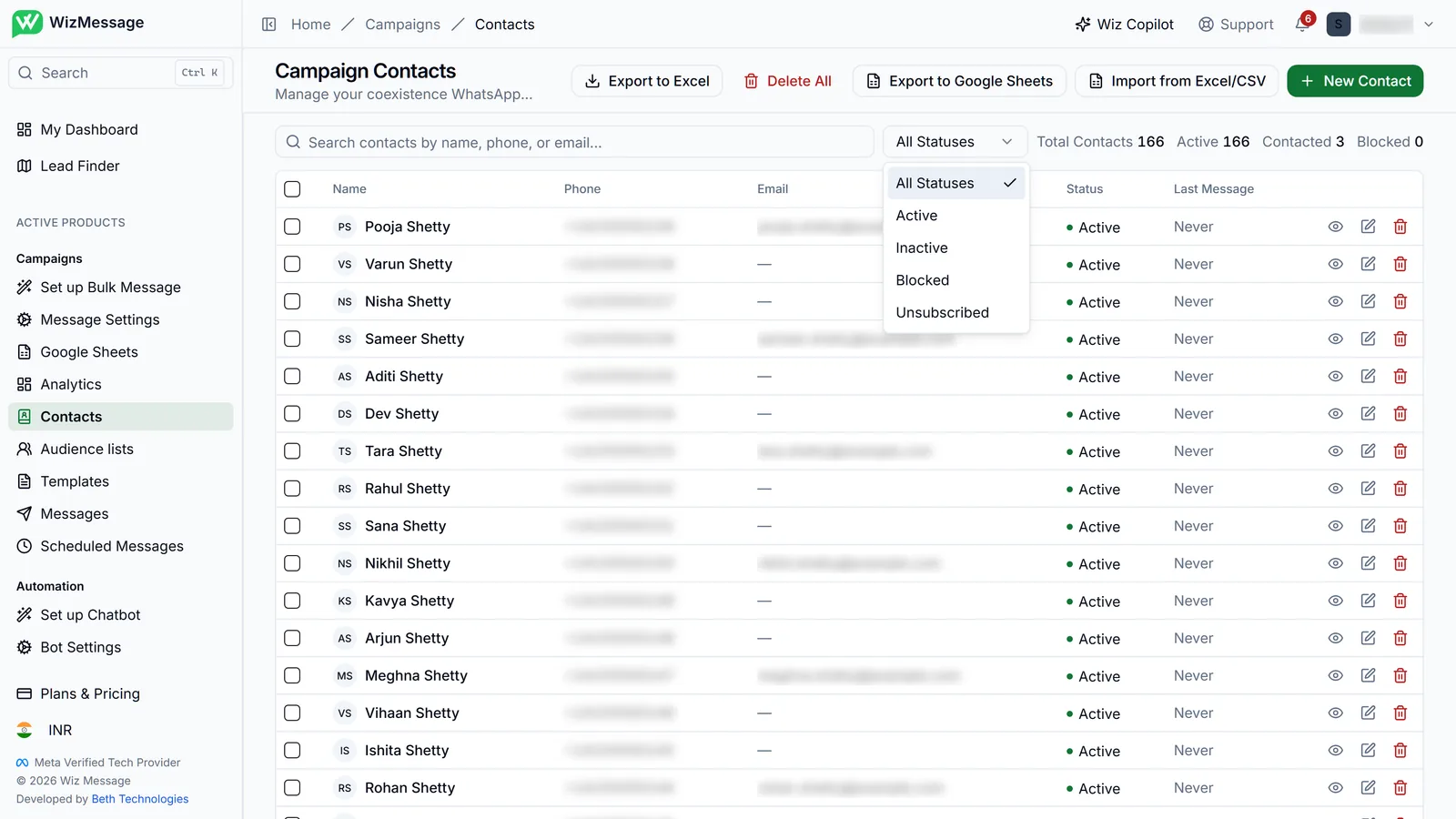
The status filter shows only active, inactive or blocked contacts, or only the people who unsubscribed. It works together with the search, and what you see is what an export downloads.
Adding one contact
New contact
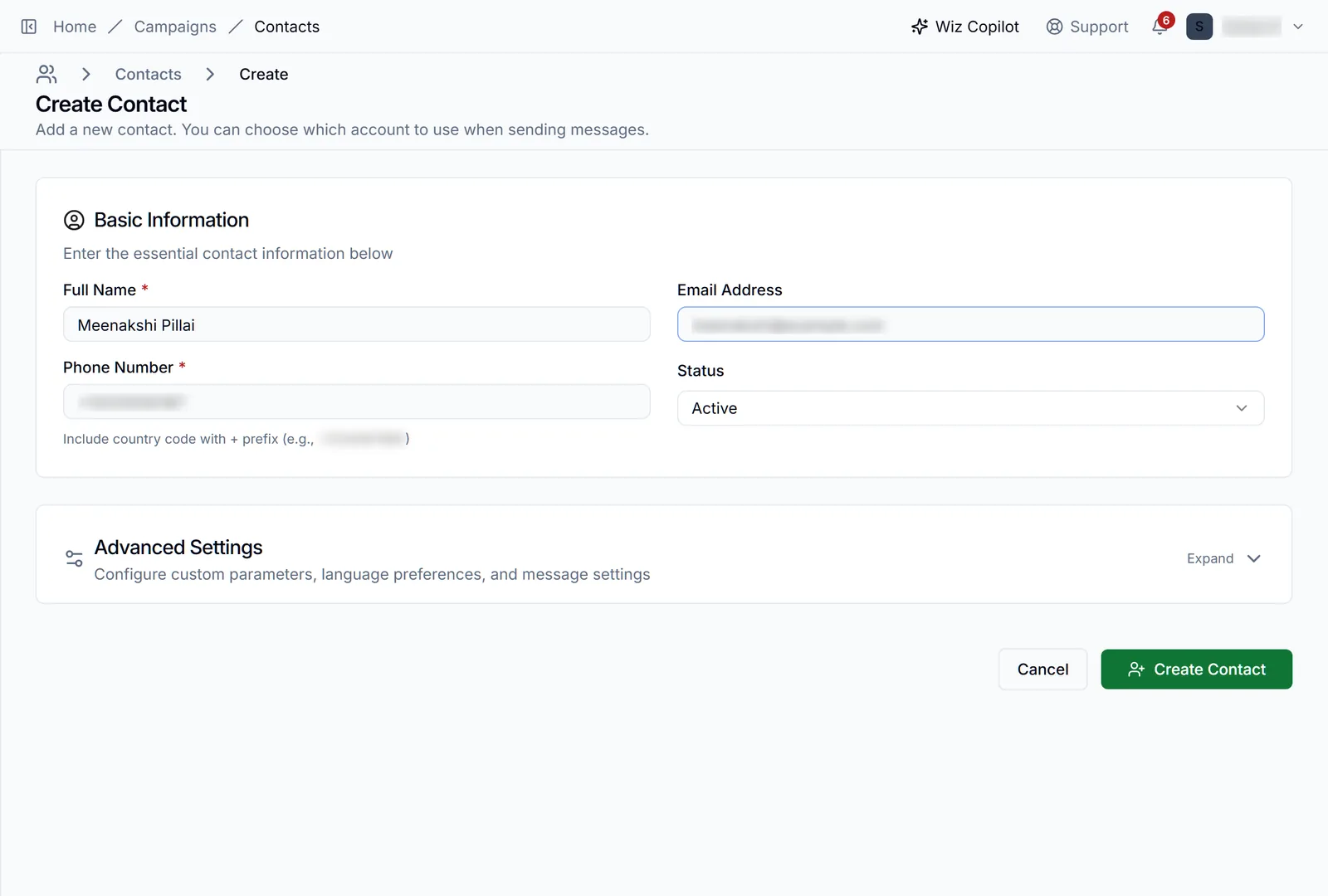
Press New Contact at the top right. A name and a phone number with the country code and a plus sign are enough; the email is for your own records. Leave the status on Active unless you want campaigns to leave the person out.
Details a template can use
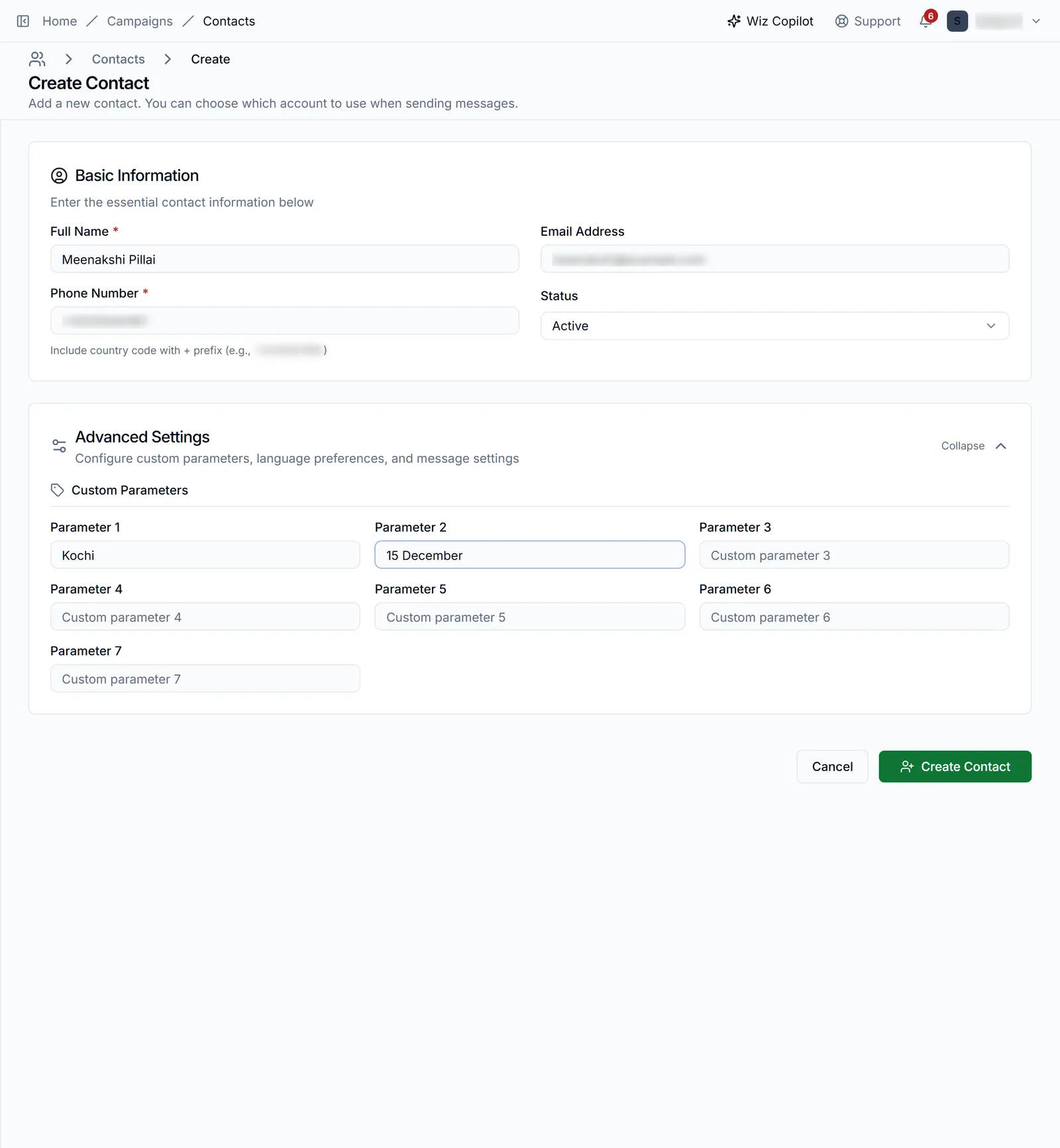
Advanced Settings opens seven parameters for anything else you keep about the person: a city, a renewal date, an order number. A template can fill its variables from them, so a campaign can speak to each person with their own details. Create Contact saves it.
Importing a file
Choosing the file
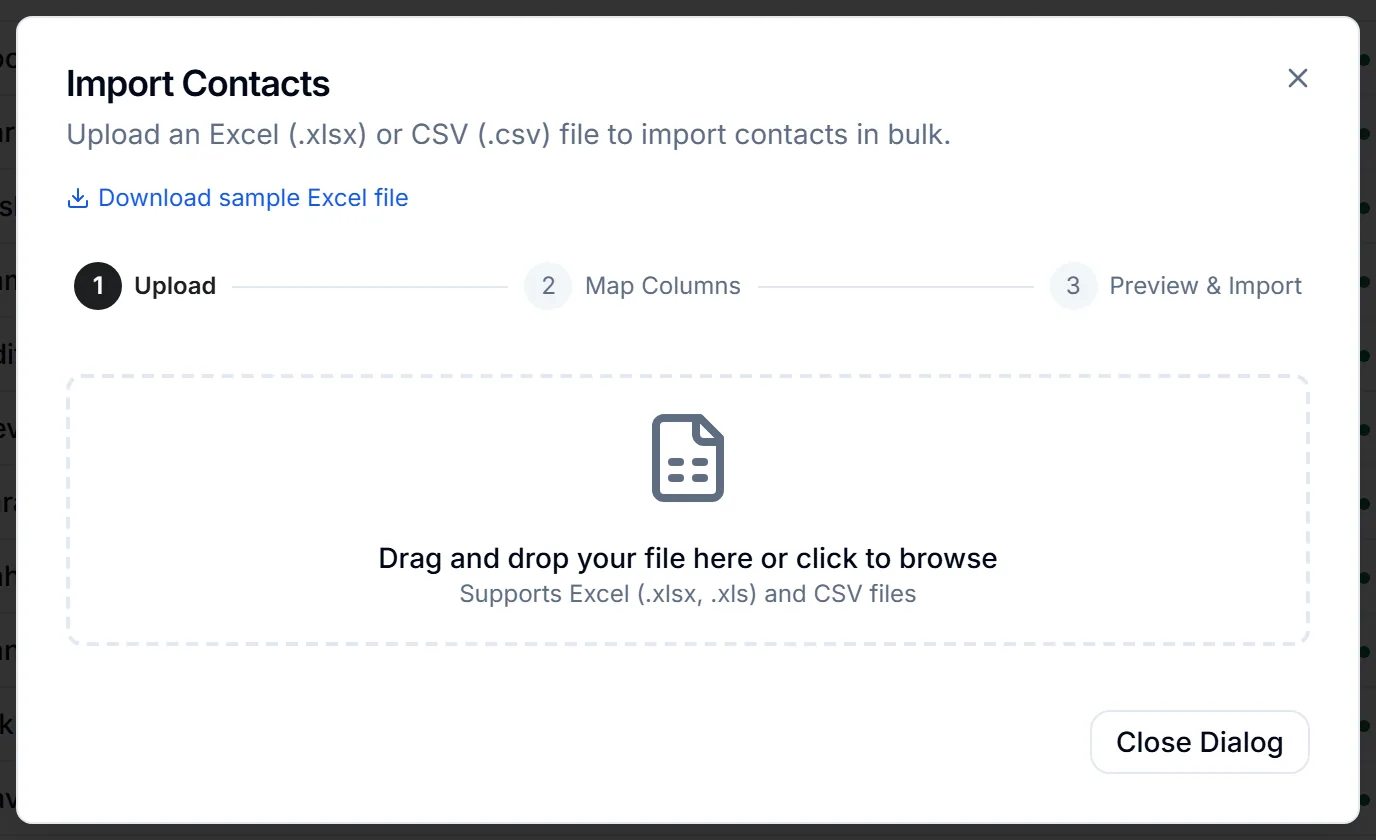
Import from Excel/CSV, beside New Contact, takes a spreadsheet with a header row. Download sample Excel file gives you one to fill in. Drop your file in the box or click it to choose one.
Which column is which
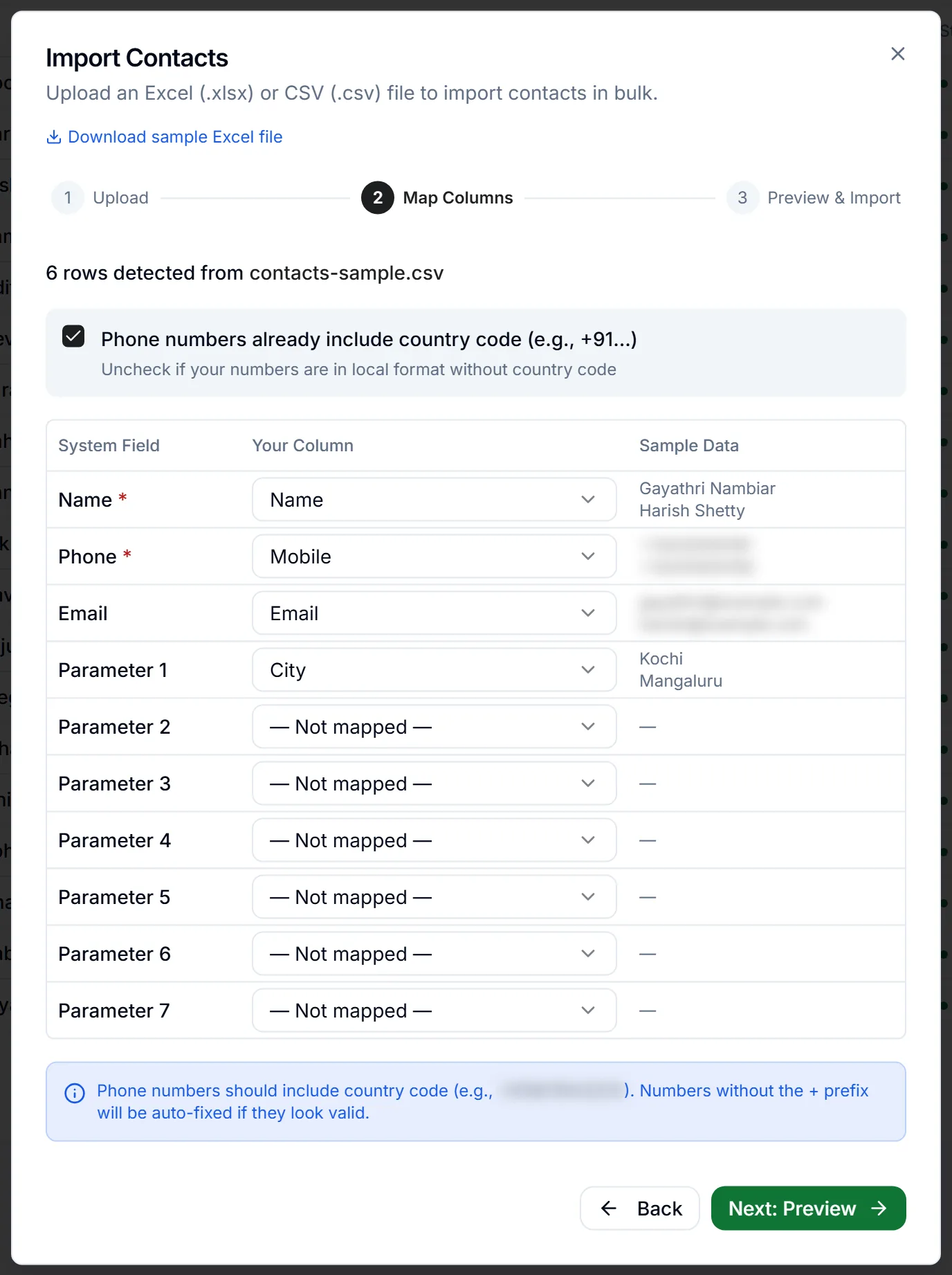
The second step matches your columns to the fields by their headings and shows the first rows beside each, so you can see at once whether it read them right. Change any that are wrong, and map extra columns to the parameters. Leave the box about country codes ticked when your numbers already have one; untick it and choose the country when they do not.
Looking before importing
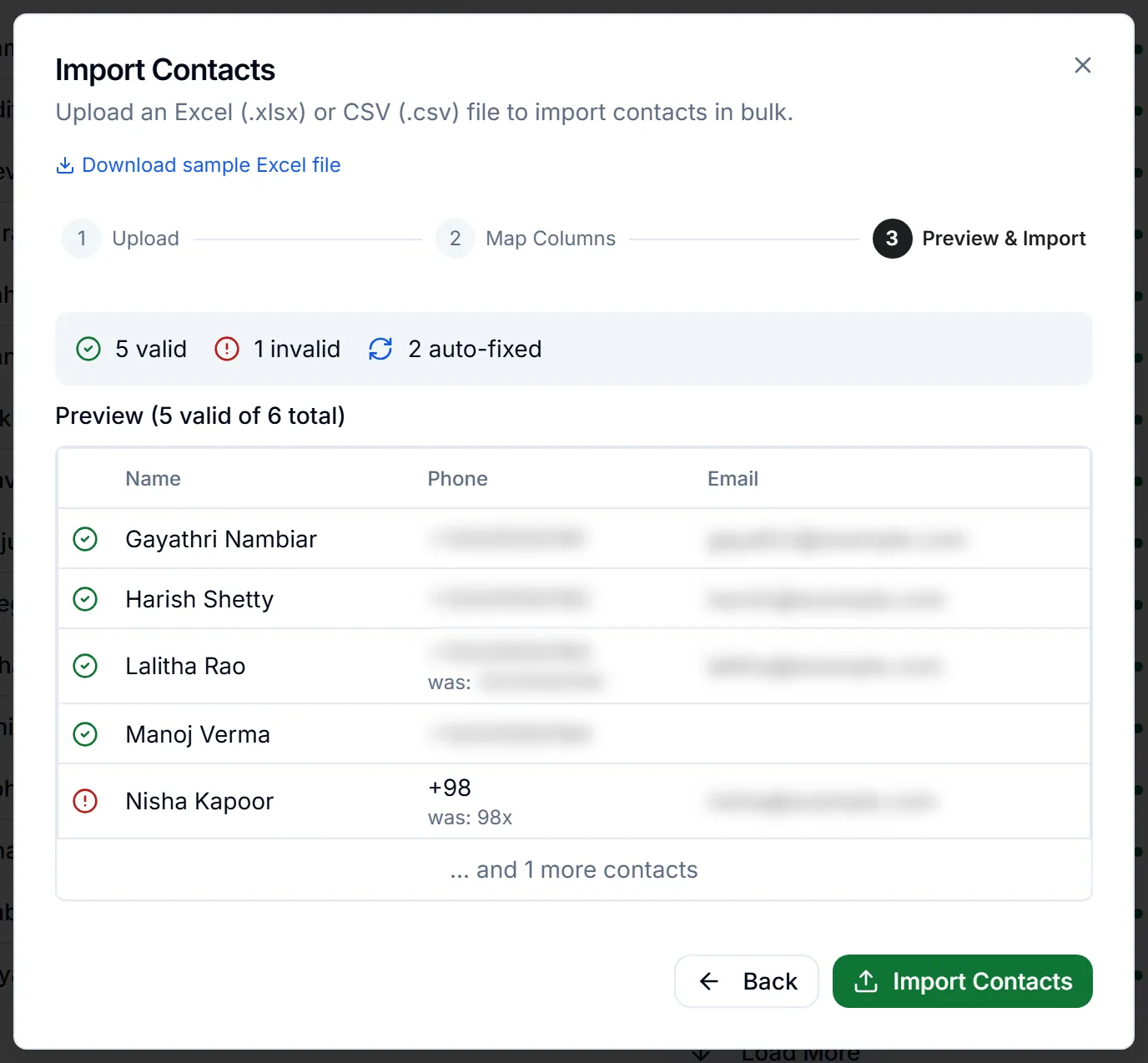
Next: Preview checks every number before anything is saved. It counts the valid ones, the ones it corrected by itself and the ones it cannot use, and shows the first rows. Import Contacts saves them: a number you already have is updated, a new one is added.
Note: This figure stopped here and did NOT import.
One contact
Opening one
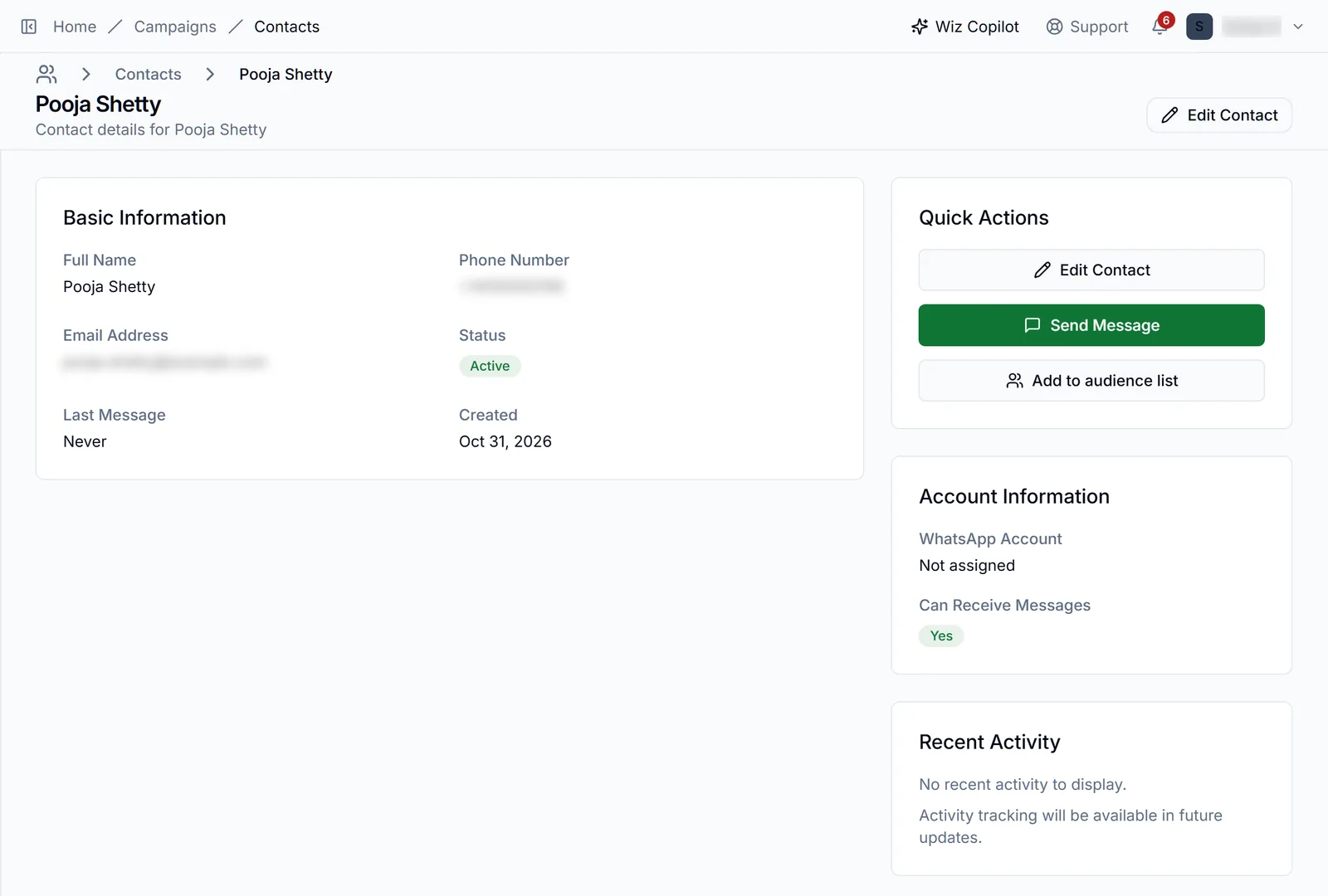
View, the eye at the end of a row, opens the contact: the details, whether messages can reach them, and quick actions to edit, write to them, or put them on an audience list.
Putting them on a list
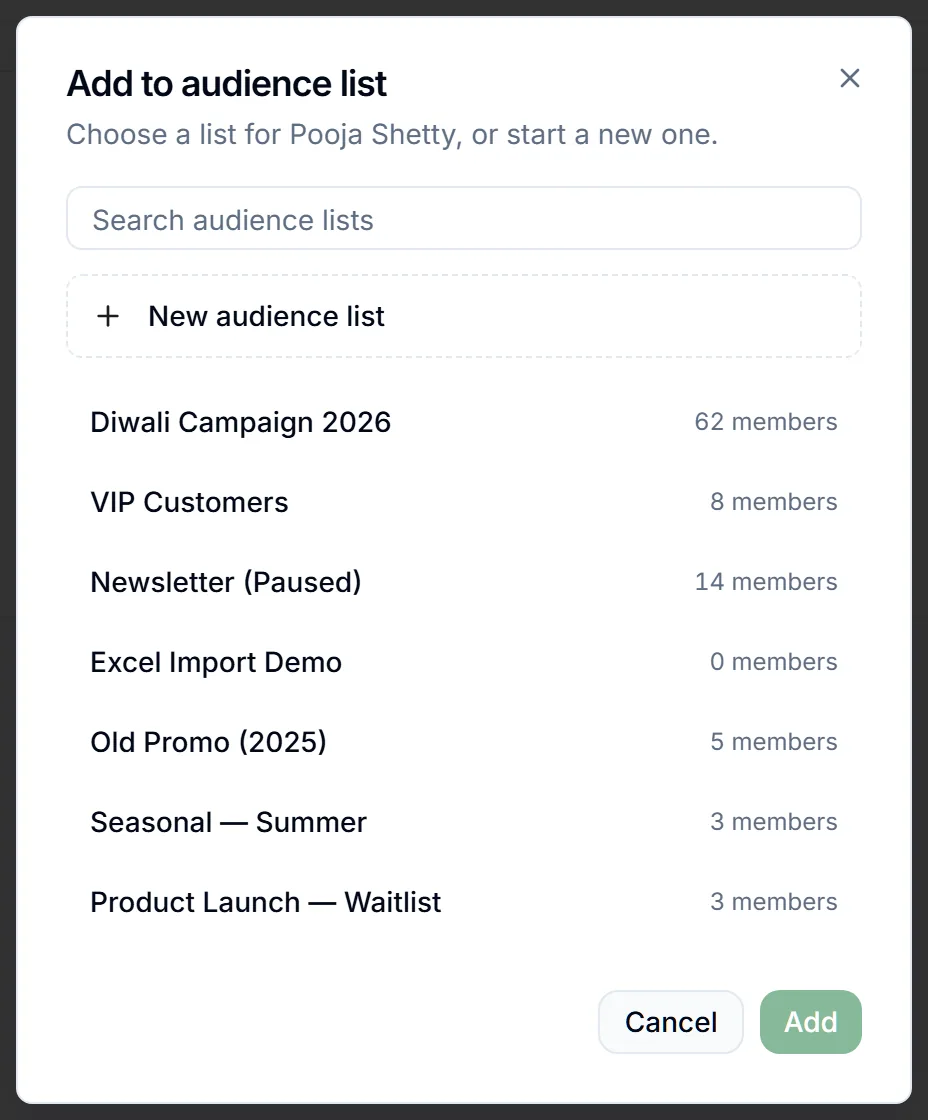
Add to audience list opens your lists. Pick one and press Add, or start a new list from there. Being on a list changes nothing about the contact.
Note: This figure chose nothing.
Changing one
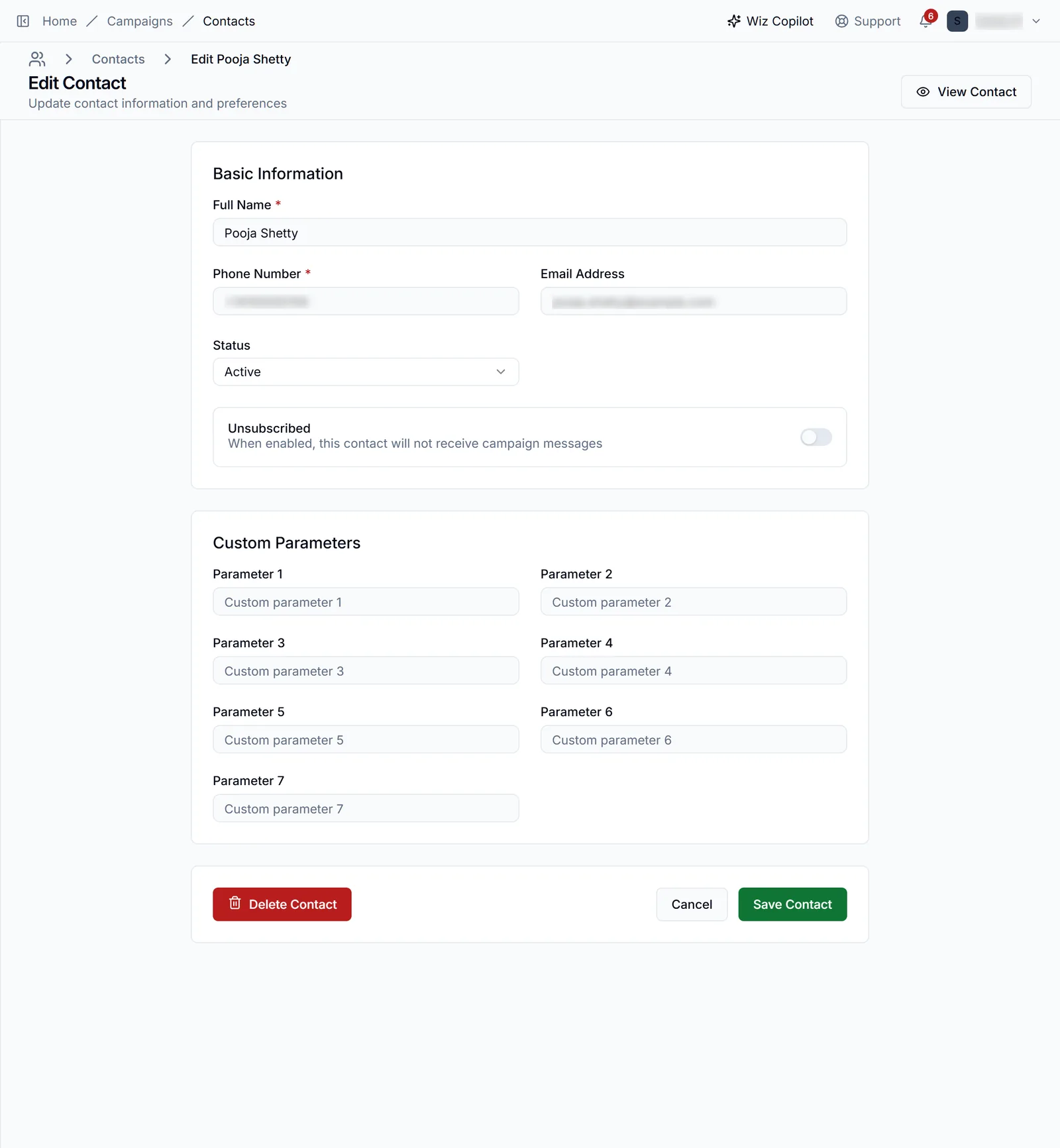
Edit Contact opens the same fields, plus Unsubscribed: switched on, campaigns leave this person out, as if they had unsubscribed themselves. Save Contact keeps the change; Delete Contact, beside it, asks first.
Note: This figure changed nothing.
Several at once
Tick them
Tick the people you want, or the box at the top for everybody on screen. Two buttons appear above the table: Create list, which puts them on an audience list, and Delete, which asks first.
A list from them
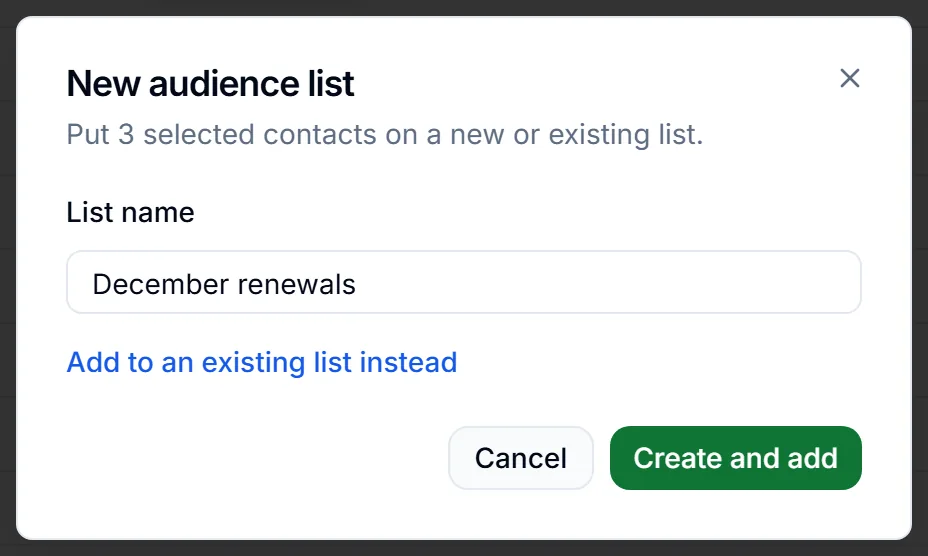
Create list asks for a name and makes the list with the people you ticked. Or choose an existing list from the link below the name. Somebody blocked or inactive is left out, and the window says so.
Note: This figure was filled in and NOT created.
Taking them out
Exporting and deleting
Export to Excel downloads your contacts, and Export to Google Sheets writes them into a new sheet in your Google Drive. Both follow the search and the status you have set. Delete All, beside them, removes every contact and cannot be undone: it asks first, and your lists and chats lose those people too.
Note: This figure pressed nothing.

Reference
What each field and status does, and the rules of an import.
What a contact holds
A contact is a name, a phone number and whatever else you keep about the person. The phone number is what makes it one contact: a number can be in your contacts only once.
| Field | What it is for |
|---|---|
| Name | Shown everywhere, and usable in templates. |
| Phone number | With the country code and a plus sign. One contact per number. |
| For your own records. | |
| Parameters 1 to 7 | Anything else you keep, such as a city or an order number. A template can fill its variables from them. |
| Unsubscribed | On, campaigns leave the contact out. A customer who sends an unsubscribe word turns it on. |
The three statuses
| Status | What it means |
|---|---|
| Active | Campaigns and messages can be sent. |
| Inactive | Left out of campaigns. |
| Blocked | Left out of campaigns, and cannot be put on a list. |
How an import reads your file
An import takes an Excel or CSV file with a header row. Name and phone number have to be mapped; everything else is optional.
| Situation | What happens |
|---|---|
| The number is new | A contact is created. |
| The number is already in your contacts | Its name, email and parameters become what the file says. An empty cell, or a field you did not map, keeps the old detail. |
| The same number is in the file twice | It is imported once, with the details of the last row. A cell that is empty there keeps the earlier row’s detail. |
| A row has no name, or its number cannot be read | The row is skipped and reported. The other rows are imported. |
| Your contact limit is reached | The import stops there and says so. |