Connecting AI agents
An AI agent is a tool such as Claude, Cursor or Codex that works with your WhatsApp inbox: it reads conversations, and answers them if you allow it. This page covers connecting one, changing what it may do, pausing and deleting it, and keeping its key safe.
Your AI agents
The page
AI Agents (MCP), in the sidebar under AI agents, is where you connect an agent and look after the ones you have. Each row shows the agent's name and state, the WhatsApp number it works with, the start of its key, when it was last used, and whether it may only read or also send.
The page needs Wiz Bot or Wiz Pro and a connected WhatsApp number. Only the account owner can connect, change or delete agents; an admin with API access sees the list.
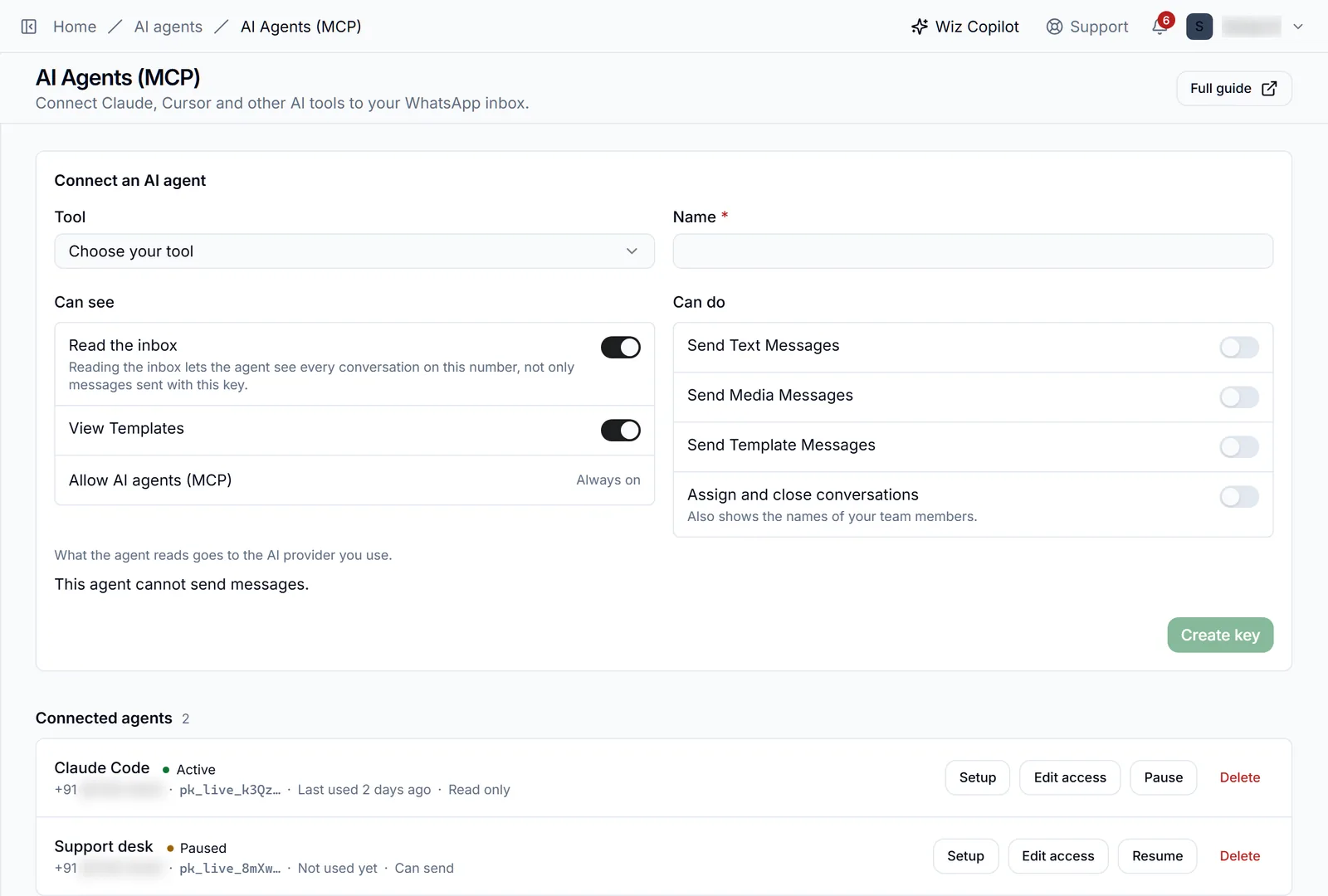
Connecting an agent
Choose your tool
Choose the AI tool you use. It fills in a name, which you can change, and decides which setup you get at the end. Not in the list? Choose Other tool: any MCP client works. If you have several WhatsApp numbers, choose the one this agent works with as well.
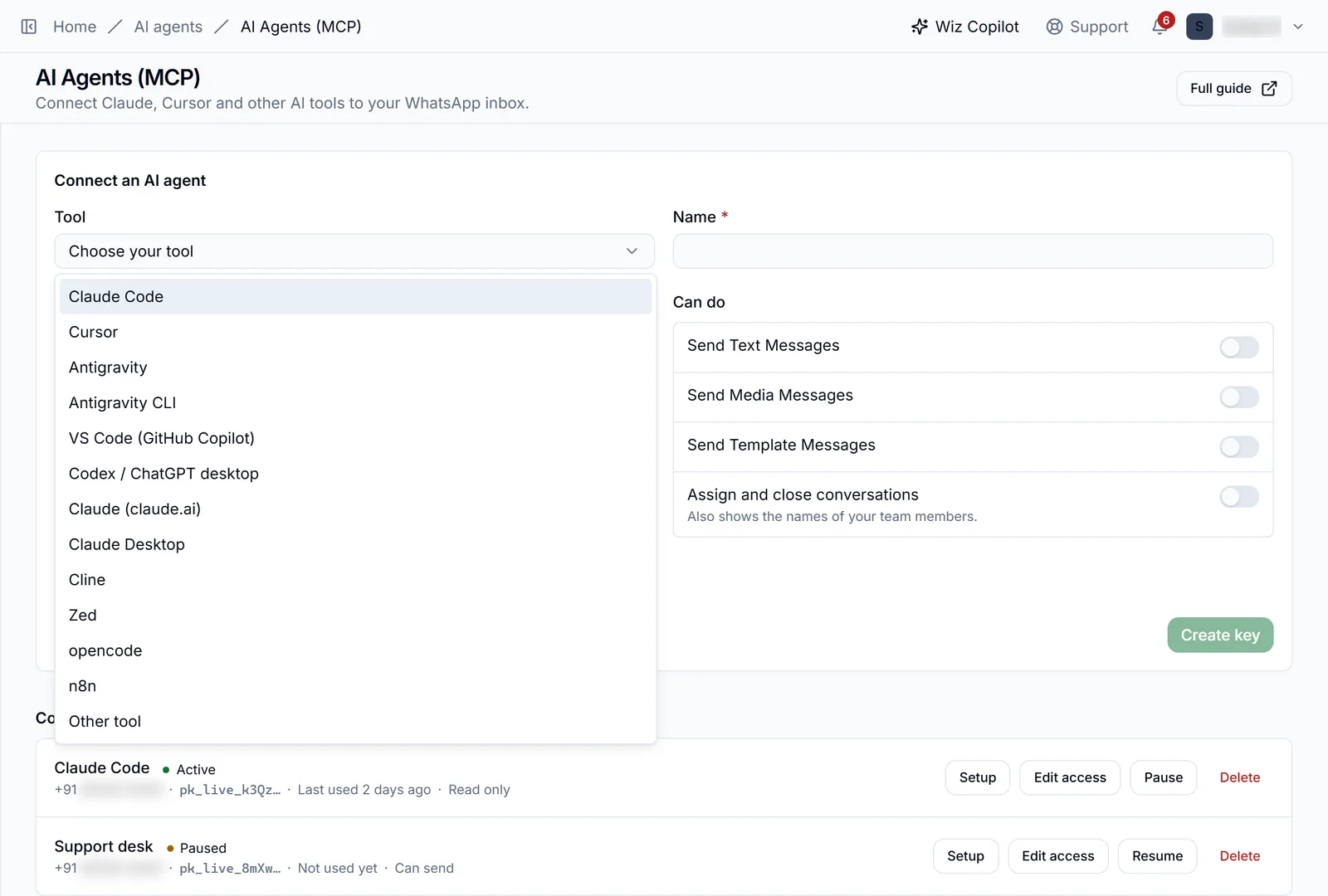
Choose what it may see and do
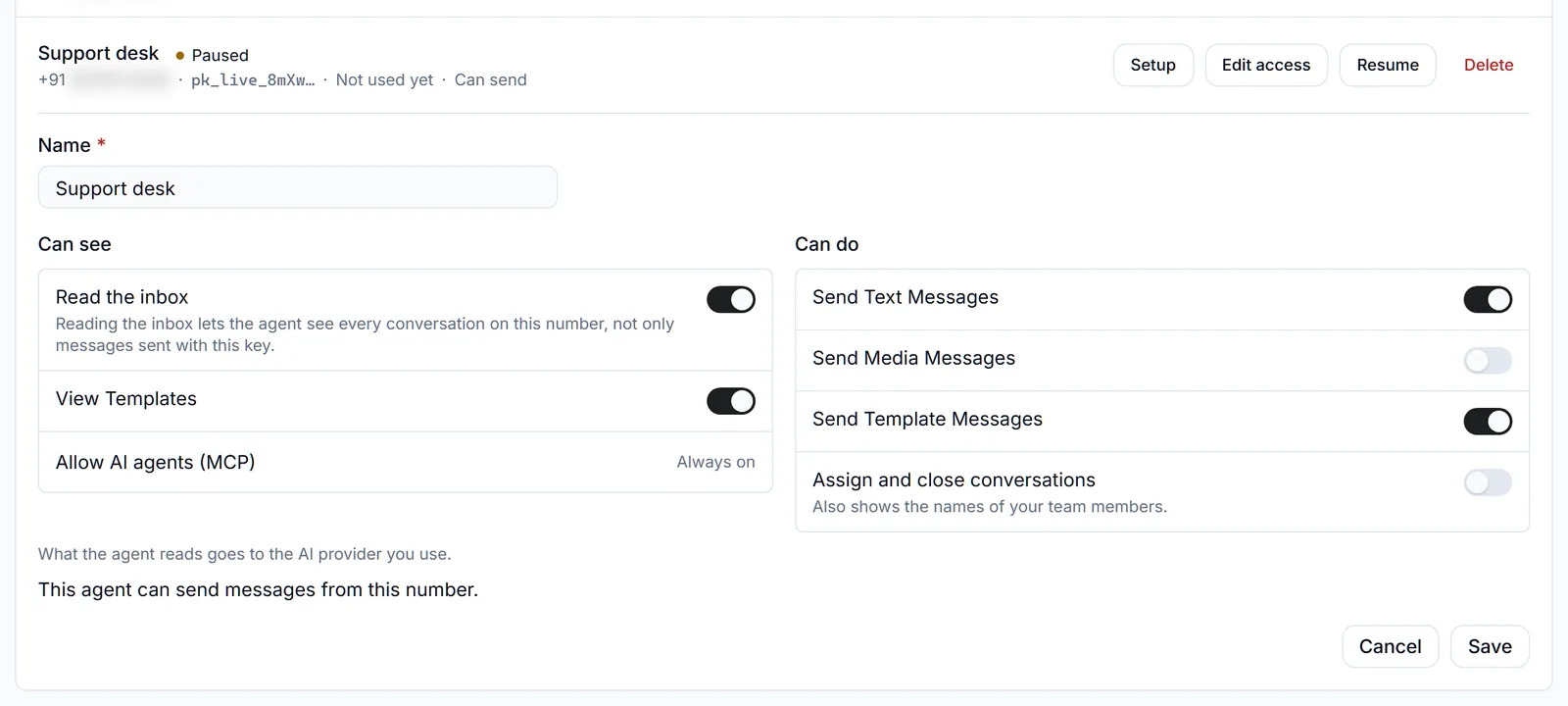
Under Can see, Read the inbox and View Templates are on. Reading the inbox shows the agent every conversation on the number. Under Can do, everything is off: sending texts, media or templates, and assigning and closing conversations, which also shows it the names of your team. Switch on only what it needs; the line below says whether the agent can send. You can change all of this later.
Note: For a first try, leave sending off: ask the agent about your conversations and see how it works.
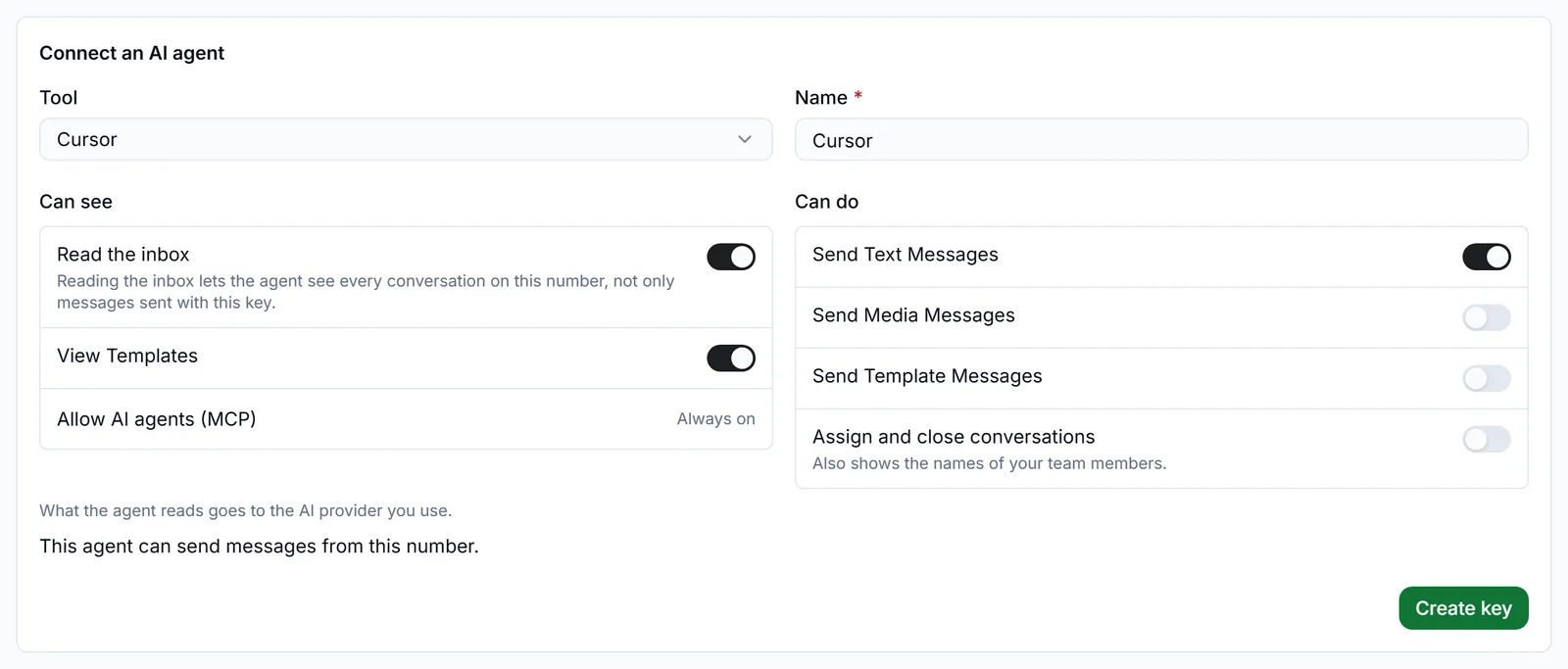
Create the key and copy the setup
Press Create key. The key is shown once, in the same place, together with a block for your tool that already has the key in it. Copy the block and put it where the line above it says: a file, your terminal, or the tool's own settings. Other tools are listed below it, each with its own block.
Then ask your agent which WhatsApp number is connected: if it answers, it works. Press Done when you have copied what you need.
Note: The key cannot be shown again. If you lose it, delete the agent and connect a new one.
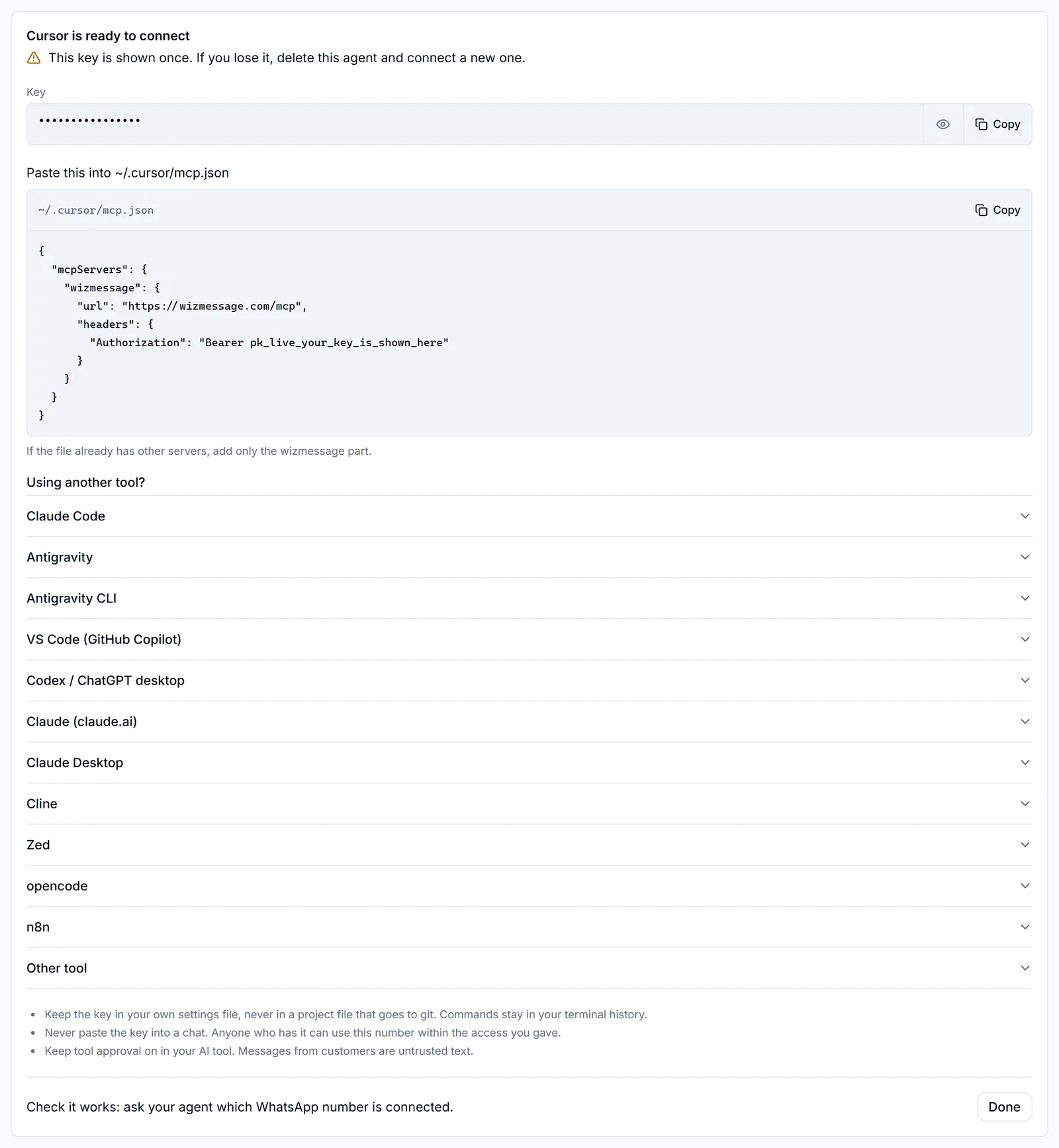
After connecting
Seeing the setup again
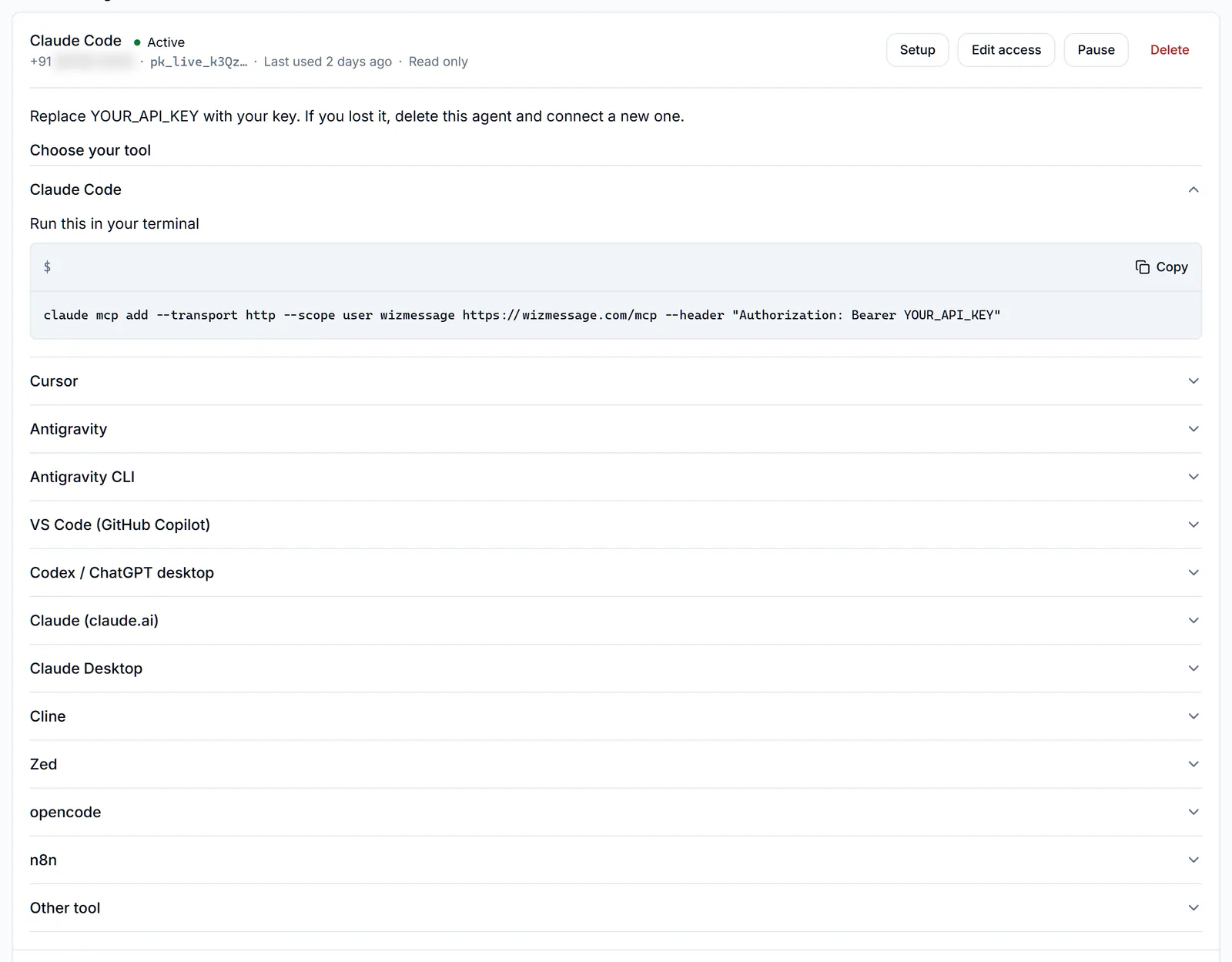
Setup on an agent's row shows the same blocks again. The key itself is not stored, so they say YOUR_API_KEY where it goes: replace it with the key you kept.
Changing what it may do
Edit access opens the agent's name and the same switches. Save applies them at once, and the key stays the same, so the tool needs no new setup.
Pausing and deleting
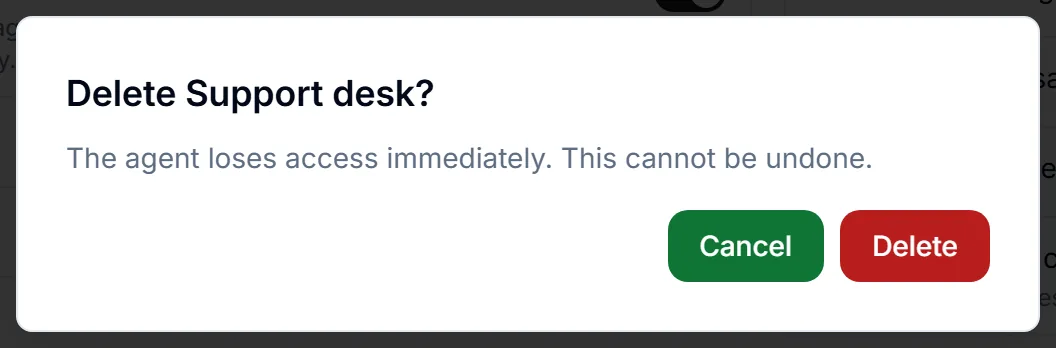
Pause stops an agent at once, and Resume lets it work again with the same key. Delete asks first, and cannot be undone: the key stops working, and connecting that tool again means a new one. An agent whose number is no longer connected says so on its row.
Keeping it safe
An agent works with your customers' messages, and its key is all anybody needs to act as that agent.
The key
Keep the key in your own settings file. Never put it in a project file that goes to git, and never paste it into a chat. A command you ran stays in your terminal's history, key included. If a key may have been seen by somebody else, press Pause at once, then delete the agent and connect a new one.
Messages from customers are written by strangers. One could try to talk an agent into doing something you did not ask for, so leave tool approval on in your AI tool, and read what it is about to do before you allow it.
What an agent can never do
| Rule | What it means |
|---|---|
| Only people who know you | It can start a conversation only with somebody who has written to you, or whom a person on your team added. Unsubscribed and blocked contacts are never written to. |
| The 24-hour window | It writes freely only within 24 hours of the customer’s last message. After that it can send an approved template. |
| No contact lists | A message with more than three phone numbers or email addresses, or with a link shortener, is refused. |
| Daily limits | Each key may send 300 messages a day and read 300 conversations an hour. |
| One number | A key works with the WhatsApp number you chose, and only as an AI agent. The WizMessage API refuses it. |
What an agent reads is sent to the company behind the AI tool you use, under that company's terms. WizMessage does not use it to train AI models.
Every tool, every limit and help with problems are on the MCP page.