Bot leads
When a flow bot reaches an End step marked "Save as lead", the person it was talking to lands here, with the answers they gave along the way and an outcome — Hot, Warm, Not interested or whatever your flow sets. This is the list to work from after a campaign or a busy day: filter it, open the conversation, or export it to a spreadsheet.
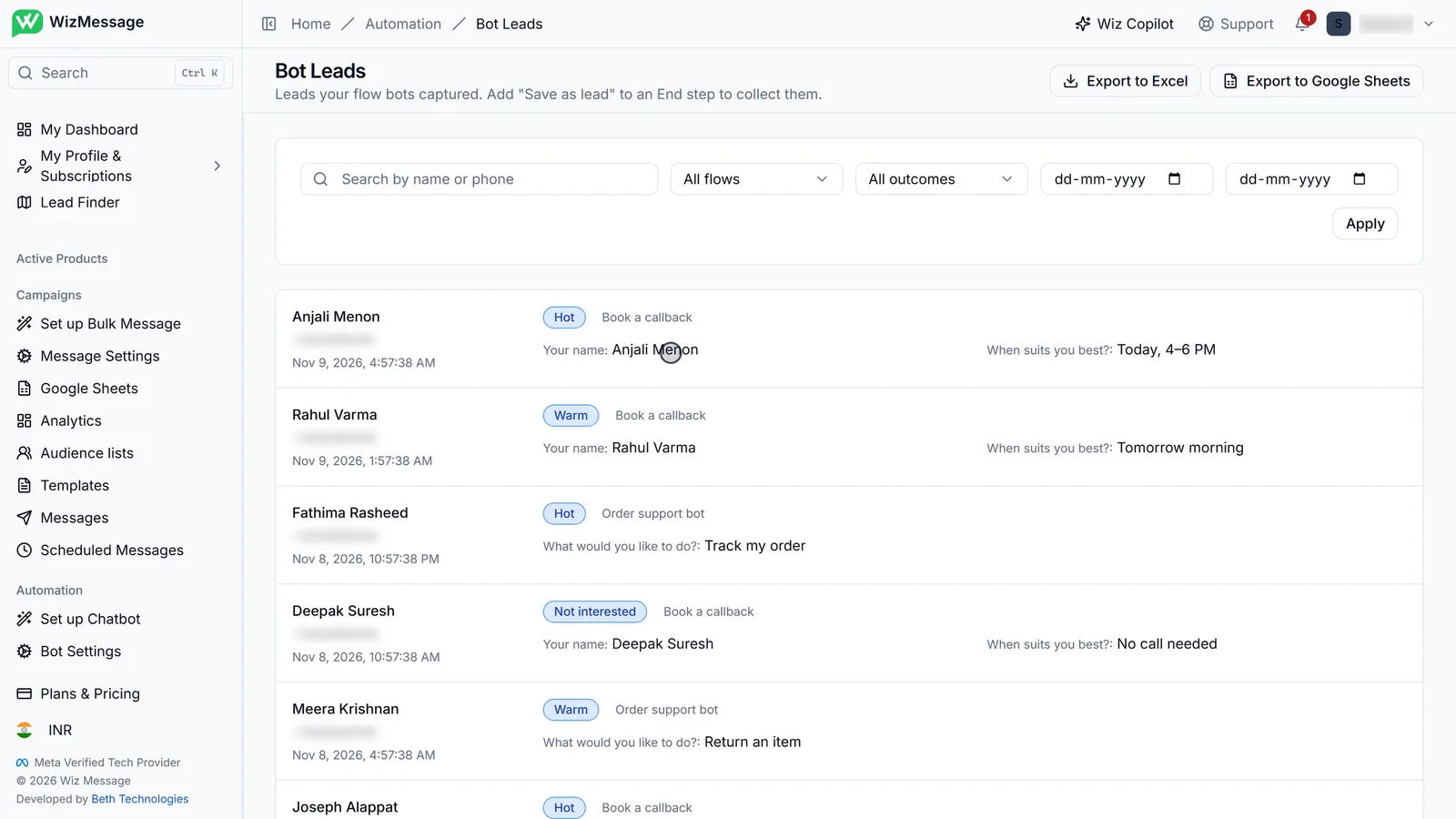
Your leads
The list
Bot Leads, under Automation, lists every lead your flow bots have saved, newest first. Each row is one conversation that reached a "Save as lead" step: who it was, when, the outcome badge, which flow captured it, and the answers the customer gave — each shown against the question it answered.
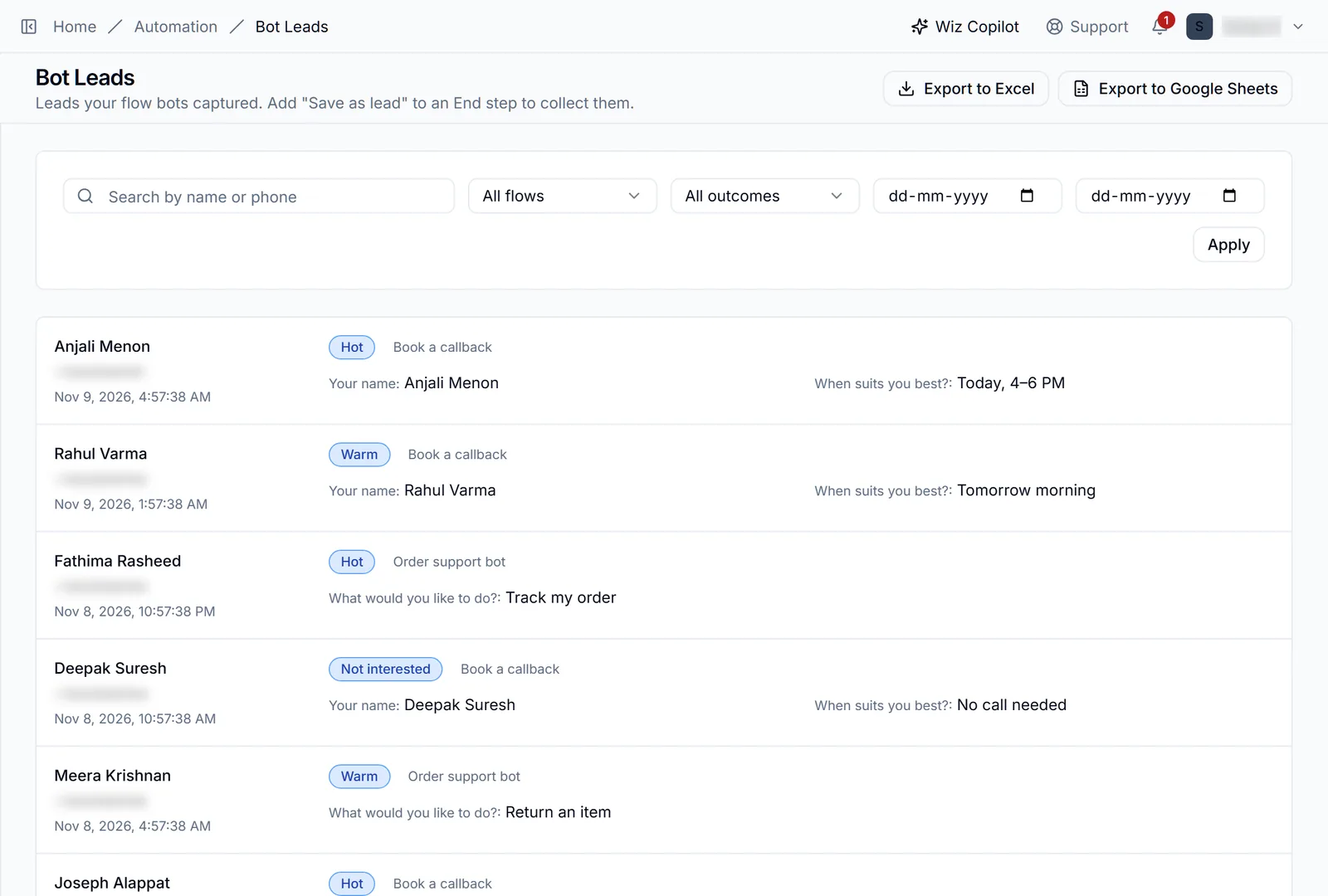
Filtering by outcome
The filters narrow the list by flow, by outcome and by date; Apply runs them together. The outcome list holds whatever outcomes your flows have actually saved, so it grows with your bots. Search matches a name or a phone number.
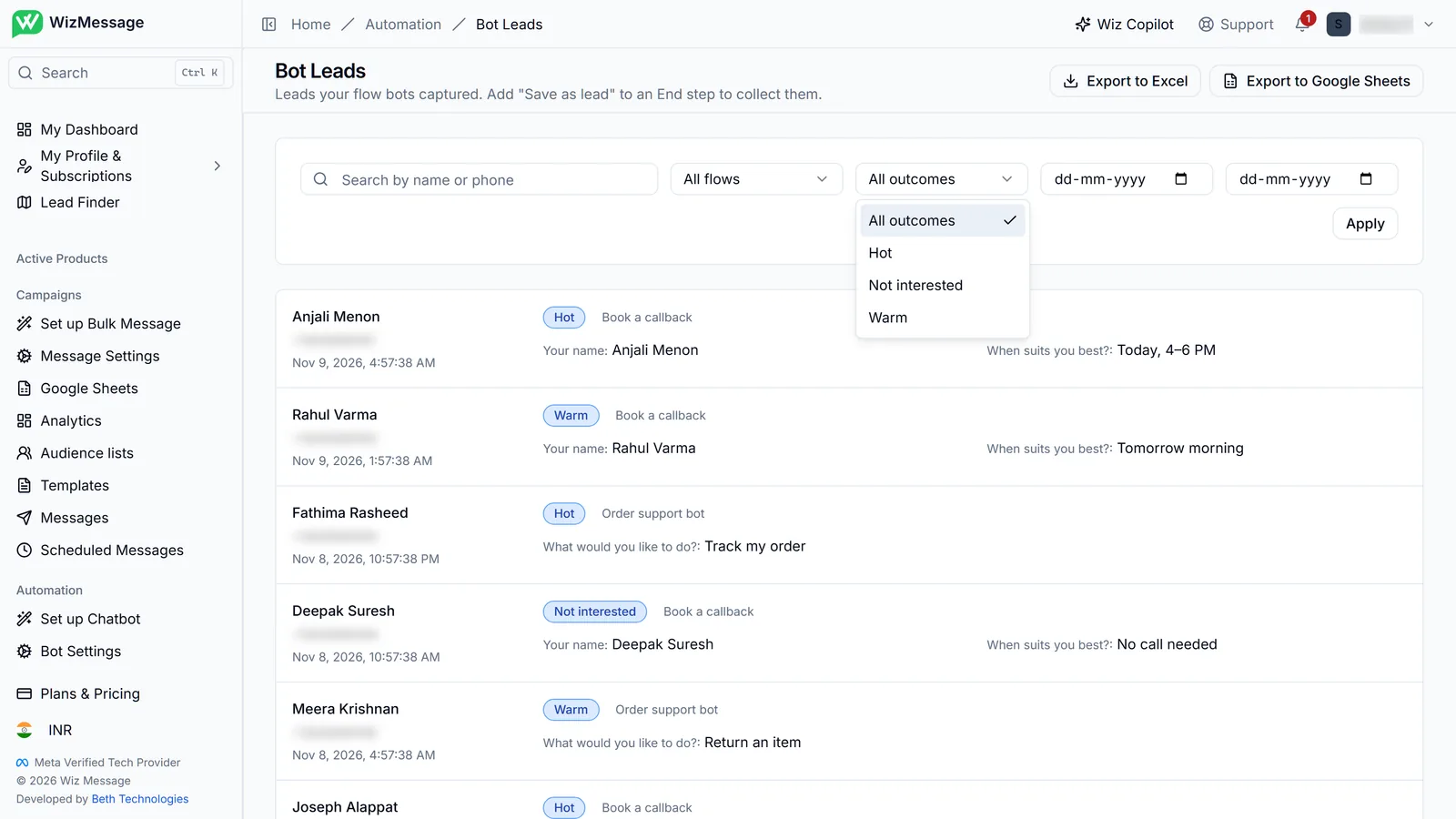
Only the hot ones
Filtered to Hot, the list is a call sheet: the people who said yes to a callback or asked for something specific. A lead that came from a campaign reply carries that link too, so you can tell which campaign produced it.
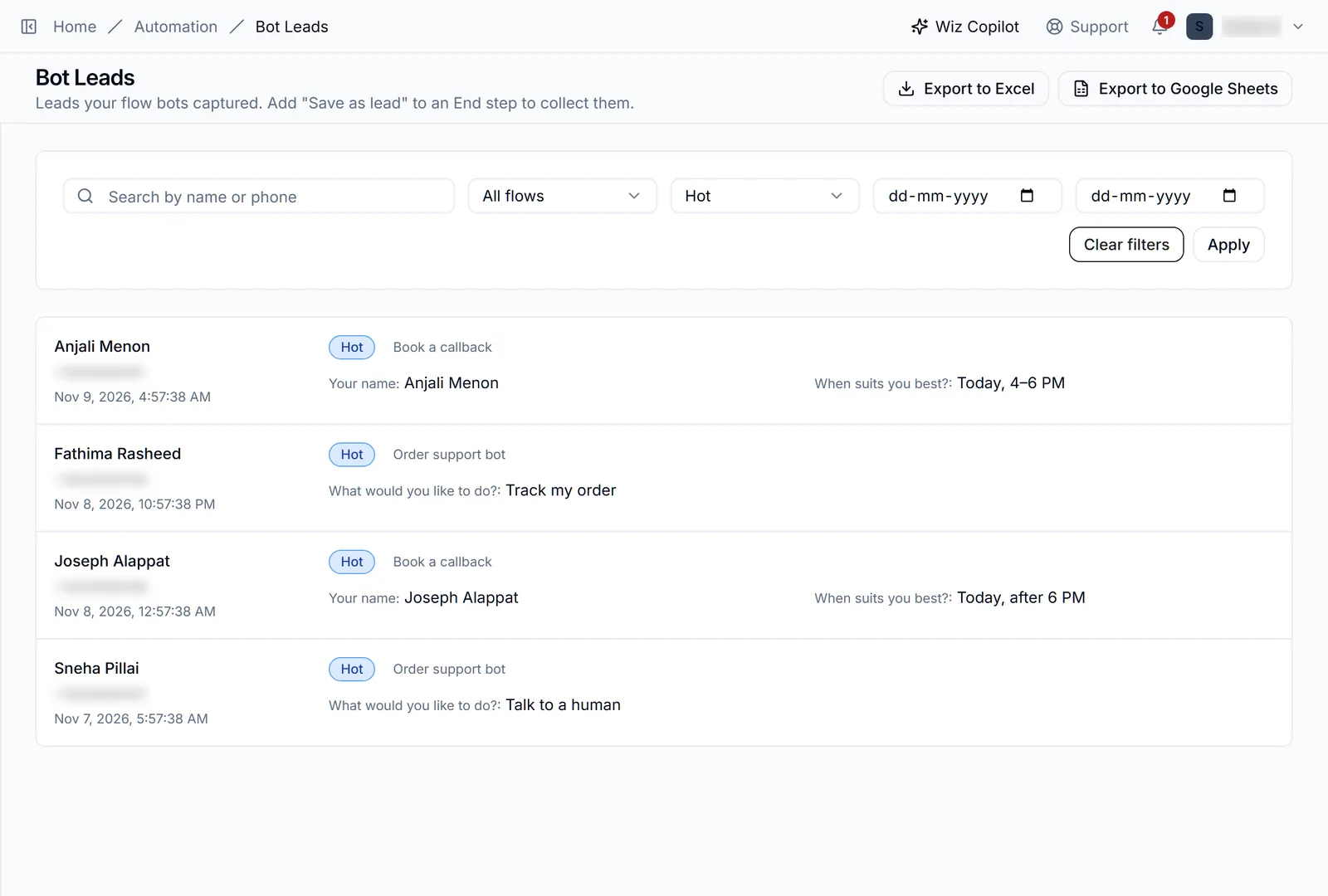
Taking them elsewhere
Export to Excel downloads the leads as a spreadsheet; Export to Google Sheets writes them into a sheet you have connected. Both export what the filters currently show, so filter first and export the part you need.
